How to create, assign and close tasks for an event
Before a wedding there are dozens of small jobs: confirm the menu, print the seating chart, check the generator. Tasks give each job an owner, a due date and a status, so you can see what is done and what is stuck.
Who it is forEvent coordinator / operations managerTime7 minutesProductMMSLevelBeginner
Before you start
Steps
1
Open the task list
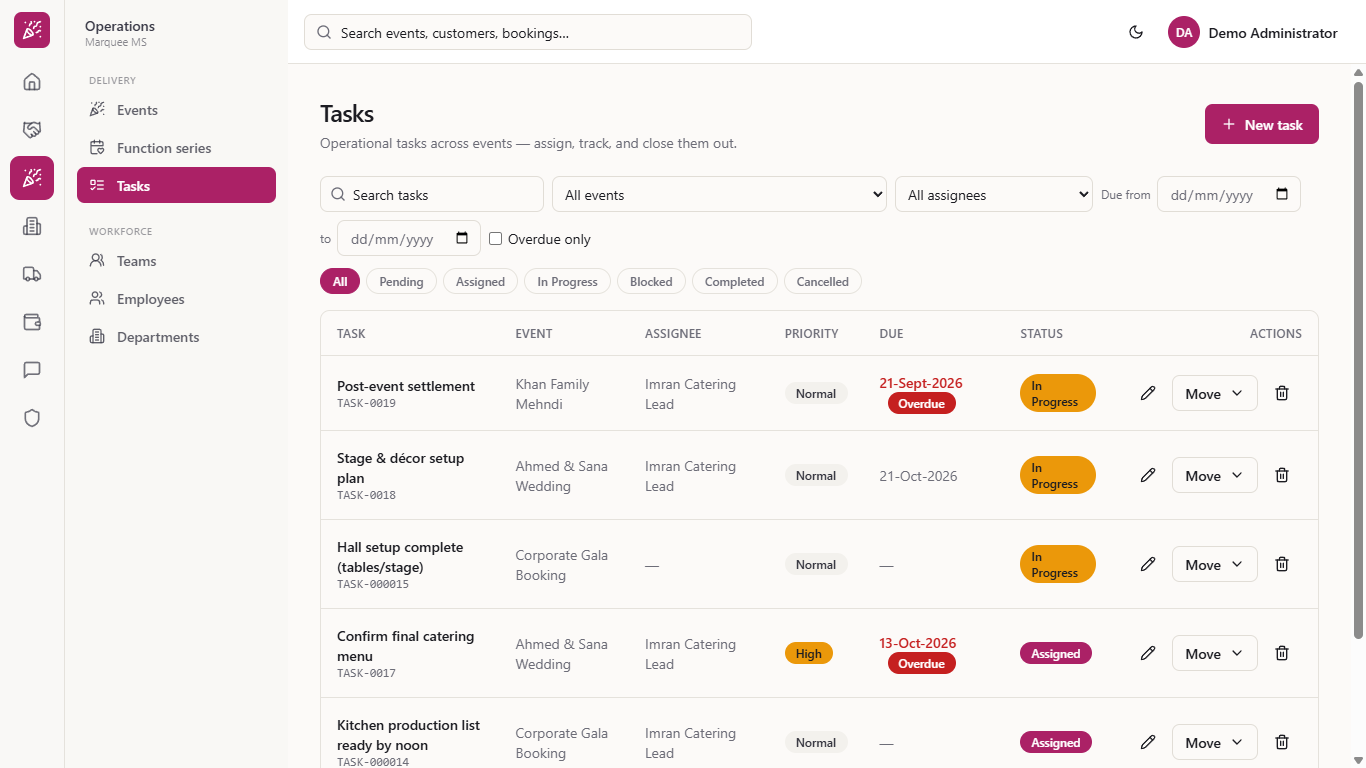
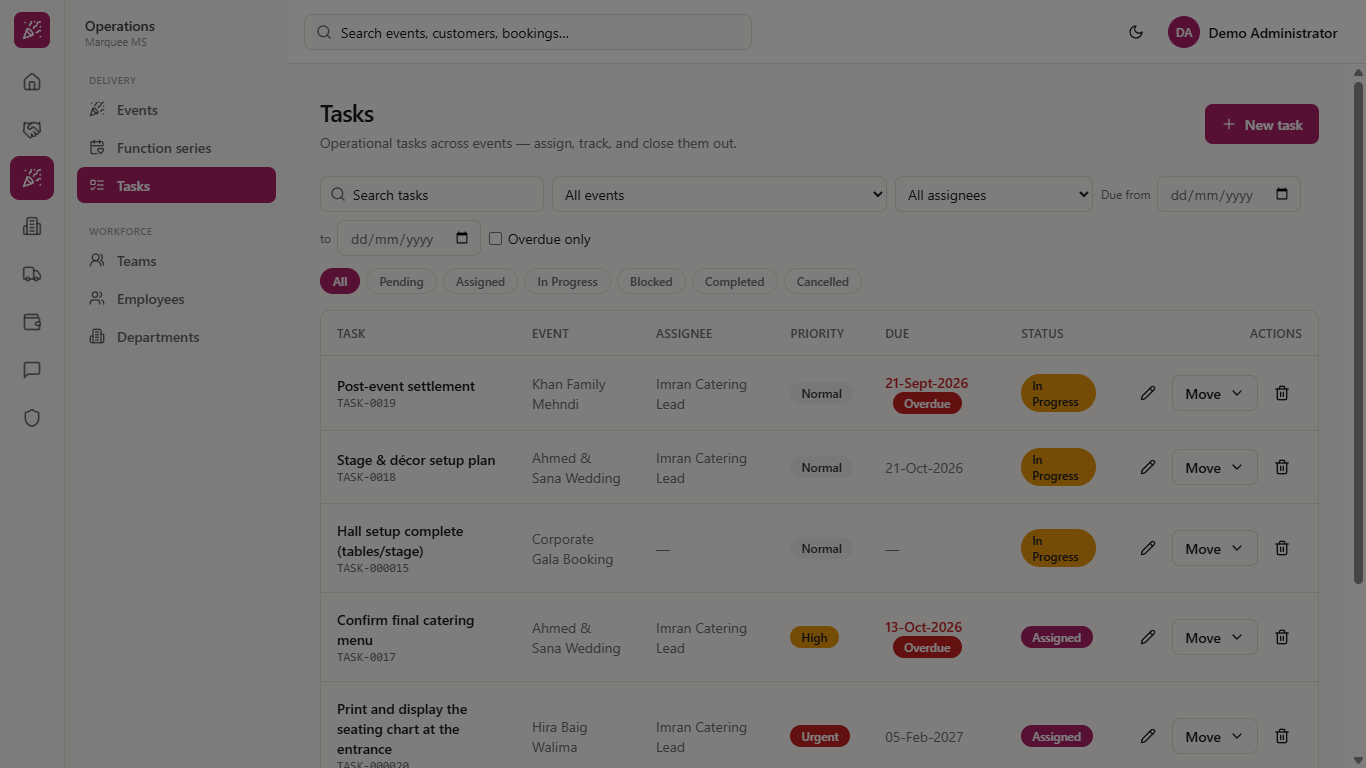
Click Operations › Delivery › Tasks. The page says "Operational tasks across events — assign, track, and close them out." Above the table are the filters Search tasks, All events, All assignees, Due from, Due to and Overdue only, and the chips All, Pending, Assigned, In Progress, Blocked, Completed and Cancelled. Each row shows the task and its code, the Event, the Assignee, the Priority, the Due date and the Status, with a pencil, a Move menu and a bin at the end. Open work comes first, and an open task past its due date carries a red Overdue badge under the date.
Task list with filters, status chips and one row per task
2
Start a new task
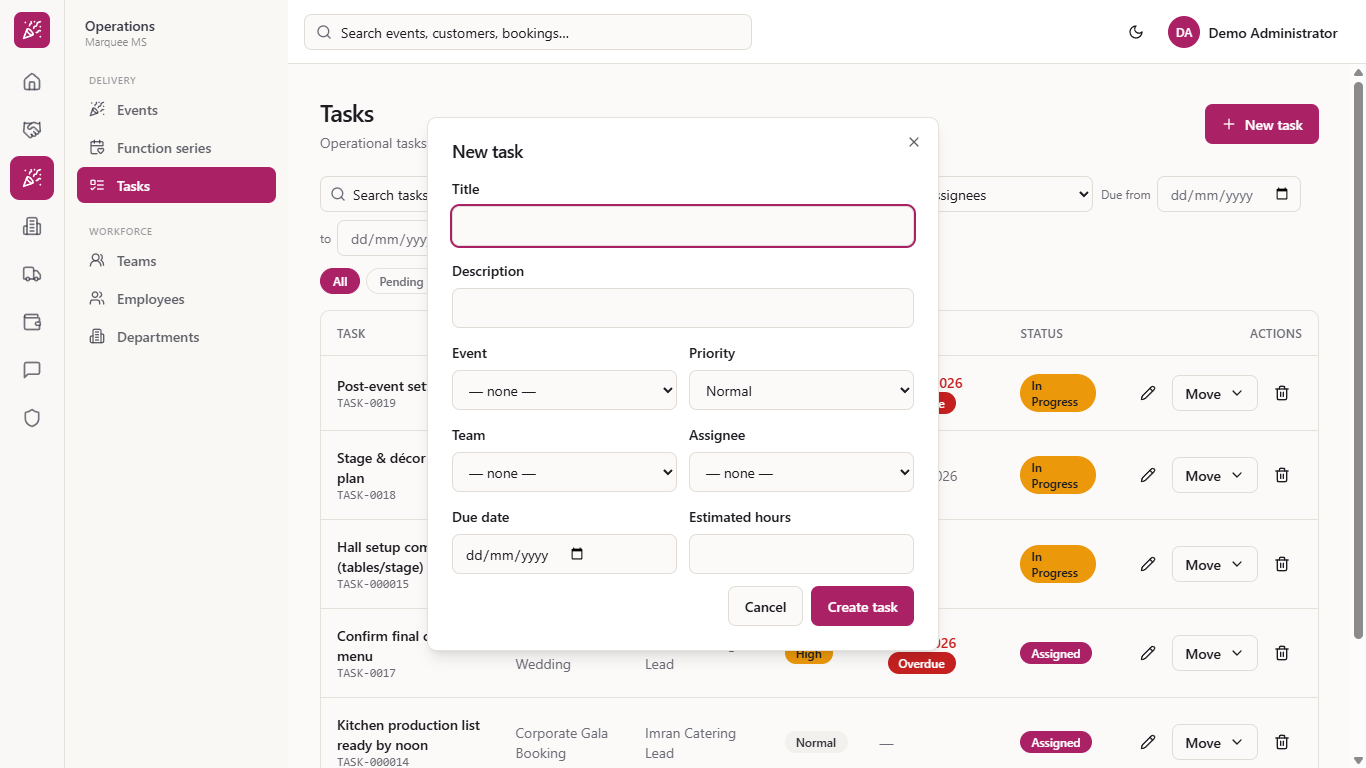
Press New task. The form has Title, Description, Event, Priority (low, normal, high, urgent), Team, Assignee, Due date and Estimated hours, with Cancel and Create task.
New task form
3
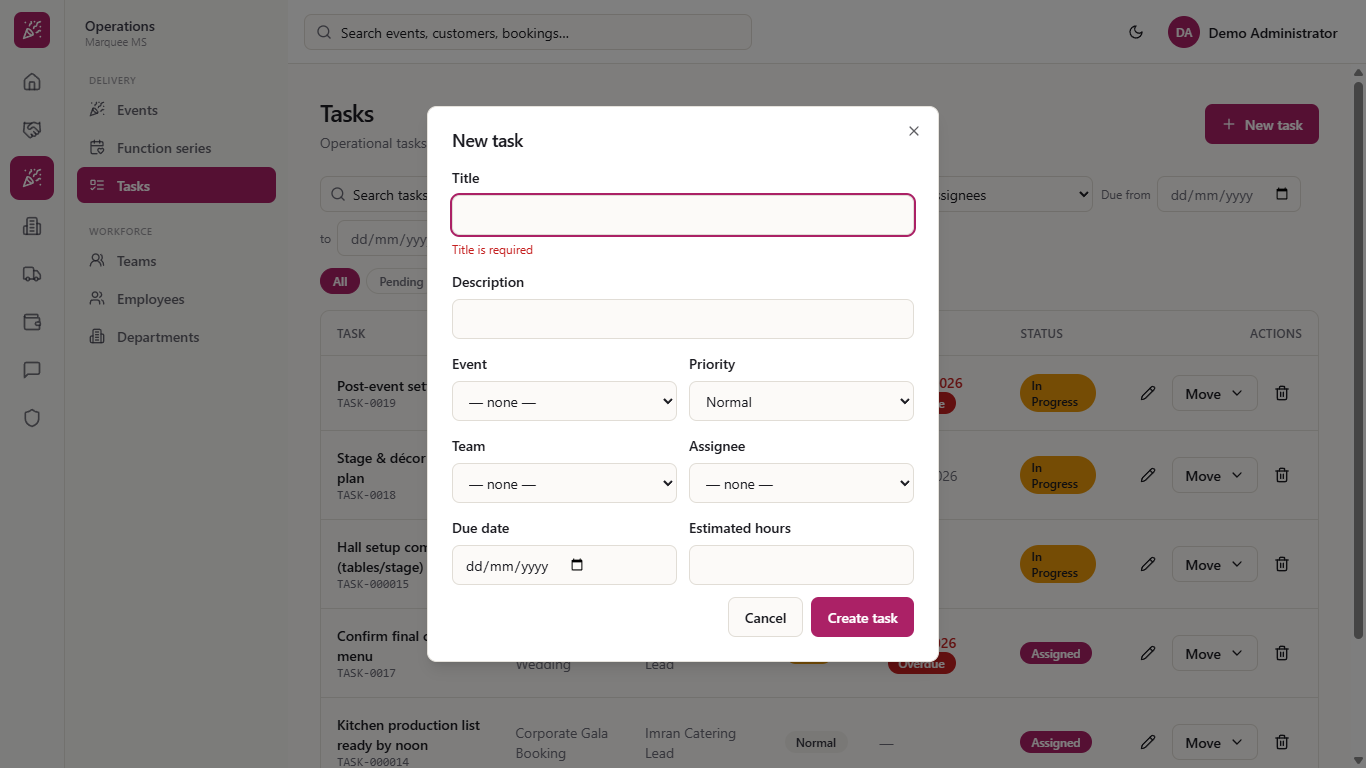
Title is required
Press Create task with nothing entered. "Title is required" appears and the form stays open. The title is the only required box.
Title is required message under the Title box
4
Fill in the task
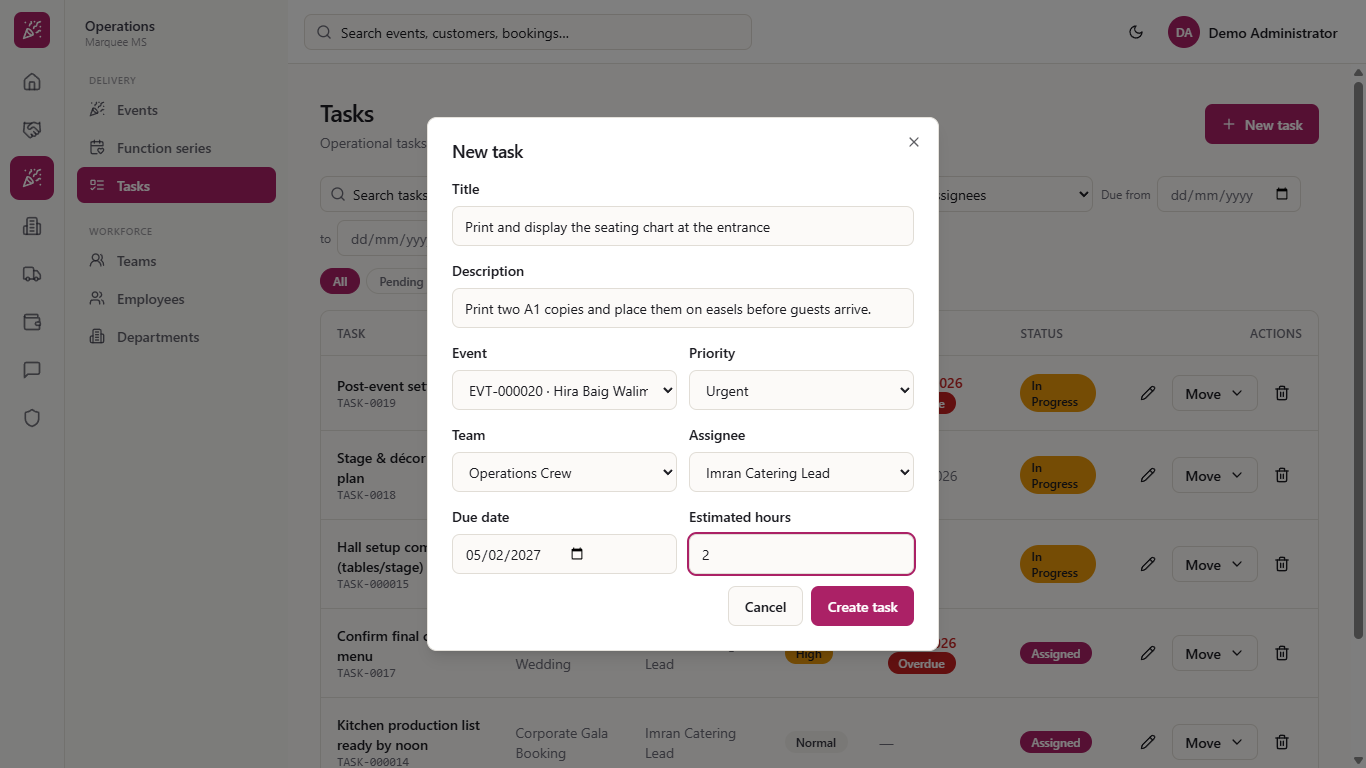
Write the title, for example "Print and display the seating chart at the entrance". Choose the Event (EVT-000020 · Hira Baig Walima), Priority urgent, the Team Operations Crew, the Assignee Imran Catering Lead, a Due date before the event and the Estimated hours.
Form filled for the seating chart task
5
Create it
Press Create task. The form closes and the new task appears in the list with the next code, here TASK-000020. A task that has an assignee starts as Assigned; a task without an assignee starts as Pending.
The new task in the list with status Assigned
6
Move it forward
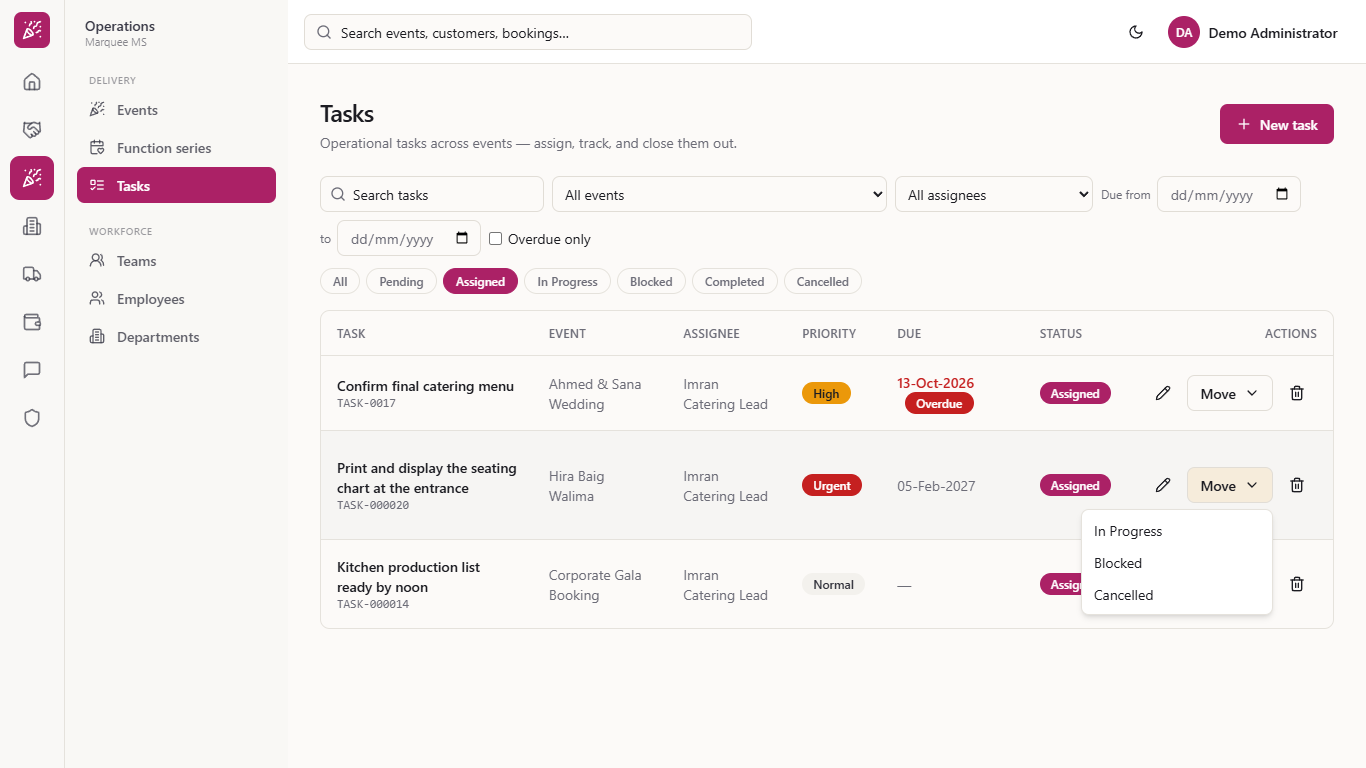
Open Move on the row. It offers only the steps that make sense from the current status: from Assigned, In Progress, Blocked or Cancelled; from Pending, Assigned, In Progress or Cancelled.
The Move menu with the next allowed statuses
7
Correct a task
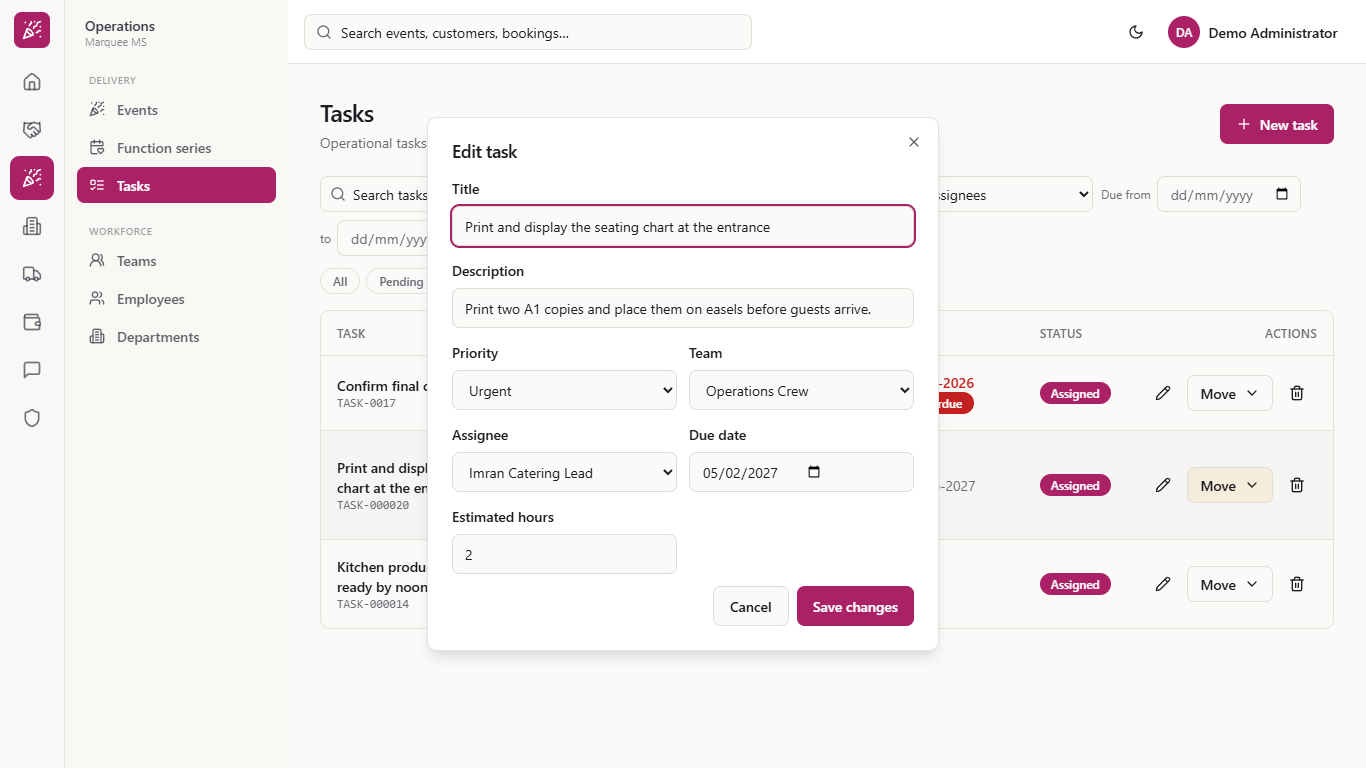
Press the pencil on the row. Edit task opens with the saved values and no Event box. You can change the Title, Description, Priority, Team, Assignee, Due date and Estimated hours, then press Save changes.
Edit task form
8
Assigning asks who
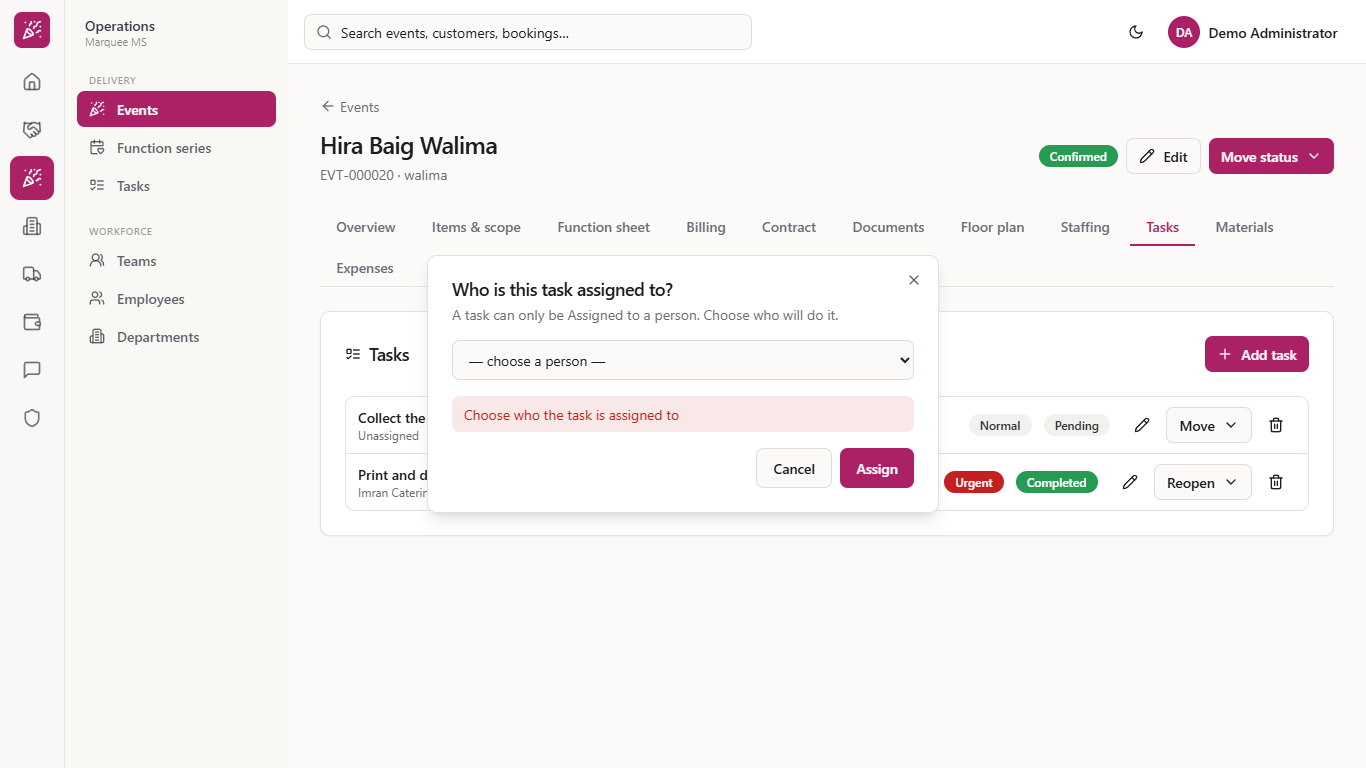
On the event Tasks tab, a task without an assignee can be moved to Assigned. The app asks "Who is this task assigned to?" and explains that a task can only be Assigned to a person. Pick a name from the list (Ayesha Event Coordinator, Bilal Senior Waiter, Imran Catering Lead or Scratch Helper) and press Assign. Pressing Assign without a choice says "Choose who the task is assigned to".
Dialog asking who the task is assigned to
9
Mark a stuck task as Blocked
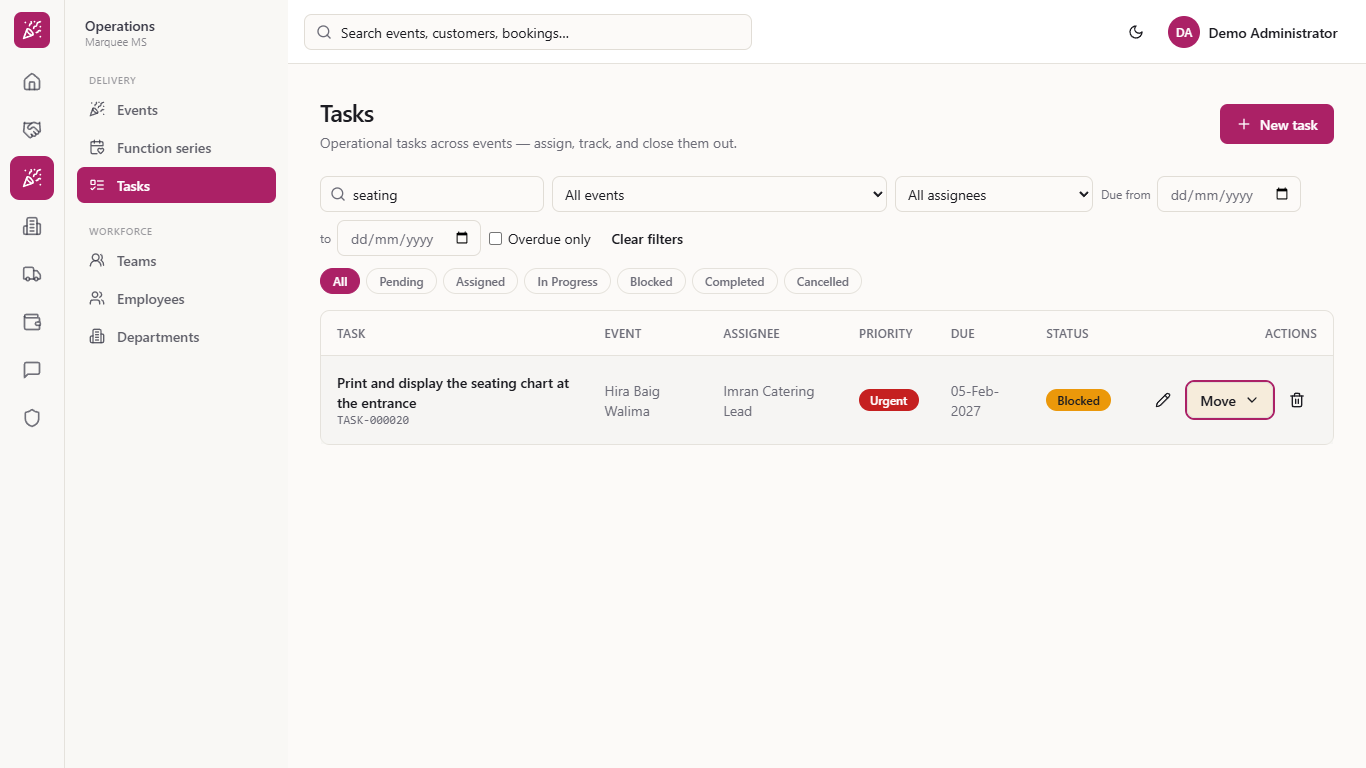
If something stops the work, such as the printer being down, choose Move › Blocked. The badge turns red, so the coordinator sees it. The menu then offers In Progress and Cancelled; when the problem is solved, use Move › In Progress.
A task with the red Blocked badge
10
Completing asks you to confirm
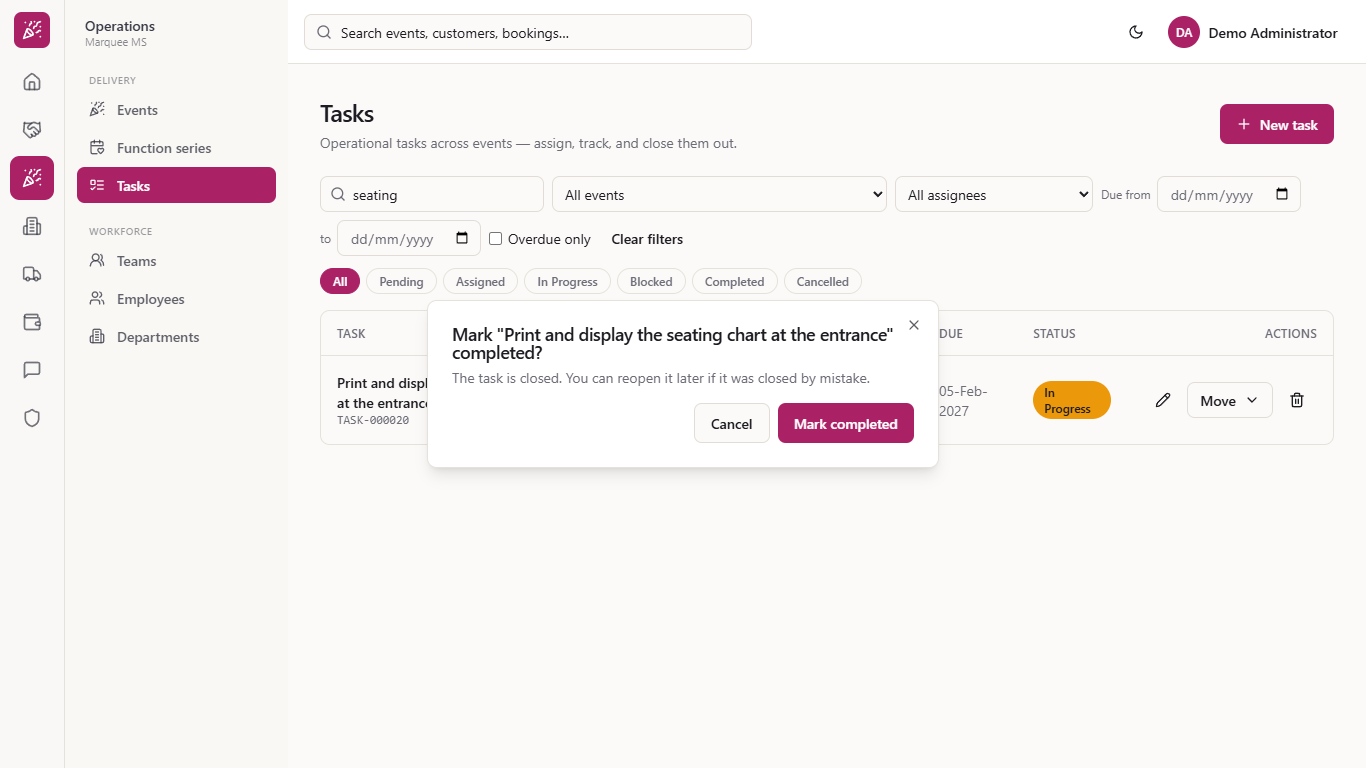
When the job is done, choose Move › Completed. The app asks: Mark "Print and display the seating chart at the entrance" completed? It explains that the task is closed and can be reopened later if it was closed by mistake. Press Mark completed, or Cancel to leave it open.
Confirmation before a task is marked completed
11
See it completed
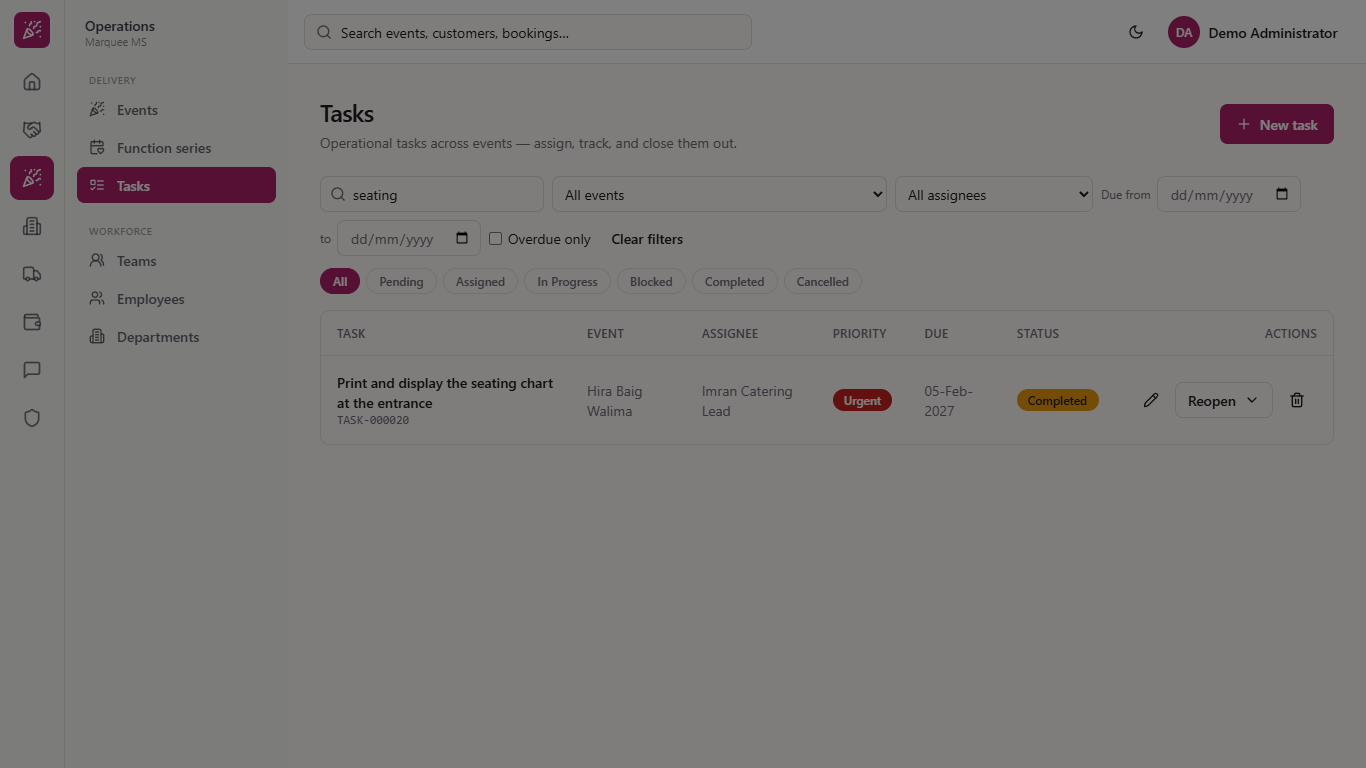
The badge turns green and the Move button now reads Reopen.
Completed task with a green badge and a Reopen button
12
Reopen a task closed by mistake
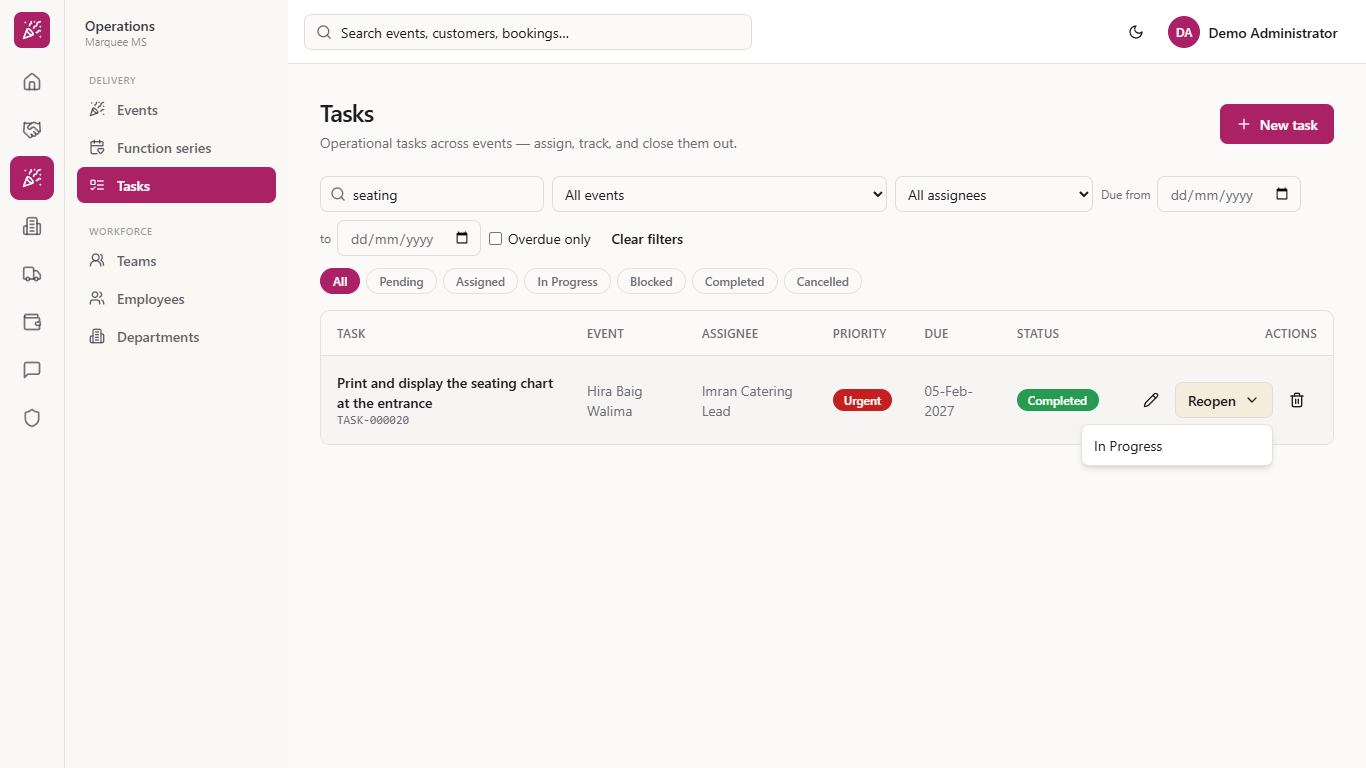
Press Reopen. A completed task offers In Progress; a cancelled task reopens to Pending.
Reopen menu with In Progress
13
See the tasks of one event
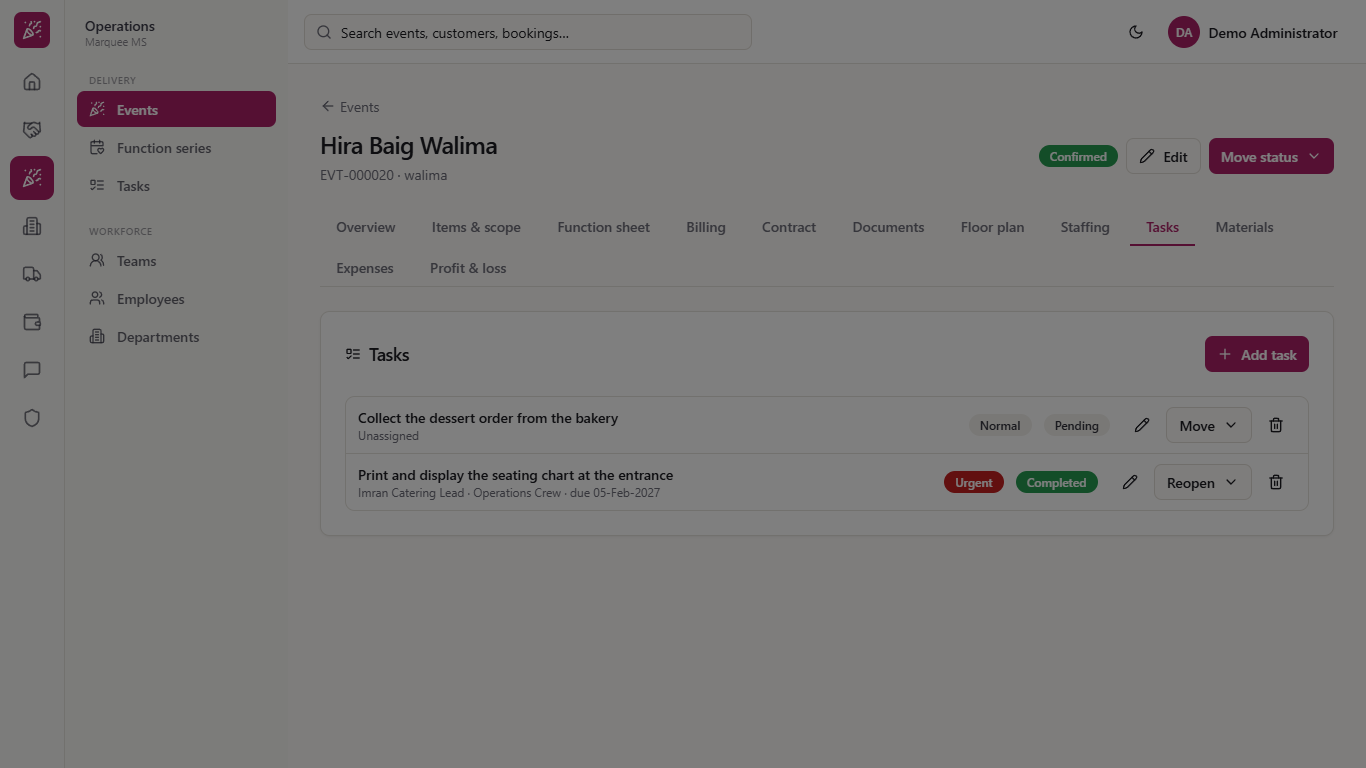
Open the event and choose Tasks. You see only that event's tasks: the title, the assignee with team and due date (or "Unassigned"), the priority and status badges, and the same pencil, Move or Reopen, and bin.
Tasks tab of the Hira Baig Walima event
14
Add a task from the event
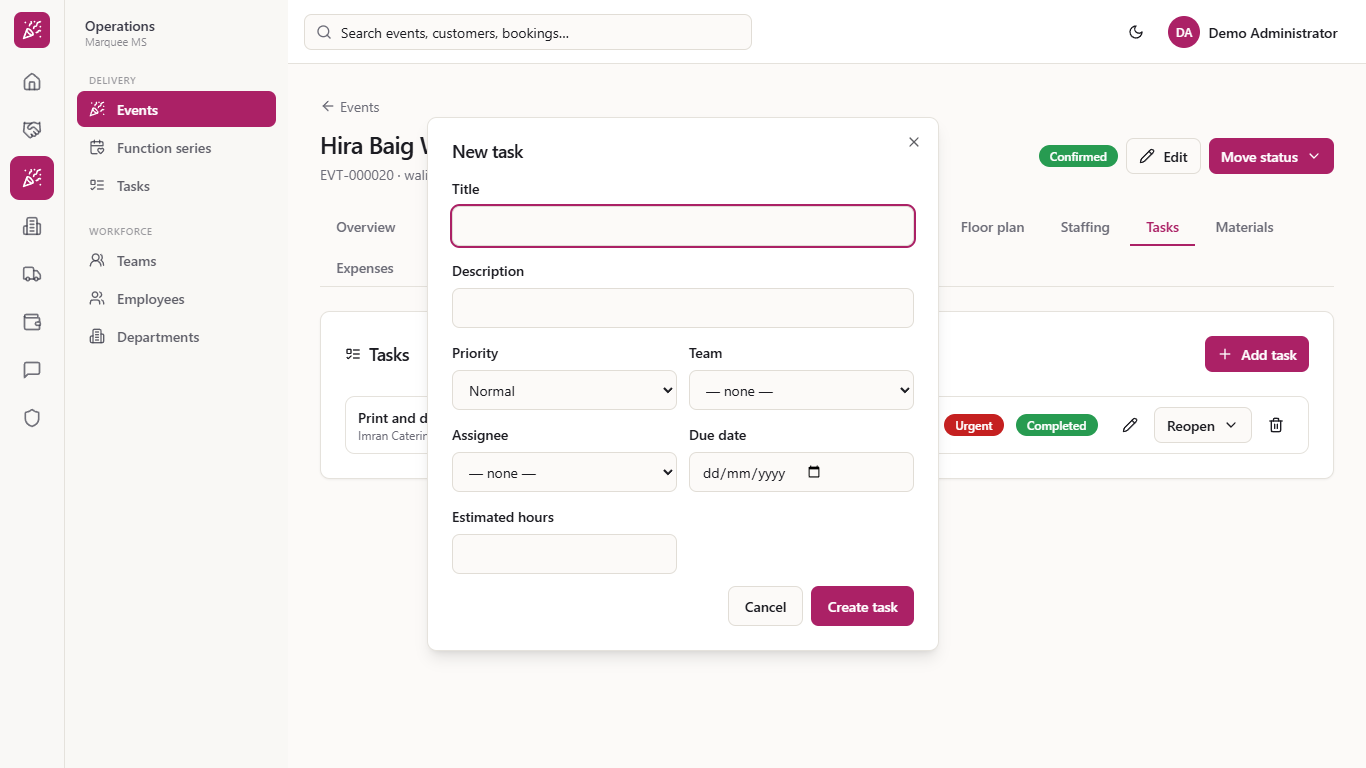
Press Add task on the event. The same form opens without the Event box, because the task belongs to this event.
New task form opened from the event, without the Event box
Check it worked
The task is in Tasks with the right event, assignee, priority and due date.
After Move, the status badge shows the new status; a completed task shows Reopen instead.
The event's Tasks tab lists the same task.
Common mistakes
Mistake
What you see
Fix
Moving a Pending task to Assigned without a name
The app asks "Who is this task assigned to?"
Choose a person and press Assign
Completing a task by mistake
Badge turns green and the button reads Reopen
Press Reopen and choose In Progress
Leaving a late task unnoticed
A red Overdue badge under the due date
Tick Overdue only to list them, then move or reassign
Quick reference
Item
Meaning / rule
Pending
No assignee yet
Assigned
Created with an assignee; always needs a person
In Progress
Work started
Blocked
Waiting on something; can go back to In Progress
Completed / Cancelled
Closed; Reopen puts it back (Completed to In Progress, Cancelled to Pending)
Priority
Low, normal, high or urgent
Frequently asked questions
Which status does a new task start in? Assigned when you choose an assignee, Pending when you leave the assignee empty.
Can I reopen a completed or cancelled task? Yes. Press Reopen on the task: a completed task goes back to In Progress and a cancelled one to Pending.
Where do I see only one event's tasks? Open the event and choose its Tasks tab; it lists only that event's tasks and lets you add more.