Open the Stages tab
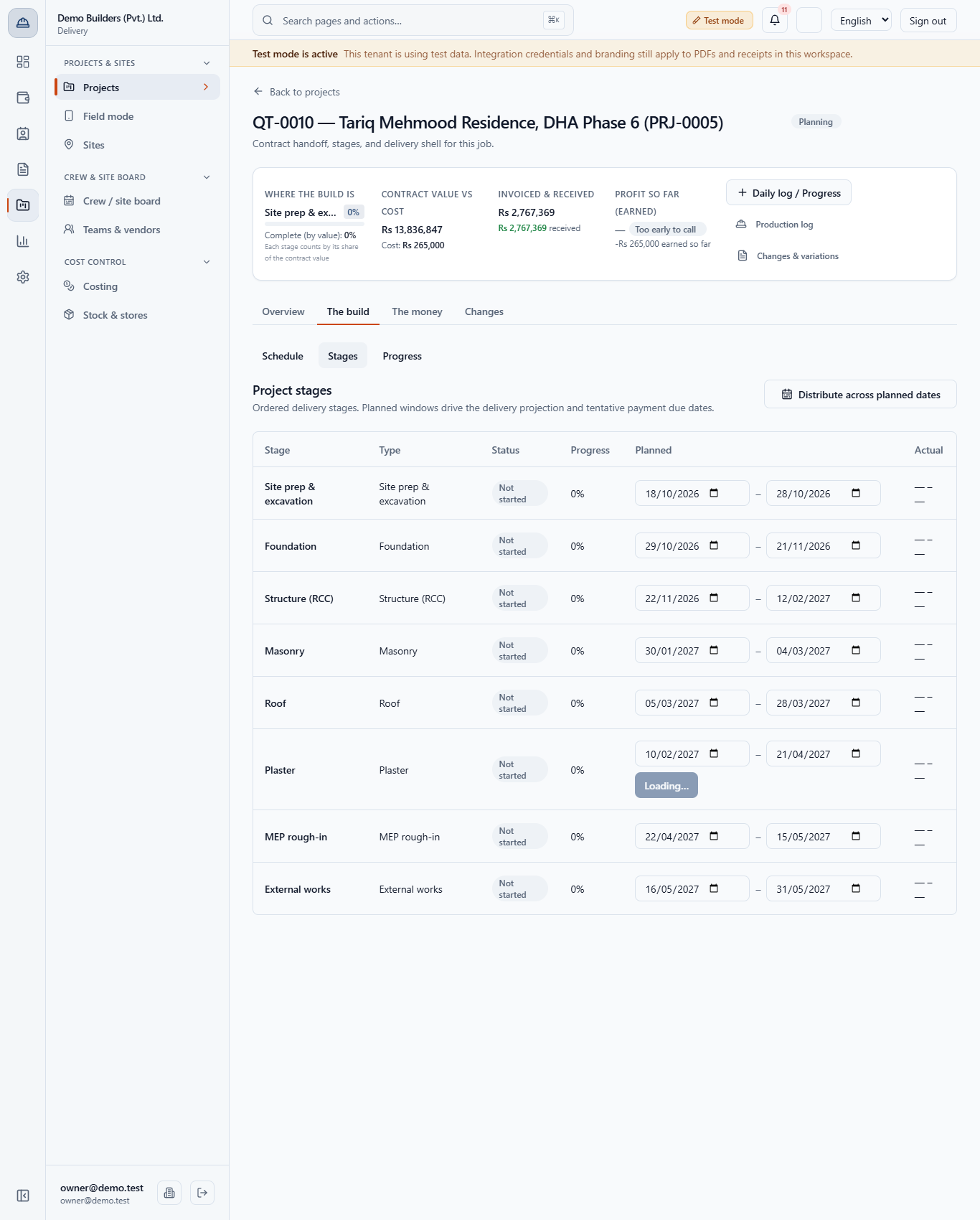
Open Delivery › Projects & sites › Projects, open the project, then The build › Stages. Each stage has a Planned start and end you can edit. Actual is filled in by the system.
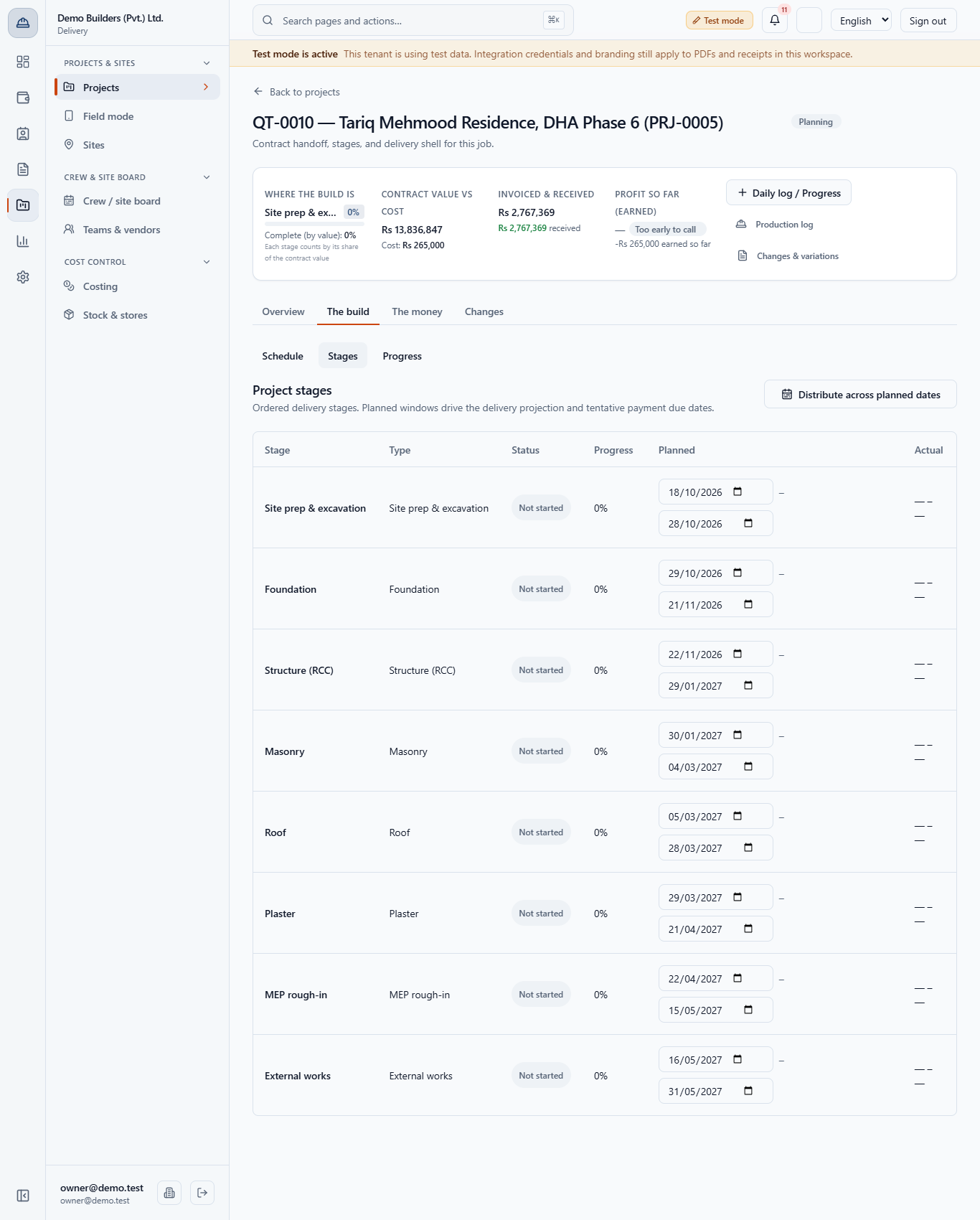
You will edit the planned window of a stage, see how it moves the payment due date, change the committed delivery date with a recorded reason, and publish a schedule baseline to track variance.
Open Delivery › Projects & sites › Projects, open the project, then The build › Stages. Each stage has a Planned start and end you can edit. Actual is filled in by the system.
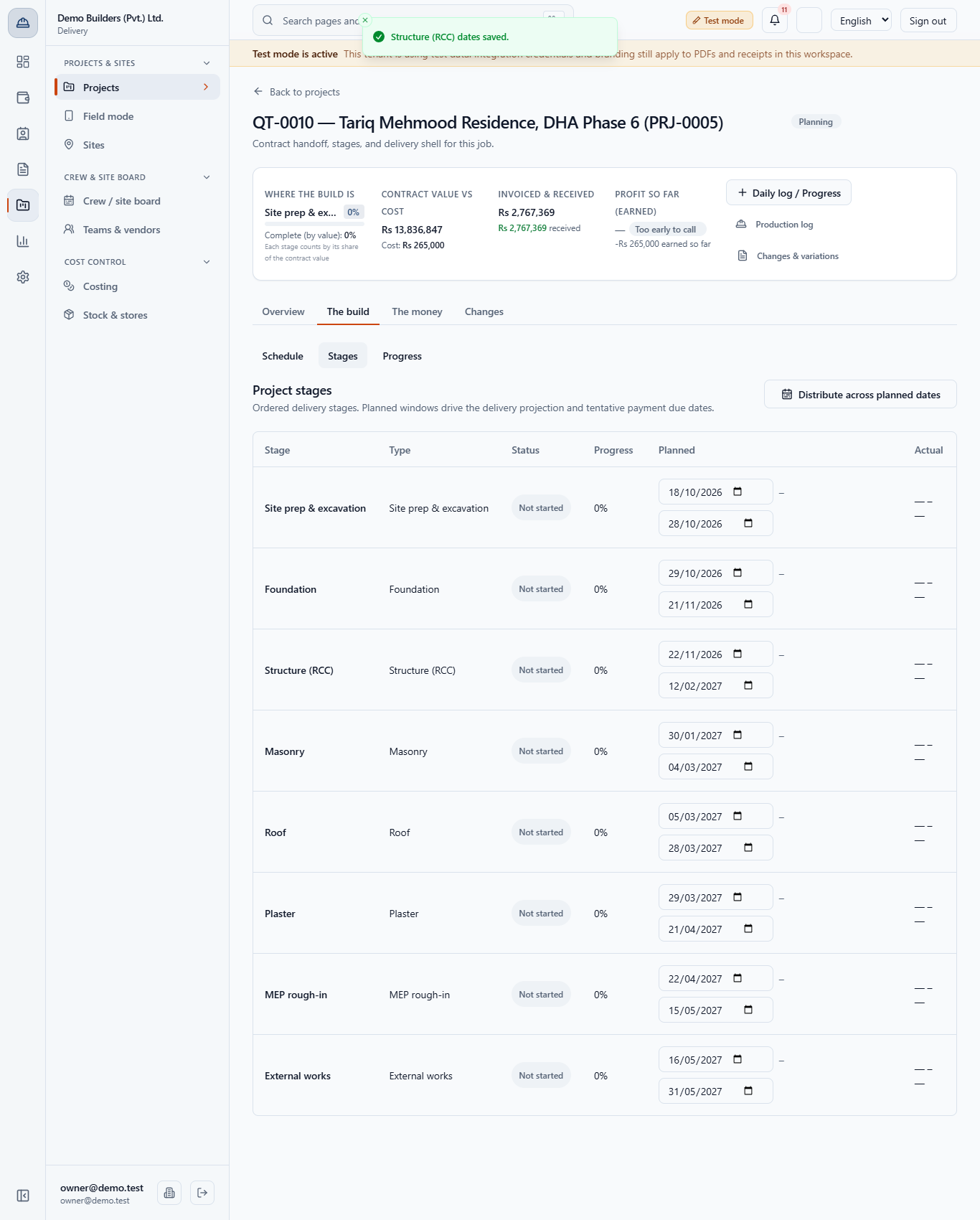
Type the new end date in the stage's planned end field. A Save button appears under the row. Click it and the toast (Structure (RCC) dates saved.) confirms it. Stage names read as everywhere else in the project, and dates use the same day-month-year format. In the example the structure stage now ends on 12 Feb 2027.
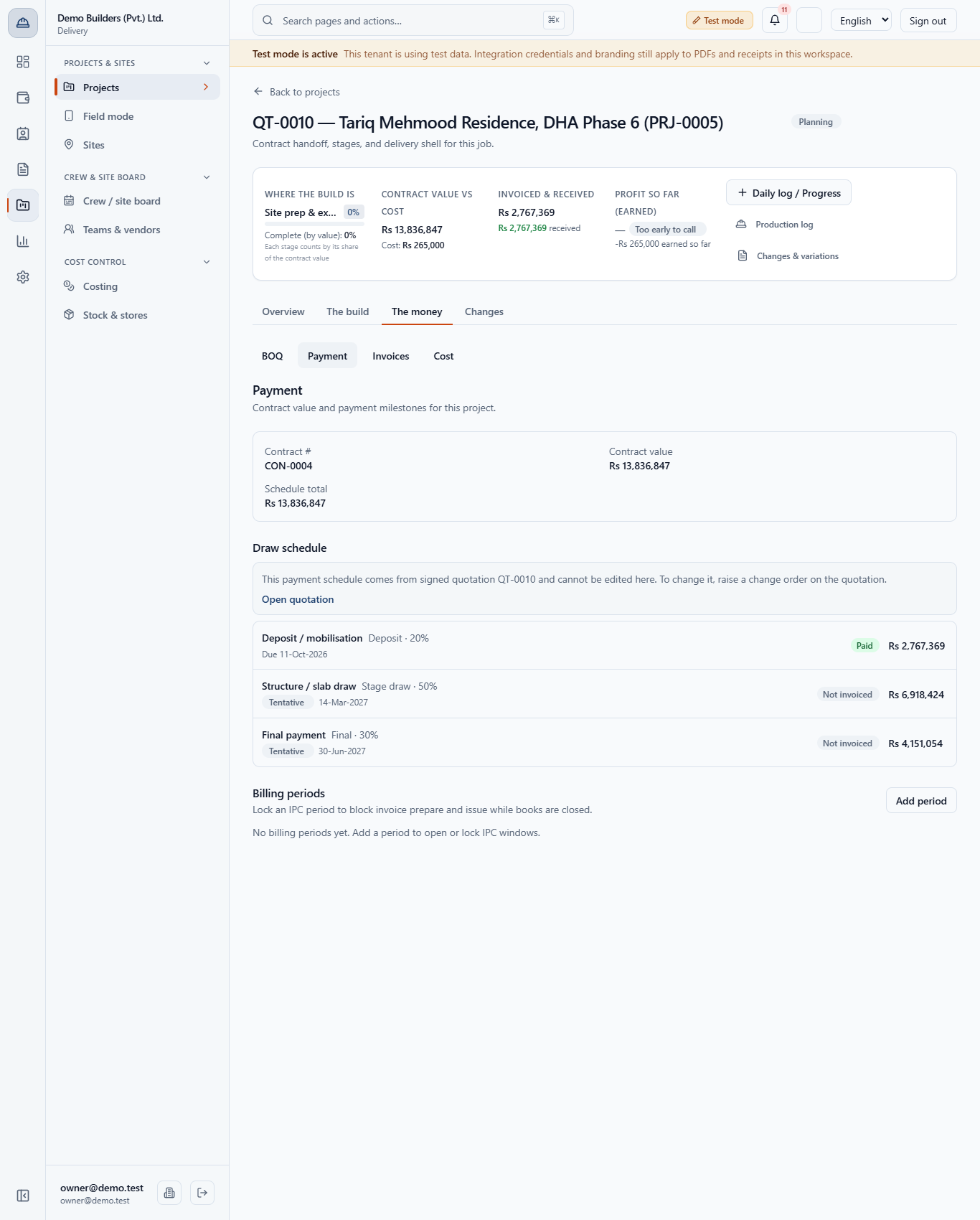
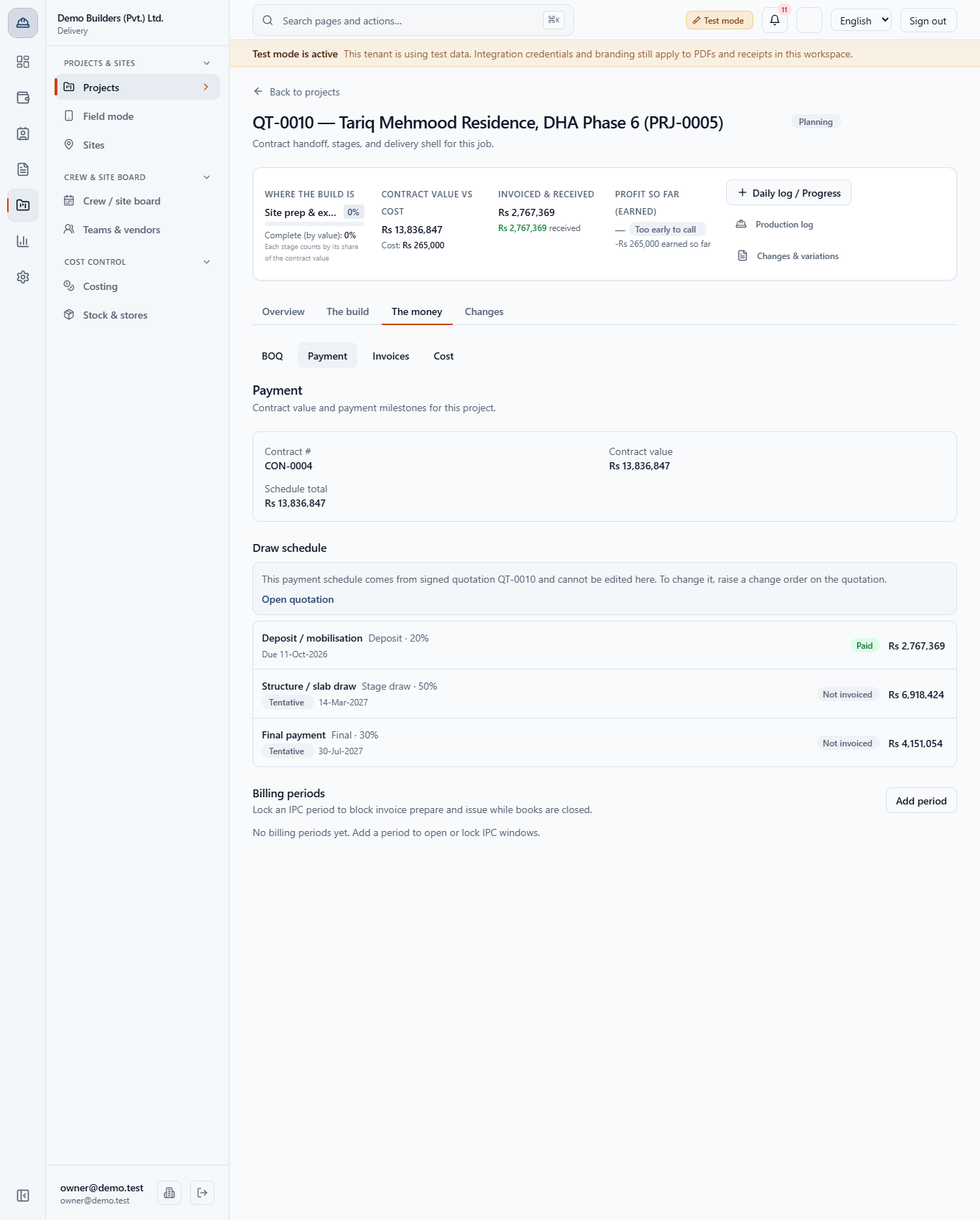
Open The money › Payment. The stage draw's tentative due date is the stage end plus the customer's credit term: 12 Feb 2027 plus 30 days gives 14-Mar-2027, up from 28-Feb-2027. No amount changes.
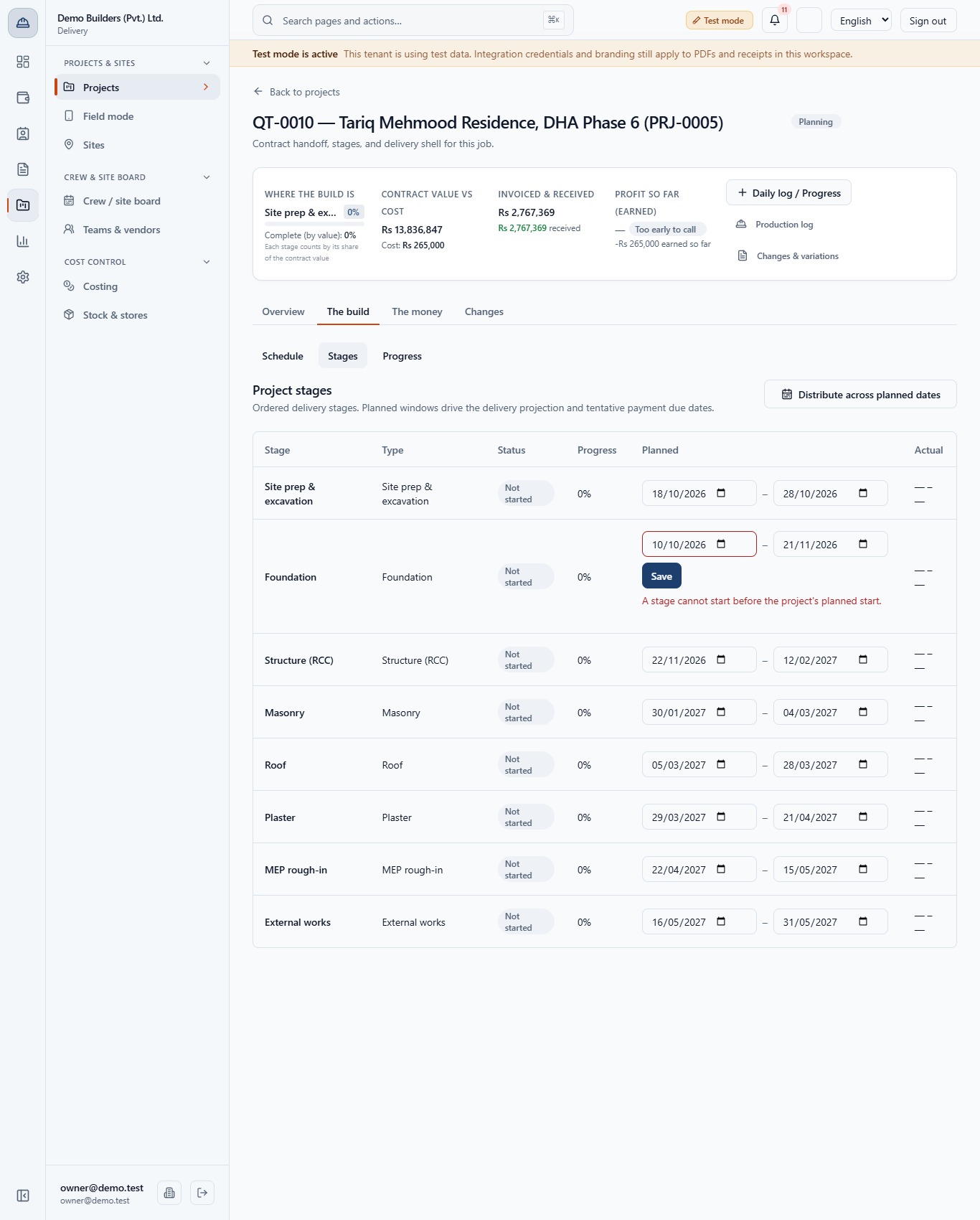
The app refuses a stage that starts before the project's planned start, ends before it starts, or ends after the planned delivery. The message appears under the row and nothing is saved.
Starting a stage earlier than the stage before it is only advice. The dates are saved and a warning says the stages may overlap.
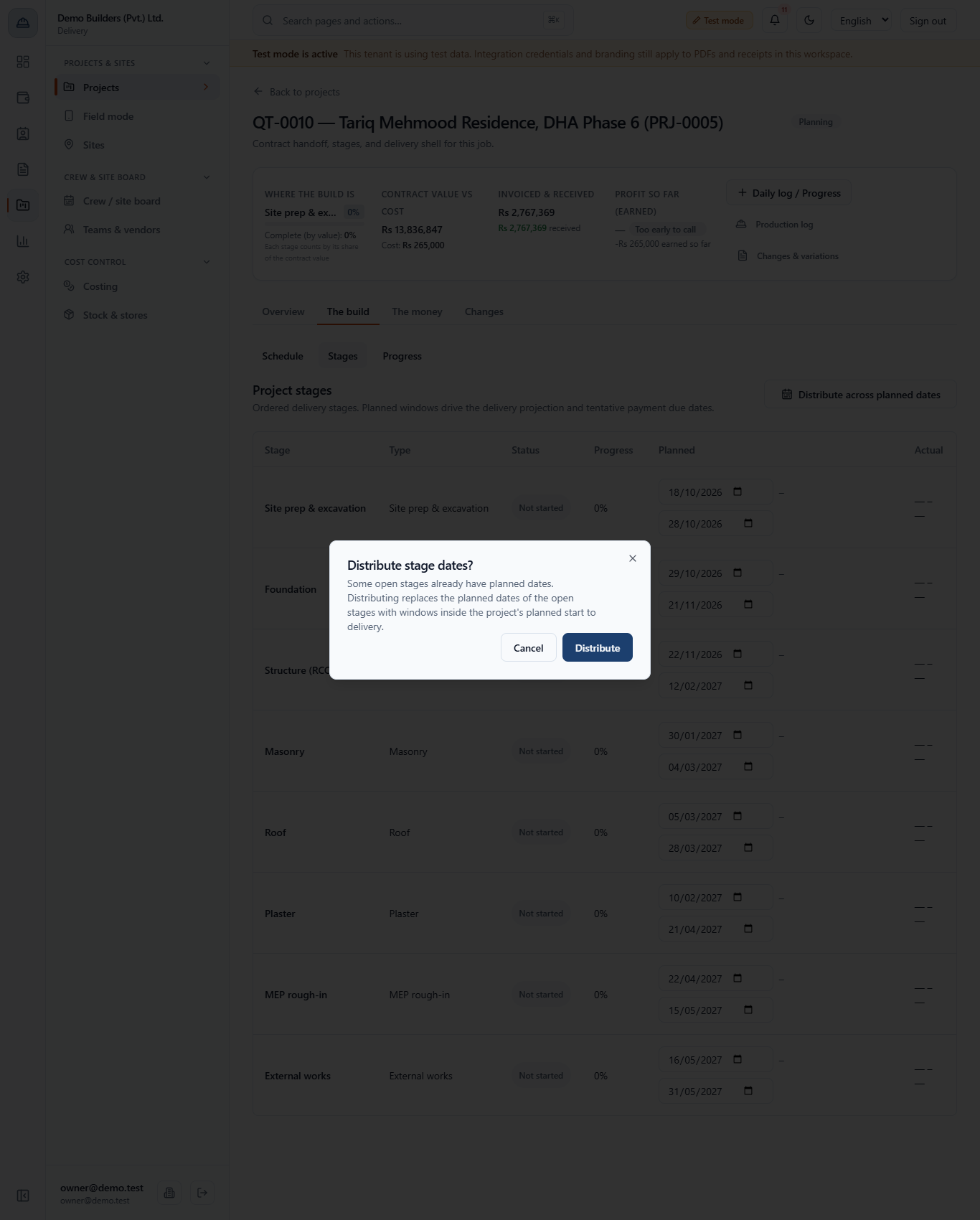
Click Distribute across planned dates, then Distribute to confirm. Every open stage gets a window inside the project dates, sized by its typical duration. Completed or billed stages stay as they are.
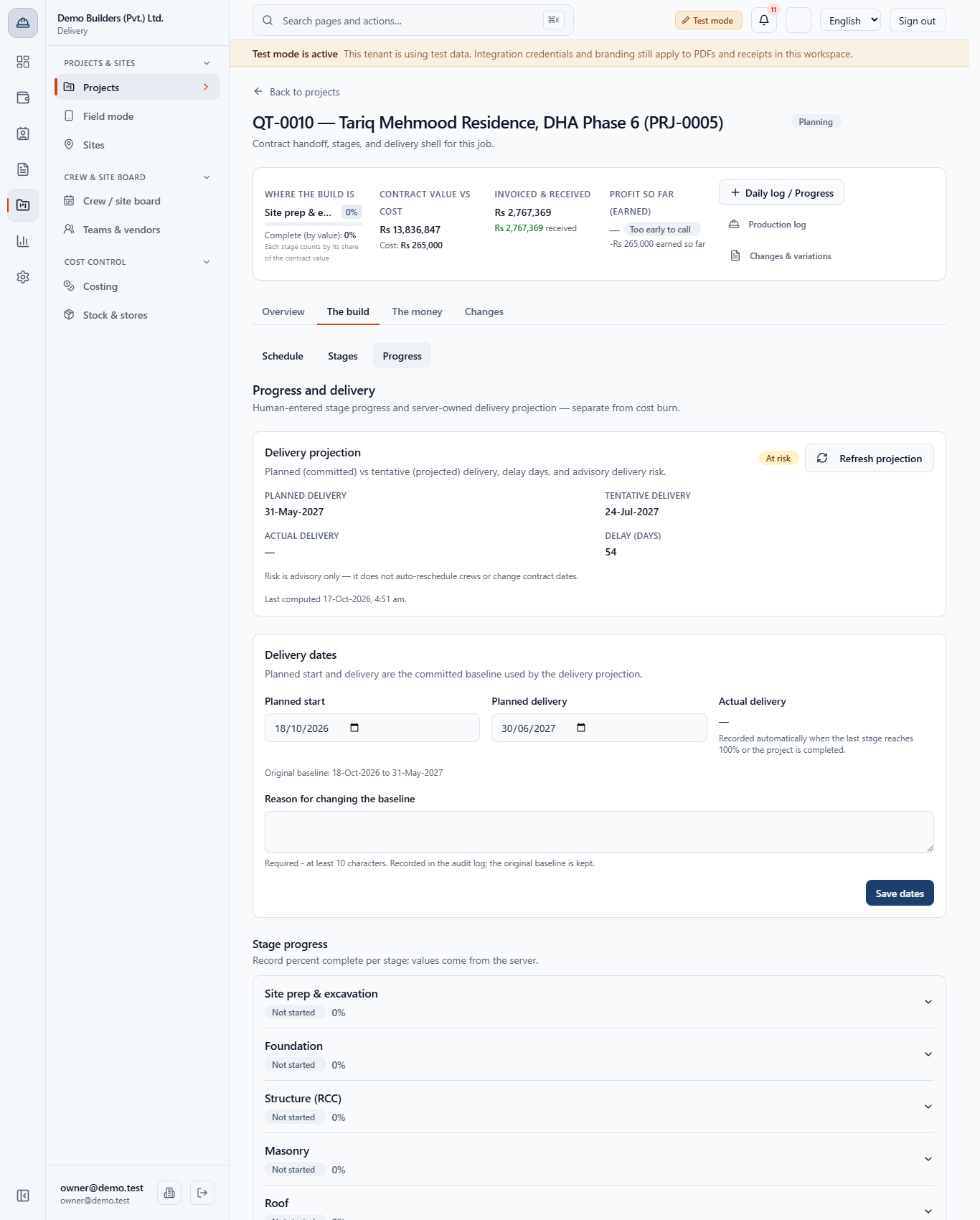
Open The build › Progress. In Delivery dates change Planned delivery, for example to 30 Jun 2027. A Reason for changing the baseline box appears; write at least 10 characters, then click Save dates.
The final payment's tentative due date follows the delivery date: 30 Jun 2027 plus 30 days is 30-Jul-2027.
Open The build › Schedule. Click Add activity, type the Activity name and both planned dates (required on a project with a contract: without dates the dialog stays open and nothing is added). The table shows planned dates such as 12-Oct-2026 – 23-Oct-2026 and, on each row, Edit and Delete. Edit opens Edit activity with the name and both dates; Save changes updates the row. This list is separate from the stages and does not drive delivery risk or payment dates.
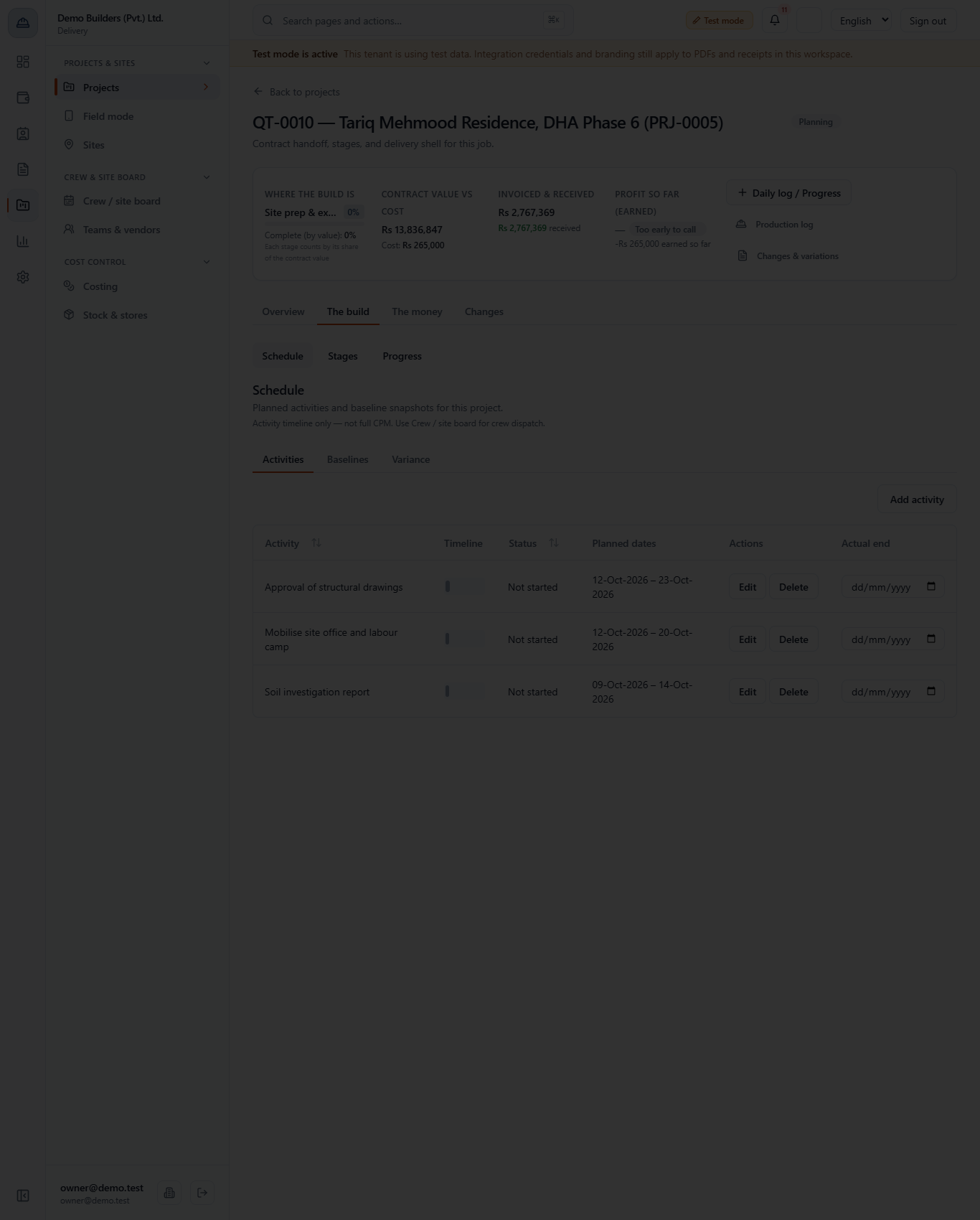
On Baselines, type a Baseline name and click Publish baseline. It appears as a draft; click Accept to make it the baseline that variance compares with.
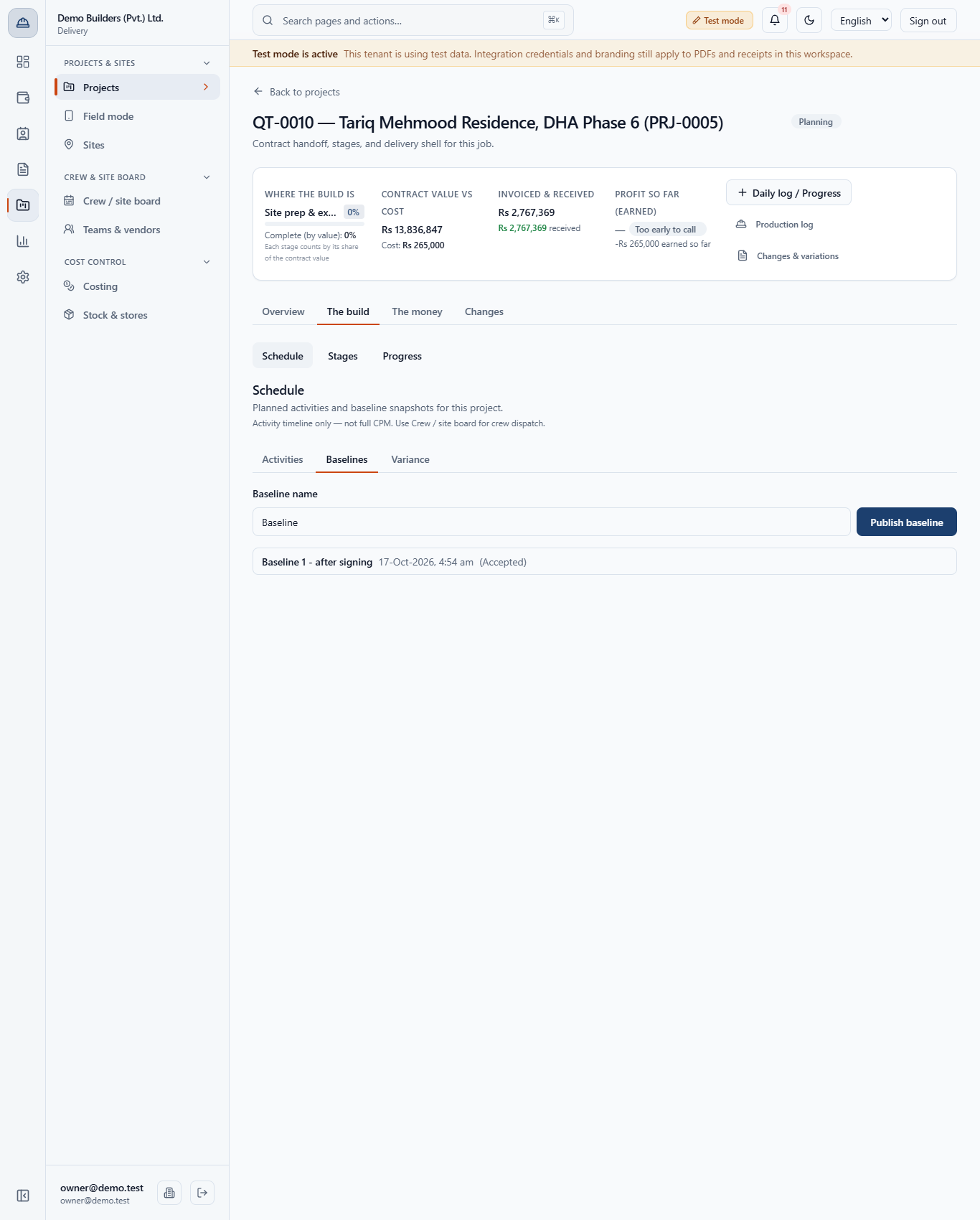
On Variance, each activity shows its baseline end, current end and the difference in days, compared with the latest accepted baseline. Right after accepting, every row reads 0.
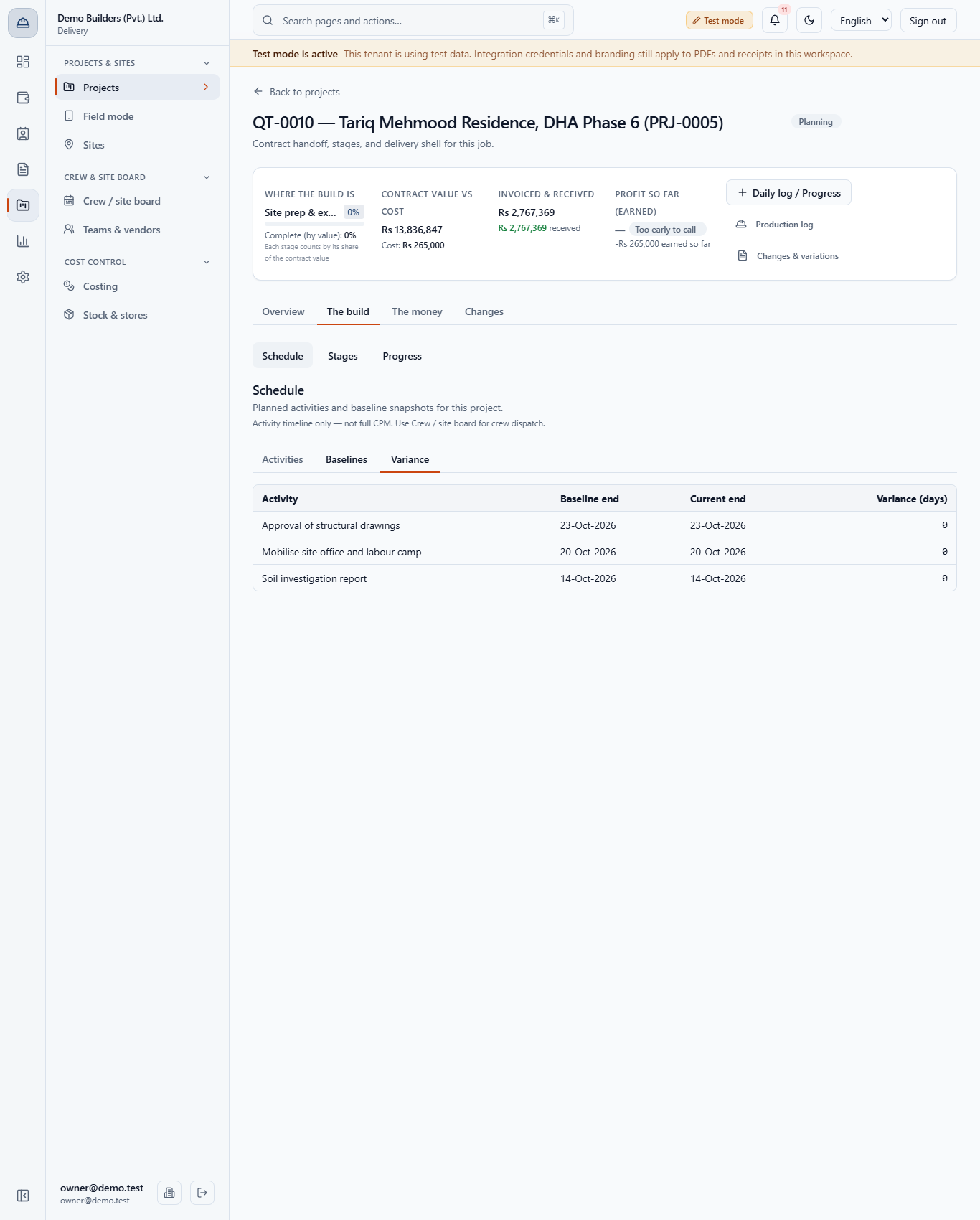
Click Edit on an activity and move its end later, for example from 23 to 30 Oct 2026. Its variance now reads +7 while the others stay 0. A positive number means later than the baseline.
| Mistake | What you see | Fix |
|---|---|---|
| Starting a stage before the project starts | "A stage cannot start before the project's planned start." | Pick a date on or after the planned start |
| Ending a stage after the delivery date | "A stage must finish by the project's planned delivery." | Move the stage end, or re-baseline the delivery date first |
| Changing the delivery date with a short reason | "Changing the planned baseline needs a reason of at least 10 characters." | Write a full reason |
| Item | Meaning / rule |
|---|---|
| Stage window | Planned start and end of one stage; drives the draw's tentative due date |
| Tentative due date | Stage end plus the customer's credit term (30 days here) |
| Original baseline | The first planned dates; never overwritten |
| Schedule baseline | A snapshot of the activity list; accepted baseline is used for variance |
| Variance | Current end minus baseline end, in days |
Does moving a stage change what the customer owes? No. Only the tentative due date of the draw changes; amounts and the contract value stay the same.
Can I type the actual delivery date? No. Actual dates are recorded automatically from progress and completion.
Do the Schedule tab activities change delivery risk? No. The Schedule tab is a separate timeline; delivery risk and payment dates follow the stage windows and the project dates.
BuildFlow runs this whole workflow. See what BuildFlow does and what it costs, or browse all step-by-step guides.