Open Totals & terms
Open the quotation and go to step 5, Totals & terms. You see Subtotal, Discount, Tax, Retention, Grand total and, for you only, the Estimated cost (internal) with the margin (here 15.79%).
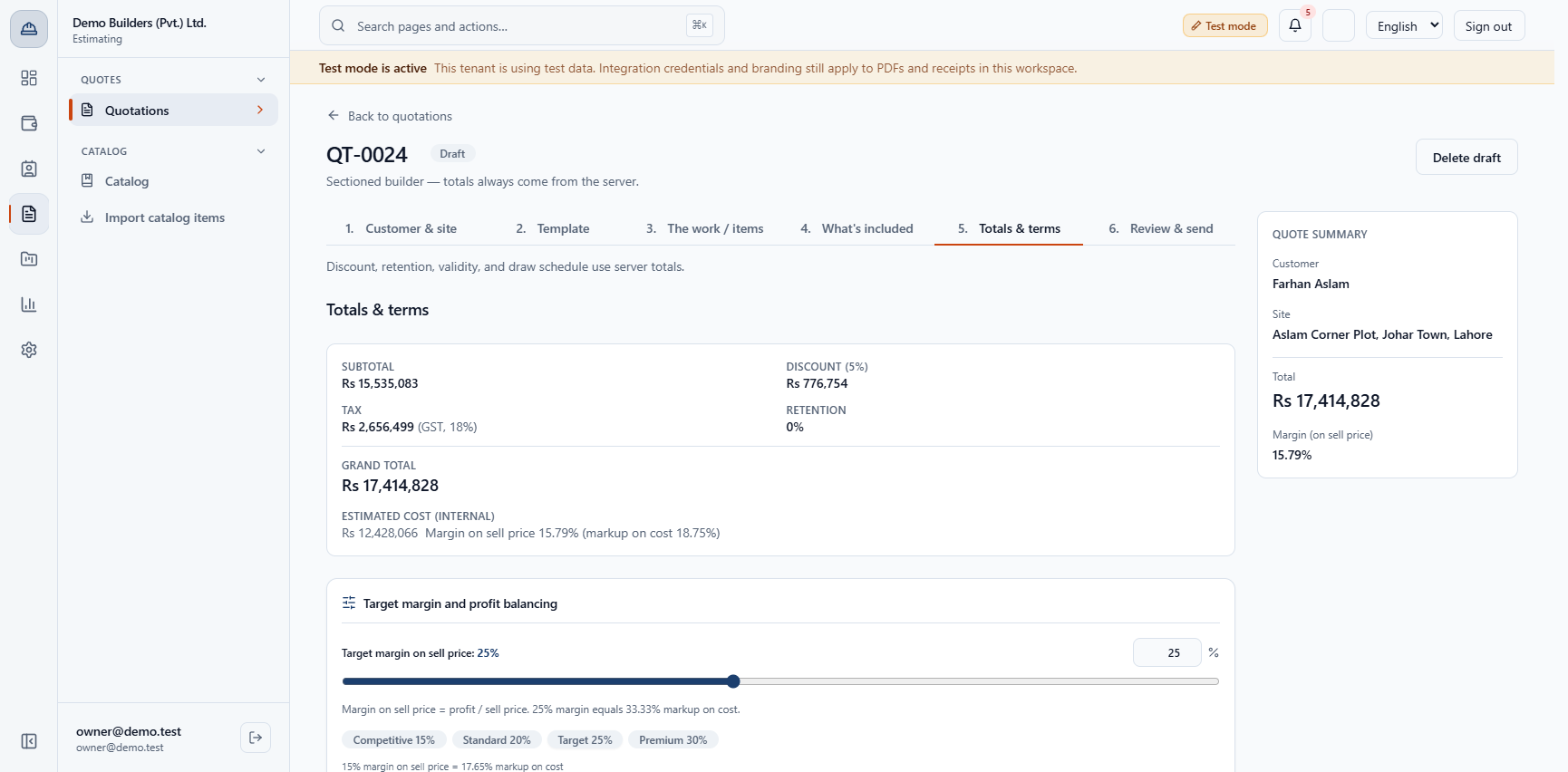
Before a quotation goes out you decide how much you want to earn, what discount you can give and who must agree. This guide follows one quotation from its first total to Ready to send.
Open the quotation and go to step 5, Totals & terms. You see Subtotal, Discount, Tax, Retention, Grand total and, for you only, the Estimated cost (internal) with the margin (here 15.79%).
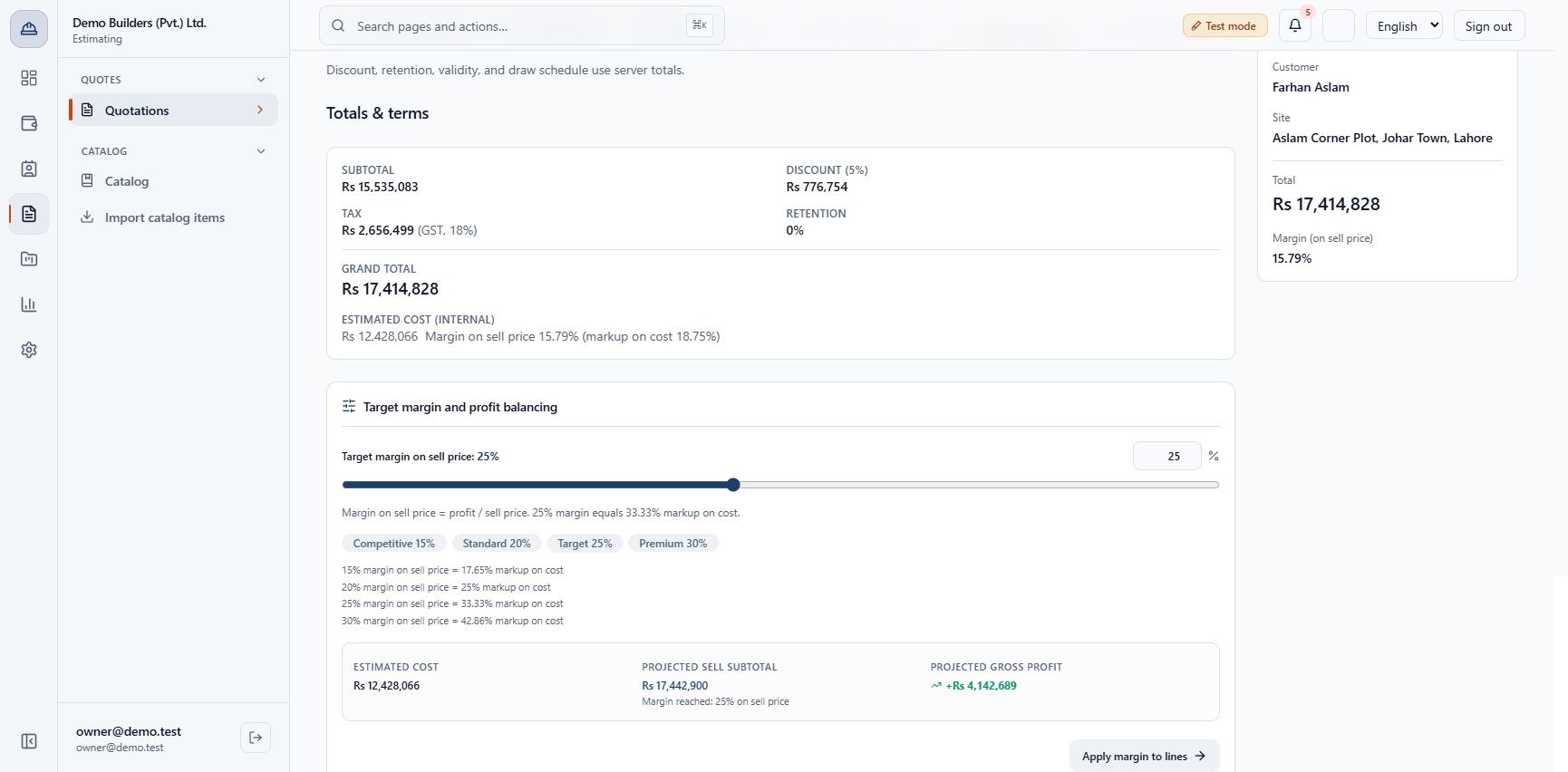
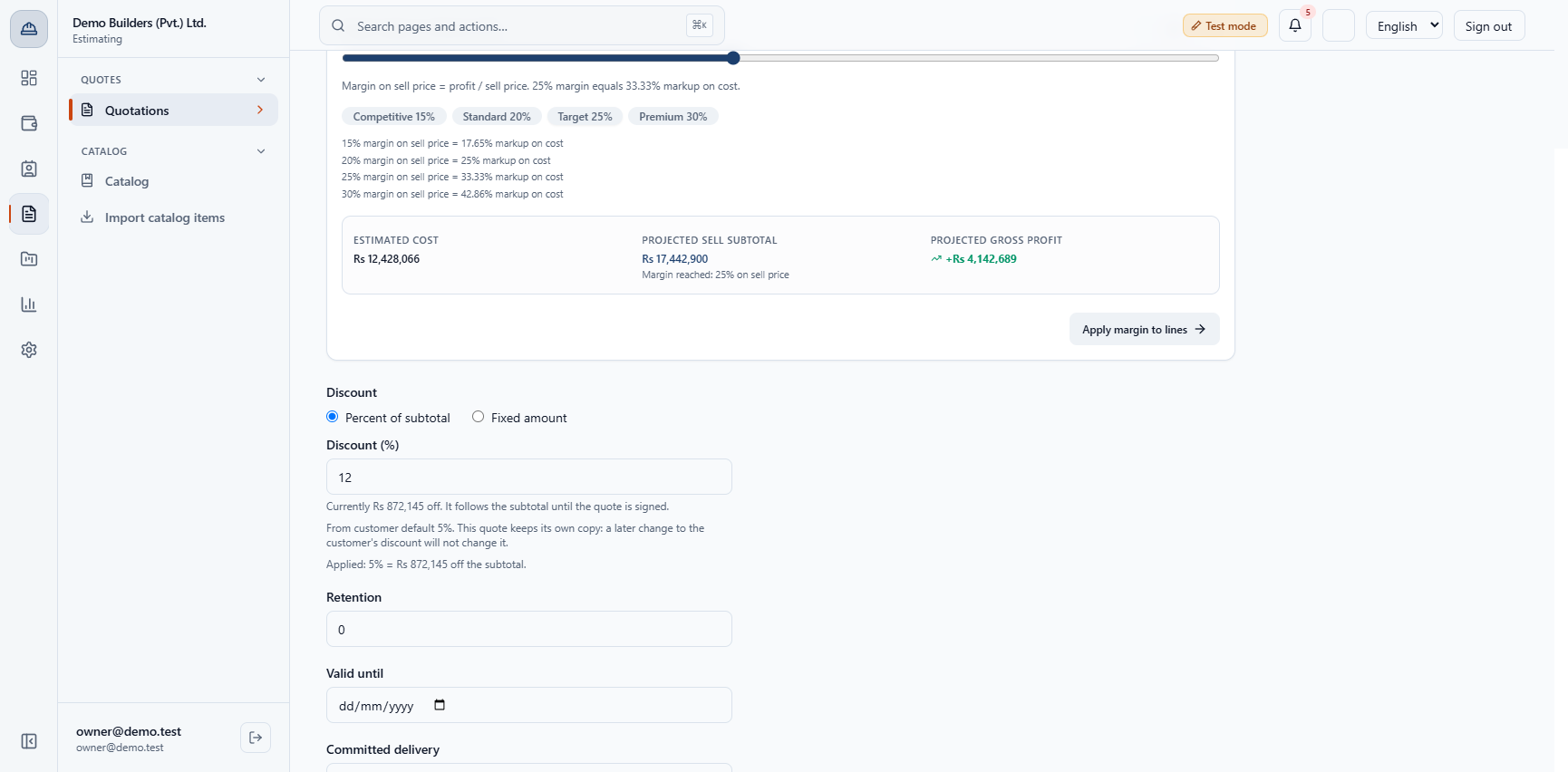
In Target margin and profit balancing click Target 25%. The preview shows the projected sell subtotal (Rs 17,442,900) and projected gross profit (+Rs 4,142,689) before anything is saved.
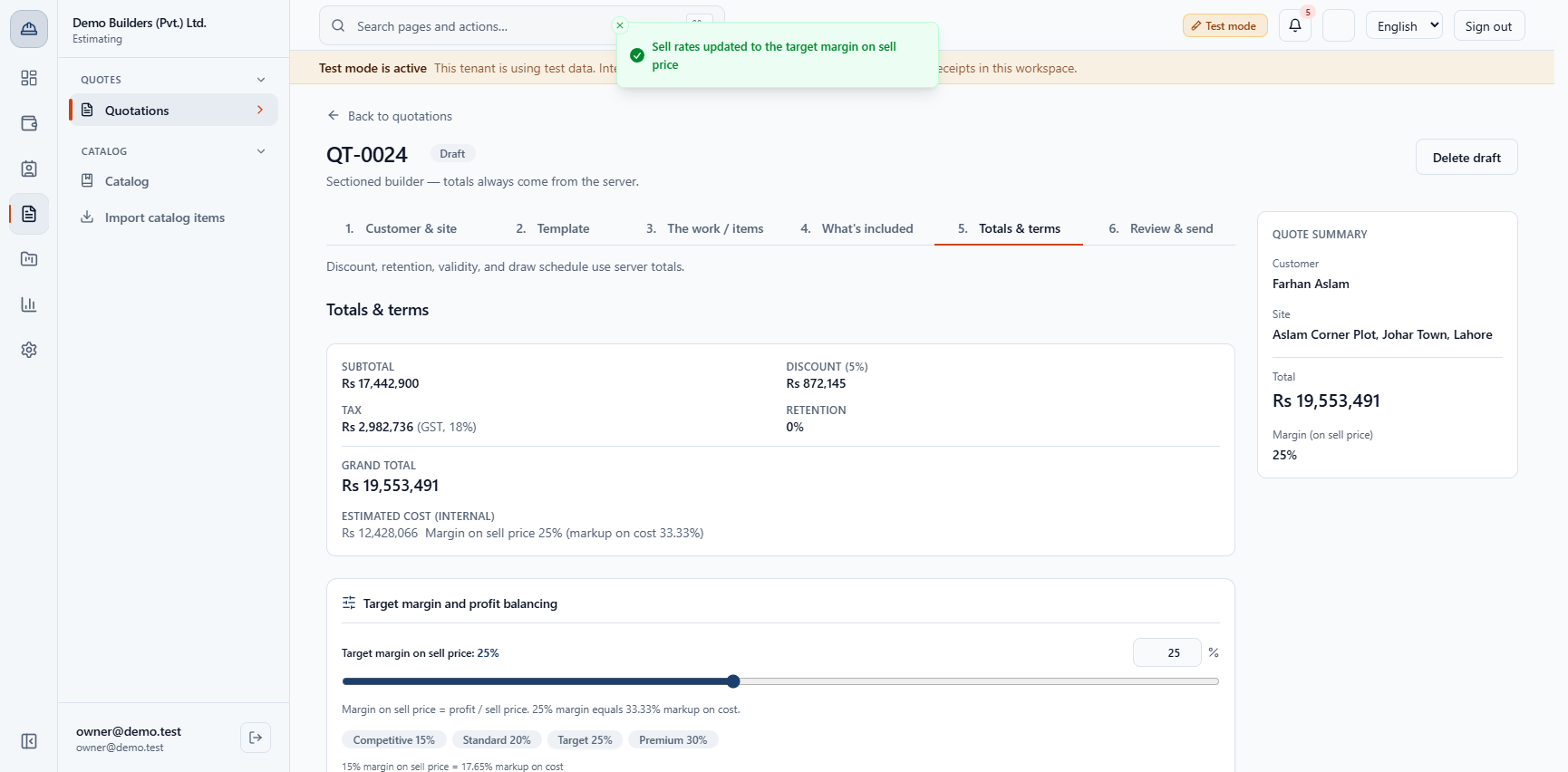
Click Apply margin to lines. Every priced line is scaled and the app says Sell rates updated to the target margin on sell price, the subtotal becomes Rs 17,442,900 and the grand total Rs 19,553,491 at exactly 25%.
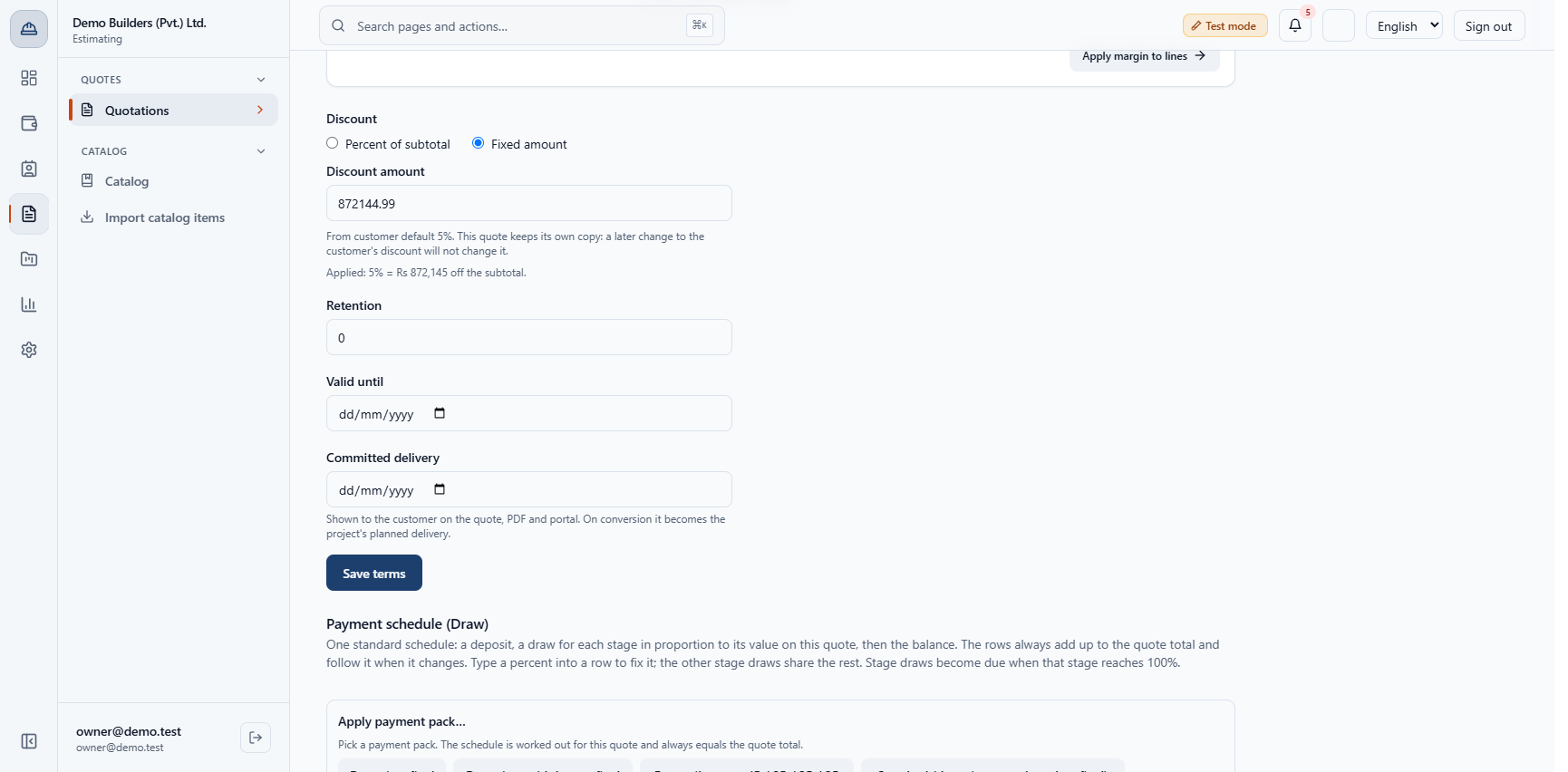
Choose Percent of subtotal or Fixed amount. The quote keeps its own copy of the customer's default discount.
Type 12 in Discount (%) and click Save terms. The app says Quotation saved, the total falls to Rs 18,112,707 and the margin to 19.03%. A percent above 100 is refused.
Above the workspace limit (10%) the box Discount needs approval appears: "This quote has a 12% discount, above the 10% approval threshold. It must be approved before the quote can be sent."
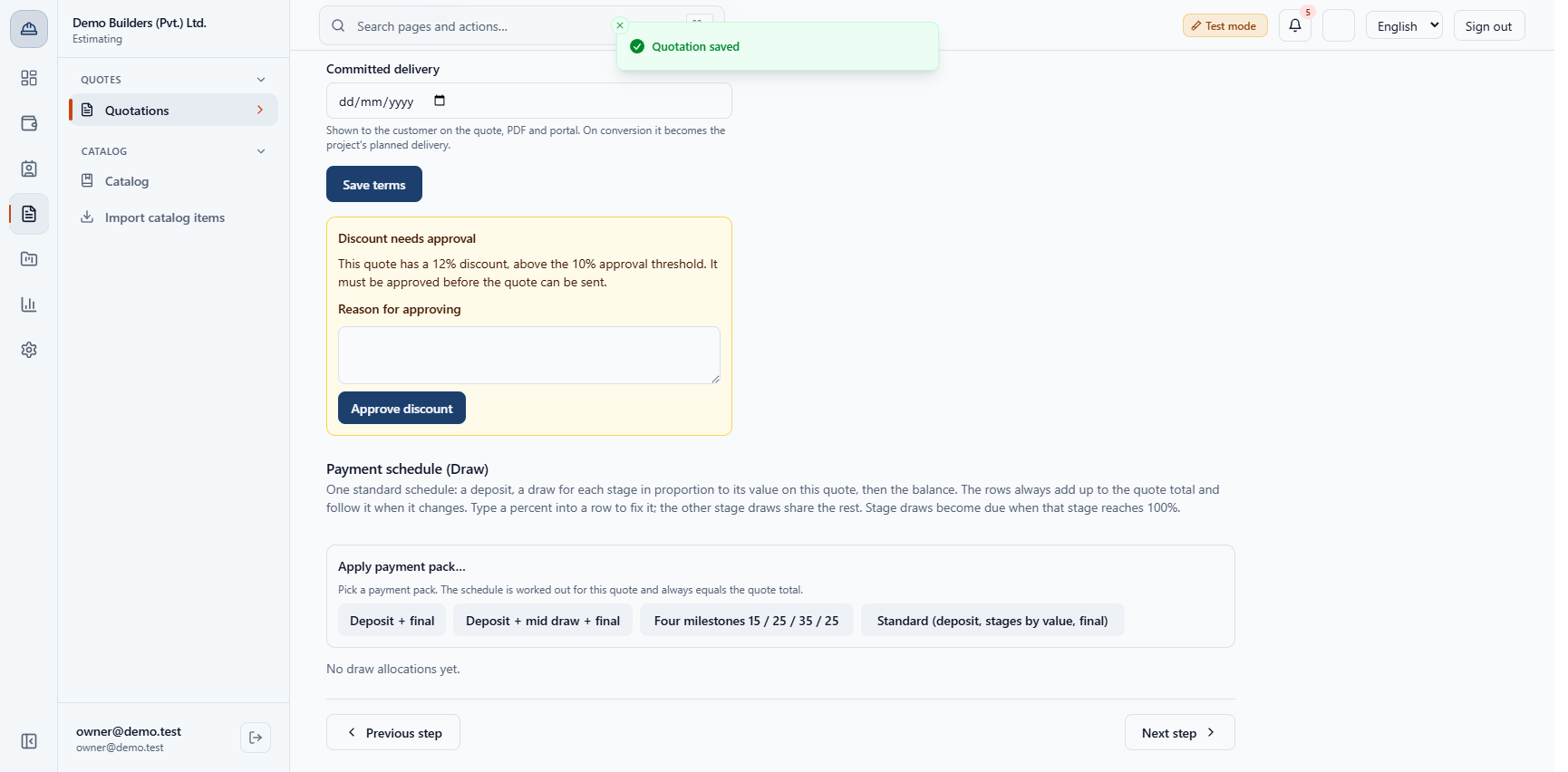
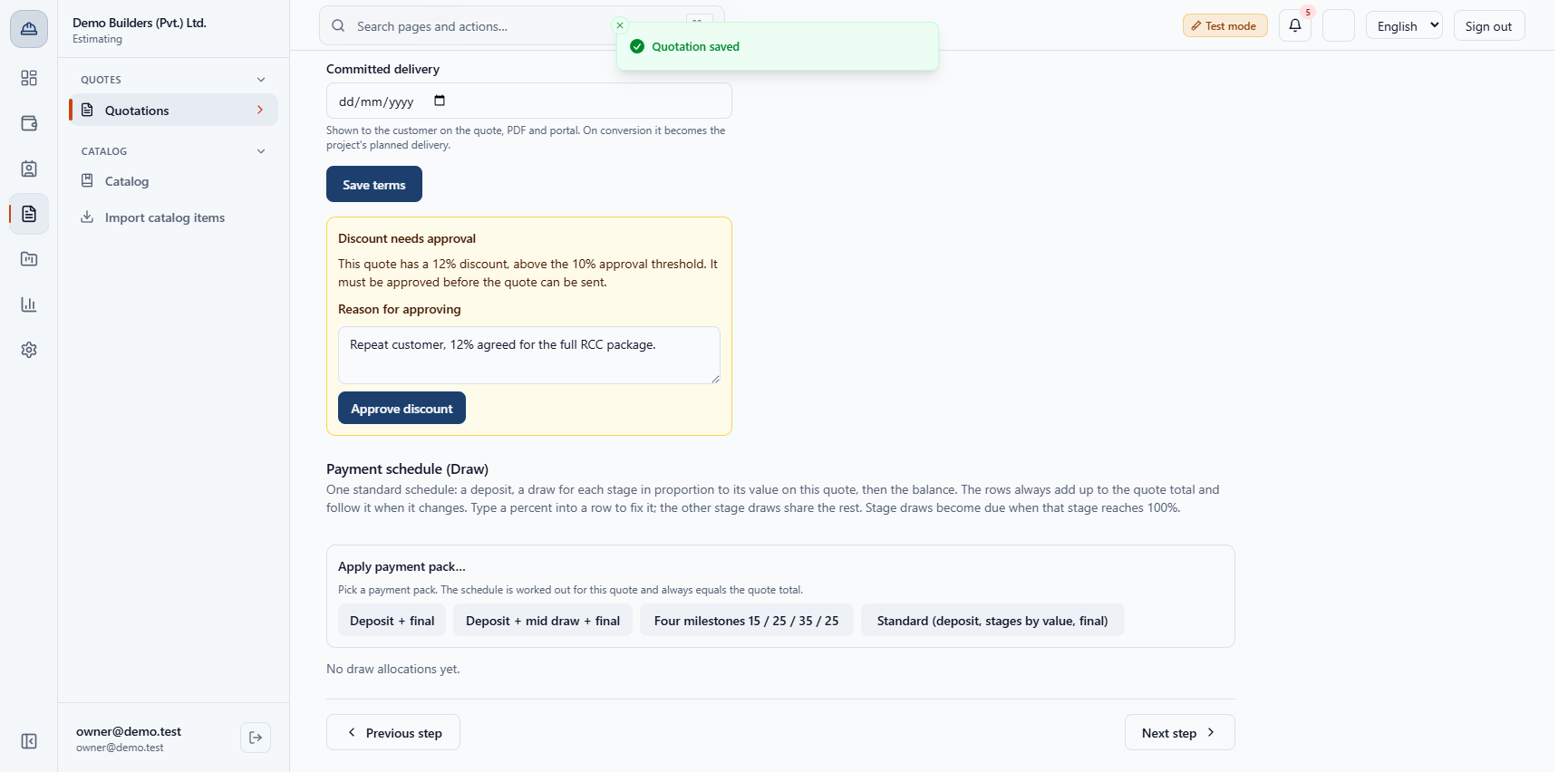
Type a Reason for approving of at least 10 characters and click Approve discount. The box then says Discount approved up to 12% with the date, Approved by your name and the Reason you typed.
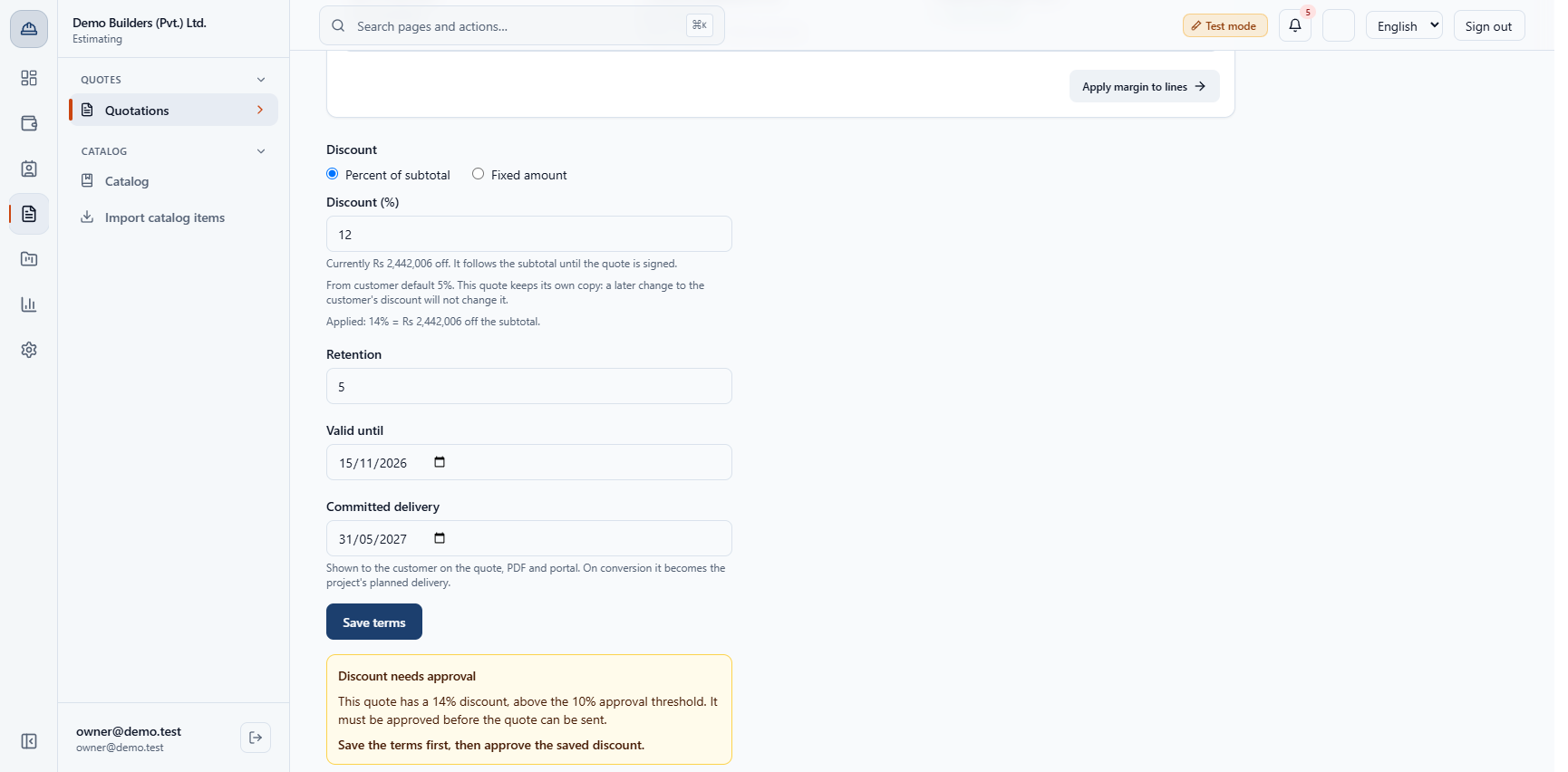
Type the Retention you agreed (the workspace Default retention % is 5; here 5), then set Valid until and Committed delivery and click Save terms. Retention is held back from invoices later; it does not change the grand total.
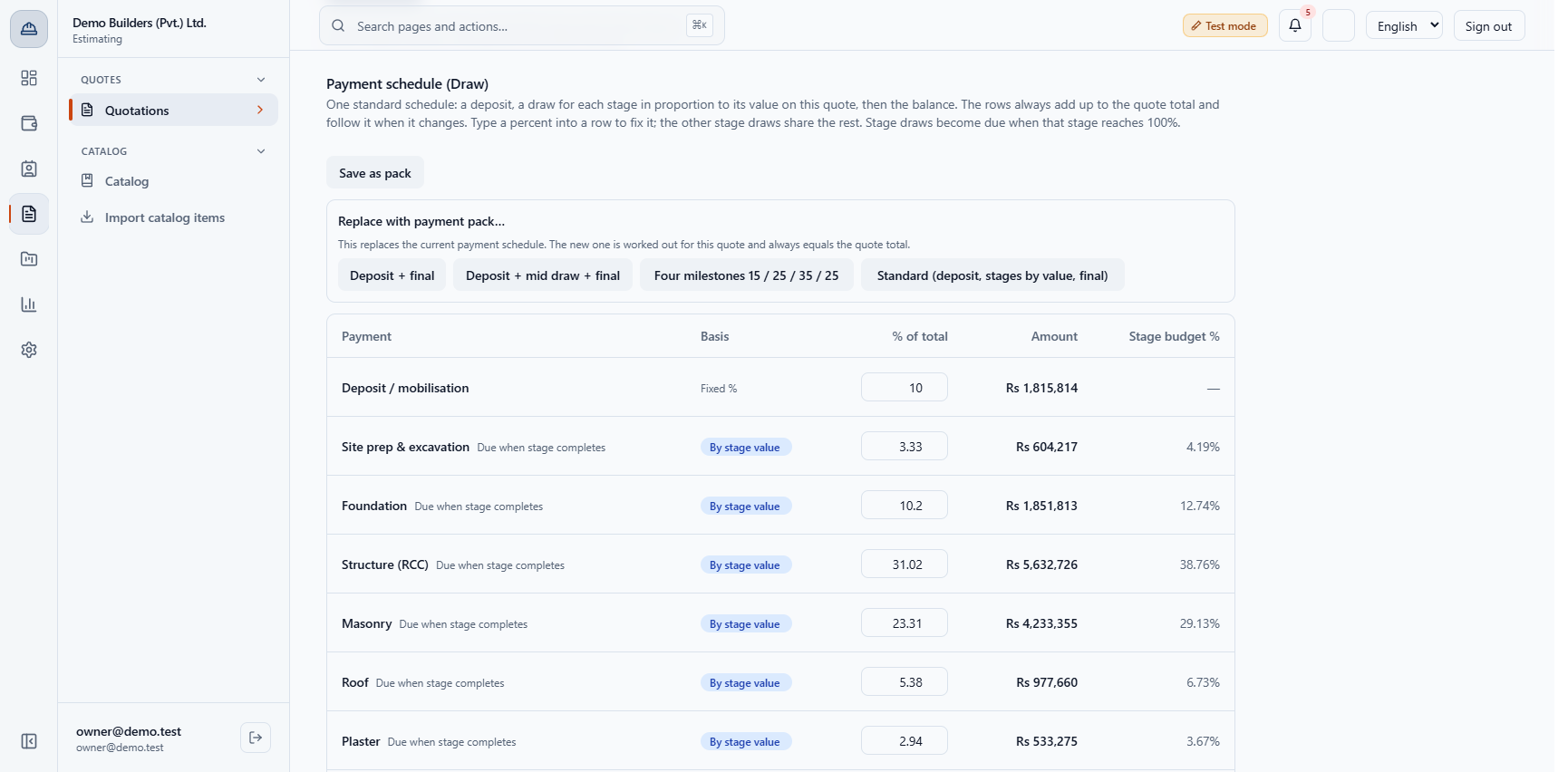
Apply the pack Standard (deposit, stages by value, final). The schedule always adds up to the quote total, follows it when it changes, and ends at Allocated total 100%.
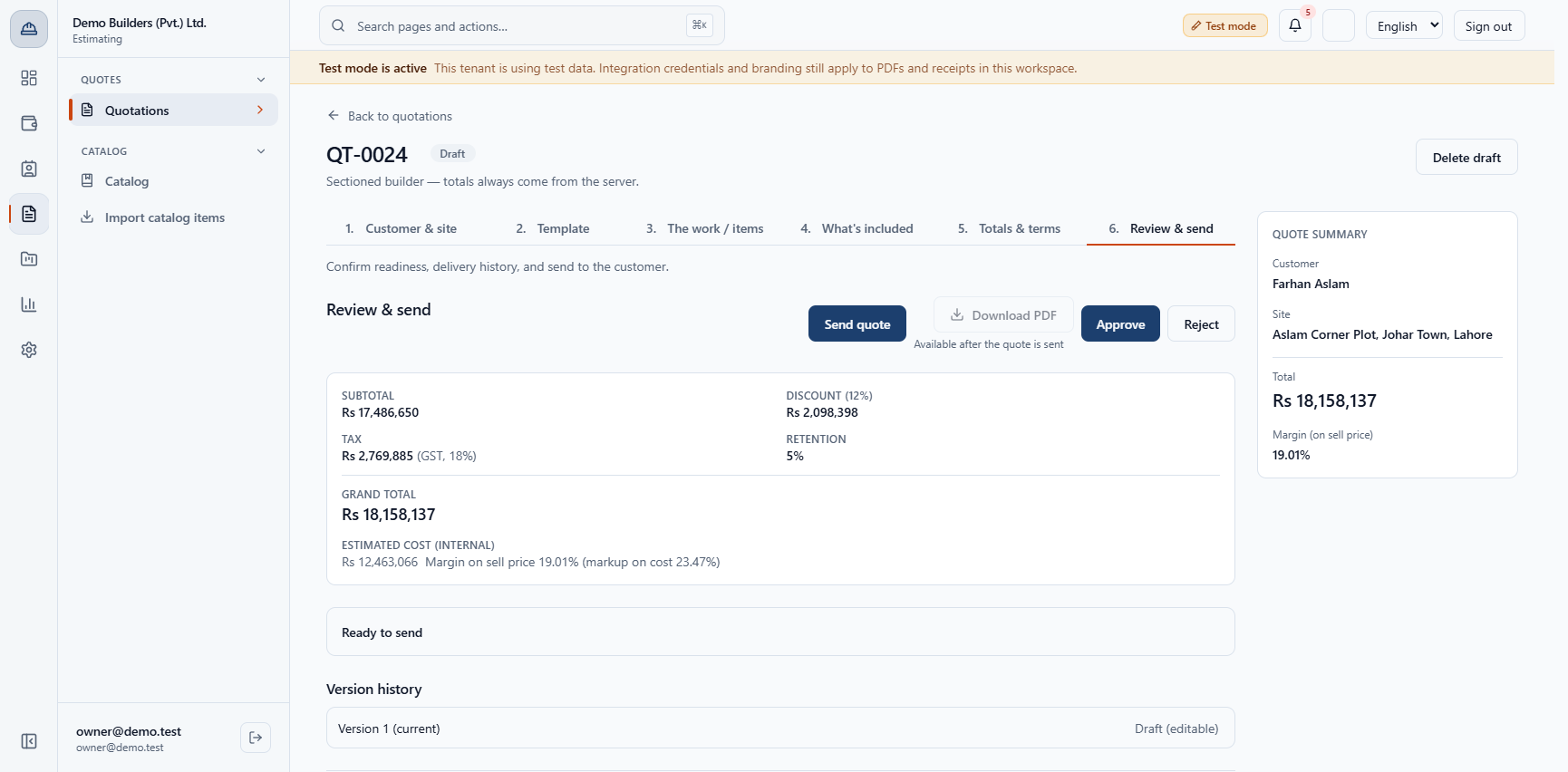
Go to Review & send. First it says Not ready to send: "Enter a quantity or area. This line counts as zero until you do." for Excavation. Click Fix, type Area 1000 and save. The subtotal becomes Rs 17,486,650, the grand total Rs 18,158,137 (margin 19.01%), the payment schedule moves with it and the page says Ready to send. A low margin only warns; it never blocks sending.
| Mistake | What you see | Fix |
|---|---|---|
| Reason too short | Enter at least 10 characters. | Write a real reason |
| Line with no quantity | Not ready to send: Excavation counts as zero | Click Fix and enter the quantity or area |
| Discount above the limit, not approved | The quote is not ready to send | Ask the Owner to approve |
| Percent over 100 | Enter a percent from 0 to 100. | Correct the percent |
| Margin below your warning level | The margin on the sell price is 3.72%, below your 5% warning. | Check the prices or the discount; it does not block sending |
| Item | Meaning / rule |
|---|---|
| Margin | Profit divided by the sell price |
| Markup | Profit divided by cost |
| Approval limit | Set in Admin › Settings › General |
| Retention | Held back from invoices |
Who can approve a discount? A user with the discount approval permission. In the seeded roles that is the Owner only.
Does a low margin stop me sending? No. The review warns you, but sending is never blocked by margin.
Where is the default retention set? In Admin › Settings › General, Business defaults, Default retention %. Every new quotation starts with it.
Does retention change the quote total? No. It is held back from later invoices.
BuildFlow runs this whole workflow. See what BuildFlow does and what it costs, or browse all step-by-step guides.