How to record a customer payment and verify a receipt
When a customer pays towards a booking, the payment should be recorded once, against the right booking, and checked before it counts. This guide shows how to record a cash or bank receipt, enter tax the customer withheld, handle a payment the customer only says they made, reverse a wrong receipt, and check the booking balance and the books.
Who it is forAccounts clerk and event managerTime12 minutesProductMMSLevelBeginner
Before you start
Steps
1
Open Payments
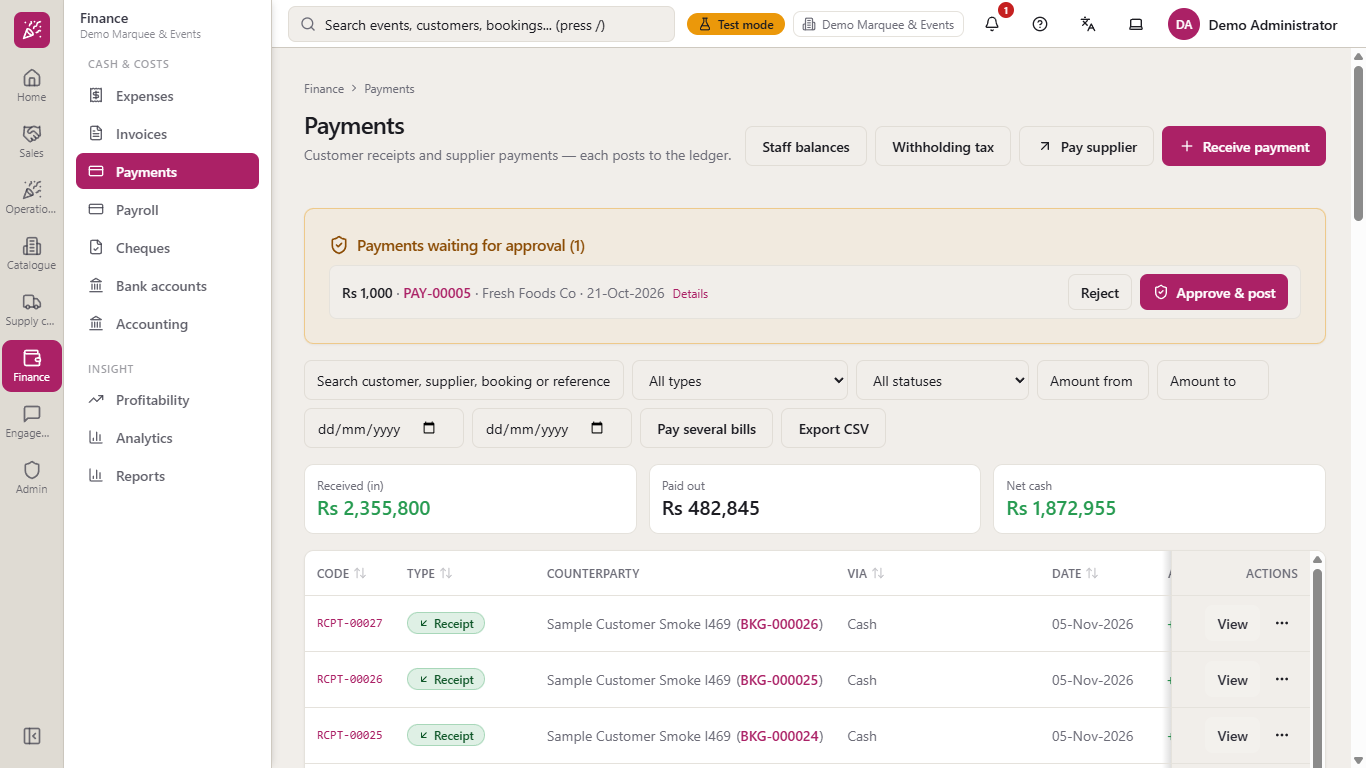
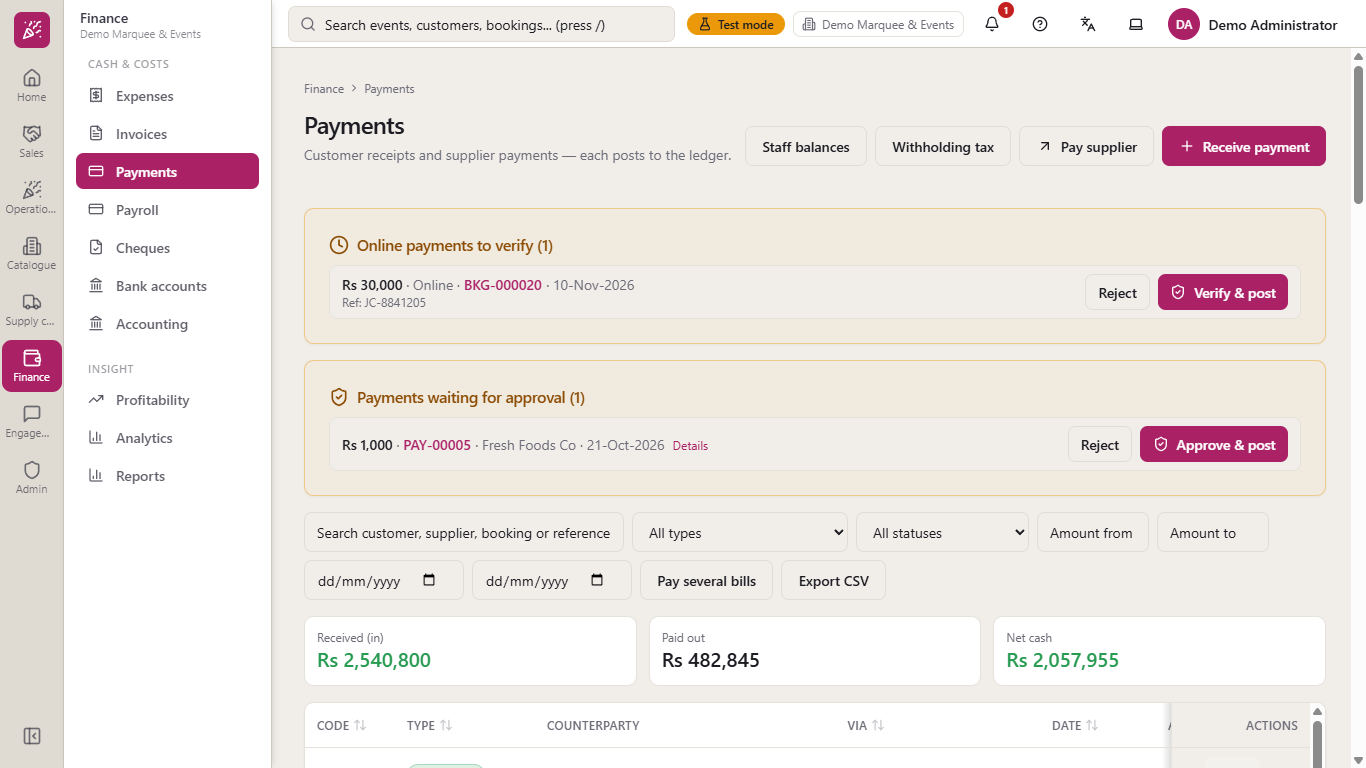
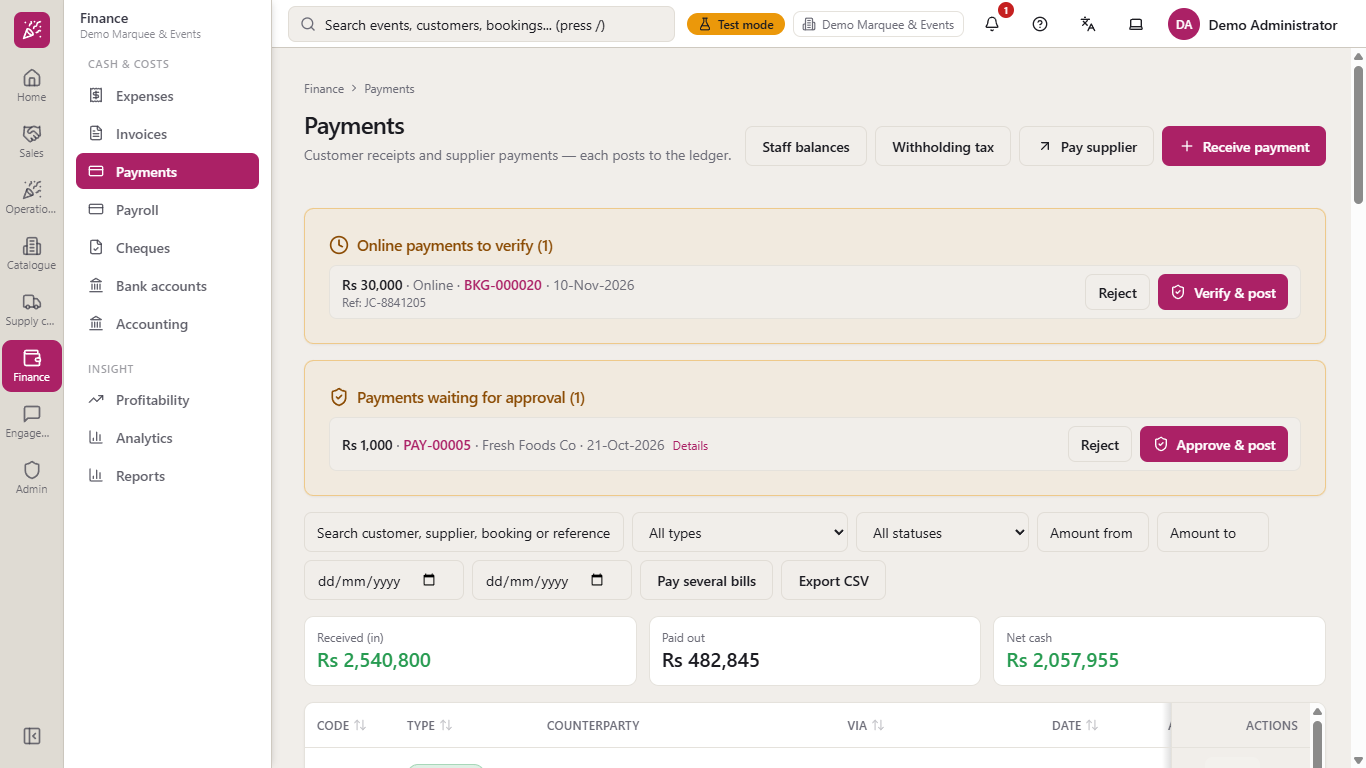
Go to Finance > Cash & costs > Payments. Three cards show what came in, what went out and the net. Each row shows the Code, the Type (Receipt, Payment or Refund), the Counterparty, how it was paid (Via, with a badge such as Pending, Rejected or Reversed), the Date and the Amount. The newest entry is at the top of its day. Receipts have View, payments and refunds have Voucher. Use the search box and the type filter to narrow the list. The buttons at the top also open Staff balances, Withholding tax, Pay supplier (see MMS-S49) and Receive payment.
Payments list with the Received, Paid out and Net cash cards
2
Start a receipt
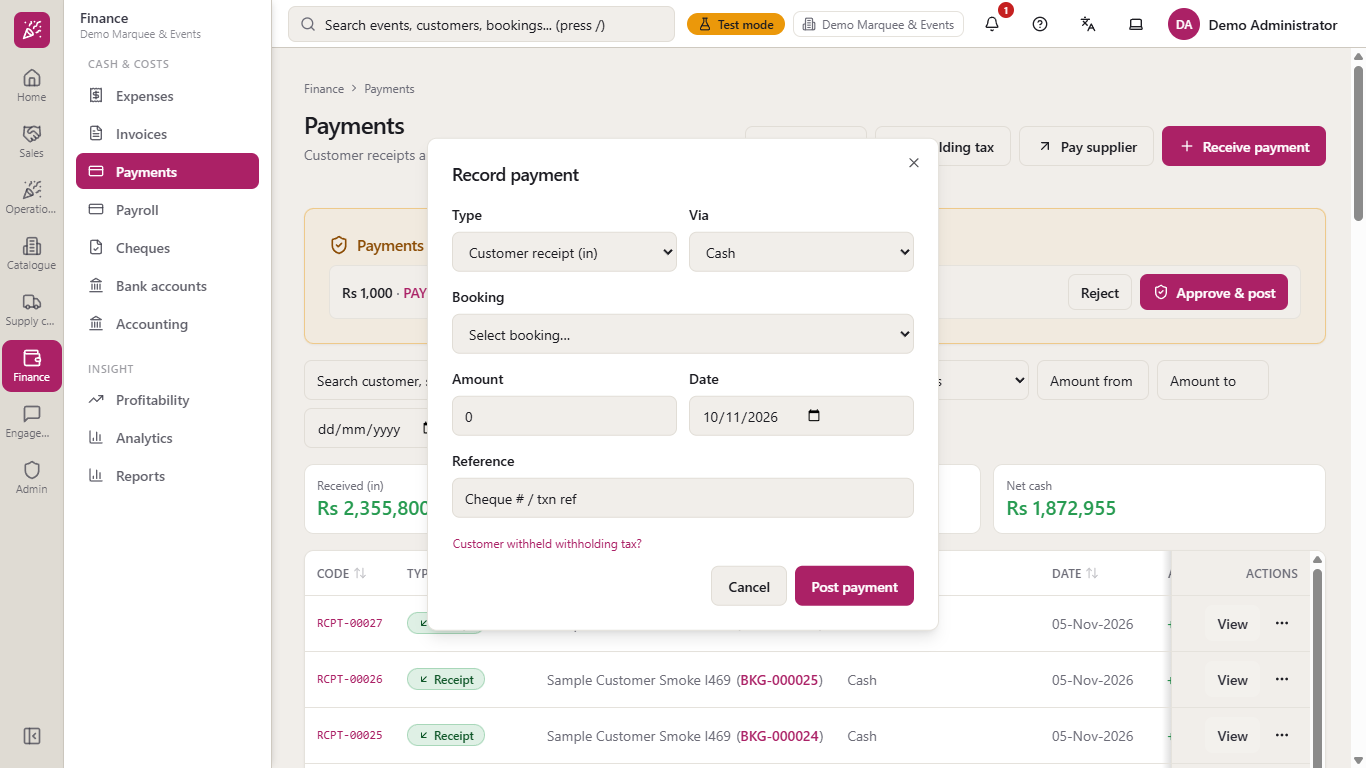
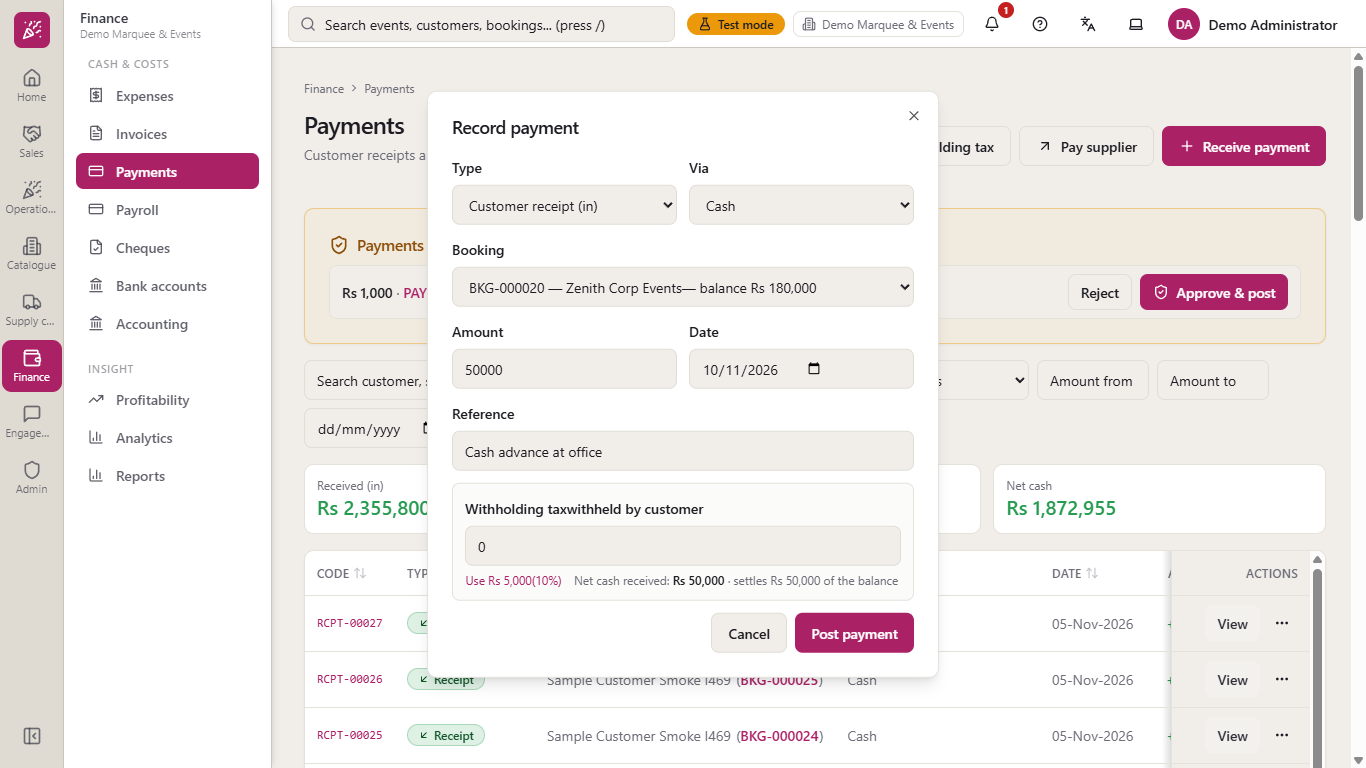
Press Receive payment. Leave Type on Customer receipt (in), choose Via (Cash, Bank transfer, Online / gateway, Card / credit or Cheque), pick the Booking, then enter the Amount, the Date and a Reference such as a cheque or transaction number. For a bank, online or card payment a Bank account field also appears.
Record payment dialog with all fields
3
Know what is refused
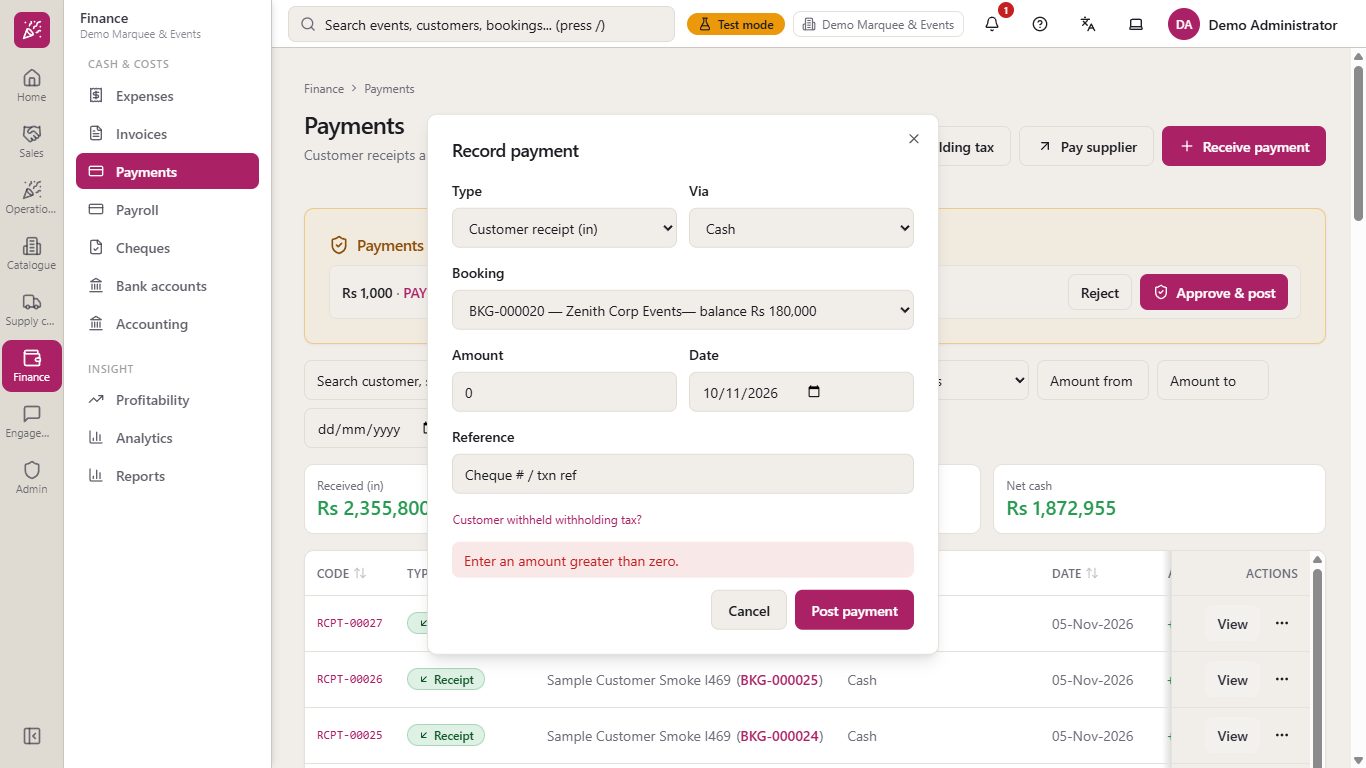
An amount of 0 is refused with the red message "Enter an amount greater than zero." and nothing is saved; the message goes away once you correct the amount.
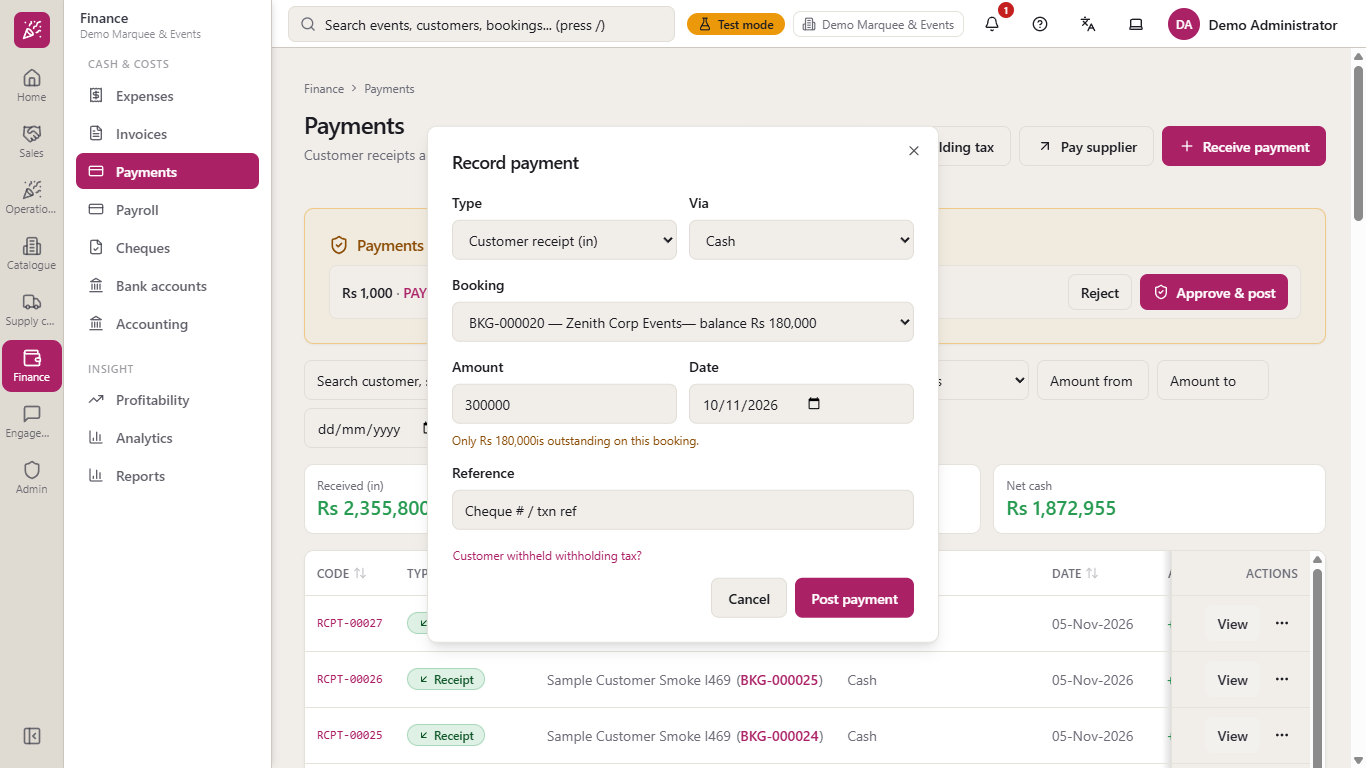
If you type more than the booking still owes, an amber line under Amount says "Only Rs 180,000 is outstanding on this booking." straight away, before you press anything.
Red message when the amount is zero
Amber warning when the amount is more than the balance
4
Record a cash receipt
Choose Cash, booking BKG-000020, amount 50000, today's date and the reference "Cash advance at office". If the customer withheld tax, press Customer withheld withholding tax? to open Withholding tax withheld by customer; a hint there suggests the usual percentage from your tax settings. Press Post payment.
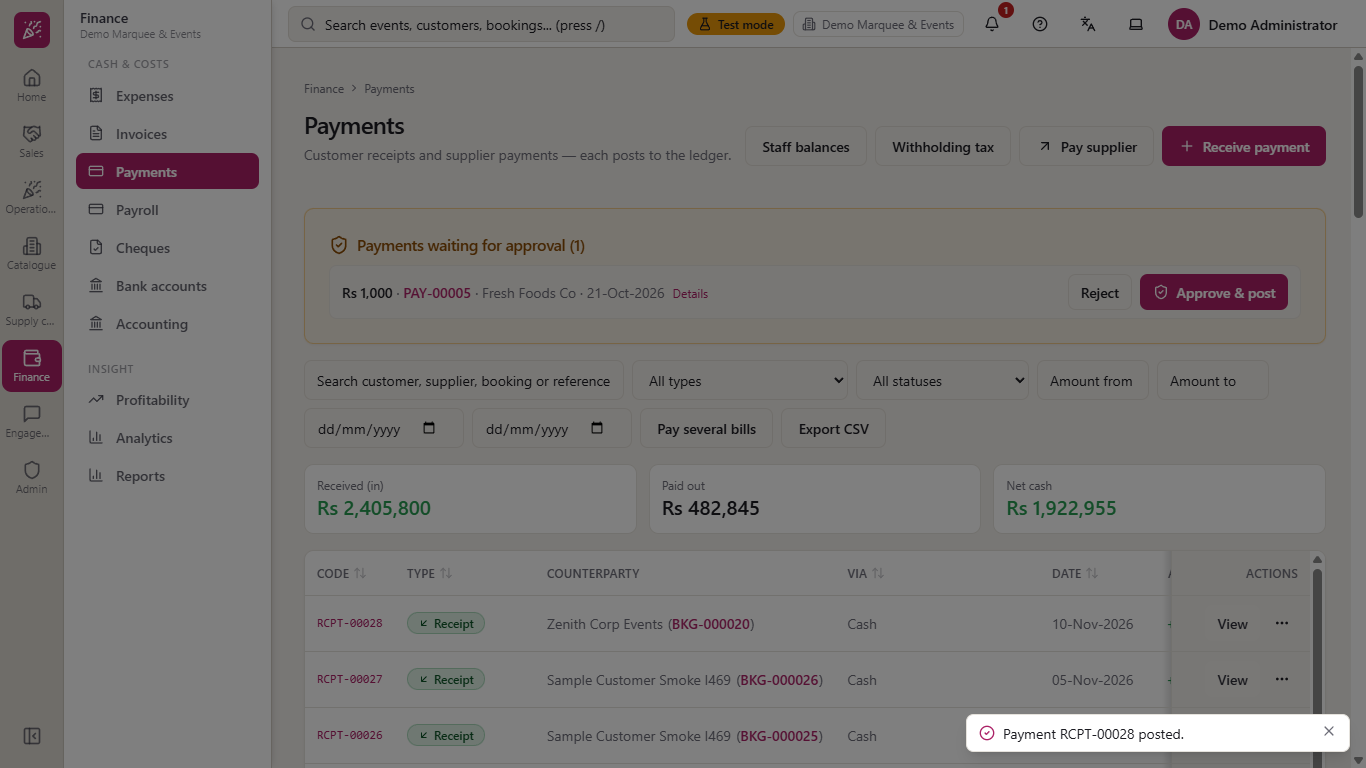
A message such as "Payment RCPT-00028 posted." confirms it. The receipt is at the top of the list with its own code and the cards move up by the same amount.
Dialog filled for a cash receipt of Rs 50,000
Payments list with the new receipt at the top
5
Open the receipt
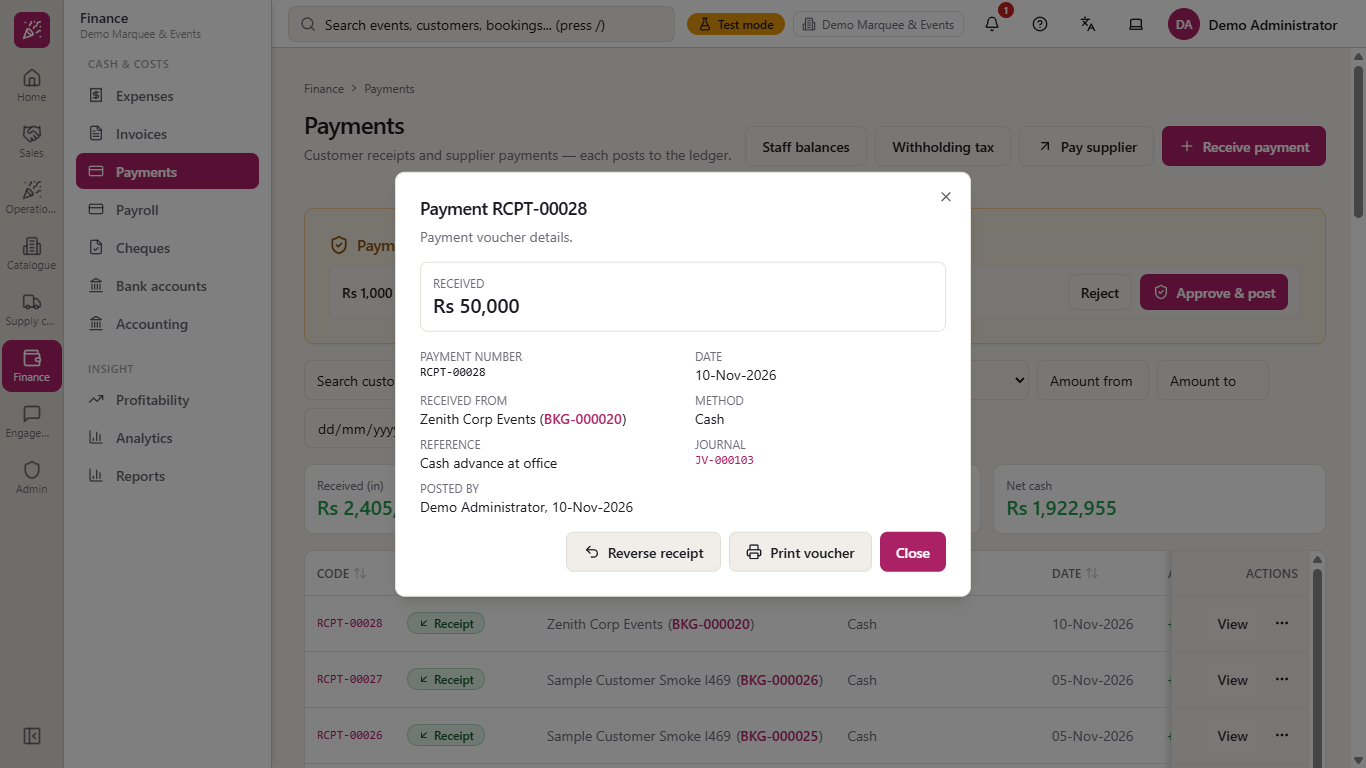
Press View on the receipt to see its number, date, booking, method, reference, the Journal it posted and who recorded it.
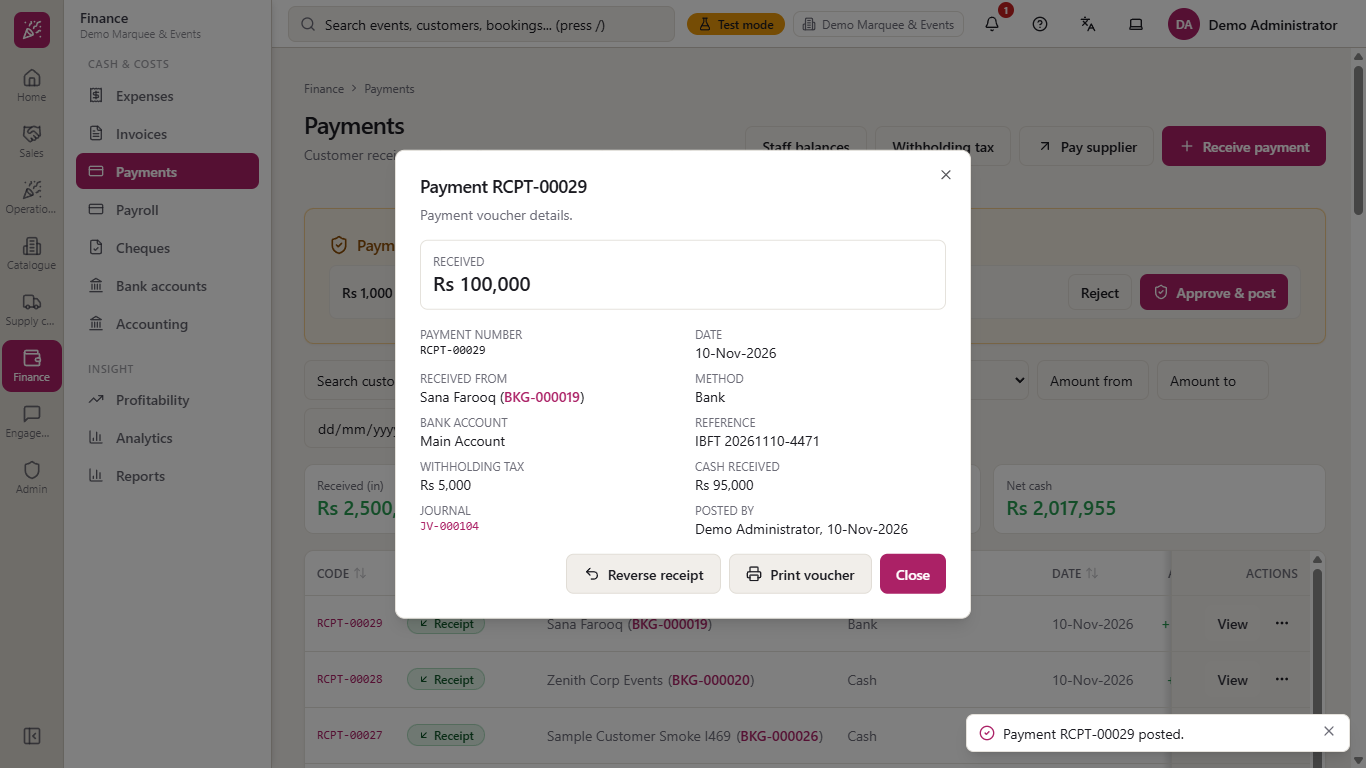
When tax was withheld, the receipt also shows Withholding tax and Cash received, so the Rs 100,000 receipt reads Rs 5,000 withheld and Rs 95,000 received in cash. The field line also shows how much of the balance the payment settles.
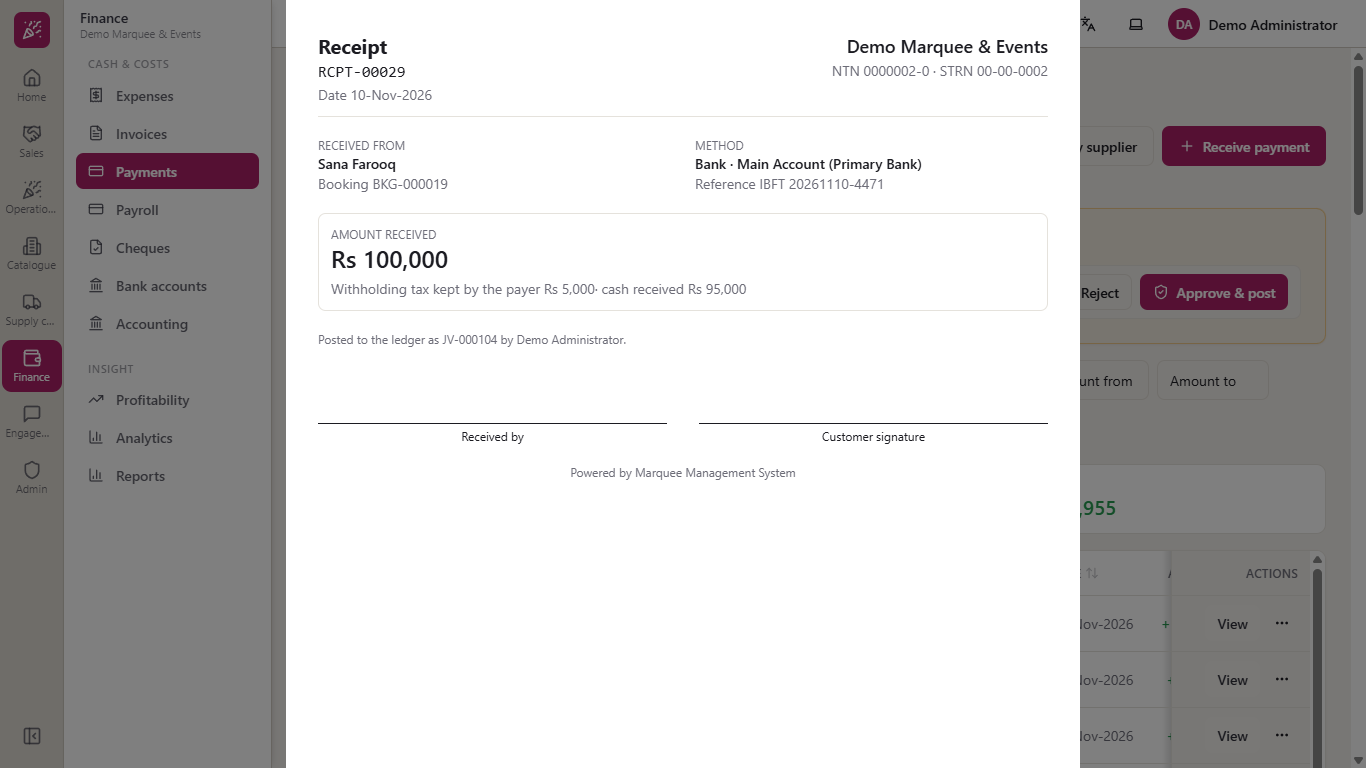
Print voucher prints a "Receipt" for the customer, with "Received from", the amount, the withheld tax and lines for "Received by" and "Customer signature".
Receipt details with the journal
Receipt details with withholding tax and cash received
Printed receipt with the signature lines
6
Record a bank receipt with tax withheld
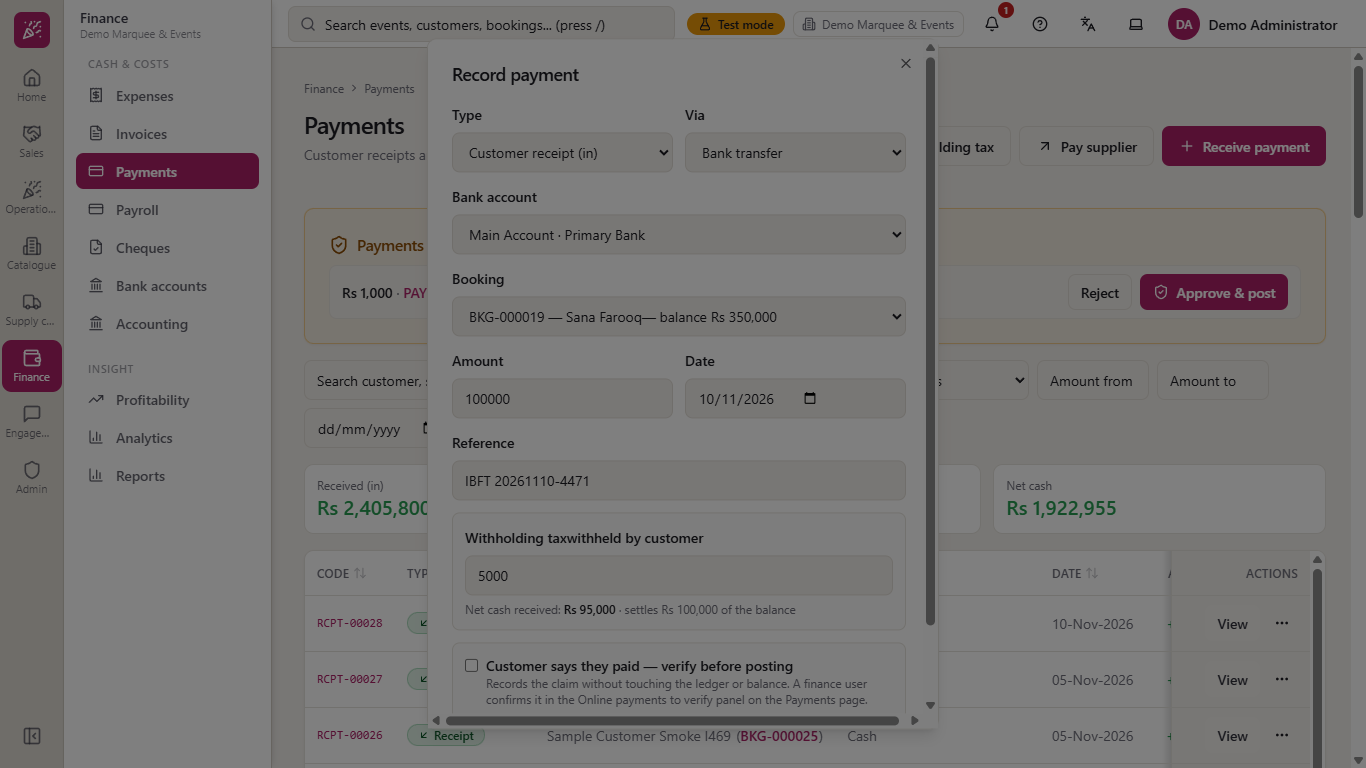
Choose Bank transfer, the Bank account, booking BKG-000019, amount 100000 and the reference from the bank. If the customer deducted tax and paid it to the tax office for you, enter it in Withholding tax withheld by customer, here 5000. The line below reads "Net cash received: Rs 95,000": the bank receives 95,000, the full 100,000 is credited to the customer and 5,000 is kept as Withholding Tax Receivable.
Dialog filled for a bank transfer with withholding tax
7
Record a payment the customer says they made
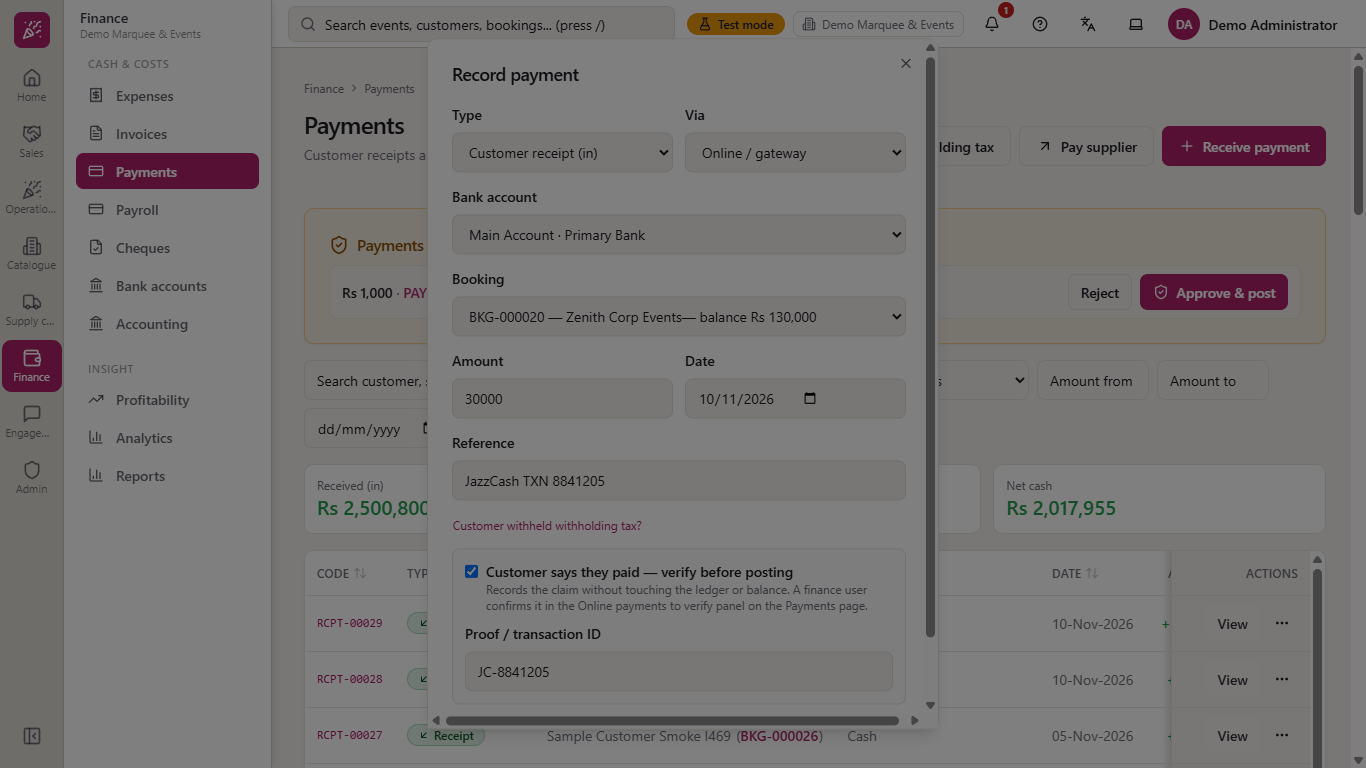
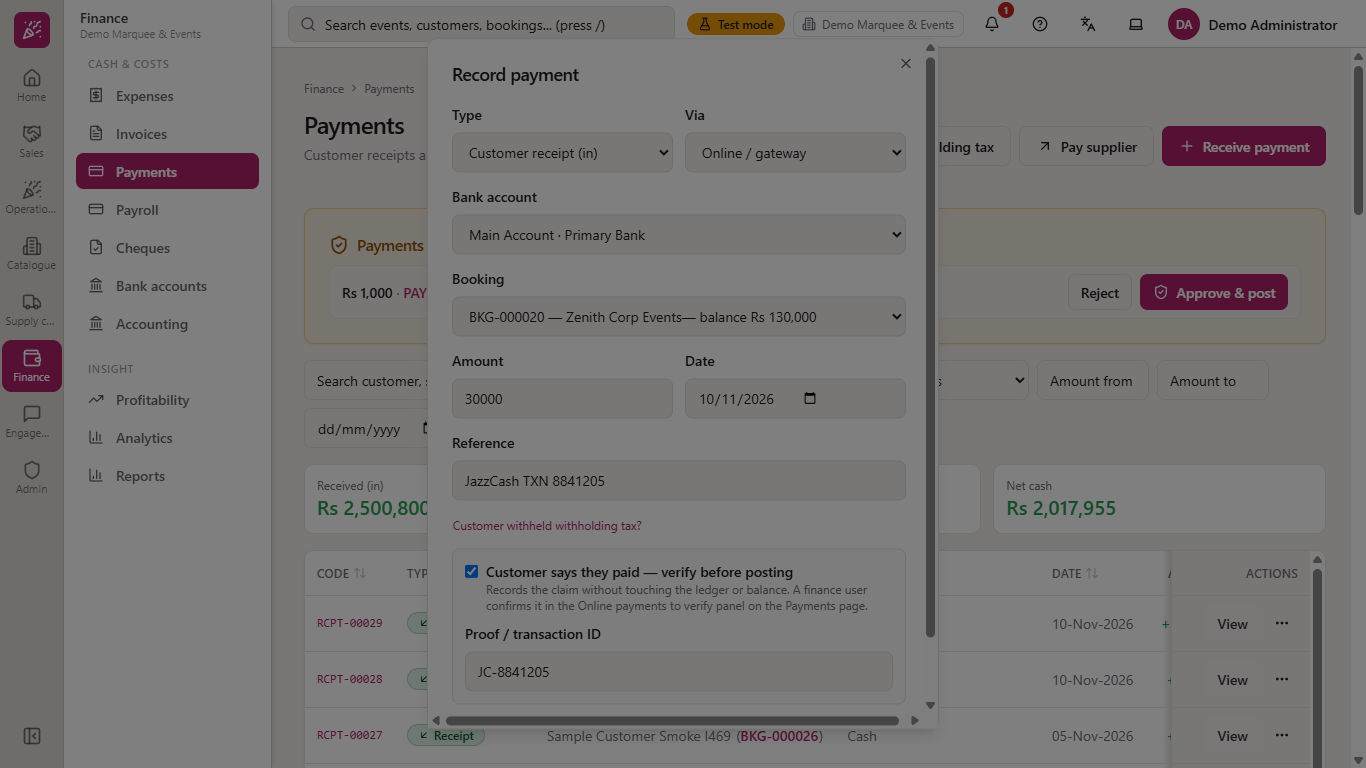
When you have only the customer's word, tick Customer says they paid — verify before posting. A Proof / transaction ID field appears and the button becomes Record as pending. The payment is saved as a claim (a message says it was recorded as pending verification): nothing is posted to the ledger and the booking balance does not change.
The Booking list offers only bookings that still have a balance, so a payment cannot be aimed at a cancelled or fully paid booking.
Dialog with Customer says they paid ticked and a proof field
The booking list shows only open bookings
8
Verify or reject the claim
Pending claims wait in the amber panel Online payments to verify at the top of Payments, each with Reject and Verify & post. The cards do not count them yet.
After you have checked the bank, press Verify & post. The Pending badge goes, the payment posts to the bank account and the totals include it.
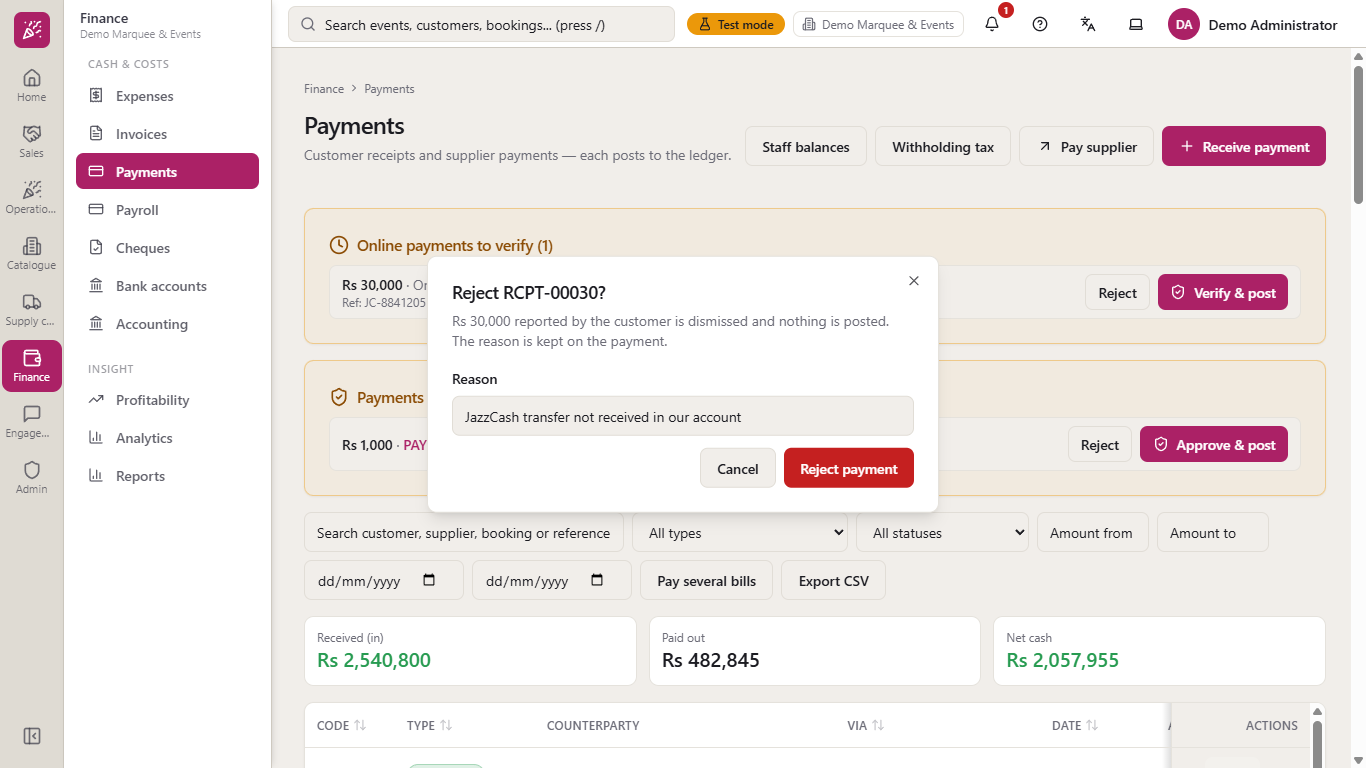
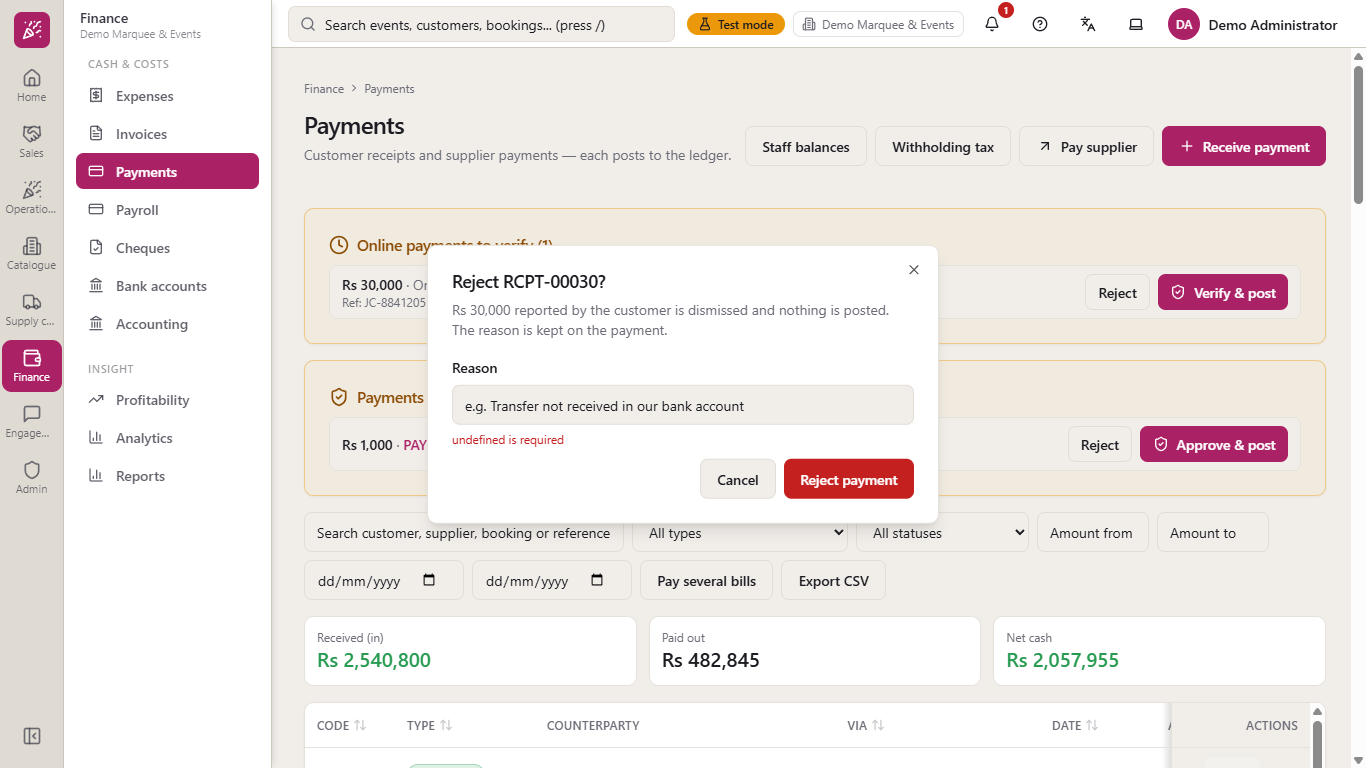
Press Reject for a claim that never arrived. The dialog asks for a Reason and will not continue without one.
The row stays in the list marked rejected, the reason is kept on the payment, nothing is posted and does not change the booking.
Online payments to verify panel with two claims
Receipt after Verify and post
Reject dialog asking for a reason
Rejected row with its reason
9
Check the journal
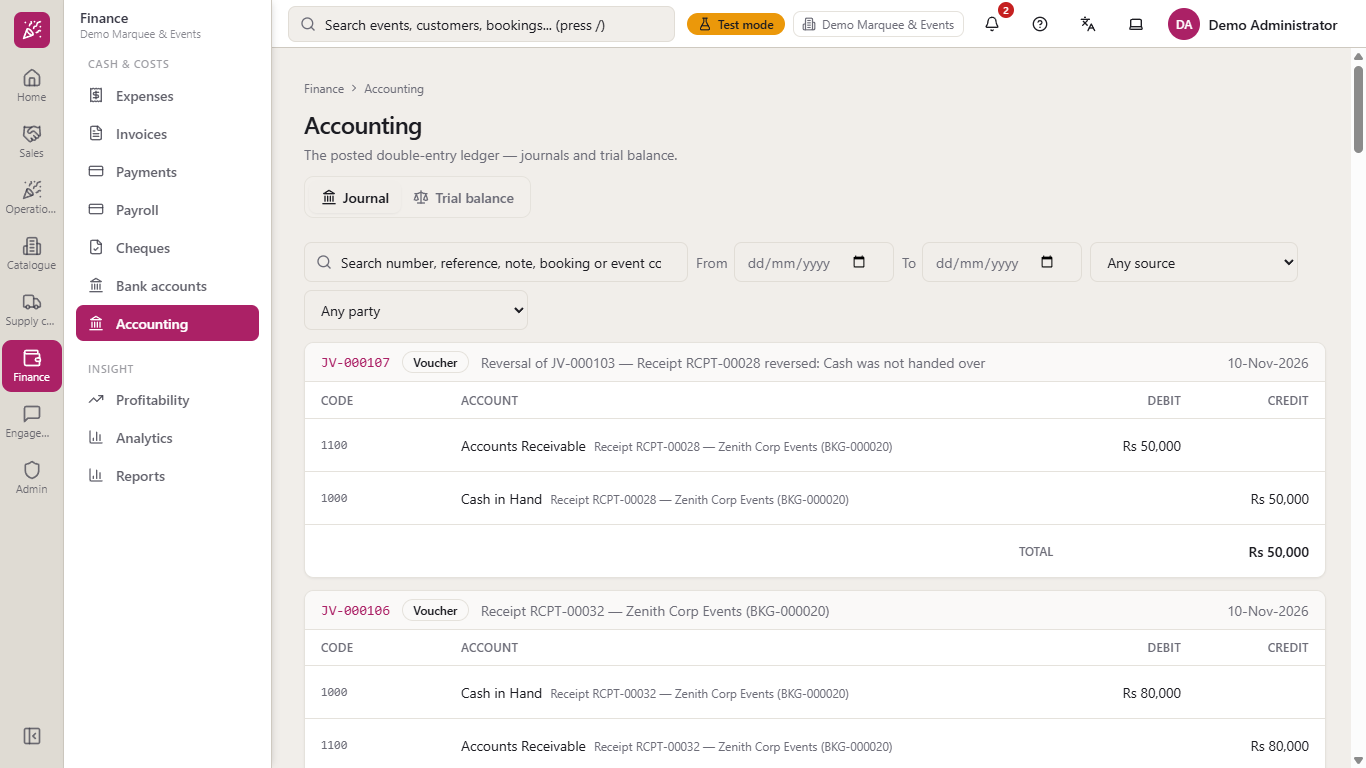
In Finance > Accounting > Journal, newest entry first, each receipt is one balanced entry, with a reversal above the entry it cancels. The cash receipt debits Cash in Hand (1000), the bank receipt debits the bank account (1002-001) and, when tax was withheld, Withholding Tax Receivable (1130), and each one credits Accounts Receivable (1100). The rejected claim has no entry.
Accounting journal with the receipt entries, newest first
10
Check the booking balance
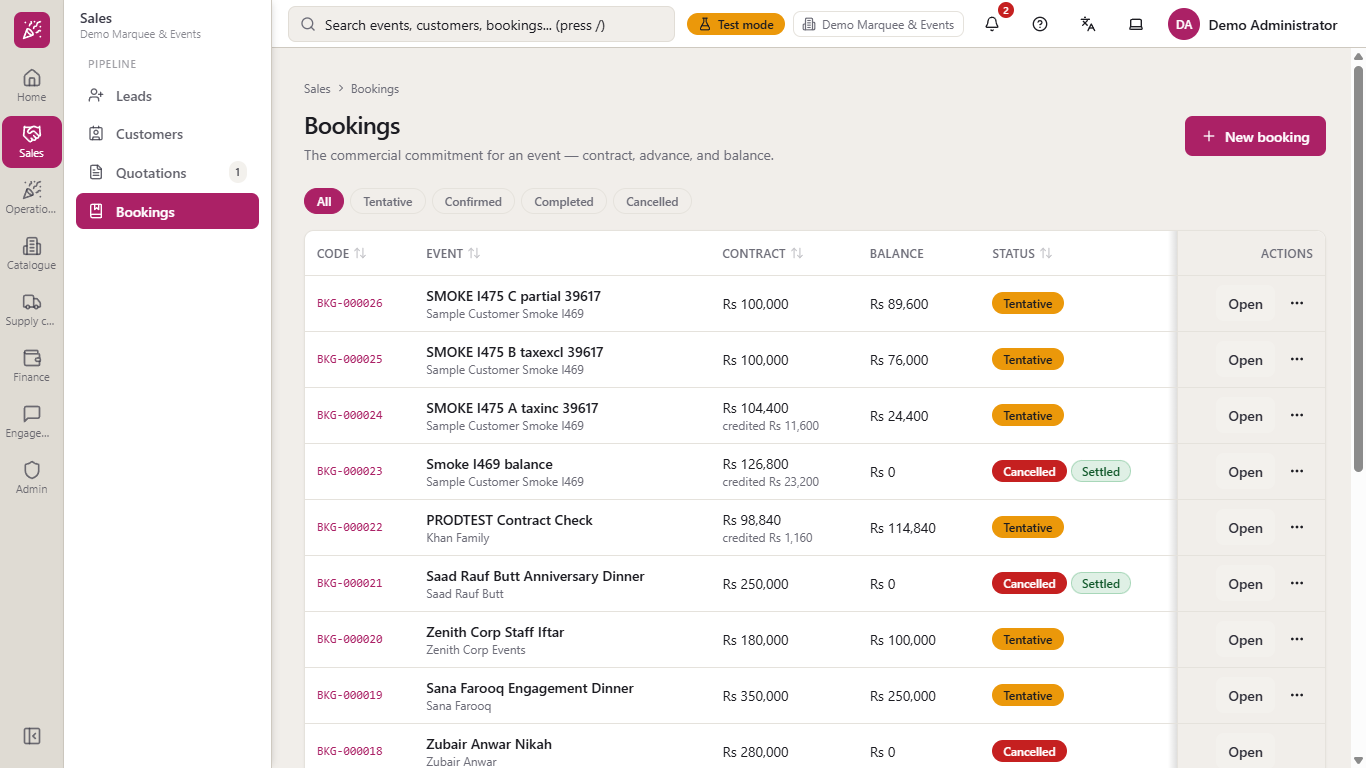
On Sales > Bookings the Balance falls by every verified receipt.
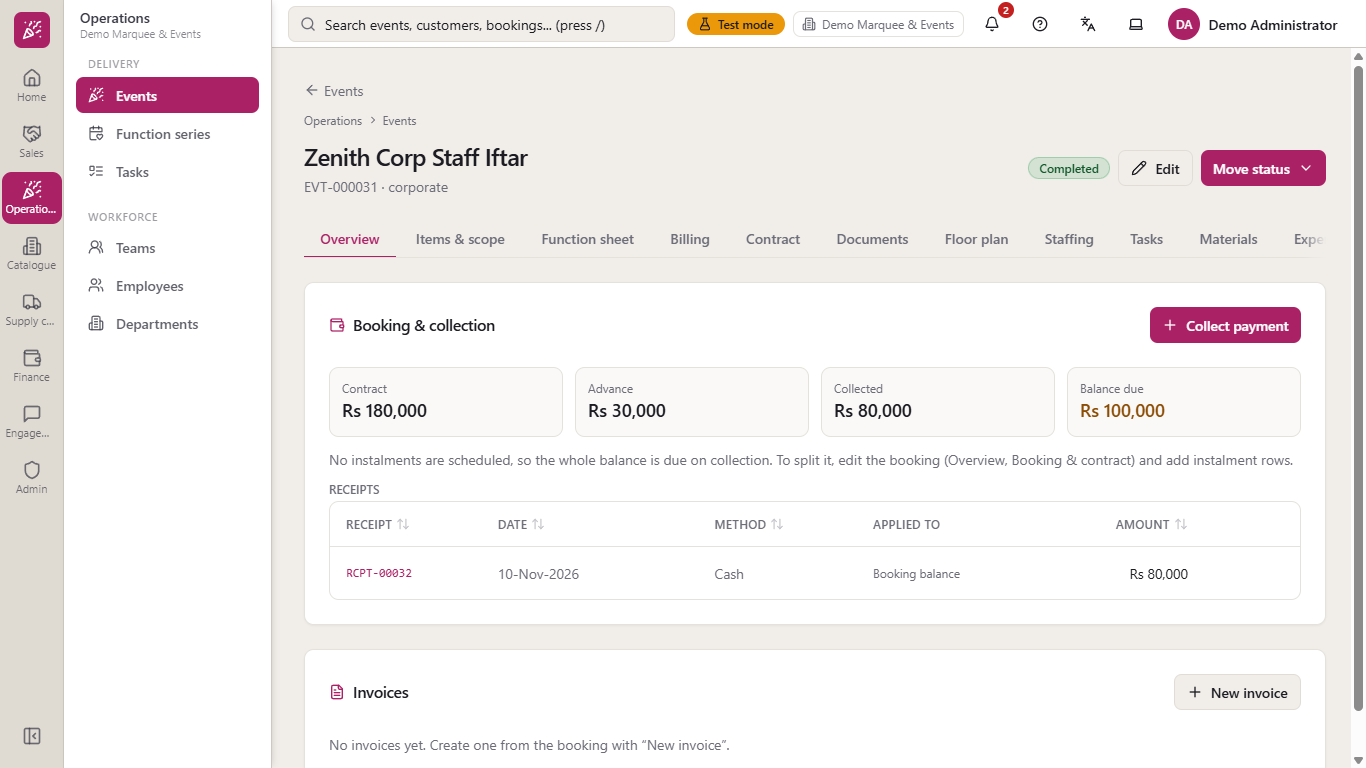
On the event, open the Billing tab: Collected and Balance due match, and the Receipts table lists each verified receipt. Reversed receipts are not listed.
Bookings list with the balance column
Event Billing tab with collected amount and receipts
11
Collect from the event and the overpayment guard
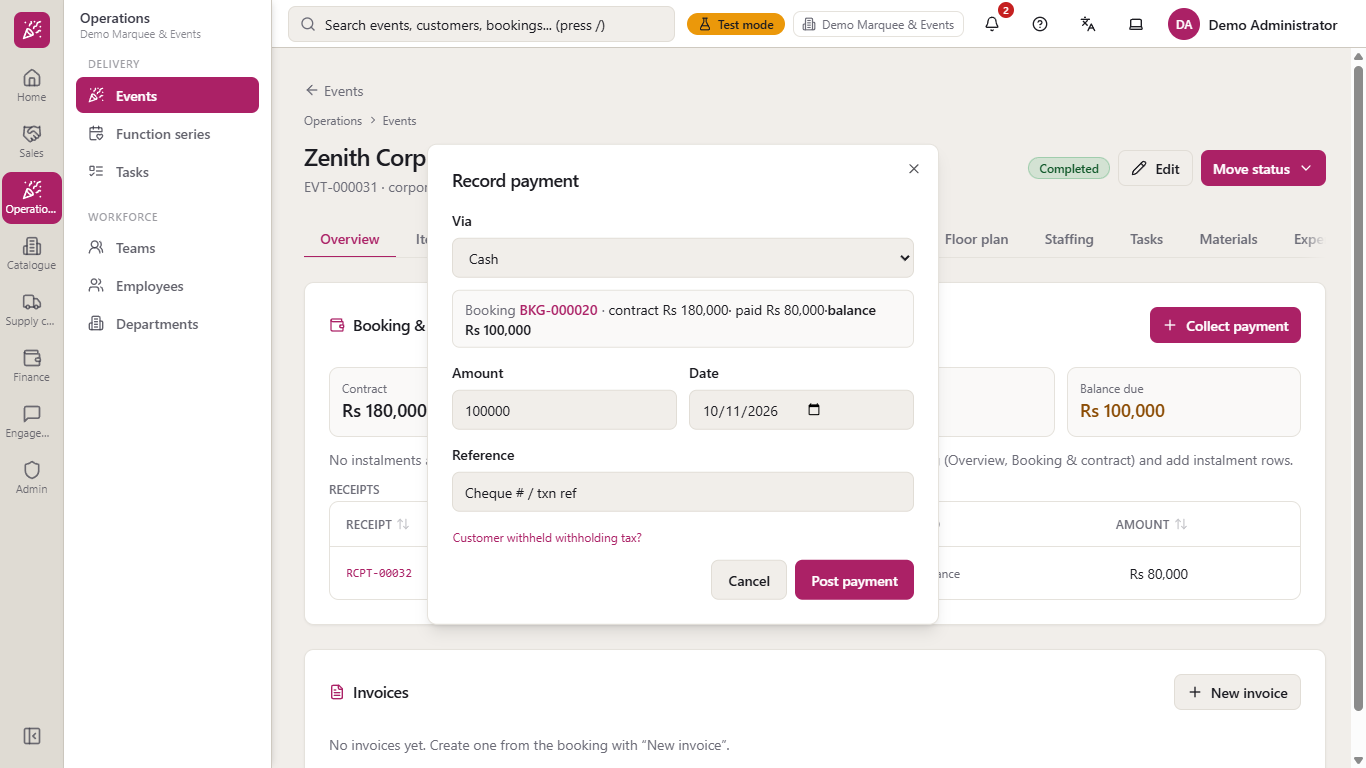
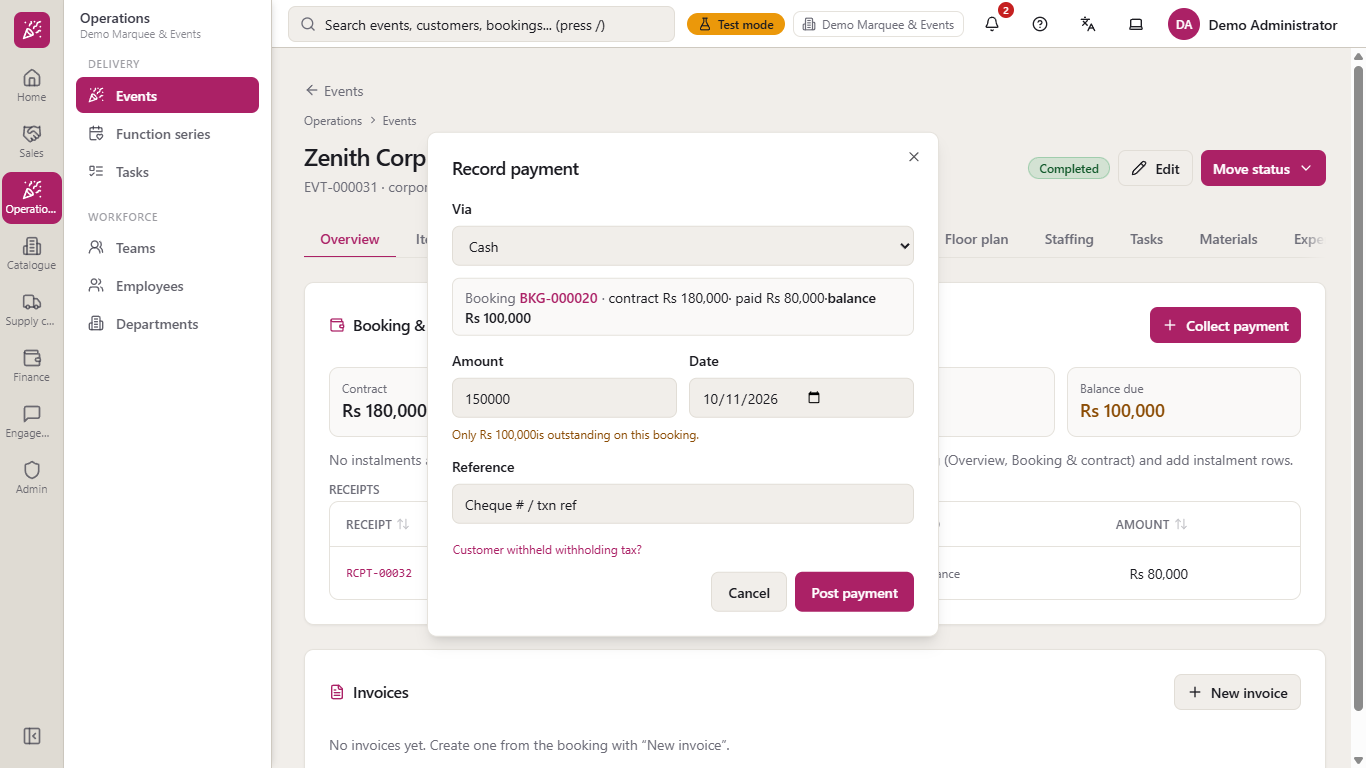
Collect payment on the event opens the same dialog with the booking already chosen and its contract, paid and balance shown.
An amount higher than the balance gets the amber line "Only Rs 100,000 is outstanding on this booking." as soon as you type it.
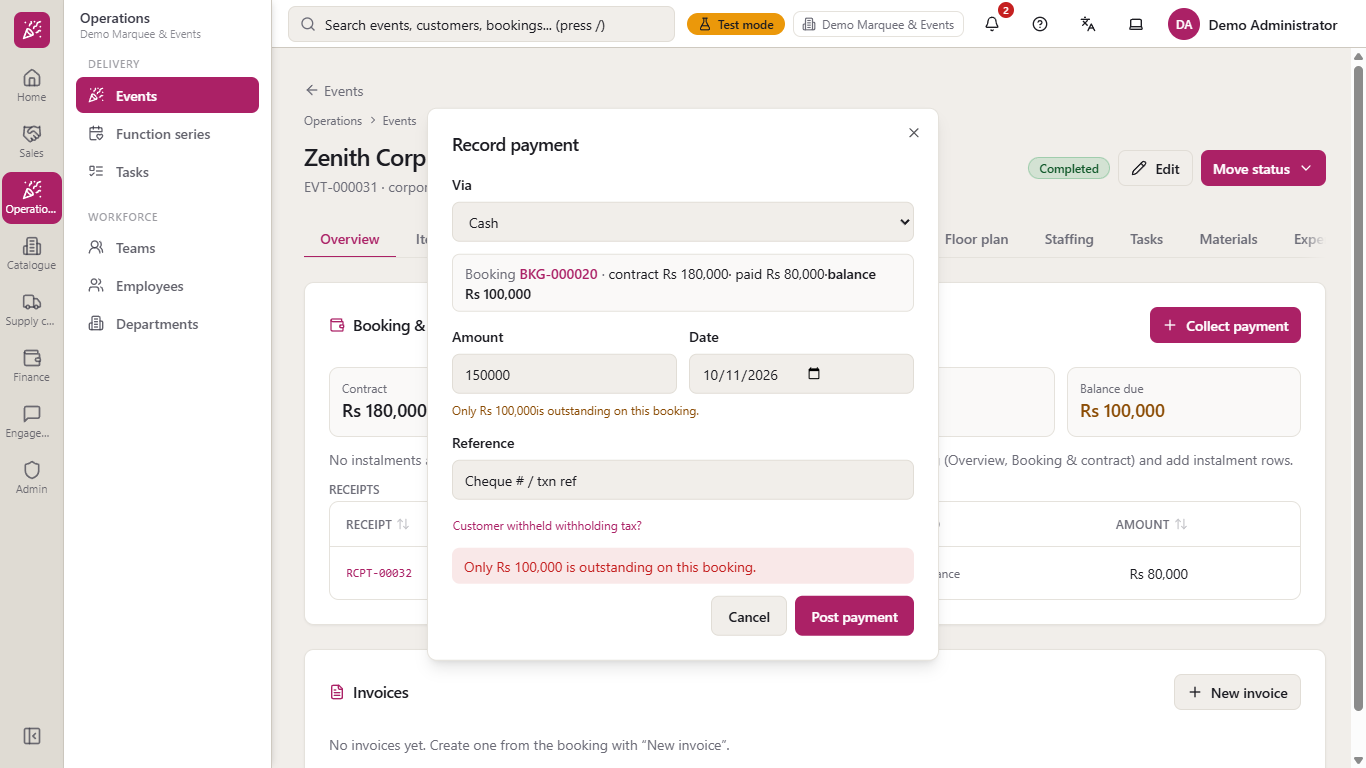
Pressing Post payment is refused with the same message, so a booking is never overpaid.
Collect payment dialog on the event with the booking balance
Warning when the amount is higher than the balance
Red message when posting more than the balance
12
Search and filter
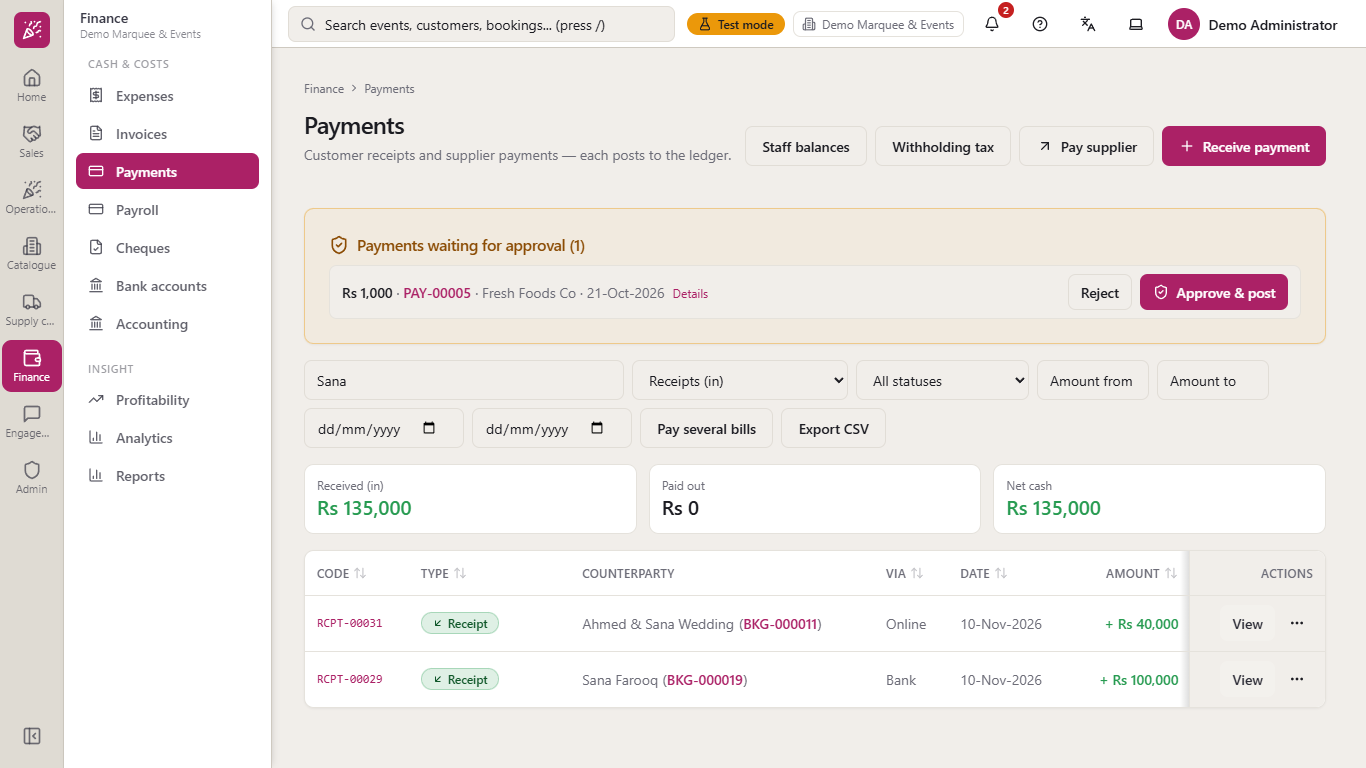
Type a customer, booking or reference in the search box and choose Receipts (in) or Payments and refunds (out). The three cards follow what you filter. The status filter (Posted, Reversed, Waiting for approval), the Amount from / to boxes and the date range narrow the list further, and Export CSV saves what you see.
Search and filter on the Payments list with the cards following
13
Reverse a wrong receipt
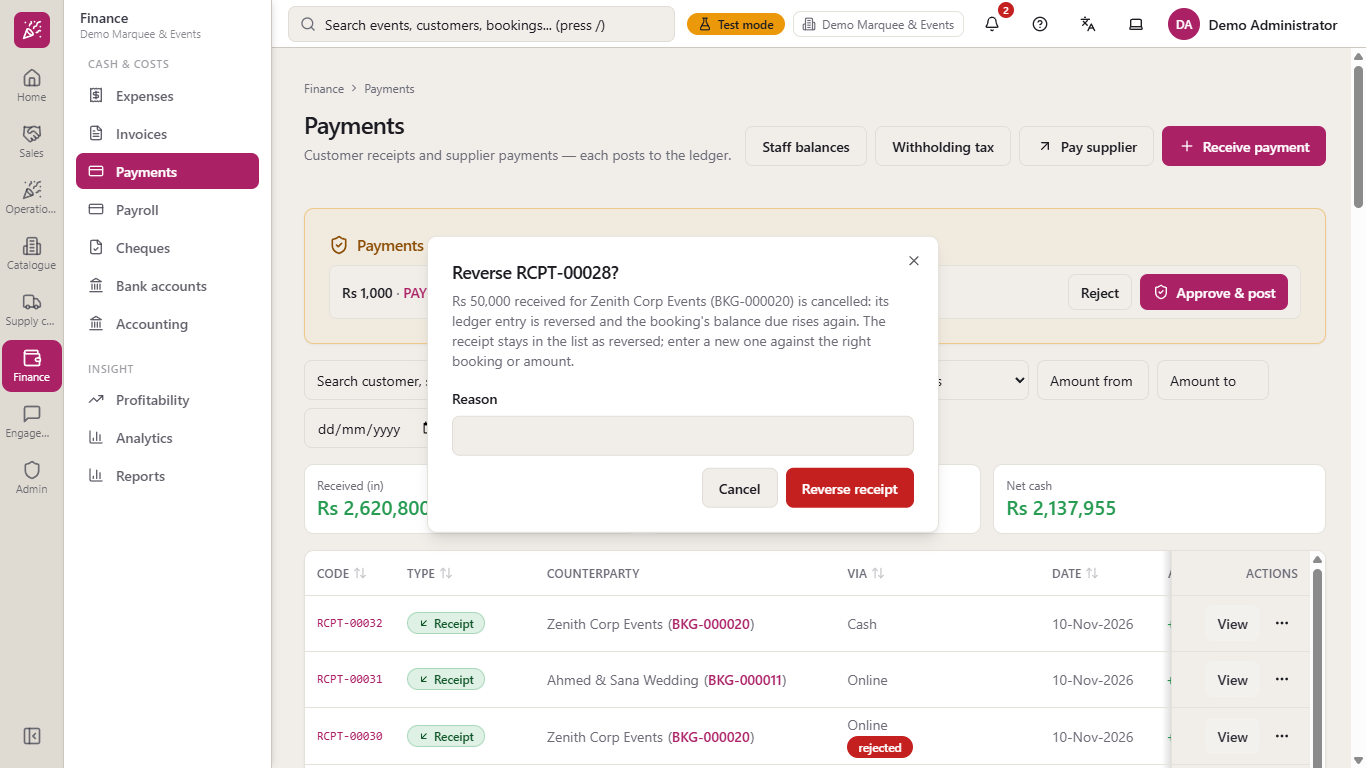
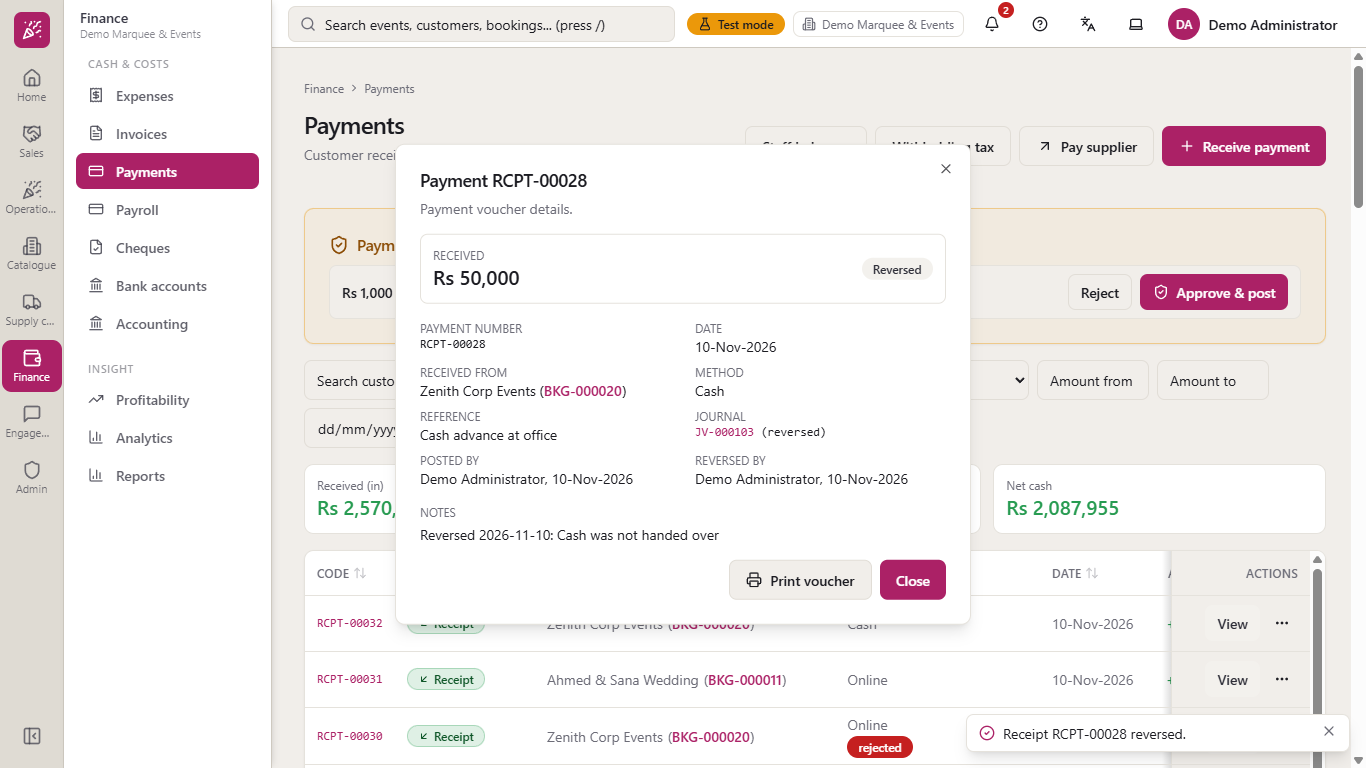
Open the receipt with View and press Reverse receipt (the receipt dialog is replaced by the reverse dialog). Enter a Reason: the ledger entry is reversed, the booking balance rises again and the receipt stays in the list.
A message "Receipt RCPT-00028 reversed." appears and the receipt now carries a Reversed badge, the journal shows "(reversed)", and the notes keep your reason. Enter a new receipt against the right booking or amount.
Reverse receipt dialog asking for a reason
Reversed receipt with its reason
Check it worked
The new receipt is at the top of the Payments list with a code and no Pending badge.
The booking's Balance and the event's Balance due fell by the settled amount.
The journal has one entry for each posted receipt and none for a rejected claim; a reversed receipt has an opposite entry above it.
Common mistakes
Mistake
What you see
Fix
Amount of 0
"Enter an amount greater than zero." and nothing saved
Enter the real amount
Amount above the balance
"Only Rs X is outstanding on this booking."
Enter no more than the balance due
Looking for a cancelled or paid booking
It is not in the Booking list
Record the payment on a live booking with a balance
Entering the net amount when tax was withheld
The booking stays partly unpaid
Enter the full amount and the withheld tax separately
Waiting for a pending claim to count
Cards and balance do not move
Press Verify & post once the money is confirmed
Rejecting or reversing without a reason
The dialog will not continue
Type the reason; it is kept on the payment
Quick reference
Item
Meaning / rule
Cash
Debits Cash in Hand (1000)
Bank, online, card
Debits the chosen bank account's own ledger account (for example 1002-001)
Withholding tax
Kept as Withholding Tax Receivable (1130); settles the balance but is not cash received
Customer says they paid
Saves a pending claim: no journal, no balance change
Verify & post
Posts a pending claim to the bank account
Reject
Keeps the claim as Rejected with its reason, posts nothing
Reverse receipt
Posts an opposite entry, restores the balance, keeps the receipt as Reversed
Net cash received
Amount less withheld tax
Frequently asked questions
Does a pending payment change the booking balance? No. It changes nothing until you press Verify & post.
Why is the bank amount lower than the customer's payment? The customer withheld tax and paid it to the tax office. You record that tax in the Withholding field and it is kept as a receivable you can claim against your own tax.
Can I record a payment for a cancelled booking? No. Cancelled and fully paid bookings are not offered in the Booking list. Cancelled bookings are settled by refund or credit on the booking.
How do I undo a receipt I recorded by mistake? Open it with View, press Reverse receipt and give a reason. The receipt stays as Reversed and a new entry in the journal cancels the old one.
Where do I see the journal behind a receipt? Open the receipt with View: the Journal field gives its number, and the entry is in Finance > Accounting > Journal.