Open Review & send
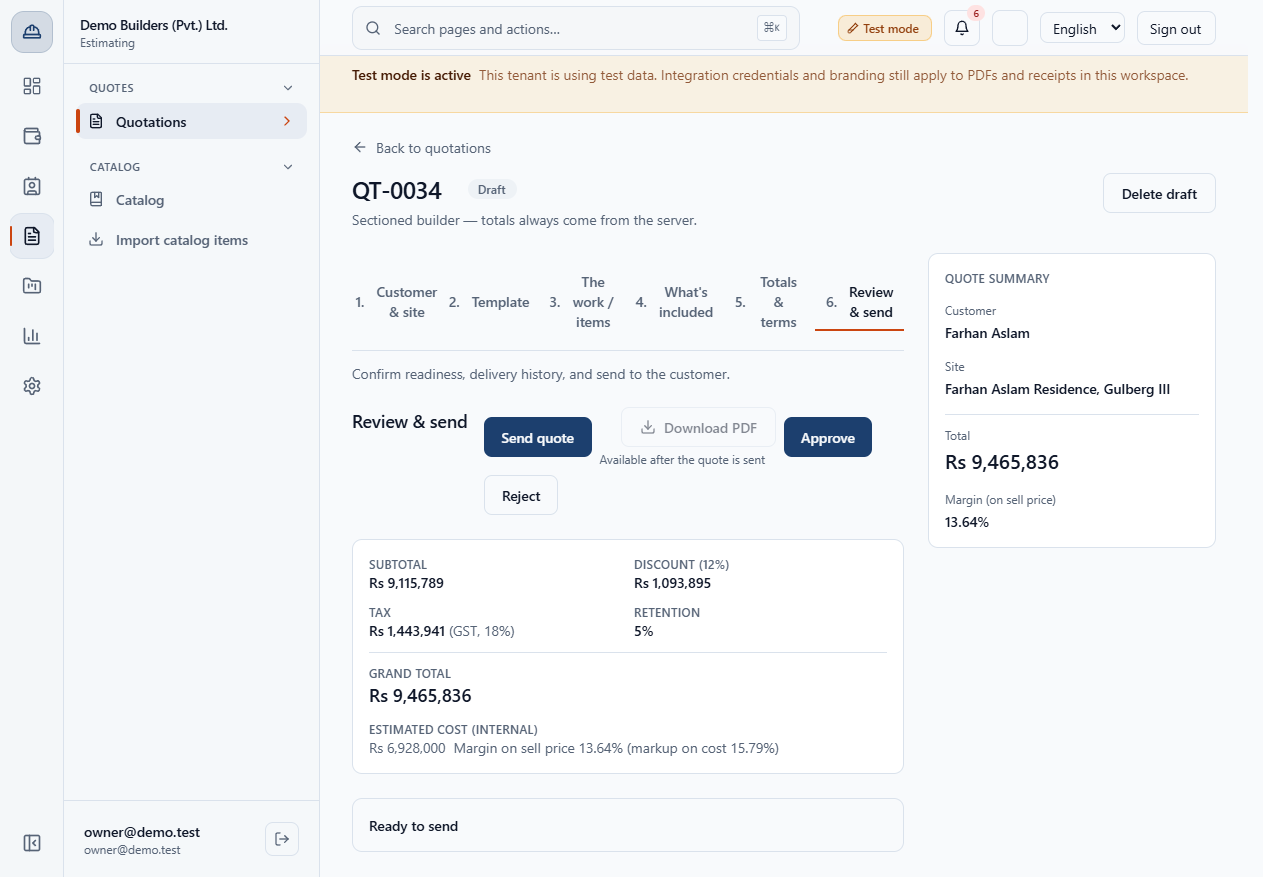
Open the quotation and go to step 6, Review & send. The totals are shown and the box says Ready to send. Download PDF is greyed out until the quote is sent.
Once the quotation is priced you send it so the customer can read and decide. This guide covers the readiness check, the delivery channels, what Send freezes and how to resend or share the portal link.
Open the quotation and go to step 6, Review & send. The totals are shown and the box says Ready to send. Download PDF is greyed out until the quote is sent.
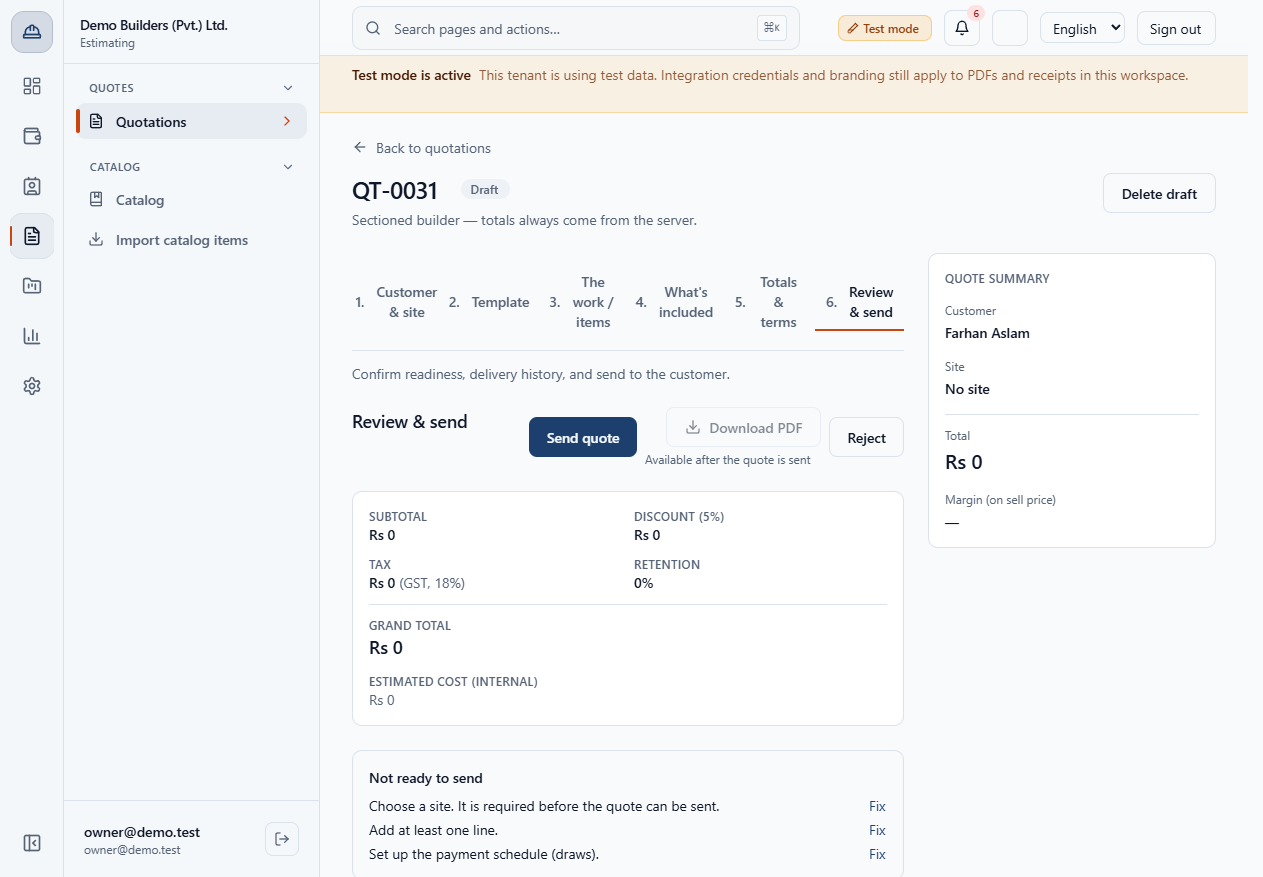
If something is missing the box says Not ready to send and lists it, for example Choose a site. It is required before the quote can be sent. Click Fix to jump to it.
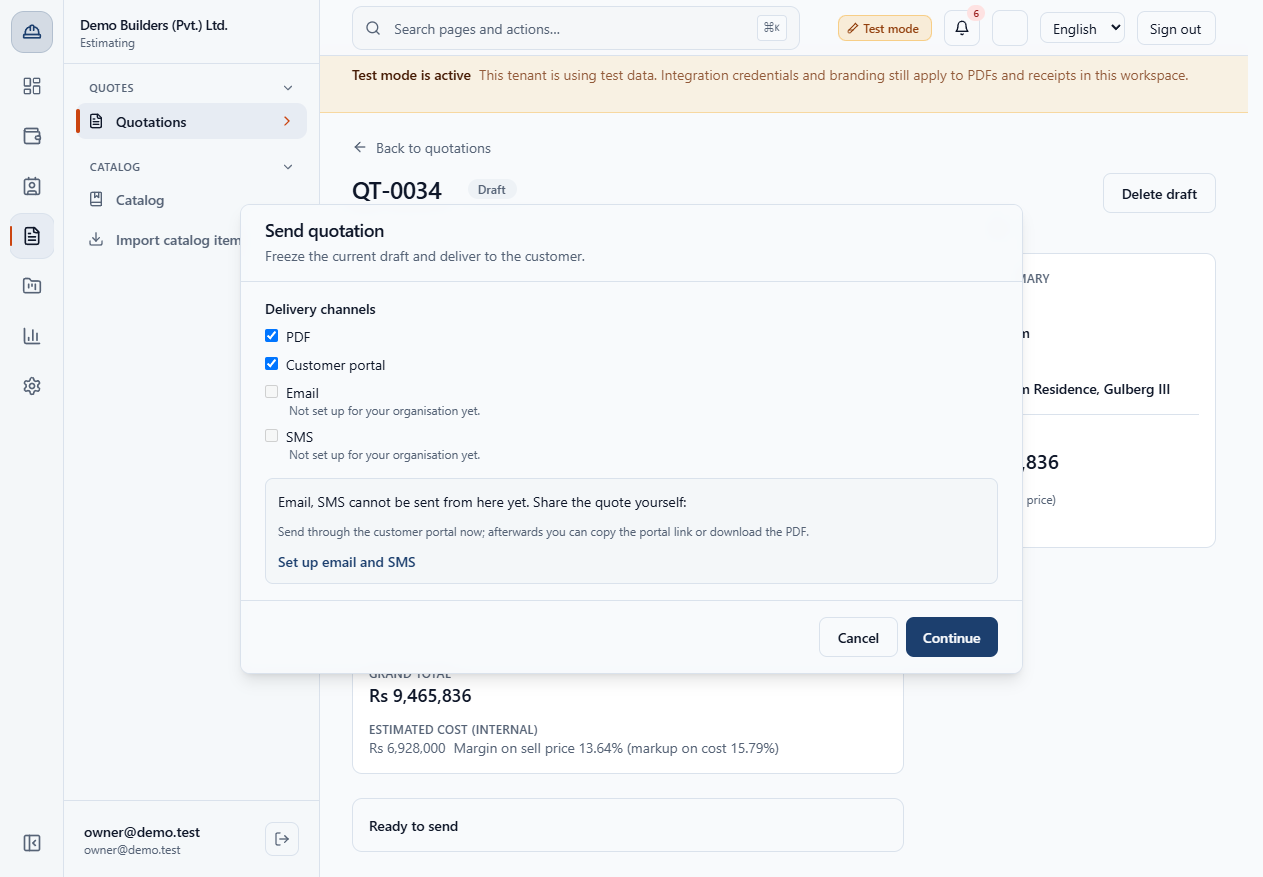
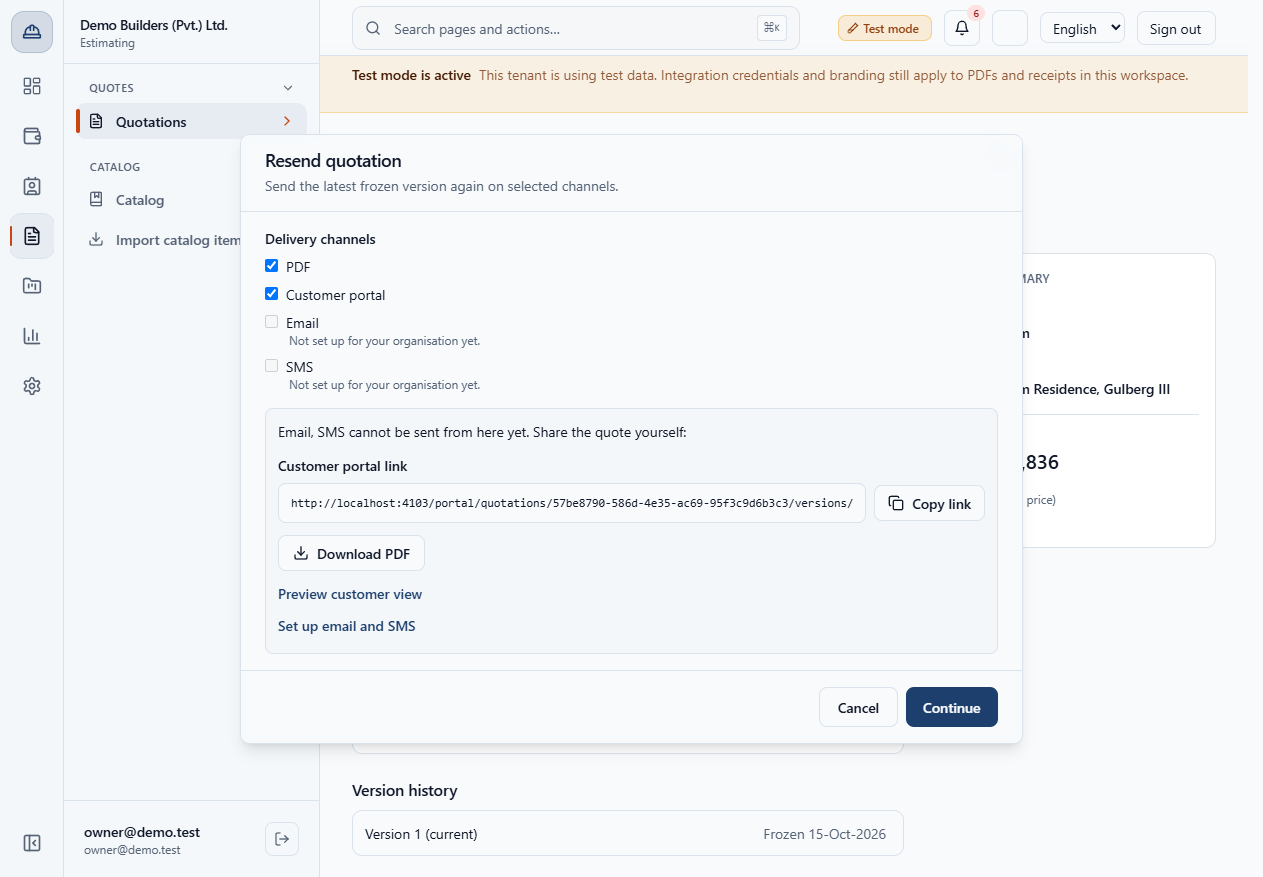
Click Send quote. PDF and Customer portal are ticked. Email and SMS are greyed out with Not set up for your organisation yet. Click Continue.
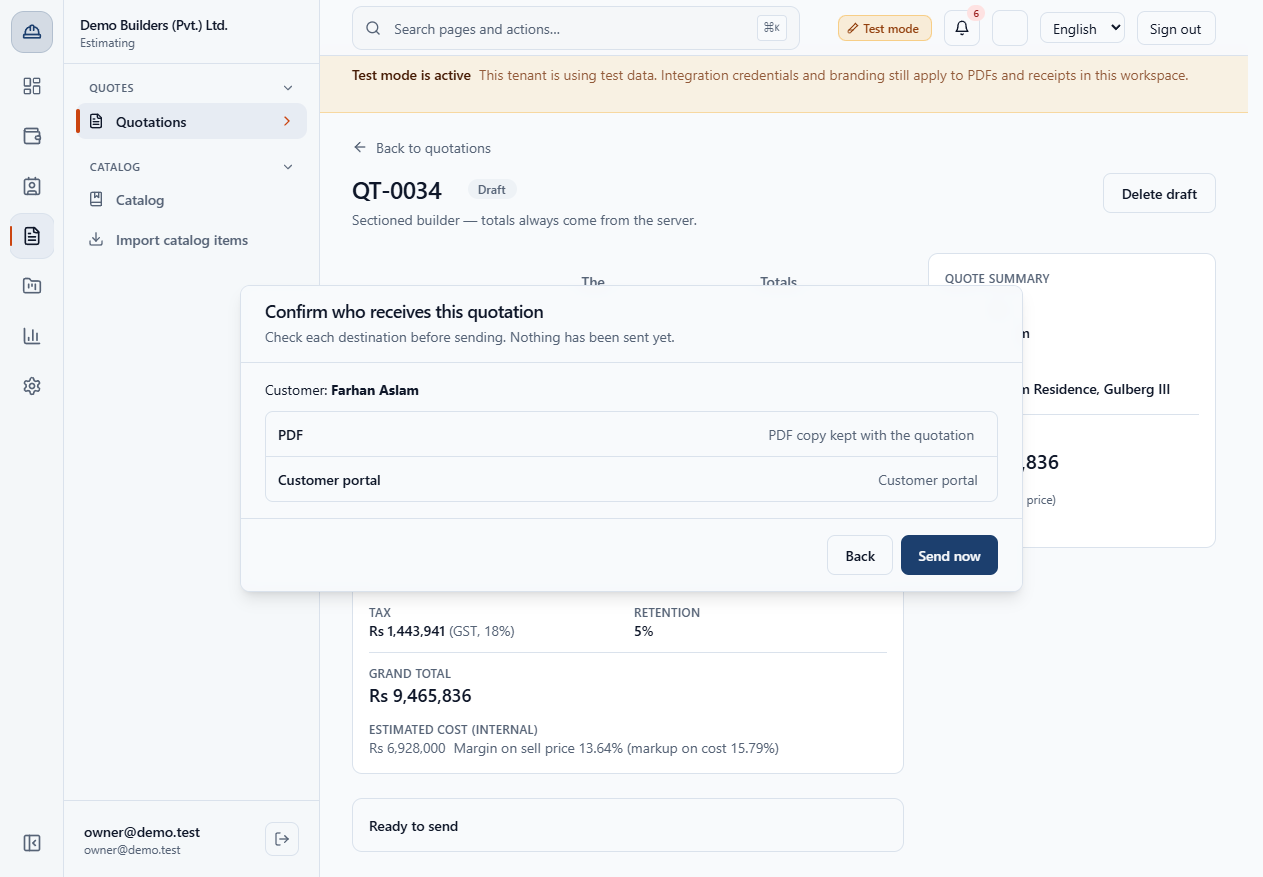
The app shows the customer and each channel and says Nothing has been sent yet. Click Send now.
The quote shows Sent and Read-only. Resend, Download PDF, Preview customer view, Approve, Reject and Duplicate quote appear.
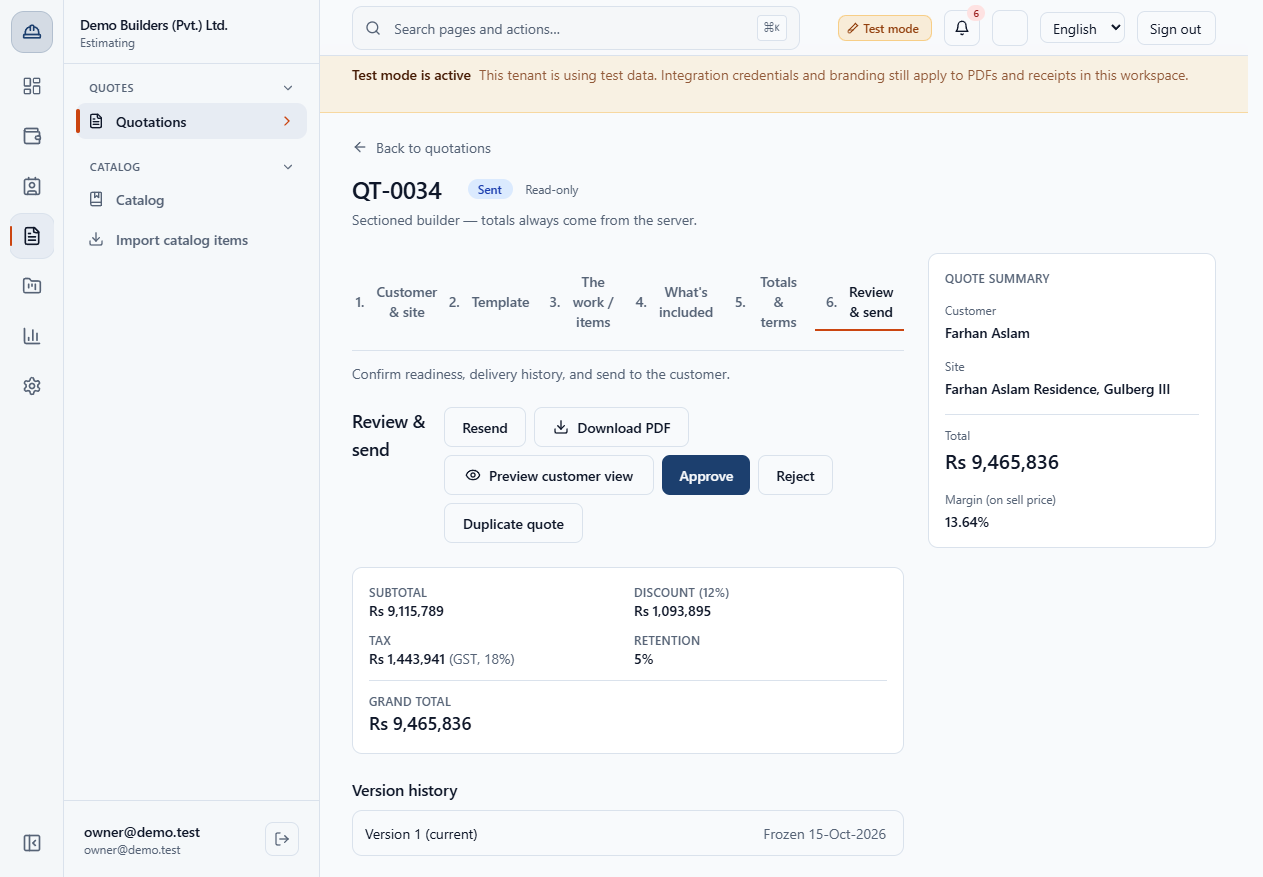
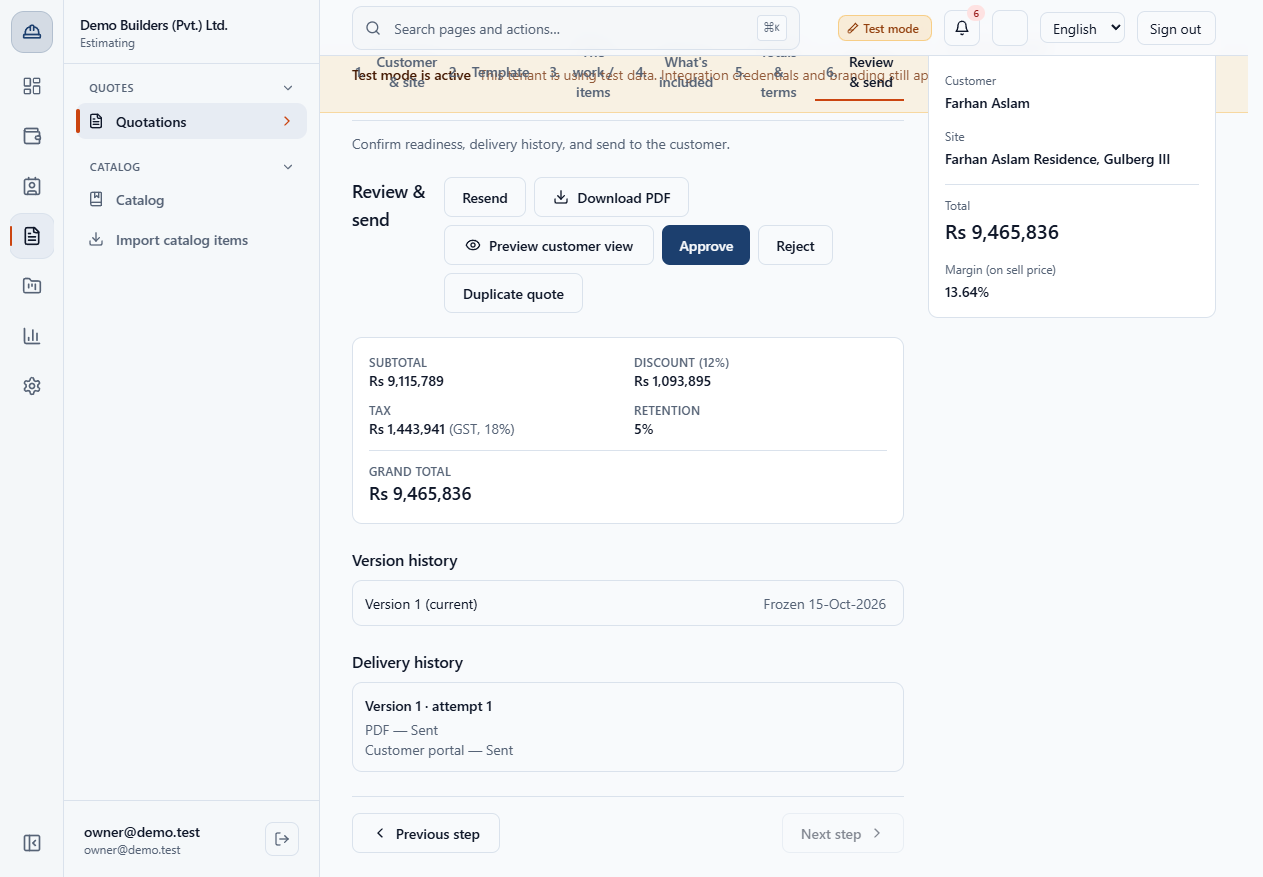
Version history shows Version 1 (current) with its frozen date. Delivery history shows each channel; a channel moves from Pending to Sent.
Resend sends the same frozen version again. The dialog gives the Customer portal link with Copy link, a Download PDF button and Preview customer view, so you can share or check them yourself.
Download PDF gives the quotation as it was frozen, on your letterhead.
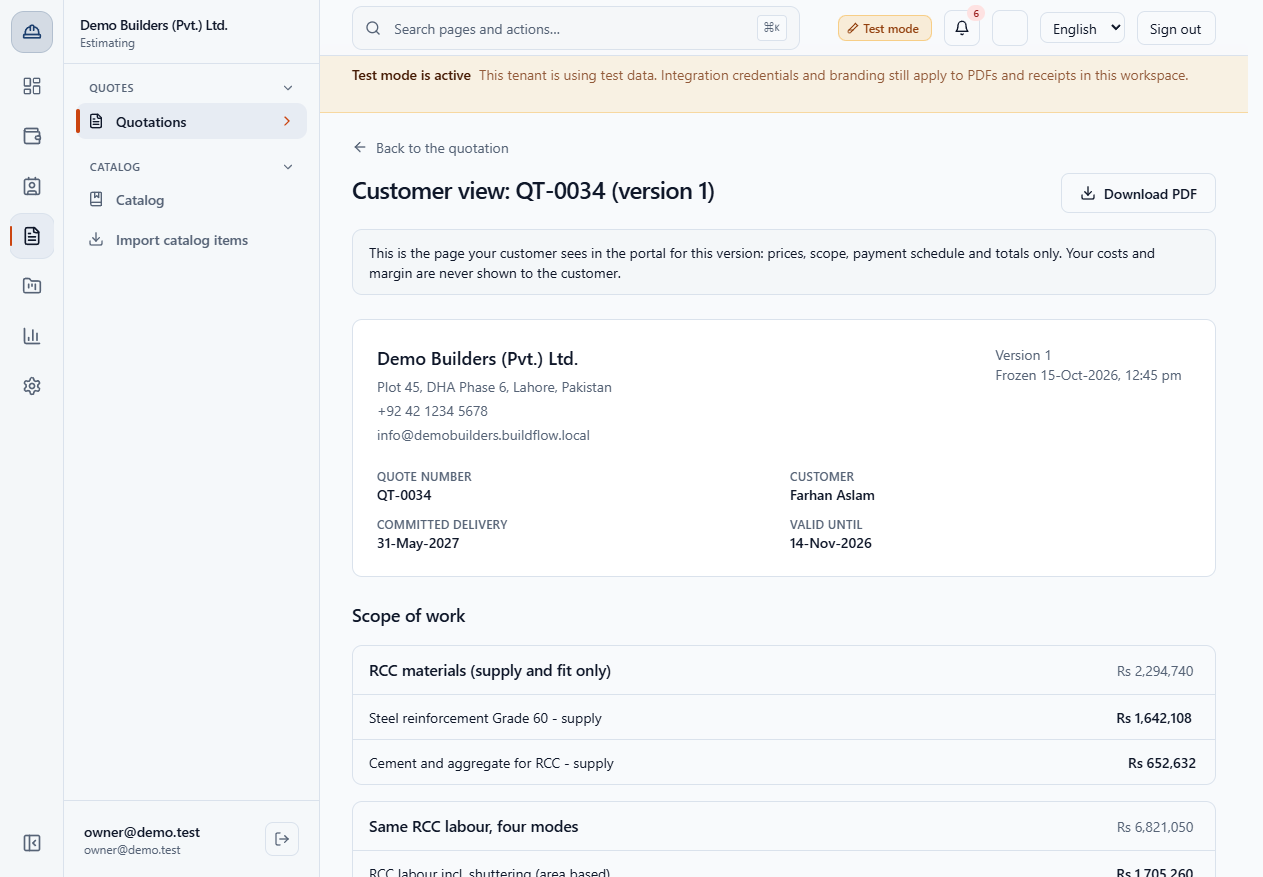
Click Preview customer view. The page Customer view: QT-0034 (version 1) shows what your customer reads in the portal: your letterhead, the scope of work, what is included and excluded, the payment schedule and the totals. Your costs and margin are never shown.
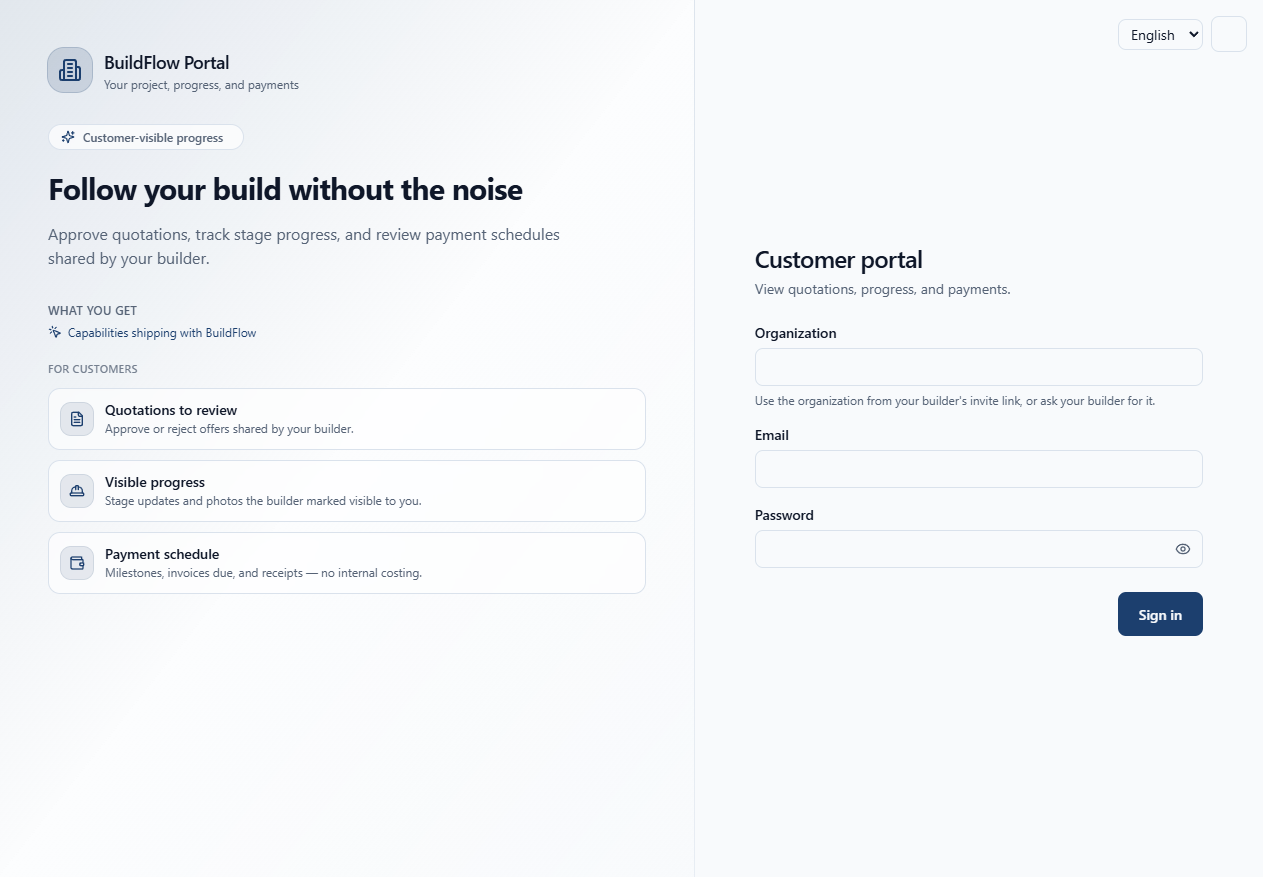
The customer opens the portal link and signs in with their own portal login. You cannot open that page with your staff login, so use the preview.
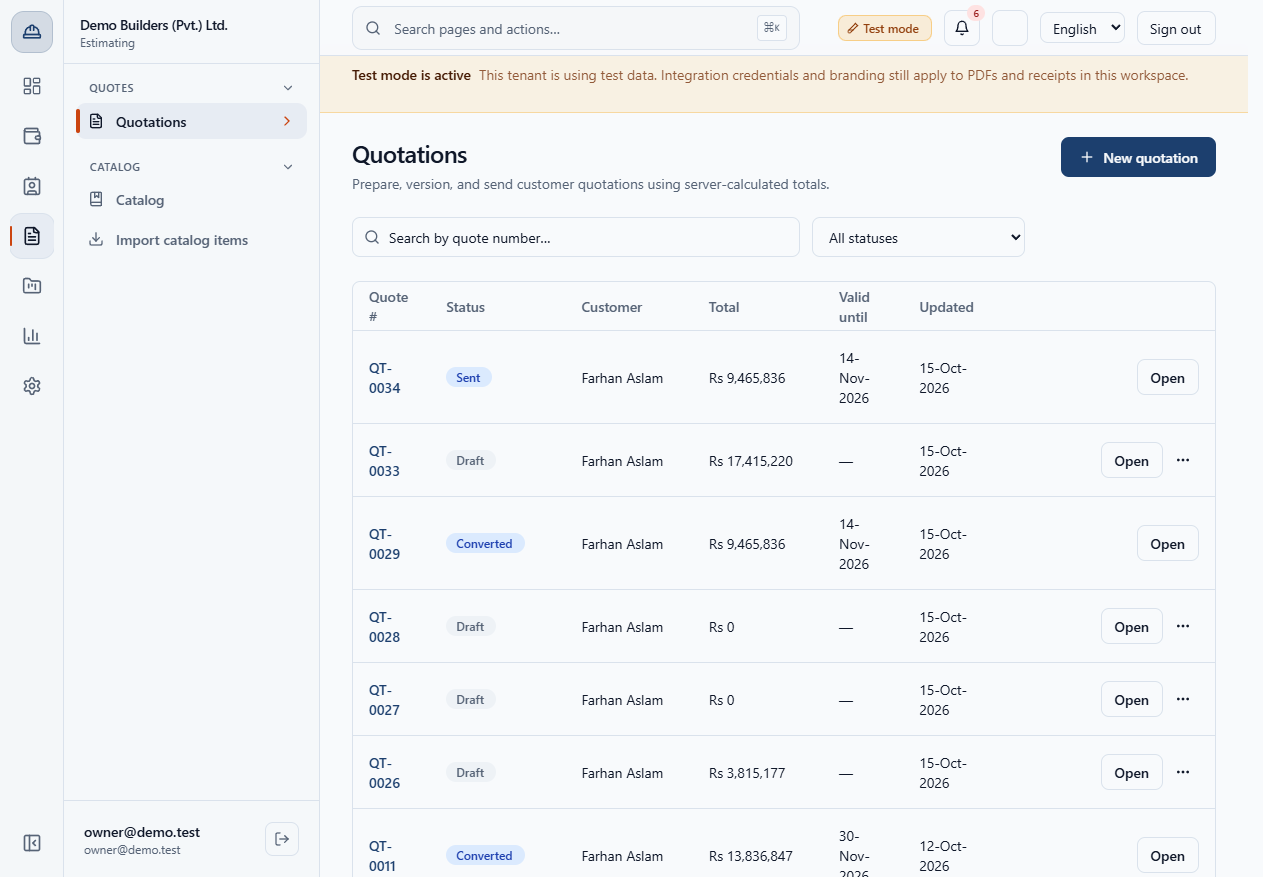
In the Quotations list the quote shows Sent, its total and Valid until.
| Mistake | What you see | Fix |
|---|---|---|
| Sent without a site | Choose a site. | Pick a site first |
| Expected an email to go out | Email is greyed out | Share the portal link or PDF yourself |
| Item | Meaning / rule |
|---|---|
| Sent | The version is frozen and read-only |
| Resend | Sends the same frozen version again |
| Portal link | For the customer to sign in and decide |
Can I edit a quotation after sending it? No. A sent version is frozen and the quote is read-only.
Why are Email and SMS greyed out? They are not set up for the organisation. The dialog tells you to share the portal link or the PDF yourself.
Can I see the page my customer sees? Yes, once the quote is sent: Preview customer view on Review & send opens the same page the customer reads, without your costs and margin.
Does a low margin stop me sending? No. Only missing items such as a site, a line or a payment schedule block it.
BuildFlow runs this whole workflow. See what BuildFlow does and what it costs, or browse all step-by-step guides.