Build the crew roster you schedule work against: switch trades on or off, create own and subcontractor crews with a foreman, choose how each crew is paid, and keep a dated list of members.
Who it is forProject manager or site supervisorTime20 minutesProductBuildFlowLevelIntermediate
Before you start
Steps
1
Check the trades, then start a team
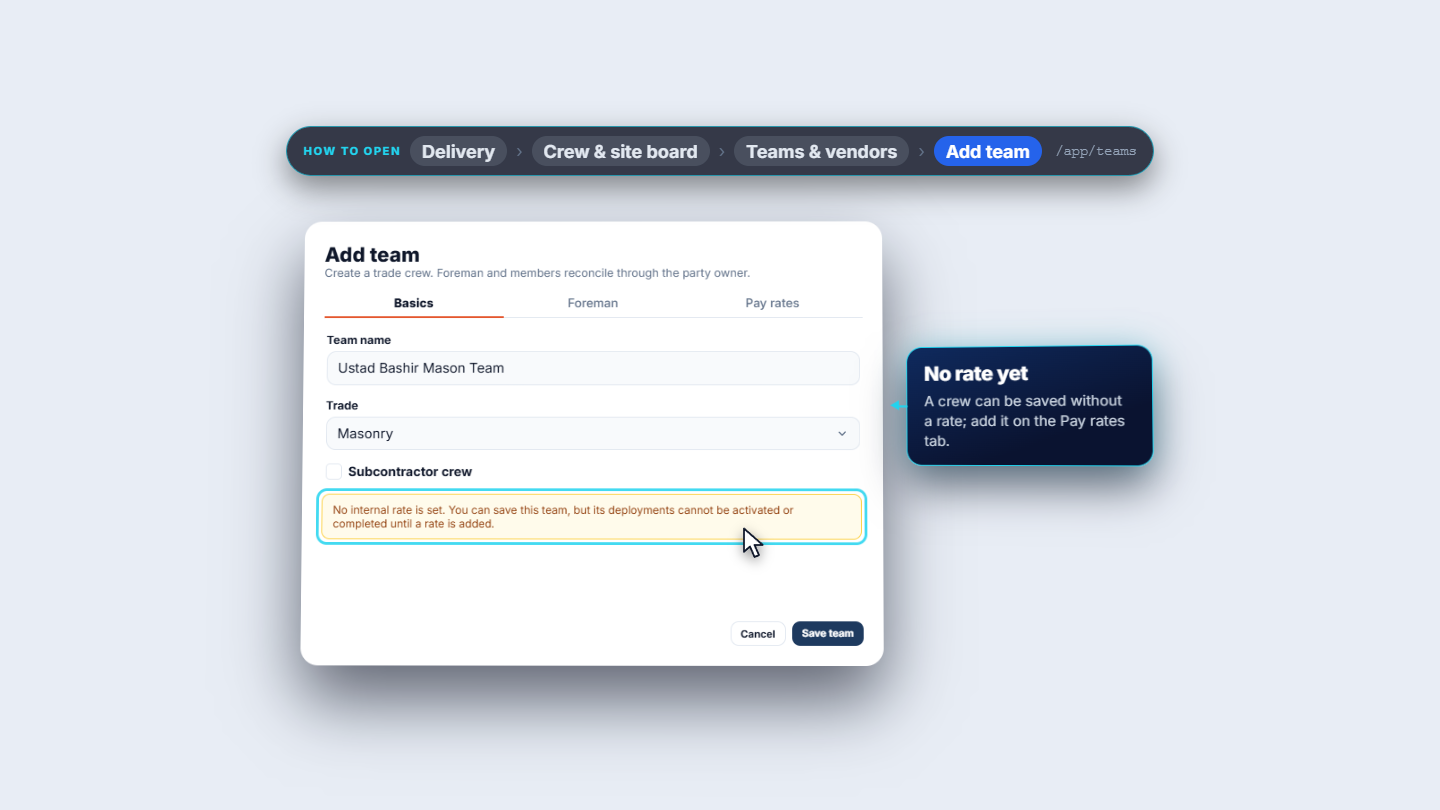
Open Delivery › Crew & site board › Teams & vendors (/app/teams). It has three tabs: Teams, Vendors and Trades. Trades lists the 15 trades your locale offers, each with a type and a status. Deactivate switches a trade off (the toast says Trade deactivated), and Activate switches it back on. Only active trades are offered when you add a team. Click Add team. The dialog has three tabs: Basics, Foreman and Pay rates. Saving a blank form says This field is required. under the name and the trade. Type the Team name (Ustad Bashir Mason Team), choose the Trade (Masonry) and leave Subcontractor crew unticked, because this is your own crew.
Add team dialog on the Basics tab with the no-rate note
2
Add the foreman and a time-based rate
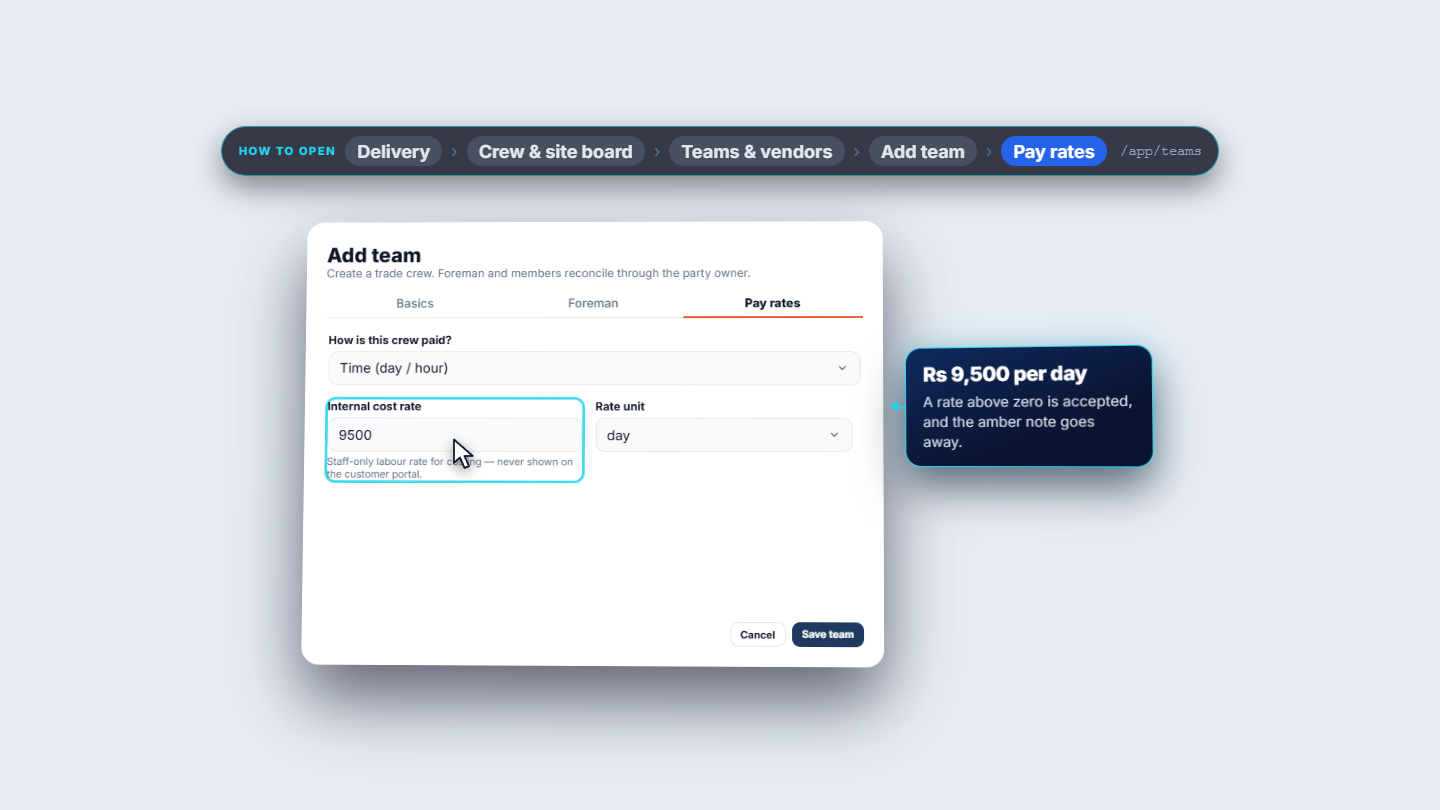
The Foreman tab is optional. Leave it blank and the foreman is cleared on save. Otherwise enter Name, Email, Phone and National ID for one person, here Ustad Bashir Ahmed. A wrong email or phone number is refused with its own message, and the national ID is stored securely. On Pay rates, How is this crew paid? offers Time (day / hour) and Measured (piece rate). Choose Time. Type the Internal cost rate (9500) and set the Rate unit to day. A rate of zero is refused. Click Save team. The toast says Team created.
Pay rates tab with Time pay at Rs 9,500 per day
3
Add a subcontractor crew and its vendor
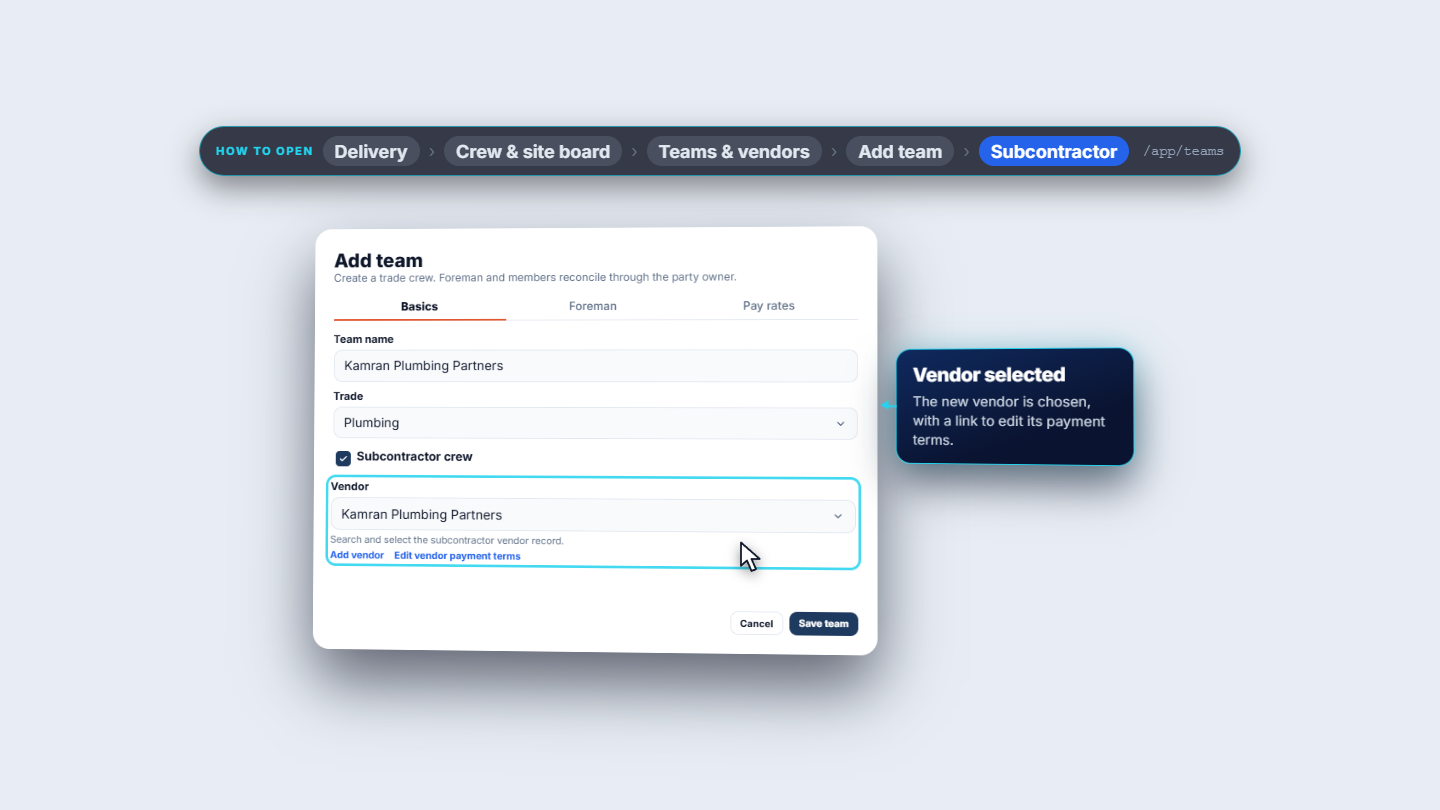
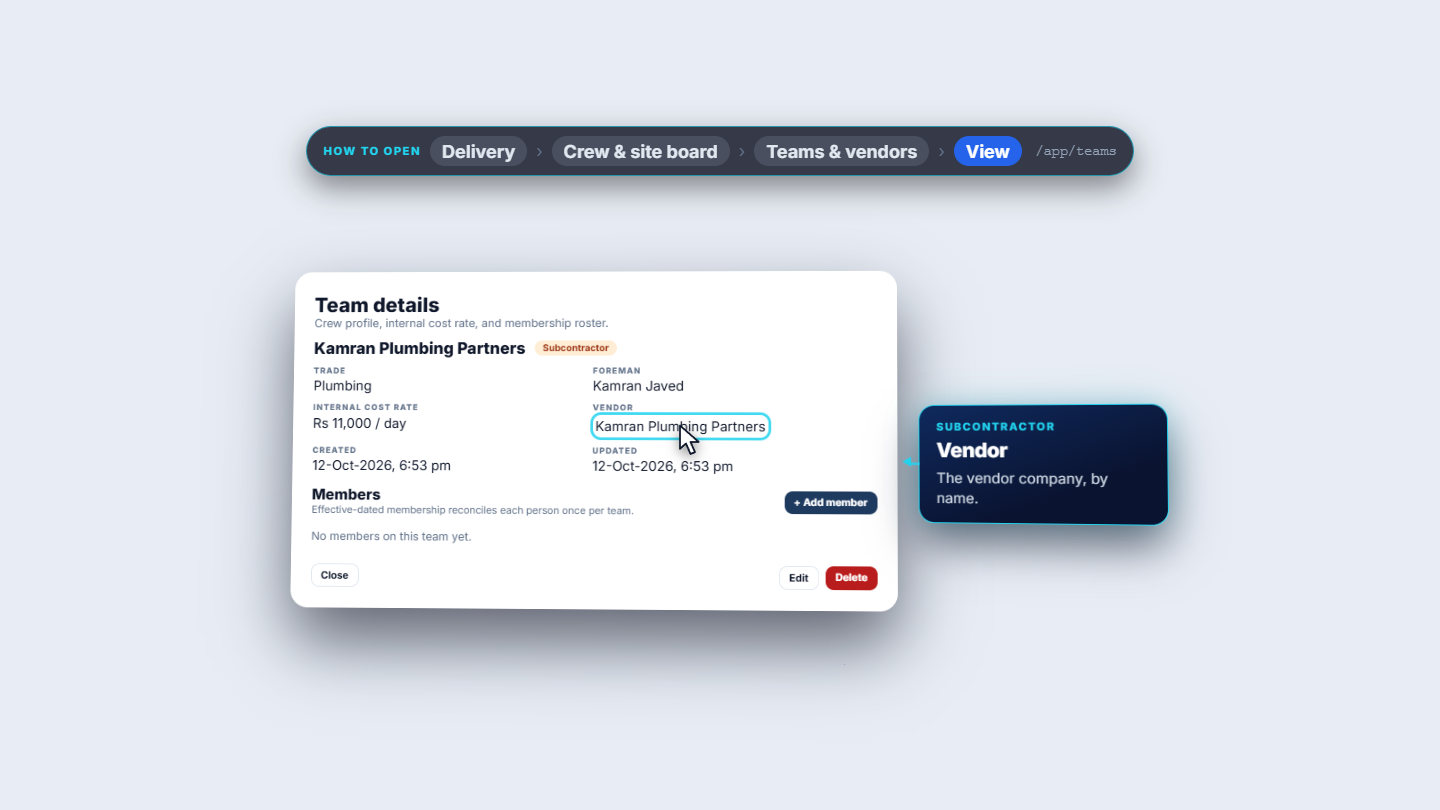
When the crew is another company, tick Subcontractor crew. A required Vendor field appears. Click Add vendor to open a small form: the vendor name, credit terms (Due on receipt, Net 15, 30, 45 or 60 days), payment timing (Net, or Pay when paid) and a contact person. The contact needs a phone number or a national ID, so the same person is never recorded twice. Saving selects the new vendor in the team form, with a link Edit vendor payment terms. The crew is saved as Kamran Plumbing Partners: Plumbing, a subcontractor, at Rs 11,000 per day. The Vendors tab then lists every vendor with its contact and payment timing.
Add team with Subcontractor crew ticked and the vendor selected
4
Pay a crew by output
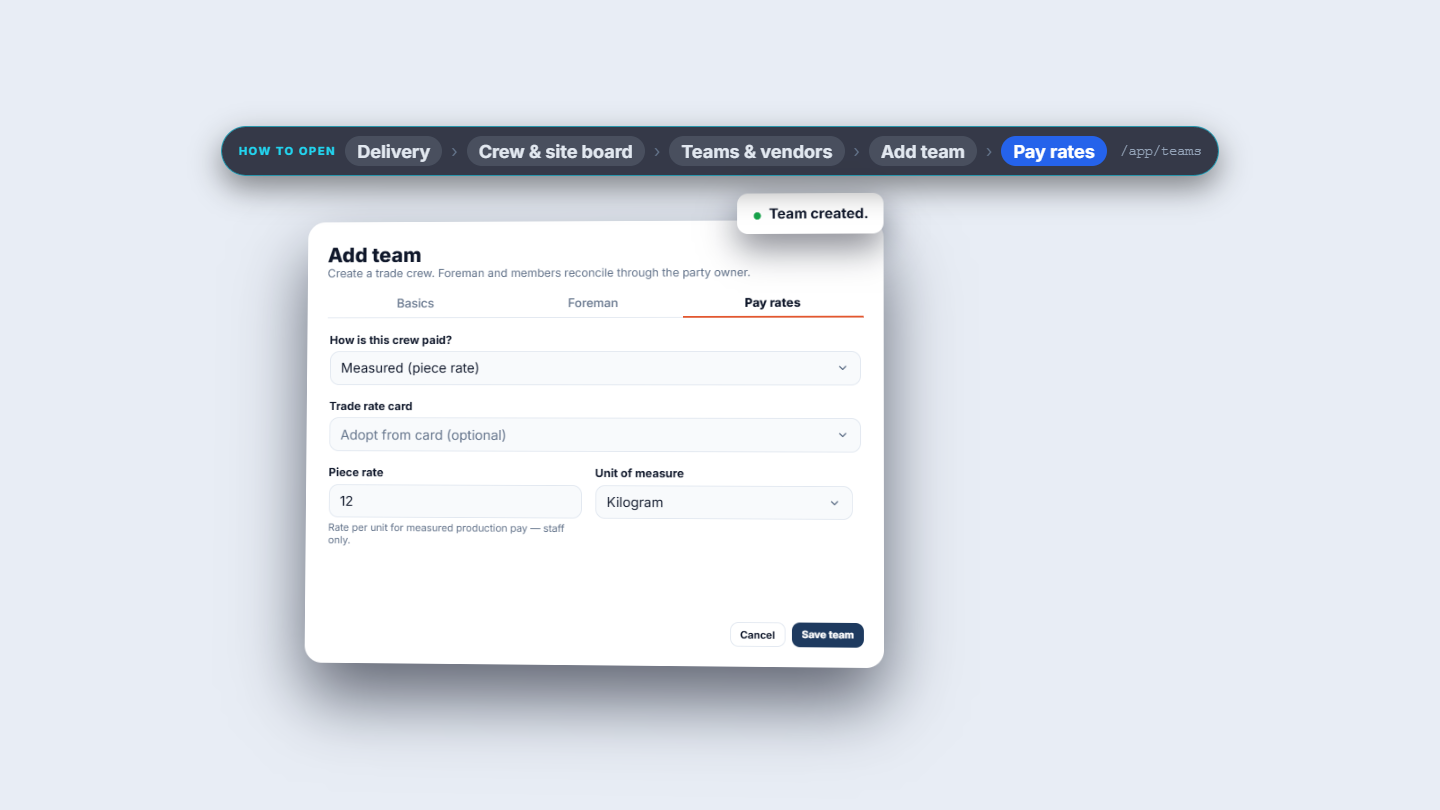
Ustad Nadeem Steel Fixing Team is paid by output. On Pay rates choose Measured (piece rate). Trade rate card is optional: its list offers No card or the cards your workspace has for the trade, such as Steel fixing per kilogram. Type the Piece rate (12) and choose the Unit of measure (Kilogram, from fifteen units, square metre to running foot). Leaving the piece rate blank is refused. Click Save team: Team created.
Pay rates tab set to Measured with piece rate 12 per kilogram
5
Read the list and open a team
The Teams tab lists every crew with its team, trade, foreman, crew type and internal rate (the piece-rate crew reads Rs 12 per kg). The Trade and Crew type filters narrow the list, and Subcontractors shows only the partner crews. Search finds a crew by team or foreman name, and a search with no match says No matching teams. Choose View to open Team details: the trade, the foreman, the internal cost rate and when the crew was created and updated. A subcontractor crew also shows its vendor by name, Kamran Plumbing Partners.
Team details for Kamran Plumbing Partners with trade, rate and vendor
6
Keep the roster of members
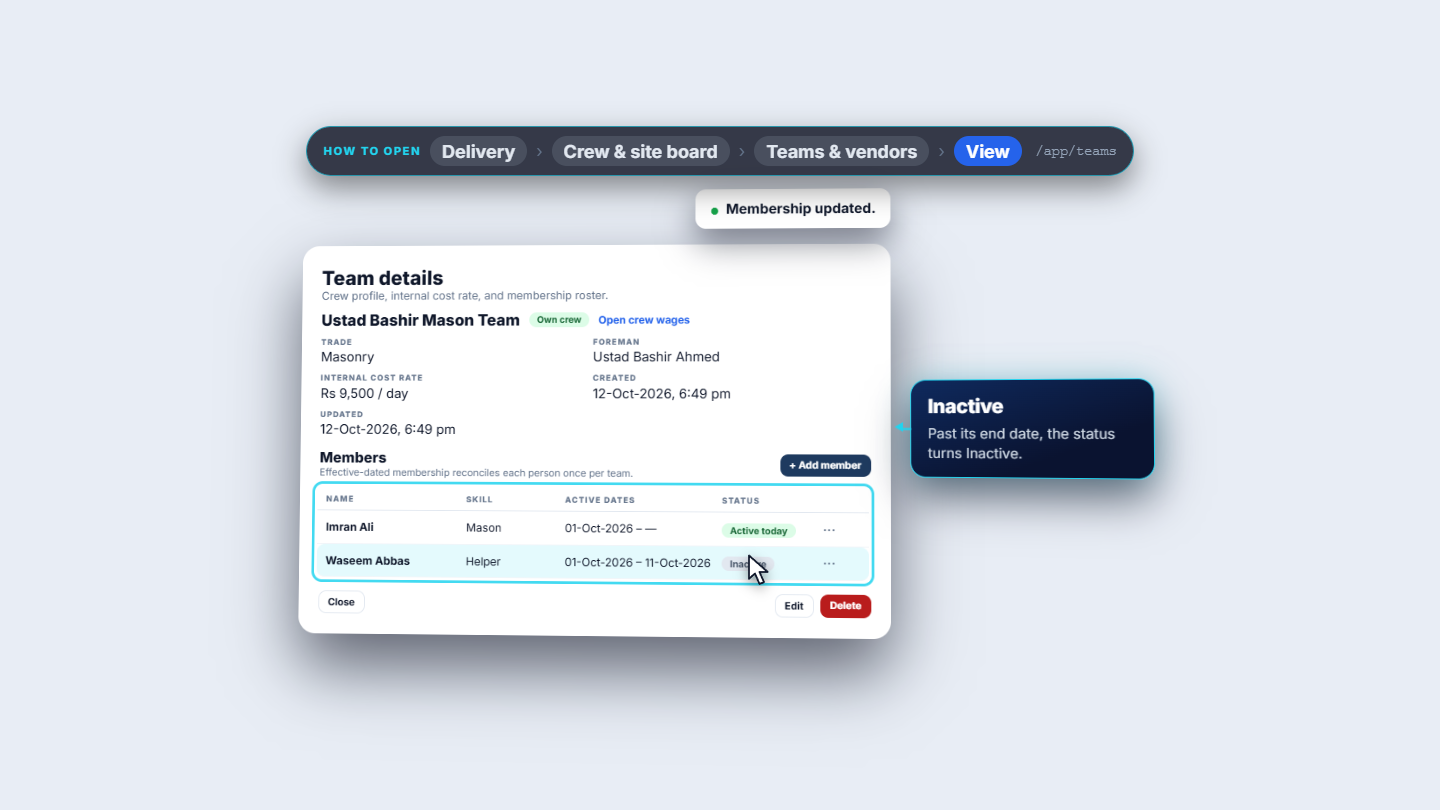
In Team details click Add member. Enter the person: name, email, phone and national ID (here Imran Ali). Saving with only a name is refused: under Phone and National ID the form asks for a phone number or a national ID, so the person is never recorded twice. Add the Skill (a text box, here Mason) and Active from and Active to dates. Active to can stay empty. Save member shows Member added. and Imran Ali appears as a Mason from 01-Oct-2026, Active today. An end date before the start date is refused, and adding the same person twice says This person is already a member of this team. Each row's menu has Edit dates and Remove. Ending Waseem Abbas on 11-Oct-2026 makes him Inactive (Membership updated.). Remove asks first, keeps the person record, and says Member removed.
Team details roster with Active today and Inactive members
7
Delete a crew and check crew wages
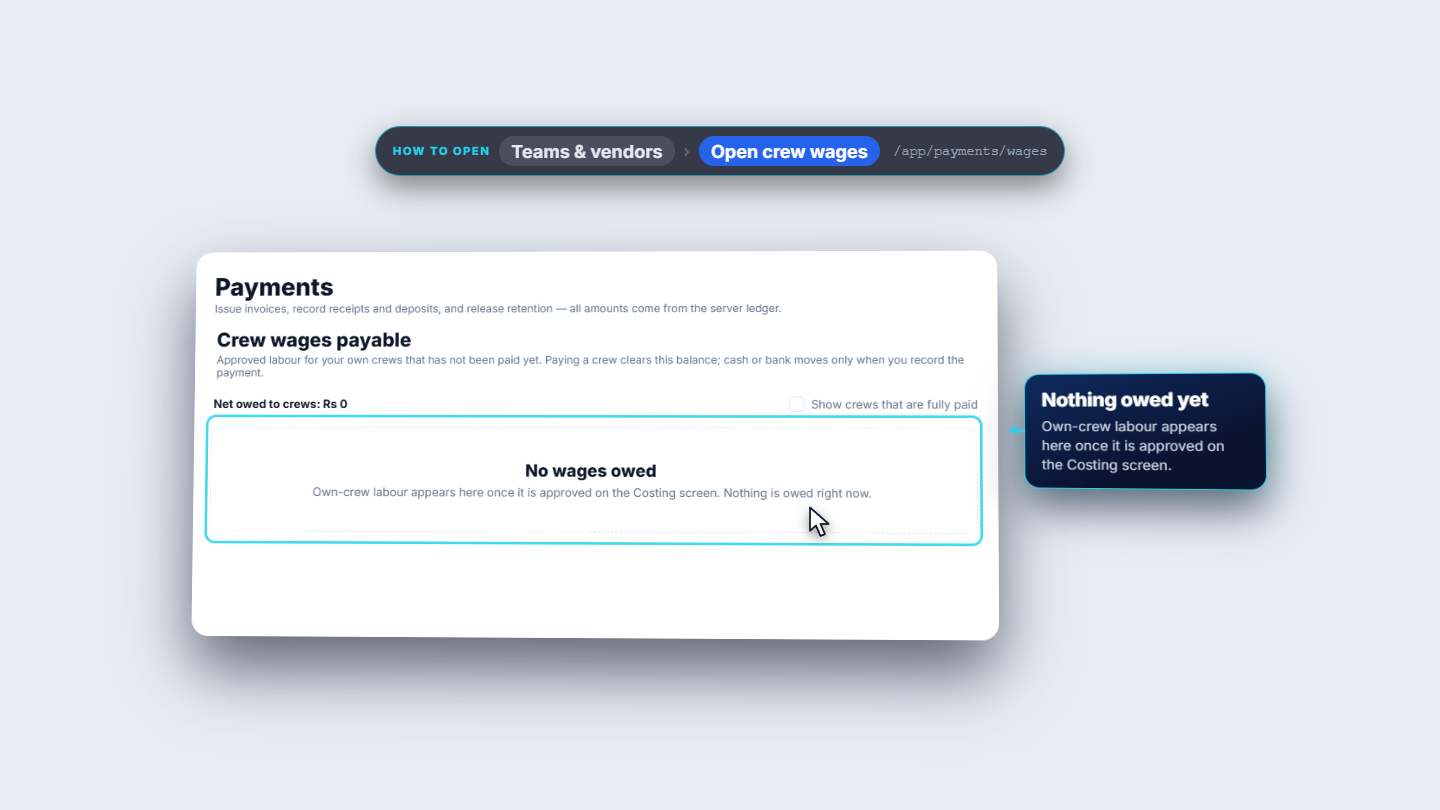
Delete in Team details asks first. It is a soft delete, and active or planned deployments block it. Confirming shows Team deleted. and the row leaves the list. For an own crew, Open crew wages goes to Crew wages payable: approved labour that has not been paid yet. Nothing is owed yet, so the page says No wages owed.
Crew wages payable page saying No wages owed
Check it worked
Teams shows Ustad Bashir Mason Team (Masonry, Own crew, Rs 9,500 per day) and Kamran Plumbing Partners (Plumbing, Subcontractor, Rs 11,000 per day).
The piece-rate crew reads Rs 12 per kg.
A member's status says Active today, or Inactive after the end date.
Common mistakes
Mistake
What you see
Fix
Saving a crew with no rate
An amber note: its deployments cannot be activated or completed
Add the internal cost rate on Pay rates
Rate of zero
The rate is refused
Enter an amount above zero
Member with only a name
The form asks for a phone number or a national ID
Add one of them
Same person added twice
This person is already a member of this team.
Edit the existing membership instead
Looking for a deactivated trade in the team form
It is not offered
Activate it again on the Trades tab
Quick reference
Item
Meaning / rule
Time pay
Internal cost rate per day or hour, staff only
Measured pay
Piece rate per unit of measure, for example Rs 12 per kg
Subcontractor crew
Needs a vendor; the vendor carries the credit terms and payment timing
Active today / Inactive
Membership status from its dates
Delete team
Soft delete; blocked by active or planned deployments
Frequently asked questions
Can I save a crew without a pay rate? Yes. An amber note says the crew can be saved, but its deployments cannot be activated or completed until a rate is added on Pay rates.
How do I pay a crew by output instead of by the day? On Pay rates choose Measured (piece rate), type the Piece rate and choose the Unit of measure, for example 12 per Kilogram for a steel fixing crew.
Can I delete a crew that is still deployed? No. Delete is a soft delete and active or planned deployments block it. When it is allowed, the app asks first and says Team deleted.