How to set up zones and service areas in your dispatch software
You will open your zones, see how each type is shown on the map, create a zone with its boundary, set its charges, pause it, and test which zones apply to any point. You need this when you start serving an airport, a school run or a charging area.
Who it is forTaxi or fleet operator owner or dispatch managerTime12 minutesProductFMSLevelBeginner
Before you start
Steps
1
Open your zones
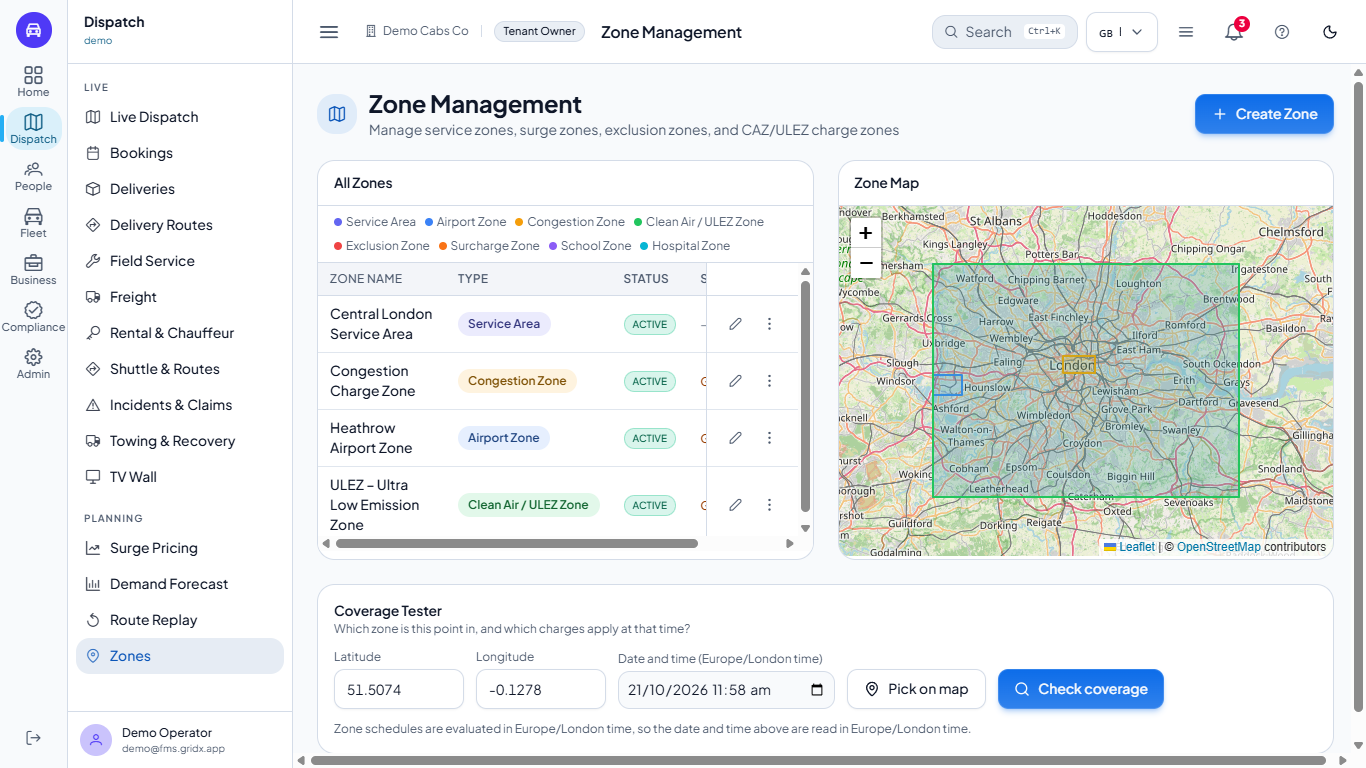
Go to Dispatch > Zones. The left card, All Zones, shows a colour legend and a table with Zone Name, Type, Status and Surcharge. The right card, Zone Map, draws the boundaries on a map of your city. The demo operator starts with a service area, a congestion zone, an airport zone and a clean air (ULEZ) zone; charges show in the Surcharge column (with the sidebar open, scroll the table sideways to see it).
Zone Management with four zones in the list, the zone map and the Coverage Tester
2
Find the row buttons
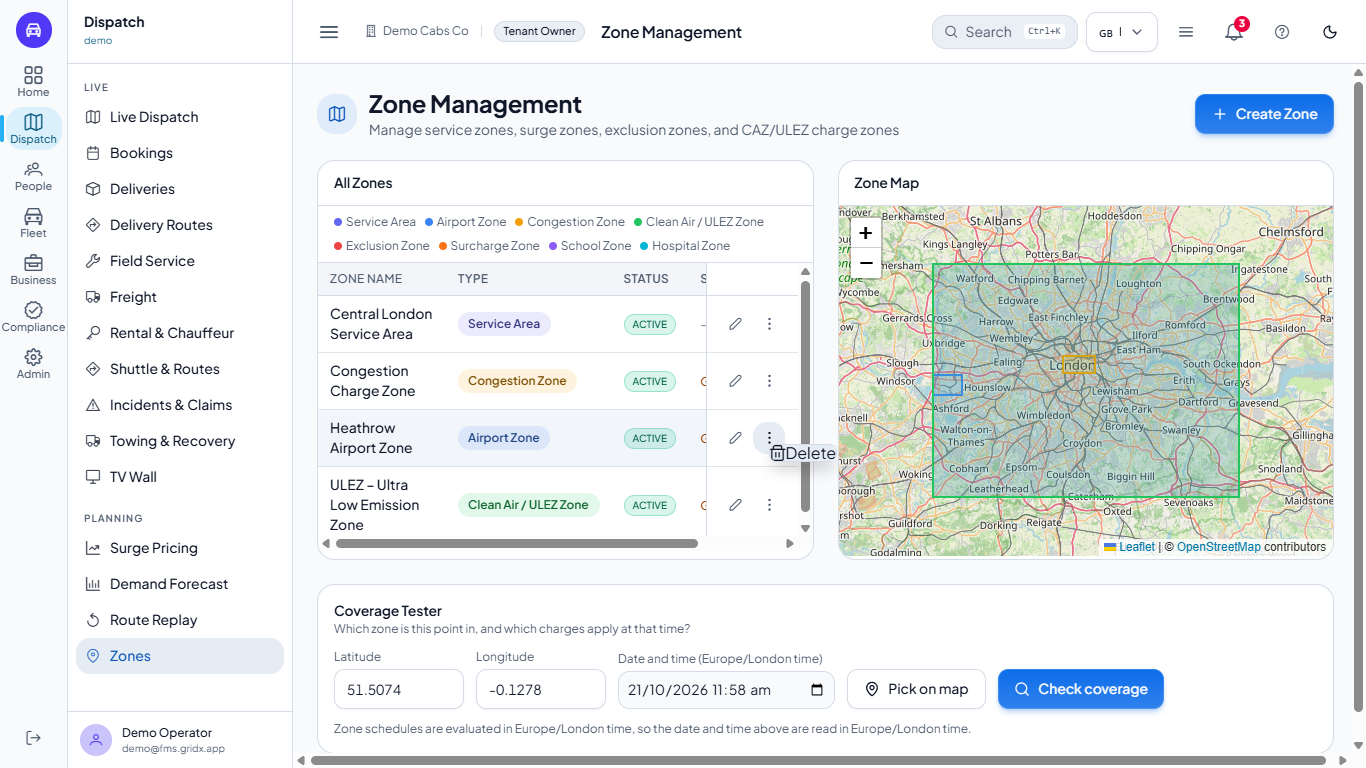
Each row has two small buttons at the end. The pencil edits the zone. The three dots open a small menu with Delete. Both buttons stay visible on the right while the other columns scroll sideways.
Row with the edit pencil and the more actions menu showing Delete
3
Start a new zone
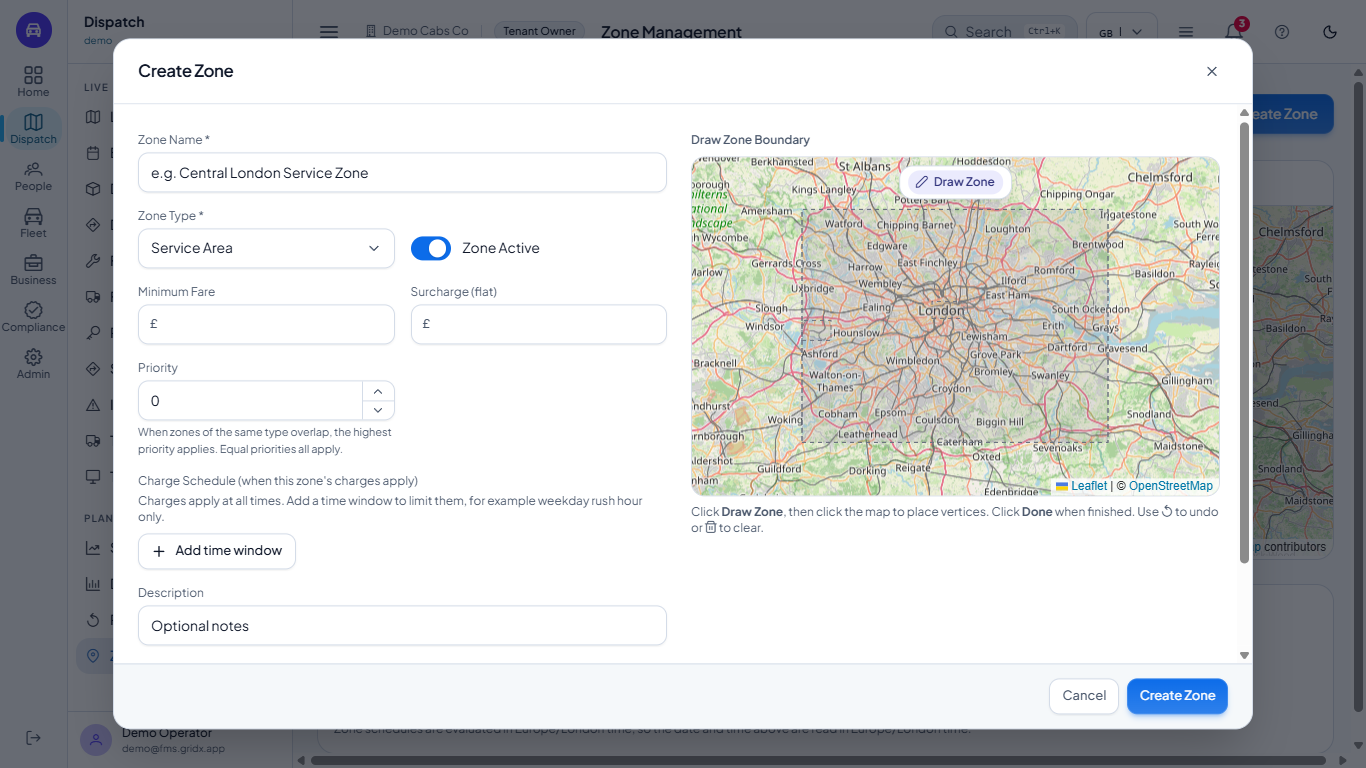
Click Create Zone. On the left you fill in Zone Name, Zone Type, the Zone Active switch, Minimum Fare, Surcharge (flat), Priority, an optional Charge Schedule and a Description. On the right, Draw Zone Boundary is where you mark the area on the map.
Create Zone dialog with the form on the left and a map on the right
4
Choose the zone type
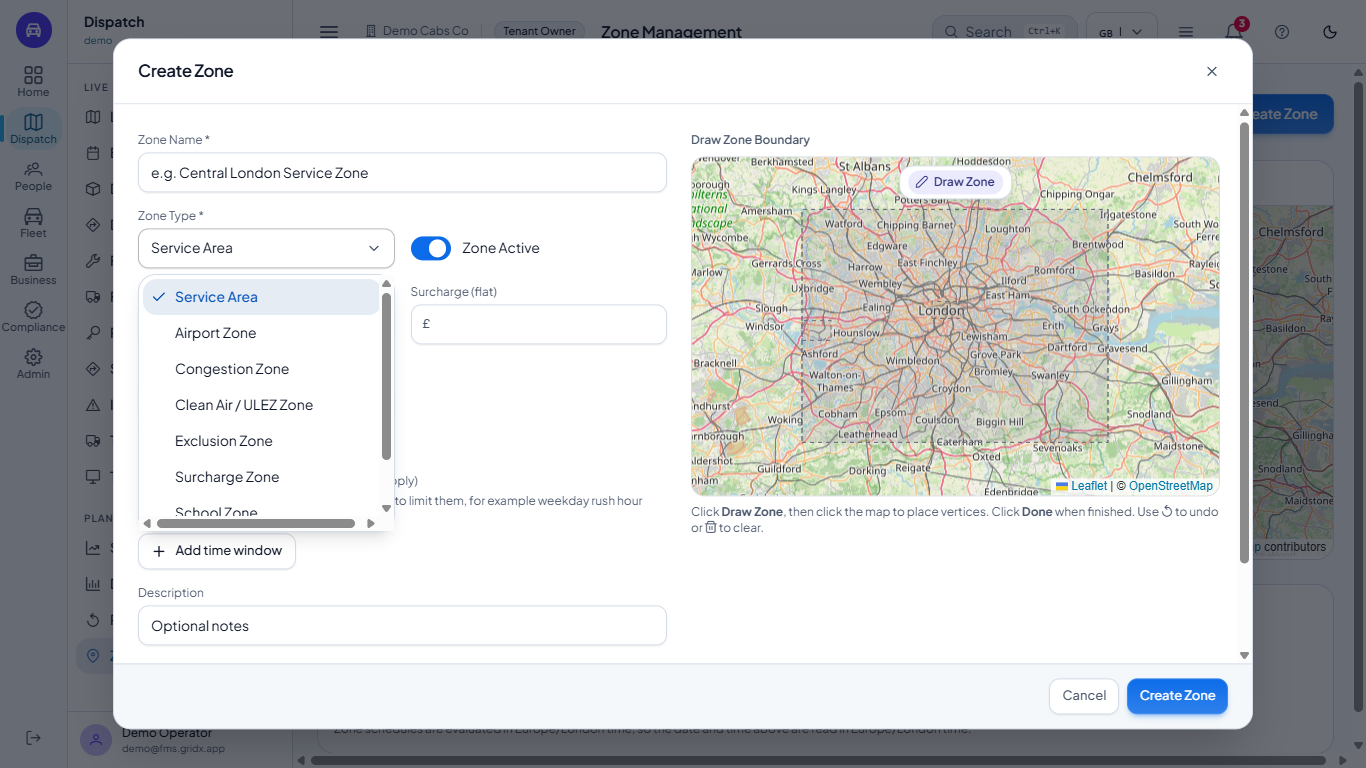
Open Zone Type and choose the one that matches the rule: Service Area, Airport Zone, Congestion Zone, Clean Air / ULEZ Zone, Exclusion Zone, Surcharge Zone, School Zone or Hospital Zone. The extra fields follow the type: congestion and clean air zones add a daily Zone Charge and Exempt Fuel Types (ULEZ also an Emission Standard), surcharge zones add Surcharge (%) and Surcharge Label, and airport zones add the airport code, pickup point, terminals and meet and greet point.
Zone Type list with eight types
5
Draw the boundary
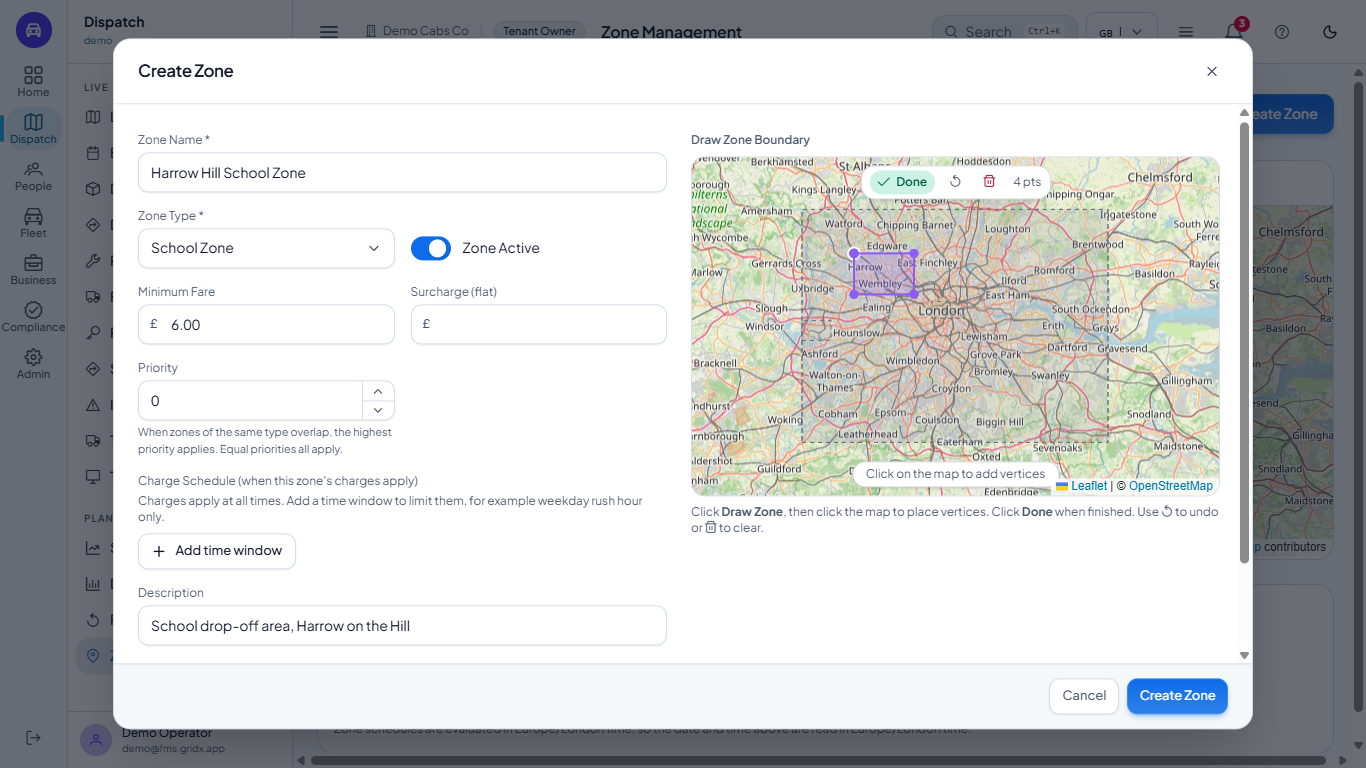
Type the name, for example Harrow Hill School Zone, choose School Zone, and enter a Minimum Fare such as 6. Click Draw Zone on the map, then click the corners one by one. Each click adds a point and the shape fills in, with the coordinates written in Boundary Coordinates and a counter such as 4 pts beside the green Done button. Use the undo icon to remove the last point or the bin icon to start again, and click Done when the outline is right.
Create Zone dialog with a violet shape drawn on the map and four points
6
Fix what the form asks for
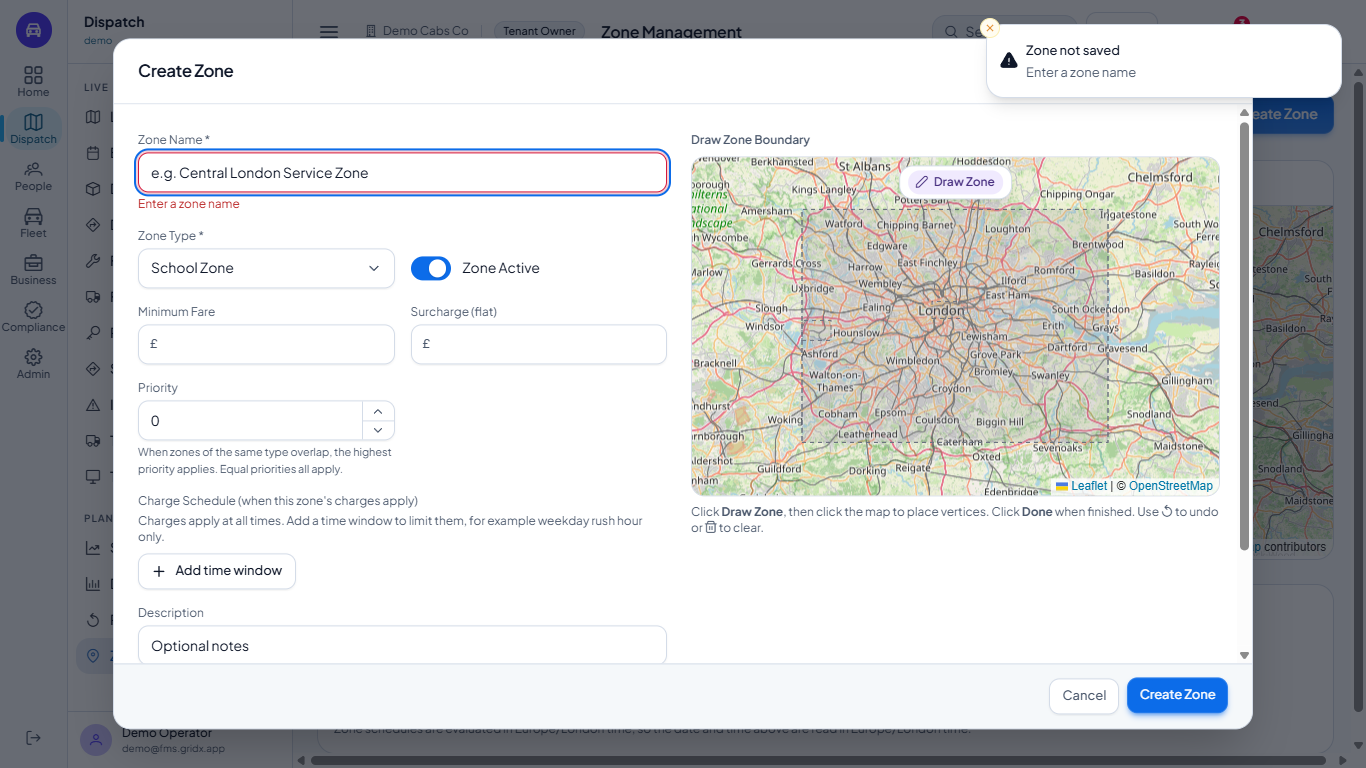
If you press Create Zone with the name empty, the dialog stays open, the name box turns red and a message at the top right says Enter a zone name. A zone also needs a drawn boundary; the message tells you to use Draw Zone, click the vertices and press Done. A name that already exists gets A zone named "..." already exists. Choose a different name., and a name longer than 100 characters is refused.
Create Zone dialog with the empty name marked in red and a Zone not saved message
7
Save the zone
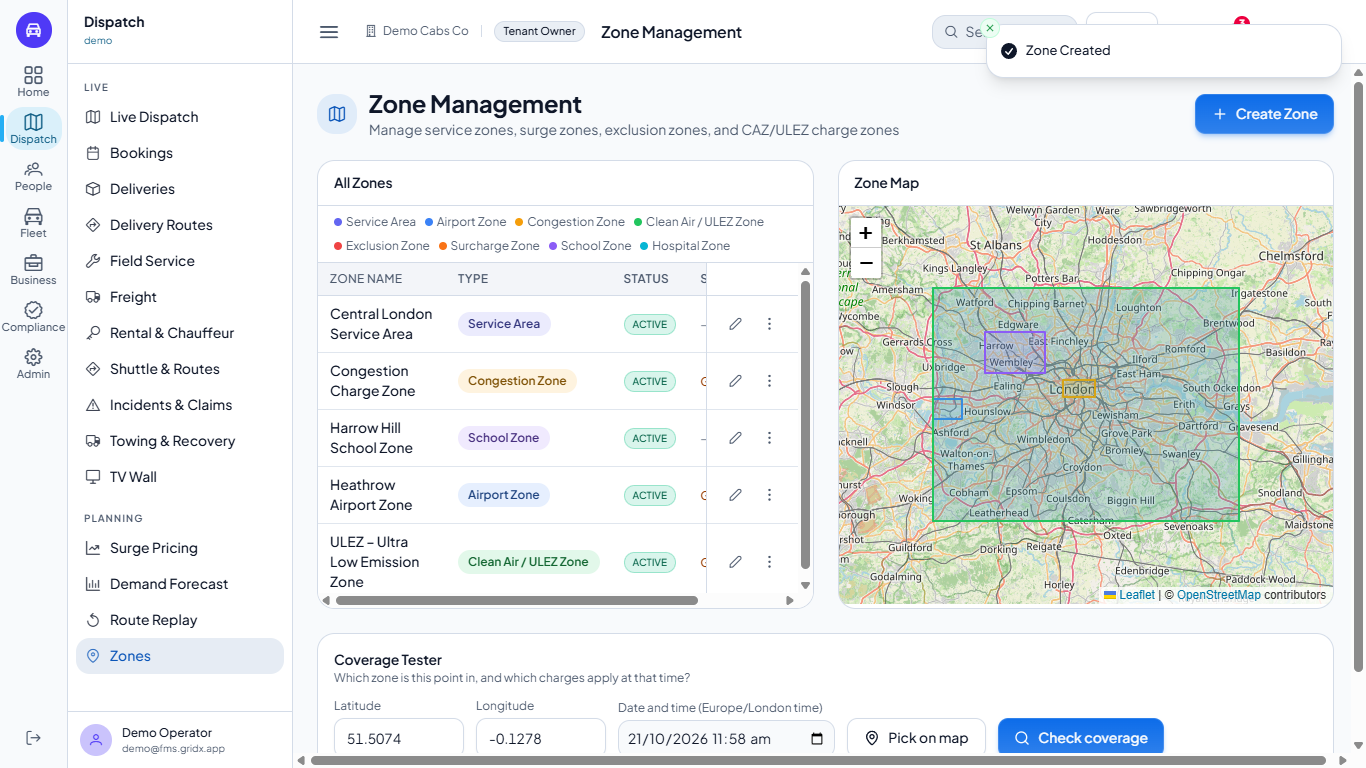
Click Create Zone. The message Zone Created appears and the new zone joins the list with its type chip and an ACTIVE status.
The zone list after saving, with the Zone Created message and the new Harrow Hill School Zone row
8
Open a zone to edit it
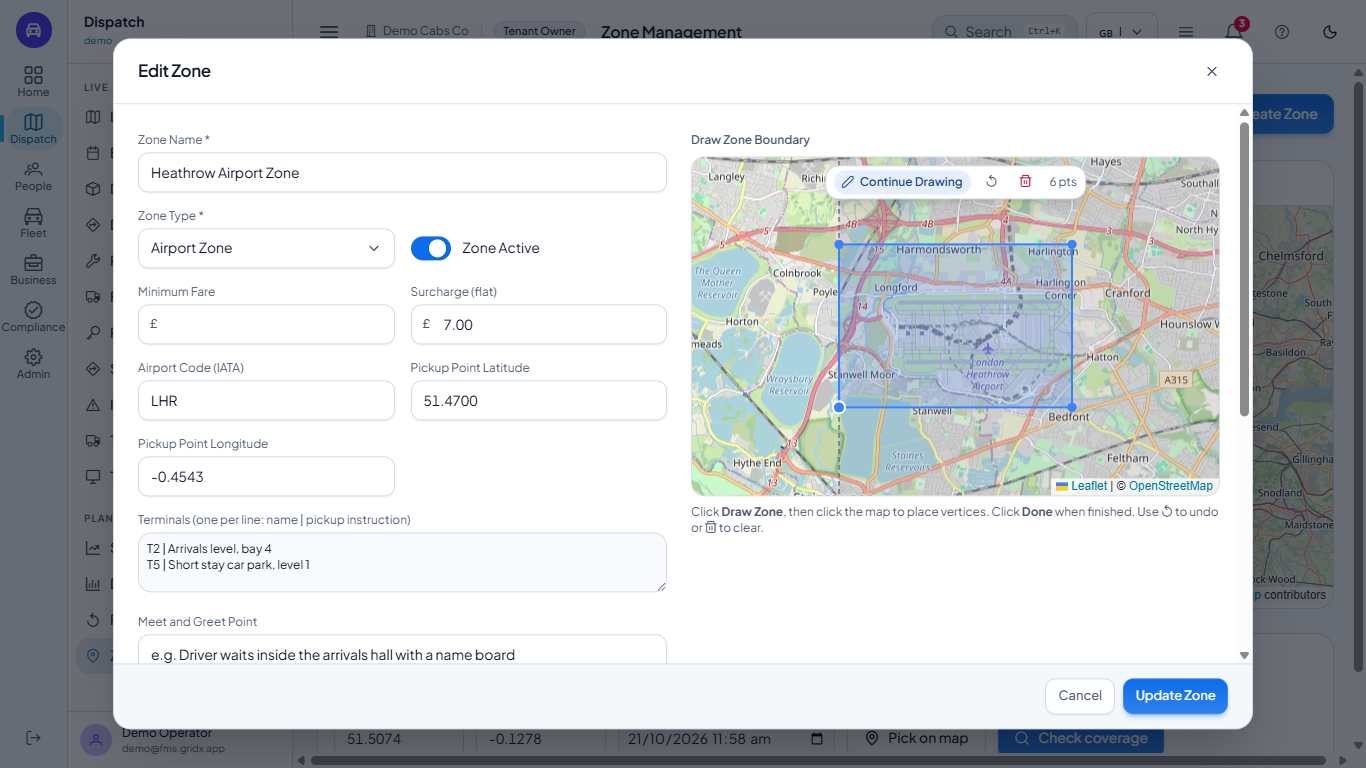
Click the pencil on a row, for example Heathrow Airport Zone. The dialog opens with the saved values: the type, Zone Active, Surcharge (flat) GBP 7.00, the Airport Code (IATA) LHR, the pickup point, terminals and meet and greet point, and the stored boundary. Change what you need and click Update Zone.
Edit Zone dialog for the Heathrow Airport Zone
9
Set charges, exempt fuels and a schedule
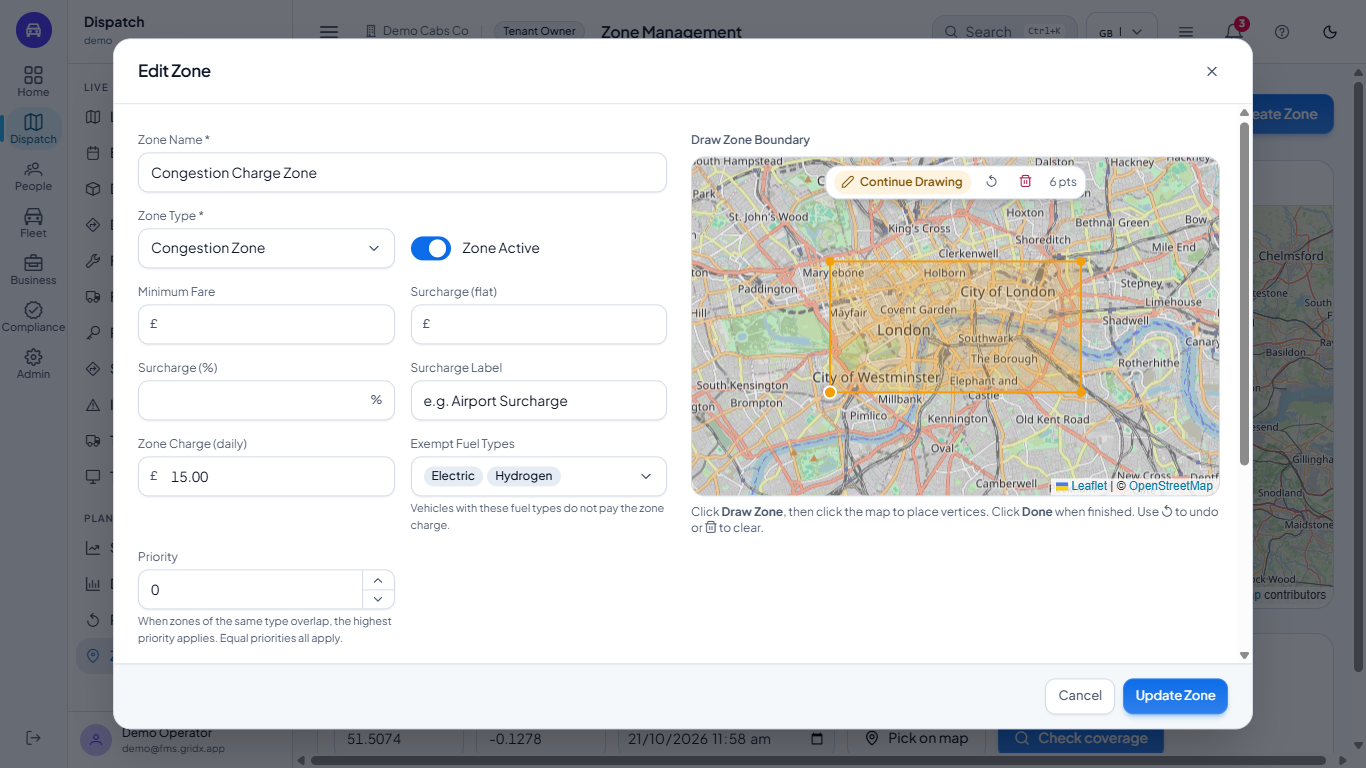
Open the Congestion Charge Zone. It has a daily Zone Charge (GBP 15.00), Exempt Fuel Types (electric and hydrogen do not pay), Surcharge (%) and Surcharge Label, and a Priority that decides which zone wins when zones of the same type overlap. Under Charge Schedule, click Add time window, pick the days (Mon to Sun; Mon to Fri start selected) and the From and To times (07:00 am to 10:00 am to start with) to limit the charge, for example to weekday rush hour.
Edit Zone dialog for the Congestion Charge Zone with Zone Charge and Exempt Fuel Types
10
Pause a zone
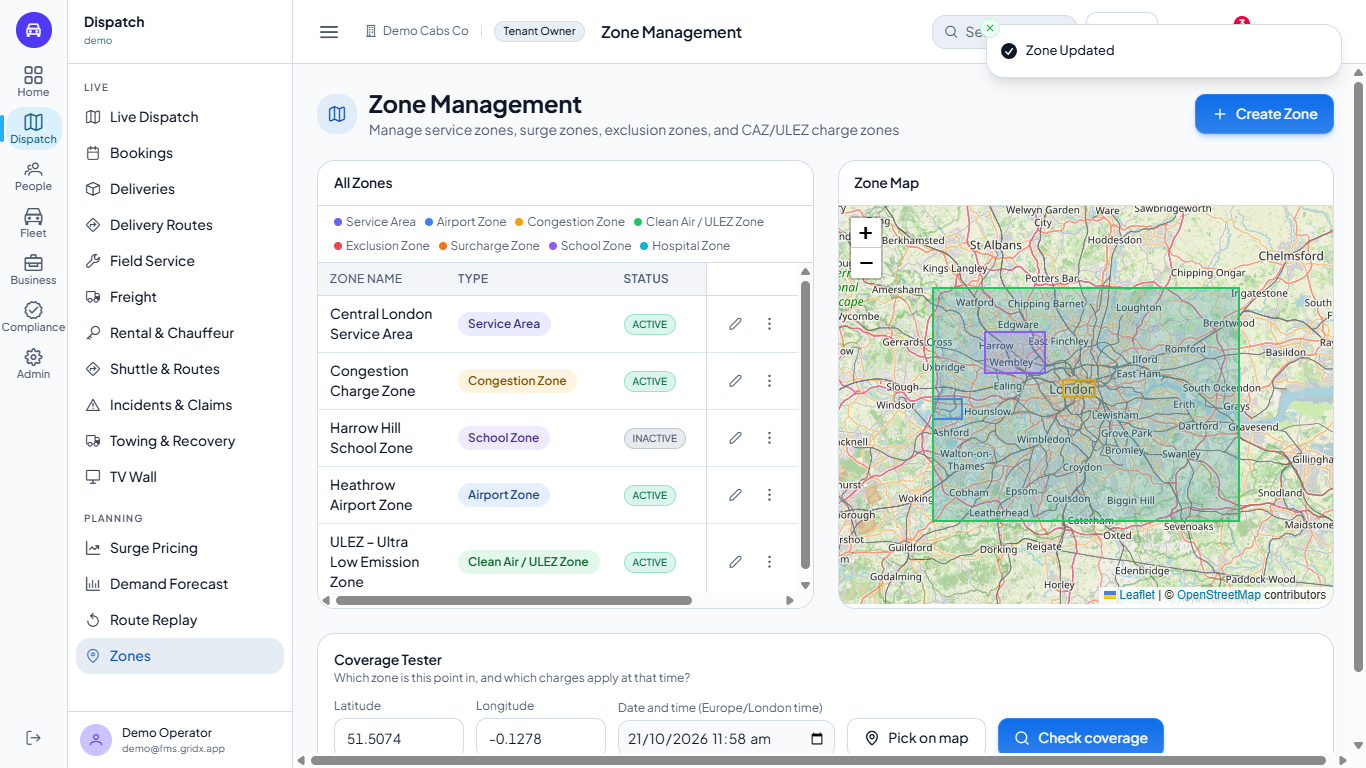
Switch Zone Active off and click Update Zone. The message Zone Updated appears and the zone stays in the list with a grey INACTIVE badge; its rules stop applying. Switch it on again to bring it back.
Zone list with the Harrow Hill School Zone marked INACTIVE and the Zone Updated message
11
Delete only when you are sure
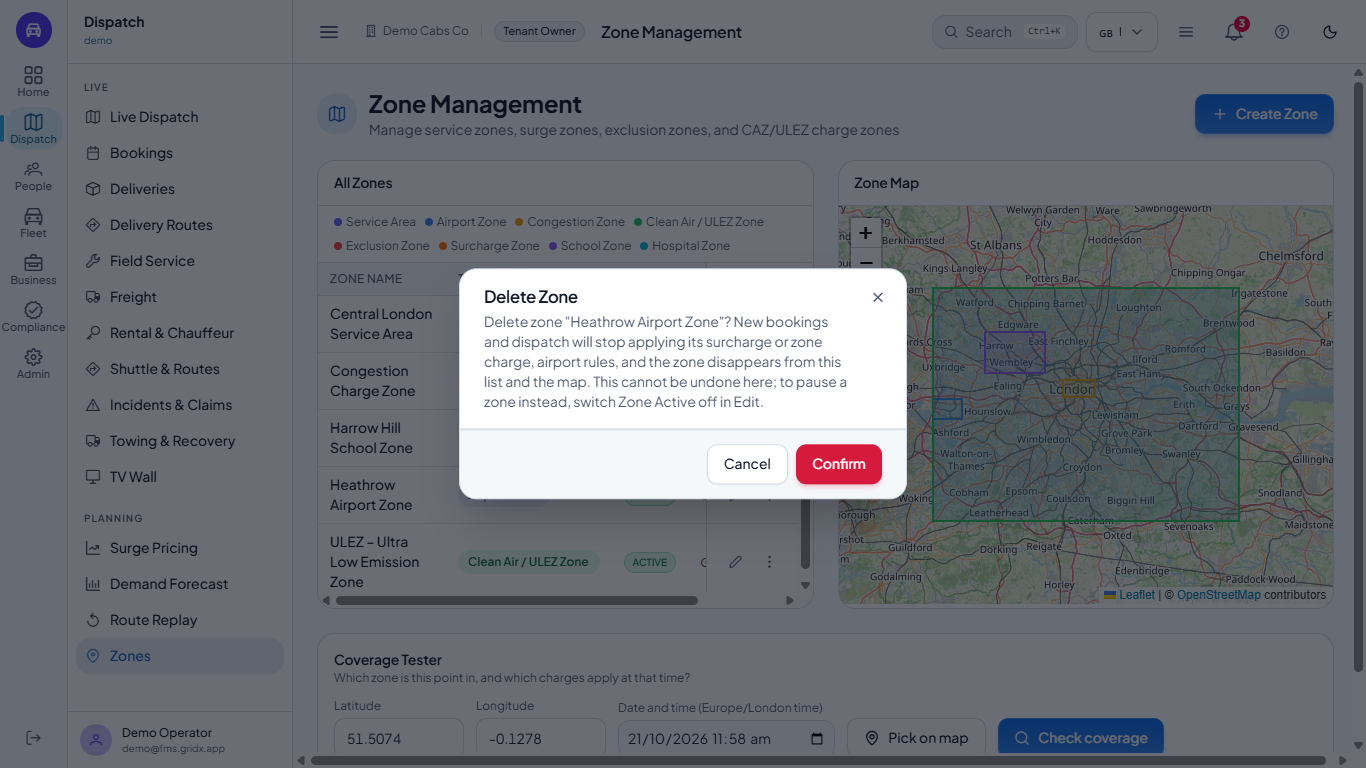
Open More actions on a row and choose Delete. The app tells you that new bookings and dispatch stop applying the zone's charges and airport rules, and that it cannot be undone here. To pause a zone instead, switch Zone Active off in Edit. Click Cancel if you are not sure.
Delete Zone confirmation
12
Test a point with the Coverage Tester
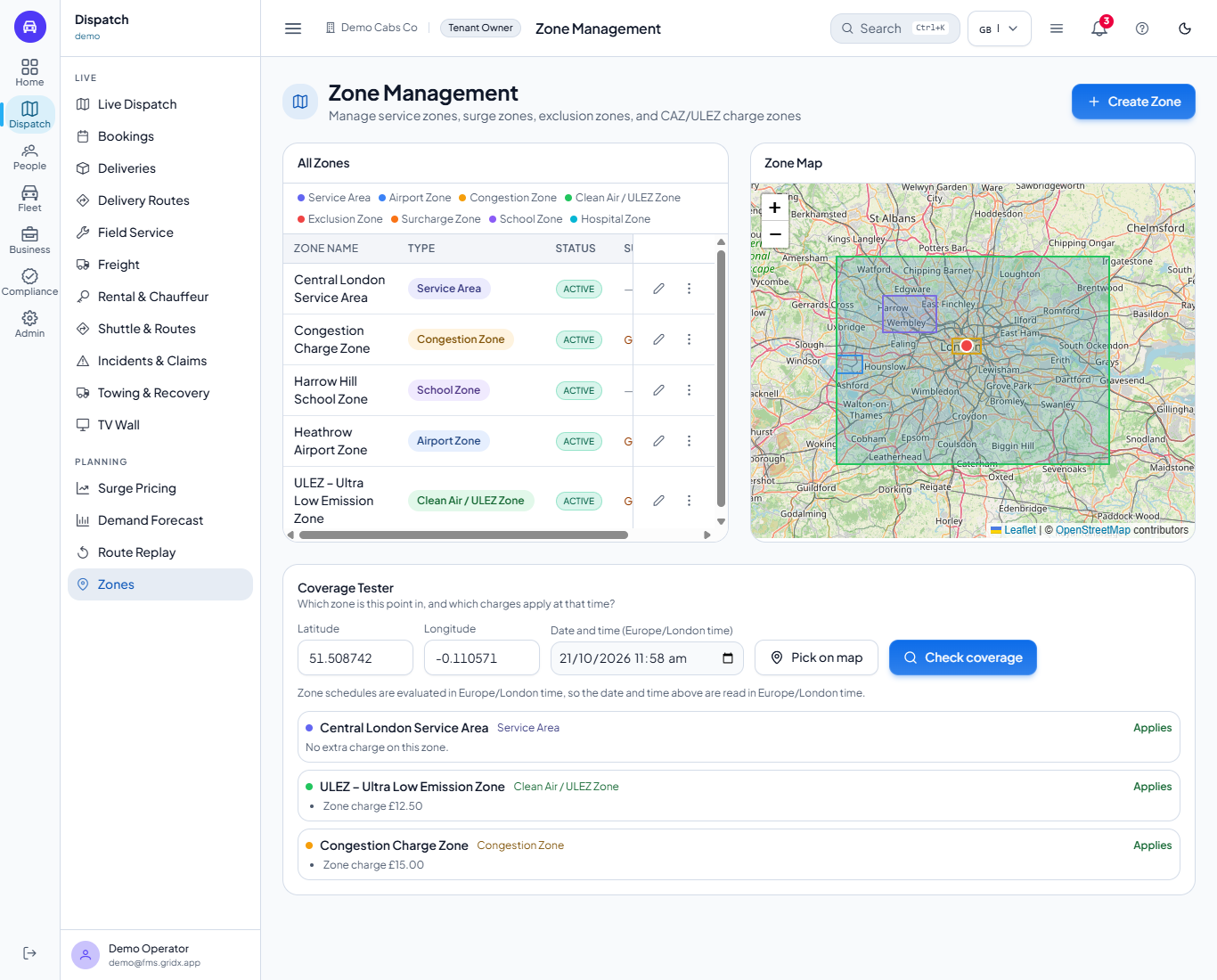
Under the list, use Coverage Tester. Click Pick on map and then a point on the Zone Map, or type a Latitude and Longitude (the grey 51.5074 and -0.1278 are only examples), choose the date and time (read in London time) and click Check coverage. The result lists every zone that applies with its charge; a point outside every zone says that no zone charges apply there.
Coverage Tester listing the zones and charges that apply to a point in central London
13
See zones on the live map
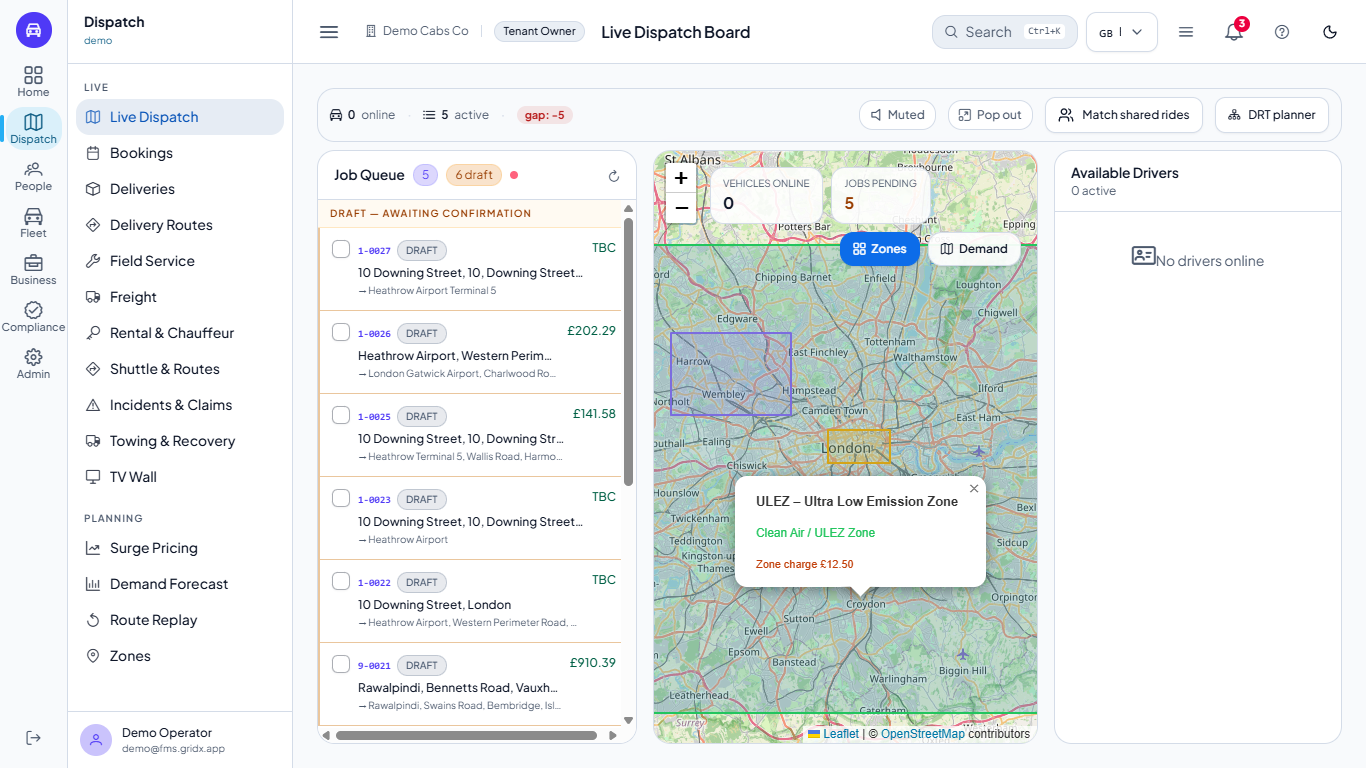
On Dispatch > Live Dispatch use the Zones button on the map (under the Vehicles online and Jobs pending cards) to draw your zone boundaries; zoom out if you cannot see them all, and click a zone to read its name, type and charge. The Demand button adds a circle for each zone, sized by its surcharge percentage.
Live Dispatch map with the zone boundaries and a zone popup
Check it worked
On Dispatch > Zones the zone you worked on appears with its type chip and status.
Coverage Tester lists the zones you expect for a test point.
On Live Dispatch the Zones button draws the boundaries of the active zones.
Common mistakes
Mistake
What you see
Fix
Pressing Create Zone with no name or no boundary
A message says what is missing and the dialog stays open
Type a name and draw the boundary with Draw Zone, then Done
Choosing the wrong type
The chip and map colour do not match the rule
Edit the zone and pick the right type
Deleting a zone that rates depend on
The app only asks you to confirm
Pause the zone instead, or check your rate cards first (see the rate cards tutorial)
Two zones of the same type overlap
Both charges may apply
Give the zone that should win a higher Priority
Quick reference
Item
Meaning / rule
Service Area
Where you take bookings
Airport Zone
Airport pickups, with a flat surcharge, airport code and terminals
Congestion and Clean Air zones
Daily zone charge, exempt fuels, optional percent and label
Exclusion Zone
An area you do not serve
School and Hospital zones
Areas with their own minimum fare or rule
Zone Active
On means the rule is in use; off shows INACTIVE
Priority
Highest wins when zones of the same type overlap
Charge Schedule
Days and hours when the zone's charges apply (London time)
Frequently asked questions
How do I mark an airport on the map? Create a zone, choose Airport Zone, add the flat surcharge and the airport code, then click Draw Zone and click around the airport boundary.
Can I add a minimum fare to a zone? Yes. Every zone type has a Minimum Fare and a Surcharge (flat) field, and charge types also take a percentage, a label and a daily zone charge.
Can a congestion charge apply only at rush hour? Yes. In Edit Zone, under Charge Schedule, click Add time window and choose the days and hours.
How do I check which zones apply to an address? Use the Coverage Tester under the zone list: pick the point on the map, set the time and click Check coverage.