How to set up rate cards and fare rules for each vehicle type
You will open your rate cards, change the base rates and surcharges of a vehicle type, add tariff rules such as distance tiers, check the live fare preview, add or remove a card and check the fare a booking gets from it. You need this when prices change, when you add a vehicle type, or when a customer asks why a trip cost what it did.
Who it is forTaxi or fleet operator owner or dispatch managerTime12 minutesProductFMSLevelBeginner
Before you start
Steps
1
Open your rate cards
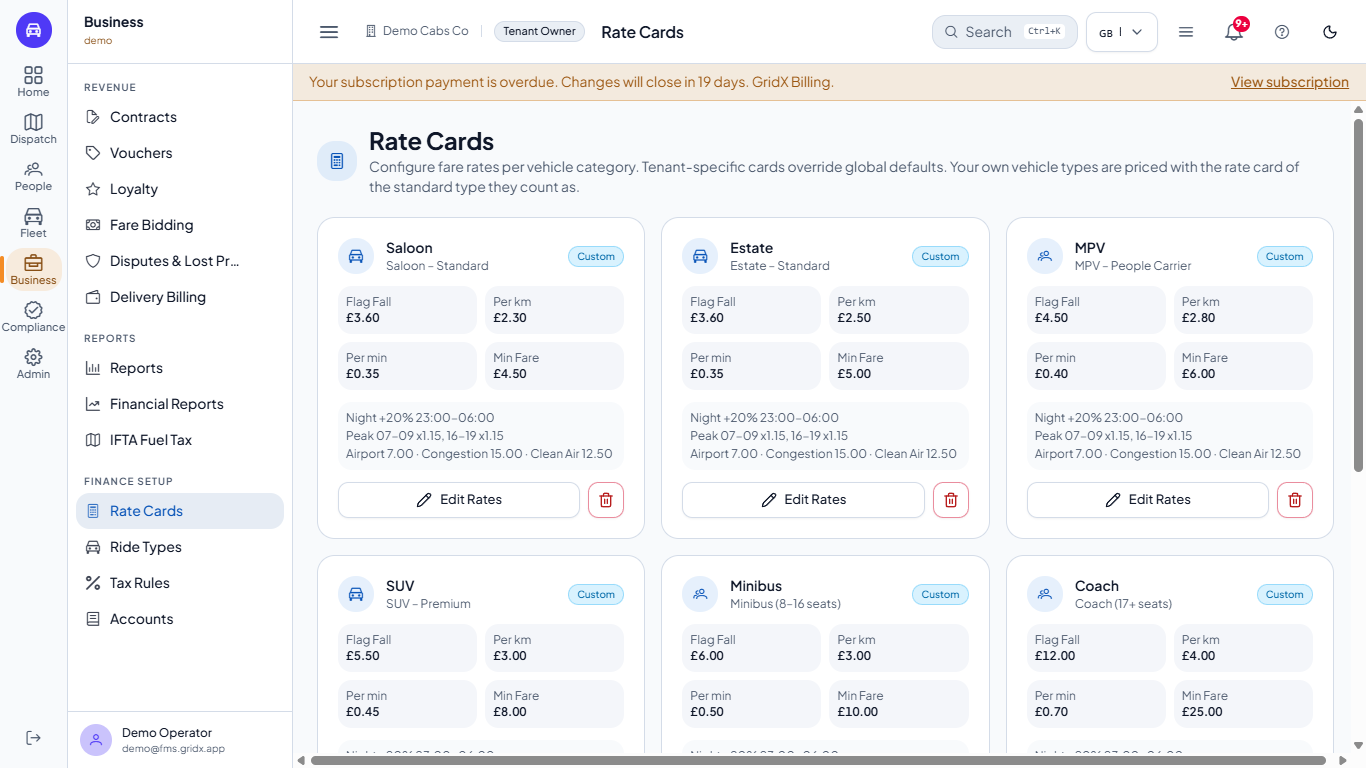
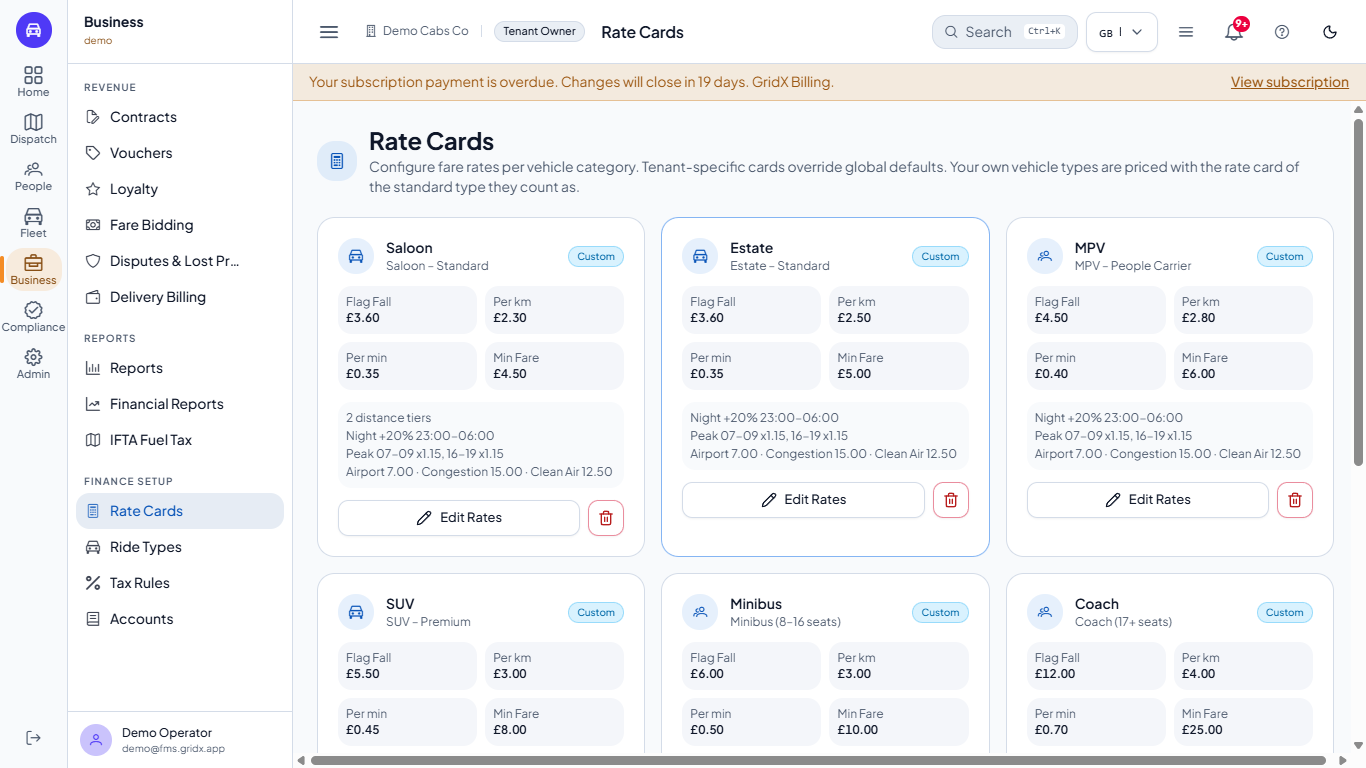
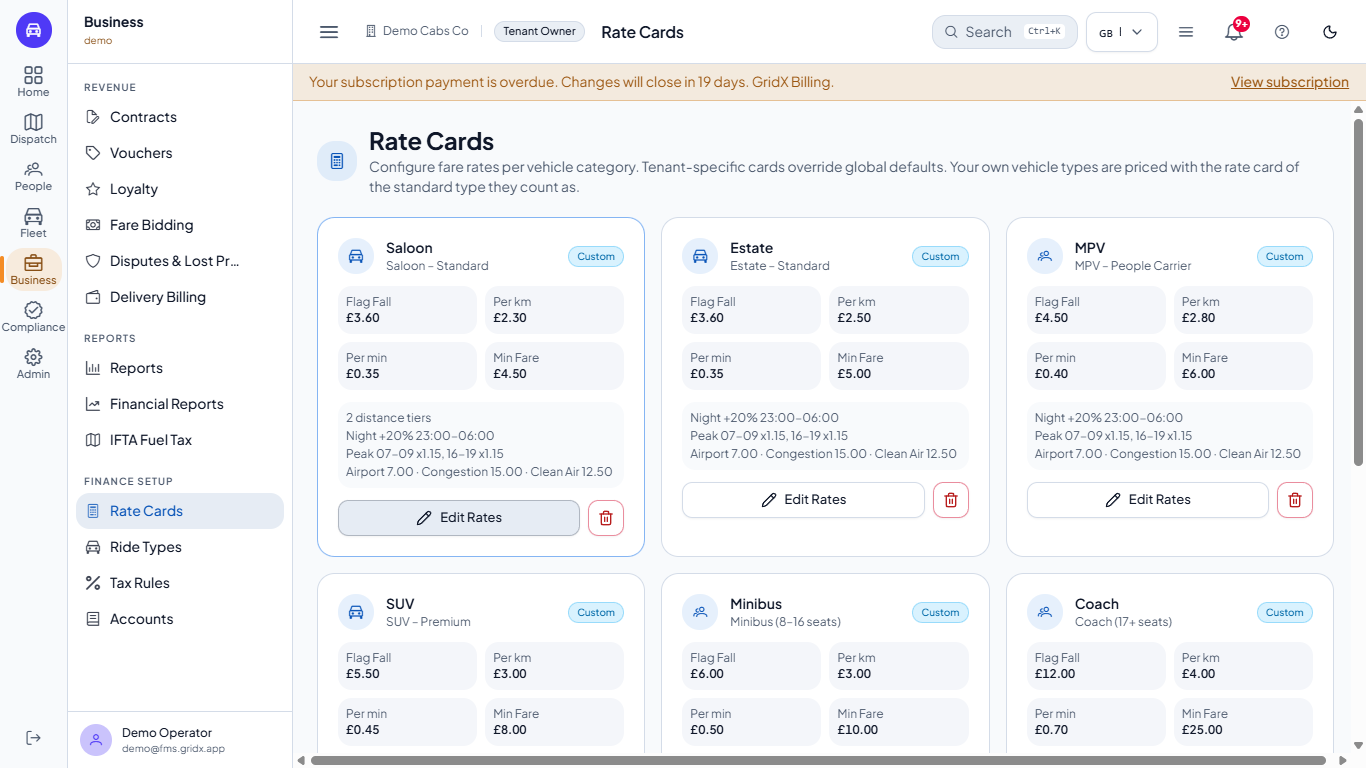
In the sidebar open Business and, under Finance setup, click Rate Cards. Each tile is one vehicle type (Saloon, Estate, MPV, SUV, Minibus, Coach, WAV, Electric / ZEV, Other) with the card name, a Custom badge, four boxes (Flag Fall, Per km, Per min and Min Fare) and a summary of its night, peak, airport, congestion and clean air charges.
Rate Cards page with nine vehicle type tiles
2
Edit the base rates
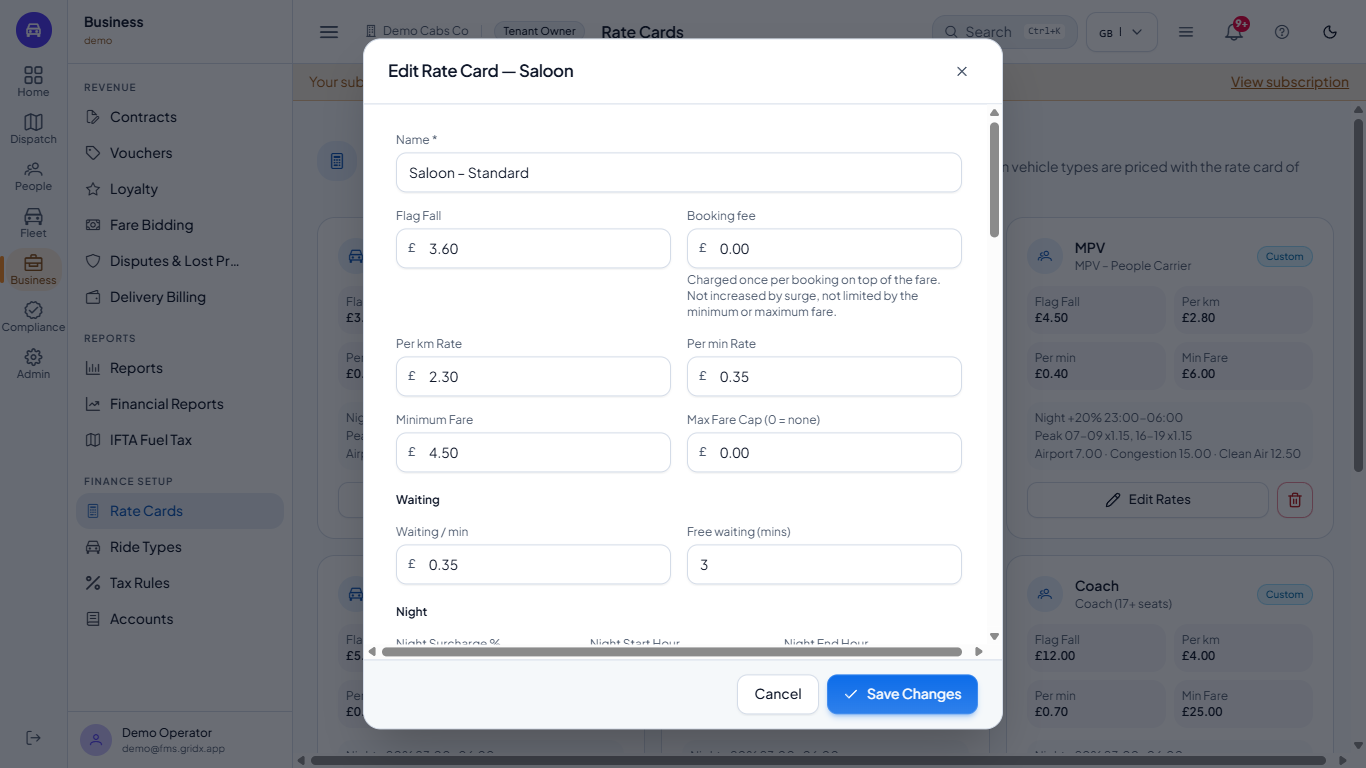
Click Edit Rates on a tile. The dialog shows the card's Name and its base rates: Flag Fall, Booking fee, Per km Rate, Per min Rate, Minimum Fare, Max Fare Cap (0 = none), then Waiting / min and Free waiting (mins). The base fare is the flag fall plus distance times the per km rate plus minutes times the per min rate, and never less than the minimum fare. The booking fee is added once per booking, on top of the fare.
Edit Rate Card dialog for the Saloon with the base rates
3
Set night, peak hours and charges
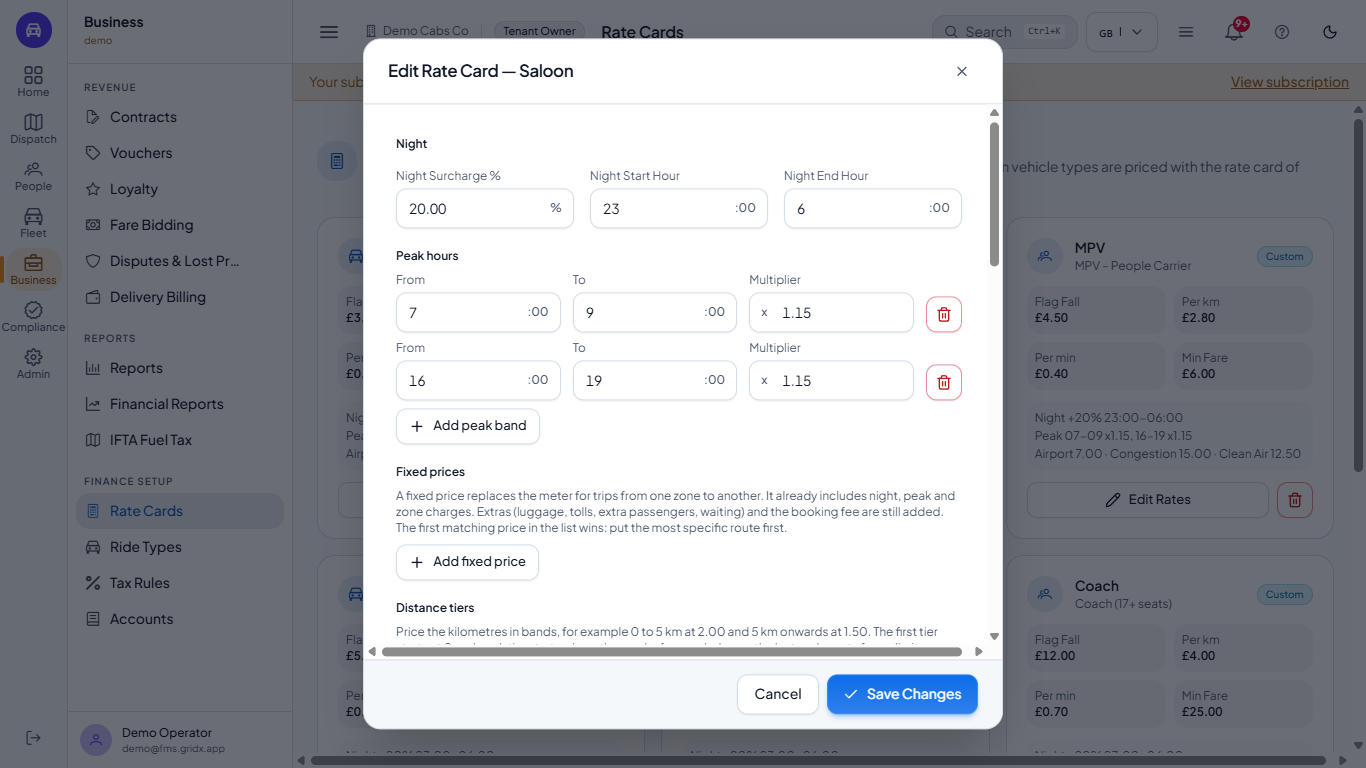
Scroll to Night. Night Surcharge % with Night Start Hour and Night End Hour adds a percentage of the base fare between those hours; the Saloon charges 20 percent from hour 23 to hour 6. Under Peak hours each band has a From hour, a To hour and a Multiplier (7 to 9 and 16 to 19 at 1.15 for the Saloon); Add peak band adds another and the red button removes one.
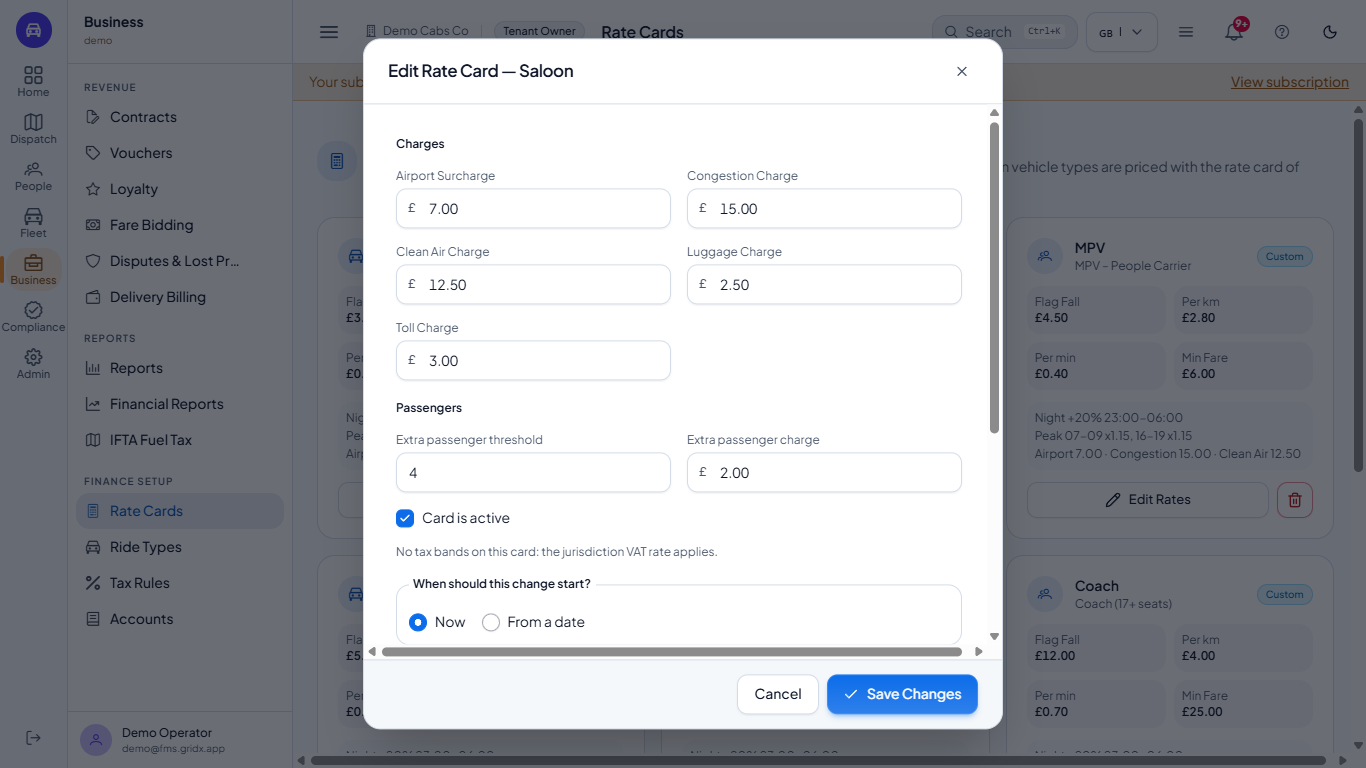
Further down, Charges holds the flat Airport Surcharge, Congestion Charge, Clean Air Charge, Luggage Charge and Toll Charge, and Passengers sets an Extra passenger threshold and Extra passenger charge. Card is active switches the card on or off.
Edit Rate Card dialog showing the night surcharge and peak hours
Edit Rate Card dialog showing the charges and passenger fields
4
Add tariff rules
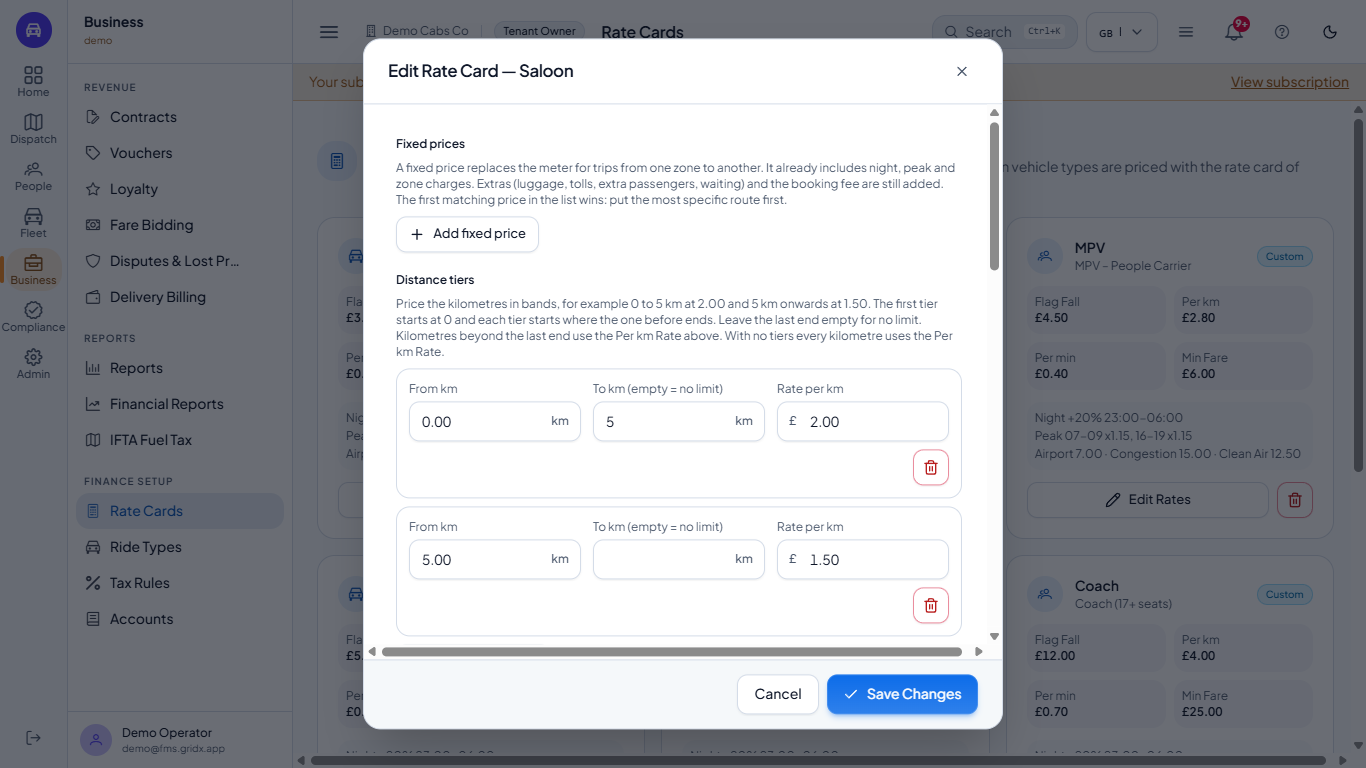
Below the peak hours the card can price more than the meter. Add fixed price gives a set price between two zones (name, price, From zone, To zone, Both ways) that replaces the meter. Add distance tier prices bands of kilometres: here 0 to 5 km at 2.00 and 5 km onwards at 1.50; each tier starts where the one before ends and the last end can stay empty.
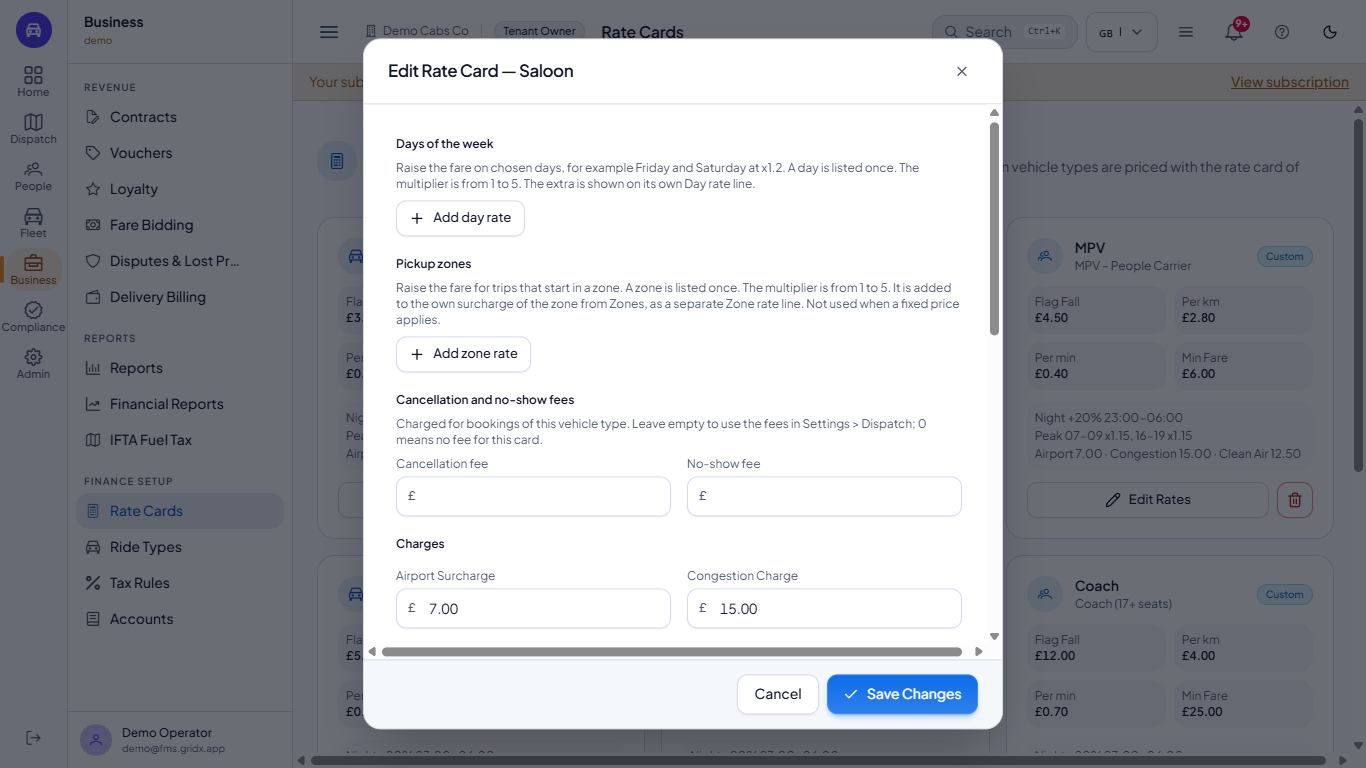
Add day rate raises the fare on the days you tick (for example Friday and Saturday at 1.2) and Add zone rate raises it for trips that start in a zone. Cancellation fee and No-show fee apply to this vehicle type; leave them empty to use the fees in Settings > Dispatch, and 0 means no fee for this card.
Edit Rate Card dialog with fixed prices and two distance tiers
Edit Rate Card dialog with day rates, zone rates and cancellation fees
5
Check the preview and save
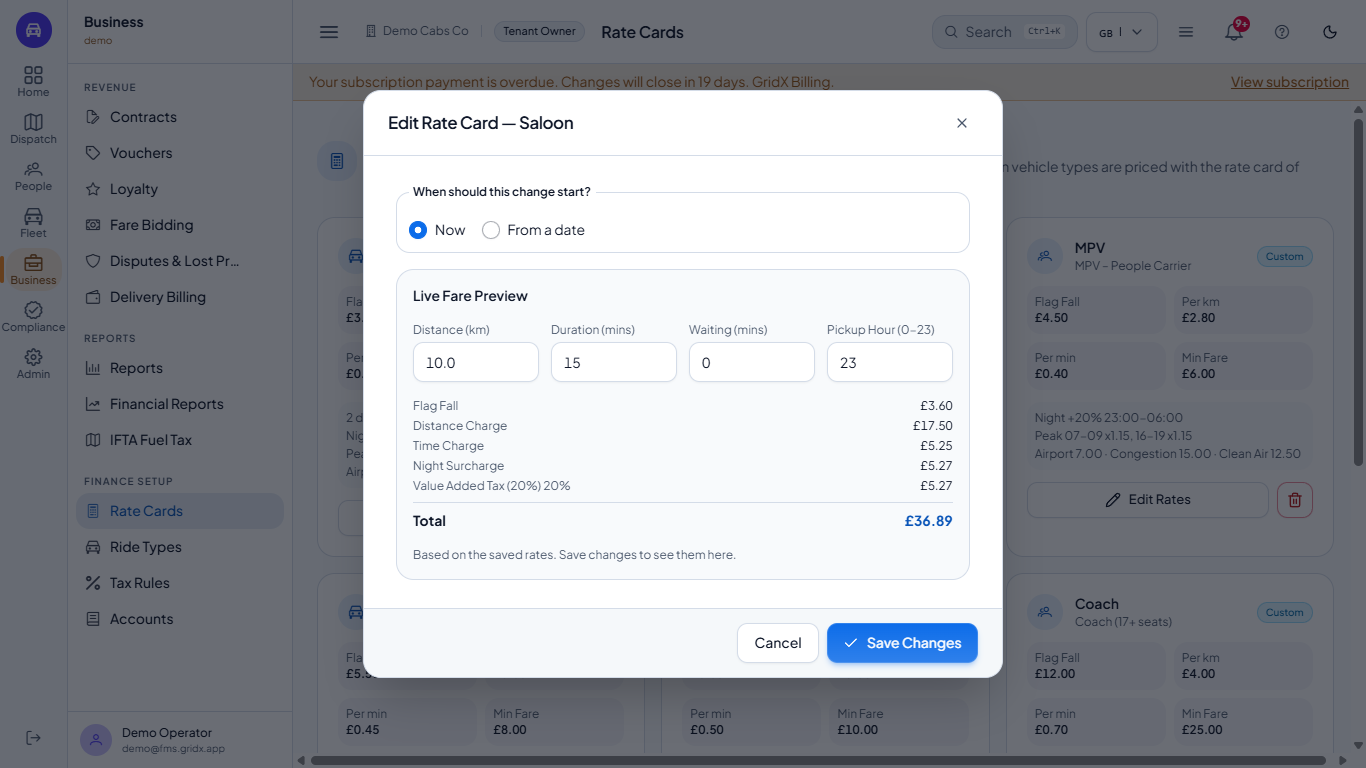
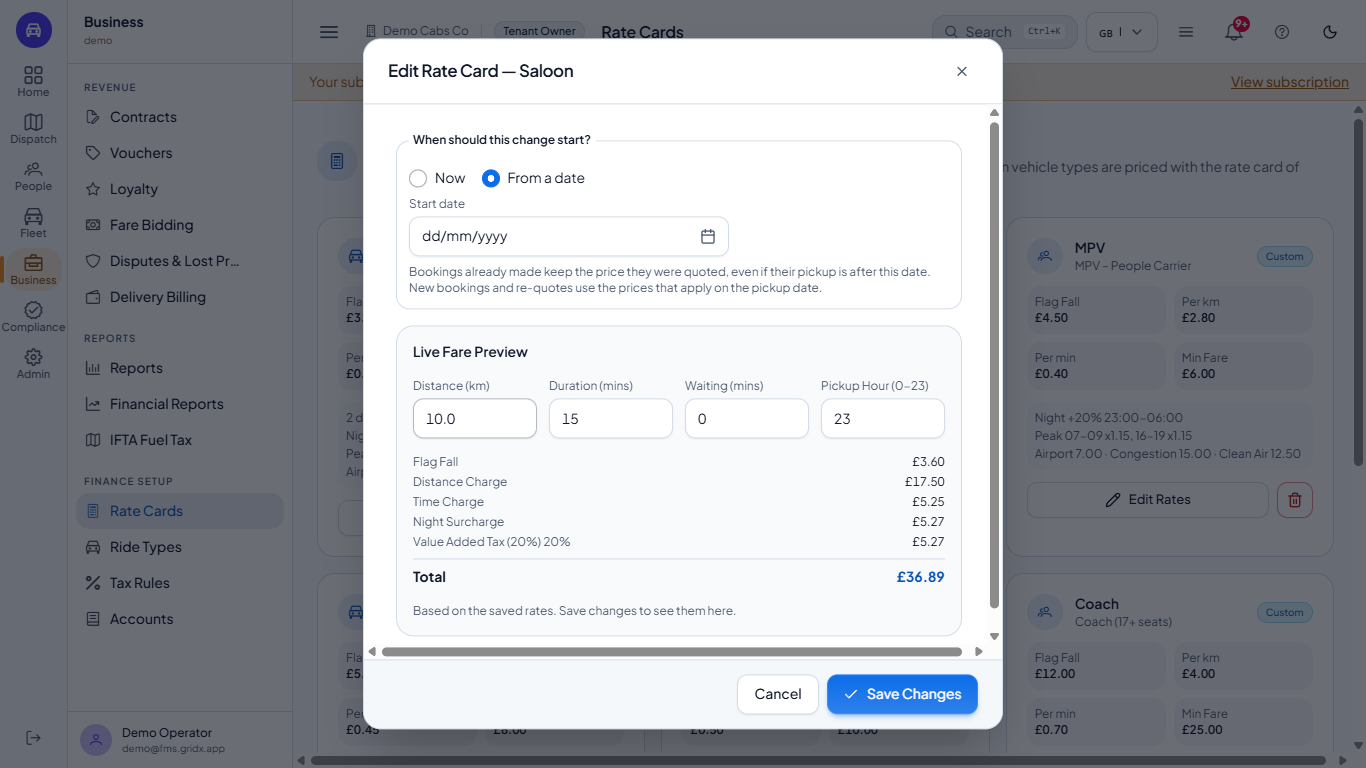
At the bottom, When should this change start? offers Now and From a date. Under it, Live Fare Preview shows the fare for any Distance (km), Duration (mins), Waiting (mins) and Pickup Hour (0-23), based on the saved rates. With the two tiers saved, 10 km costs a distance charge of 17.50 (5 x 2.00 + 5 x 1.50), and at pickup hour 23 a Night Surcharge line appears.
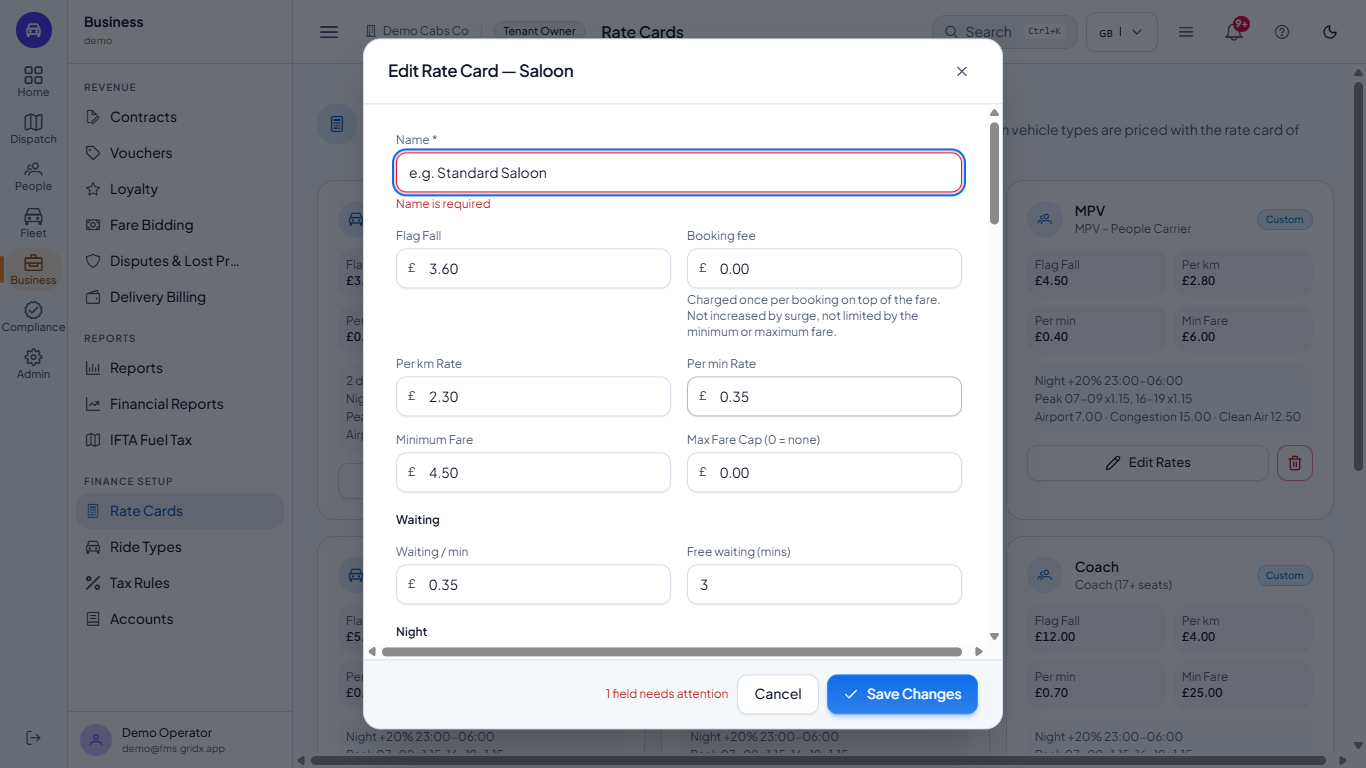
Click Save Changes. If the Name is empty the form shows Name is required and stays open, and the footer beside Cancel says 1 field needs attention. The same happens when a row lower in the dialog is incomplete, for example a day rate with no day: the dialog scrolls to the first row that needs attention. Cancel closes without saving.
When the save succeeds the message Rate card updated appears, the dialog closes and the tile now reads 2 distance tiers.
Choose From a date and a Start date to schedule a price change: bookings already made keep the price they were quoted, and new bookings and re-quotes use the prices that apply on the pickup date.
Edit Rate Card dialog with the Live Fare Preview at 10 km
Edit Rate Card dialog with Name is required
Rate Cards page after saving, with the Saloon tile showing 2 distance tiers
Start date choice with From a date selected
6
Add a card for a missing vehicle type
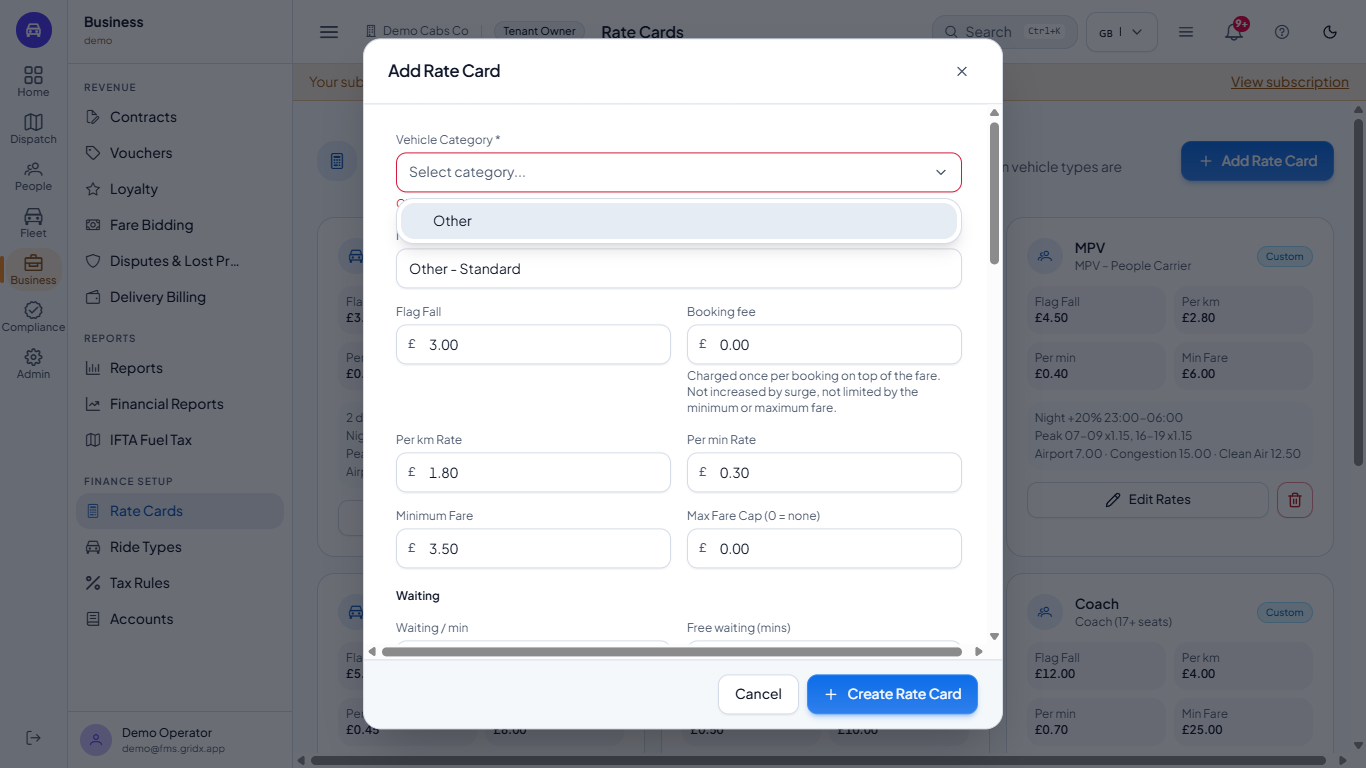
When a vehicle type has no card, Add Rate Card appears at the top of the page. Choose the Vehicle Category (the list shows only the types without a card), type a Name, adjust the rates and click Create Rate Card. The new card has no night or peak charges until you set them, and its tile joins the grid.
Add Rate Card dialog with the vehicle category list showing Other
7
Remove a card only on purpose
The red button on a tile opens Remove Rate Card. Click Confirm and the tile disappears. New bookings of that vehicle type are then priced with the standard default rates, not the Saloon card, and bookings already quoted keep their price. To bring the card back, add it again with Add Rate Card.
Remove Rate Card confirmation for the Other card
8
Check the fare on a booking
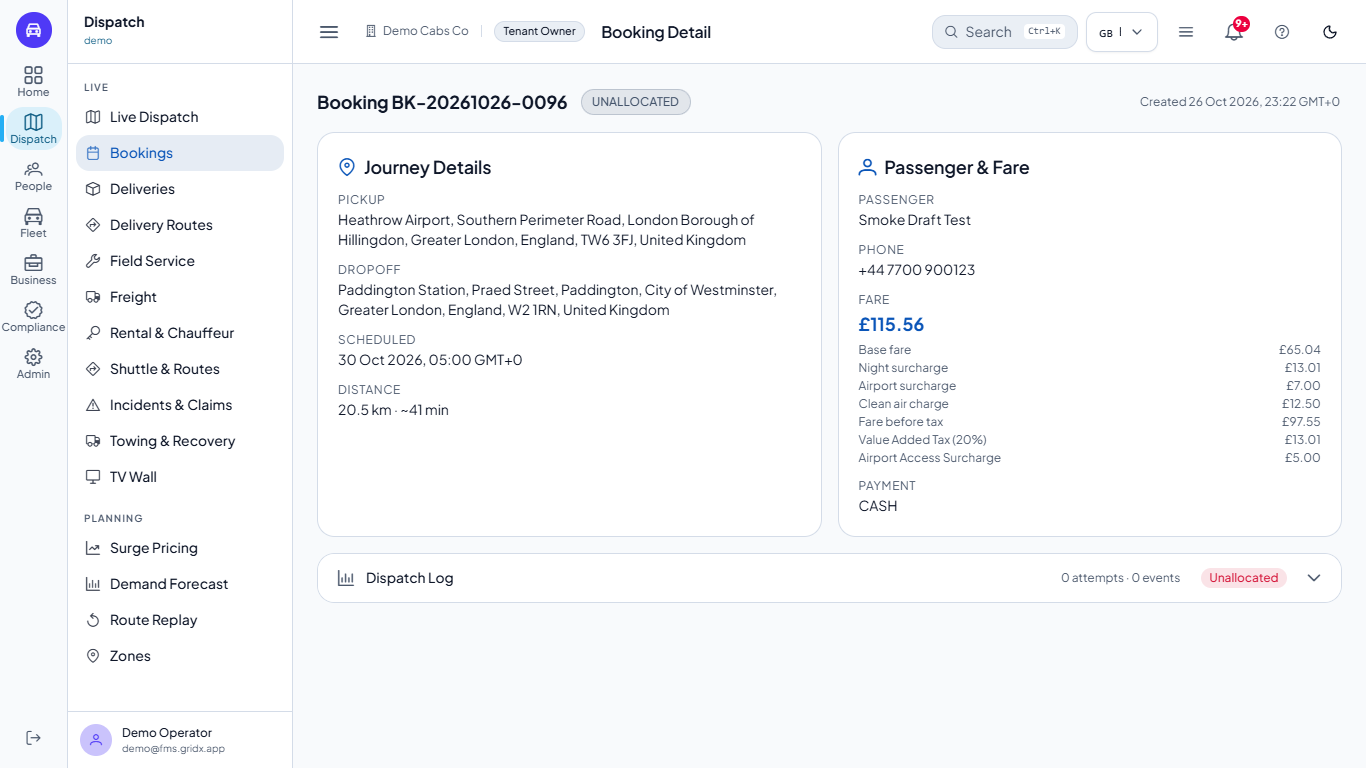
Open a booking in Dispatch > Bookings and Open full page. Passenger & Fare shows the total, then the base fare and each surcharge (night, airport, clean air), the Fare before tax and each tax or levy line. Times on the page are shown in your own time zone, with its abbreviation. For a 20.47 km, 41 minute Saloon trip from Heathrow the base fare is 3.60 + 20.47 x 2.30 + 41 x 0.35 = 65.04, and the night (13.01), airport (7.00) and clean air (12.50) charges of the card bring the fare before tax to 97.55. The tax lines from your tax rules are added to give the total.
Booking Detail with the fare before tax and the tax lines
Check it worked
On Rate Cards every vehicle type you serve has a tile with the numbers you set.
The Live Fare Preview of a saved card matches your own arithmetic, for example 10 km with two tiers has a distance charge of 17.50.
A booking's Fare before tax equals the base fare from its card plus the surcharges that apply to the trip.
Common mistakes
Mistake
What you see
Fix
Saving with an empty name
Name is required under the name box
Type the card name and save again
Leaving a fixed price, day rate or zone rate incomplete
A red message next to the row, lower in the dialog
Scroll down, choose the zone or day, then save
Creating a card without choosing the category
Choose a vehicle category under the list
Choose the Vehicle Category, then Create Rate Card
Removing a card that is still in use
New trips of that type use the standard default rates
Add the card again with Add Rate Card
Quick reference
Item
Meaning / rule
Flag Fall
The starting charge of every trip
Per km Rate / Per min Rate
Price for each kilometre and each minute of the trip
Minimum Fare
The base fare is never below this amount
Booking fee
Charged once per booking, not raised by surge or limited by the minimum or maximum fare
Waiting / min, Free waiting
Price per minute of waiting after the free minutes
Night Surcharge %
Percent of the base fare between the night start and end hours
Peak band
A multiplier on the fare between two hours
Airport, Congestion, Clean Air, Luggage, Toll
Flat amounts stored on the card
Distance tiers
A different per km rate for each band of kilometres
Fixed price
A set price between two zones that replaces the meter
Max Fare Cap
Upper limit of the fare before tax, 0 means no cap
Custom / Global badge
Your own card, or a platform default card
Frequently asked questions
How is a taxi fare worked out from a rate card? The base fare is the flag fall plus the distance times the per kilometre rate plus the trip minutes times the per minute rate, never below the minimum fare. Surcharges, the booking fee and tax lines are added on top.
Can I have different prices for different vehicle types? Yes. Each vehicle type has its own card, so a minibus or a coach can have a higher flag fall and per kilometre rate than a saloon.
Can I schedule a price change for a later date? Yes. In the edit dialog choose From a date and a start date: bookings already made keep their quoted price and new bookings use the new prices from that pickup date.
What happens to bookings if I remove a rate card? New bookings of that vehicle type are priced with the standard default rates until you add a card for the type again; bookings already quoted keep their price.