Open the items list
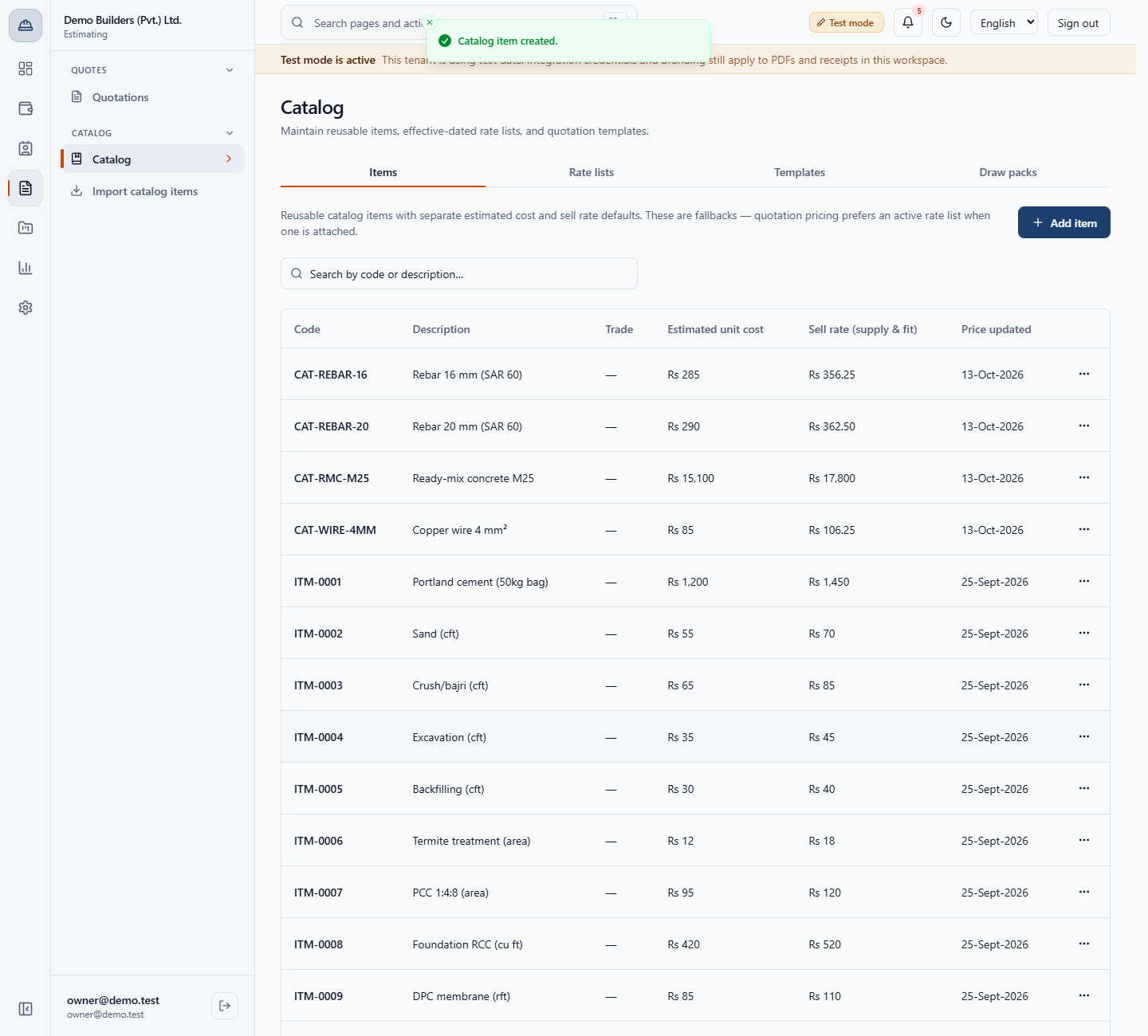
Open Estimating › Catalog › Catalog (/app/catalog). The tabs are Items, Rate lists, Templates and Draw packs. The Items list shows Code, Description, Trade, Estimated unit cost, Sell rate (supply & fit) and Price updated.
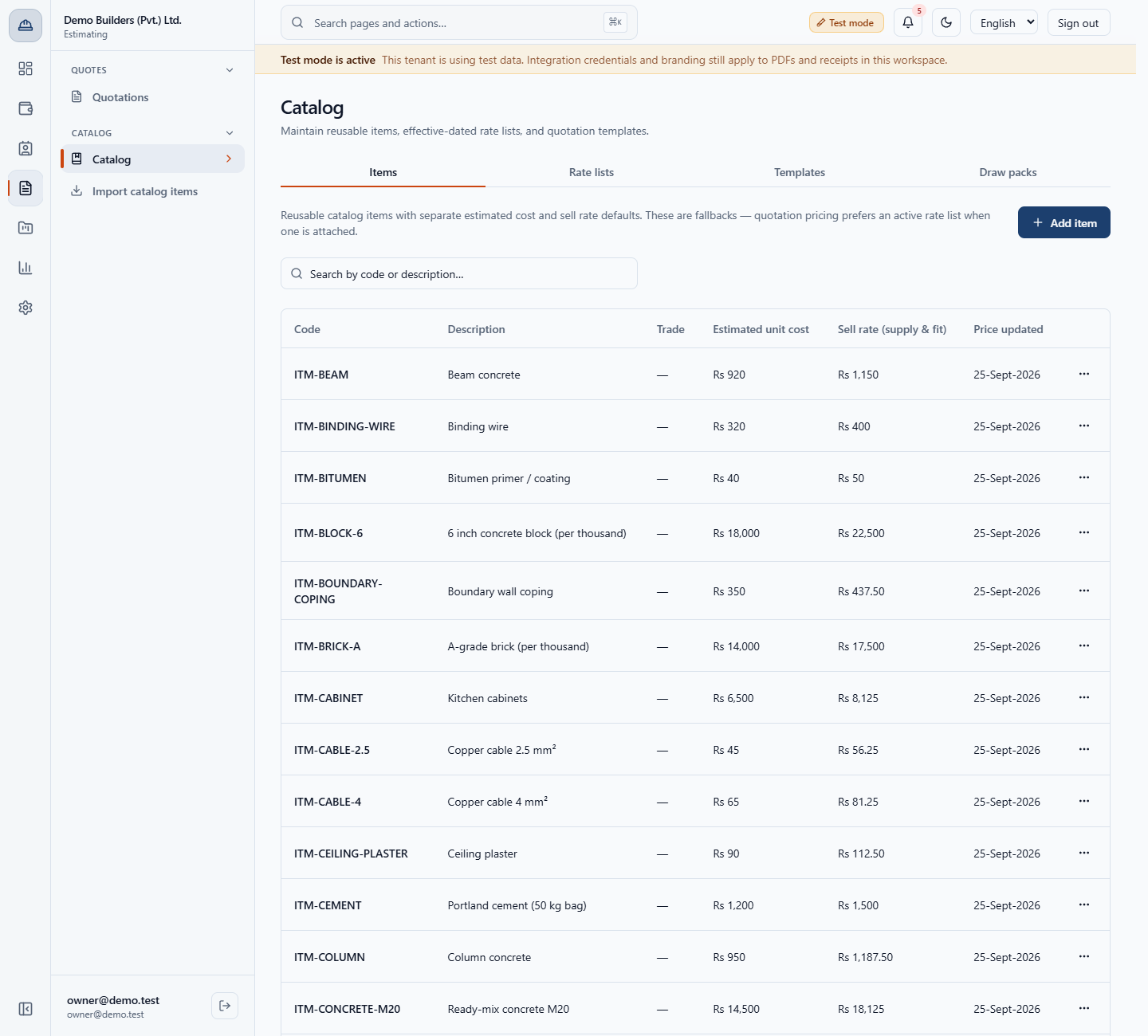
The catalog is where every price you quote starts. This guide shows how to add a reusable item, choose its unit of measure, cost code and cost type, keep your cost apart from the sell rate, and see where the item is used before you change or delete it.
Open Estimating › Catalog › Catalog (/app/catalog). The tabs are Items, Rate lists, Templates and Draw packs. The Items list shows Code, Description, Trade, Estimated unit cost, Sell rate (supply & fit) and Price updated.
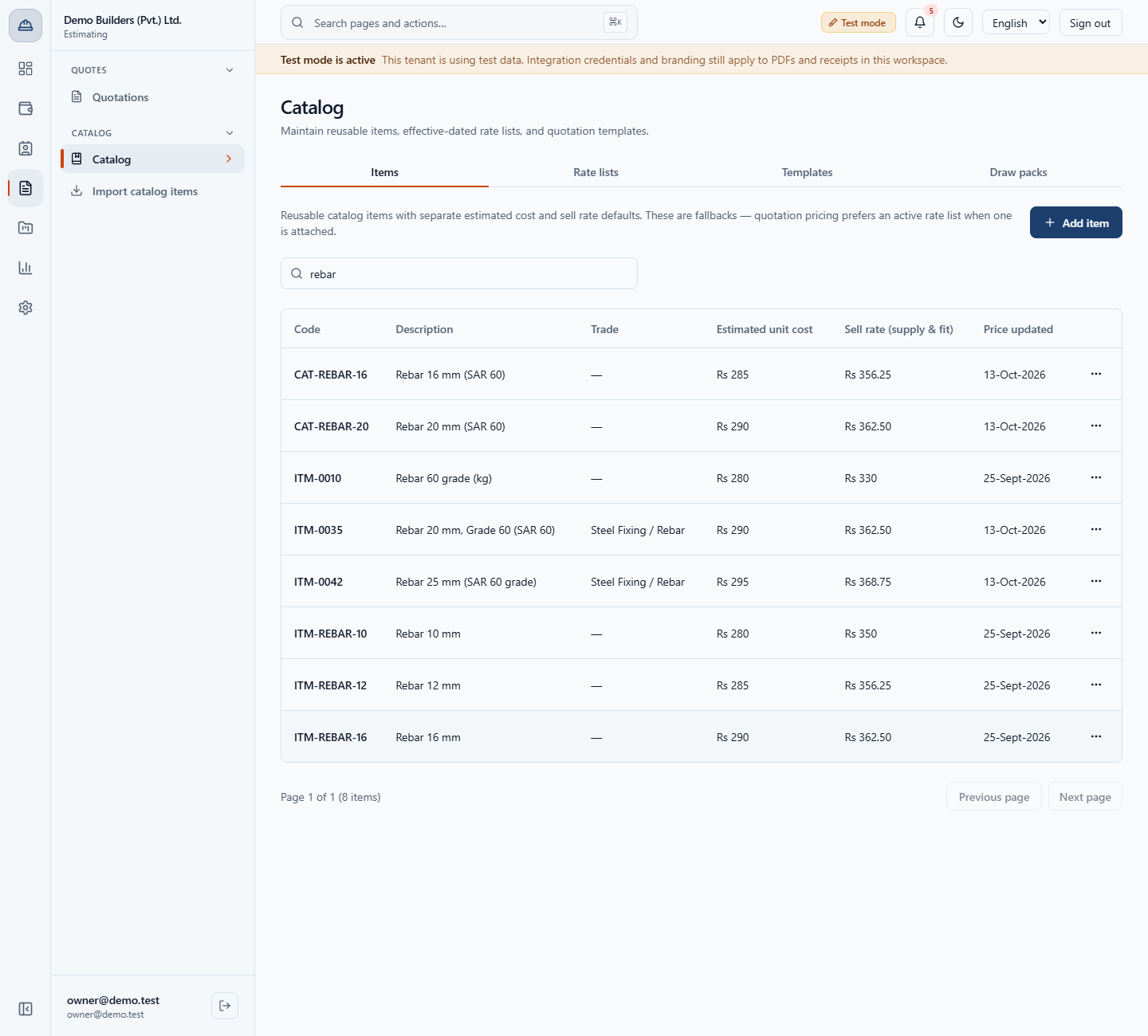
Type in the search box to find an item by code or description. Typing rebar leaves only the rebar items. A word that matches nothing says No matching items.
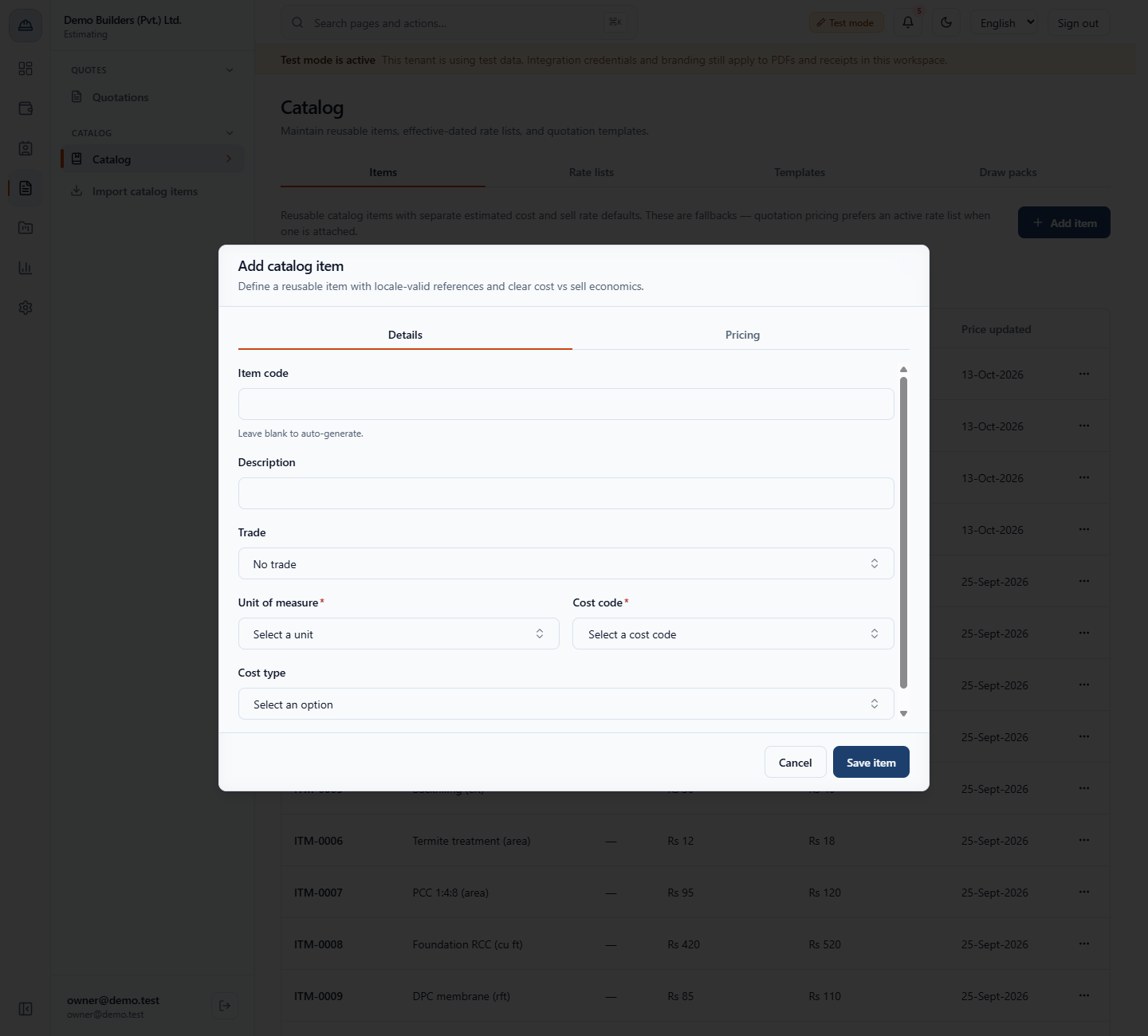
Click Add item. On the Details tab, leave Item code blank and the app numbers the item. Type the Description, for example Rebar 25 mm (SAR 60 grade). Trade is optional: choose from your active trades, such as Steel Fixing / Rebar. If you click Save item on an empty form, the app asks for the description (This field is required.), a unit (Choose a unit of measure.) and a cost code (Choose a cost code.).
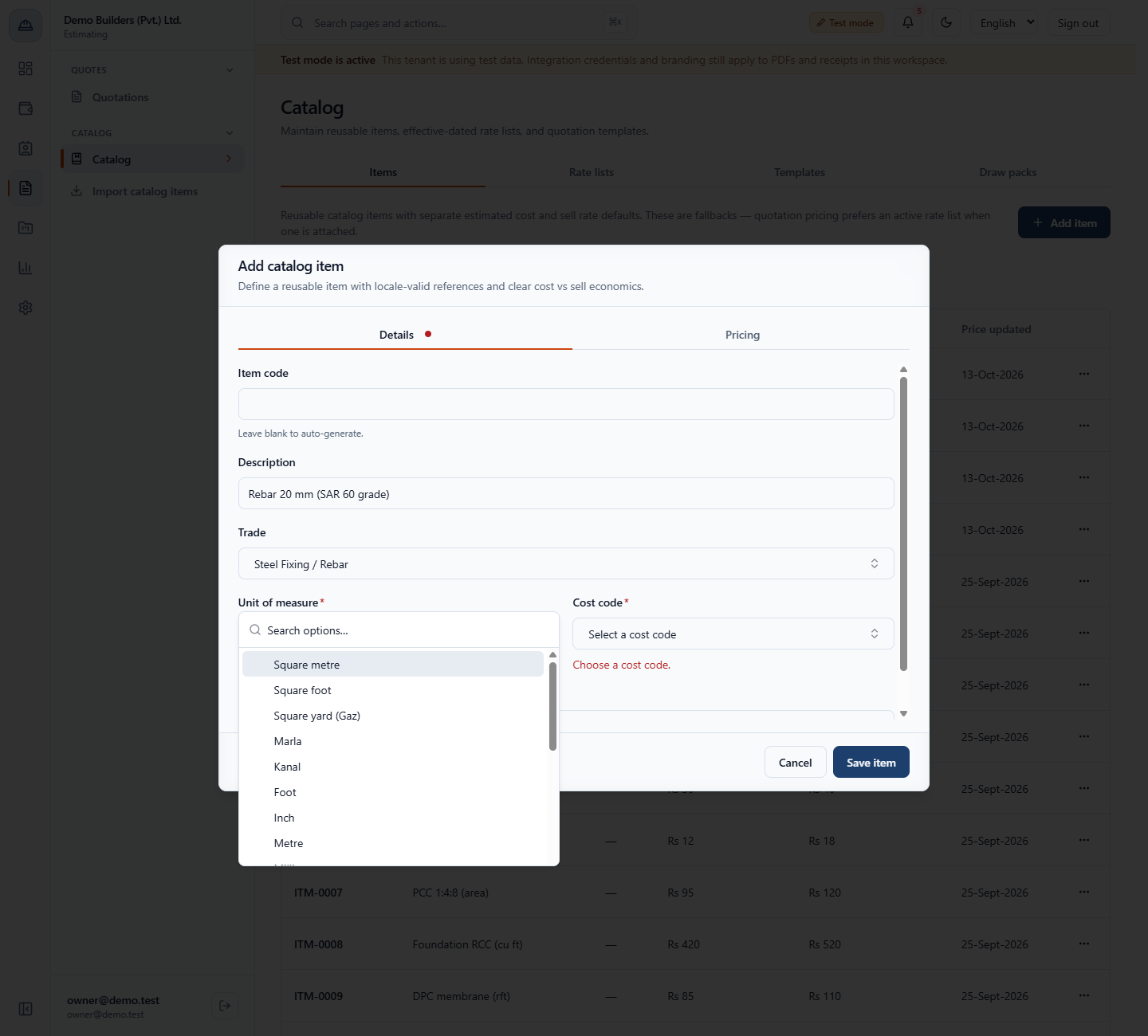
Open Unit of measure. One platform list offers 22 units, from Square metre, Square foot and Kilogram to Bag (50 kg cement), Lump sum, Thousand (1,000 pieces), Day and Month. For the rebar item choose Kilogram.
Open Cost code and choose the division where the cost rolls up, here PK-04 — Structure (RCC & Steel). Then choose the Cost type: Follow cost code, Material, Labor, Subcontractor, Equipment or Overhead. For rebar choose Material.
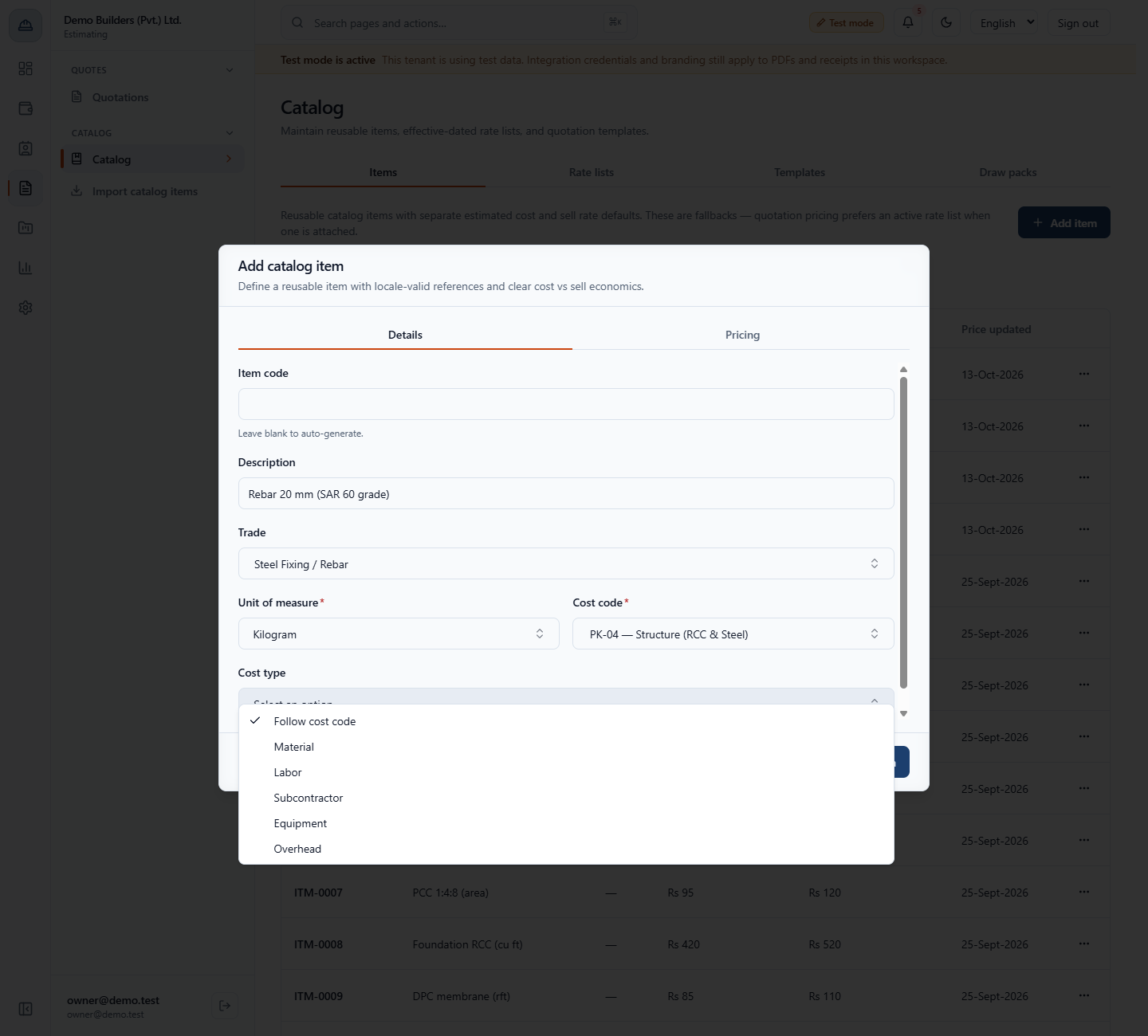
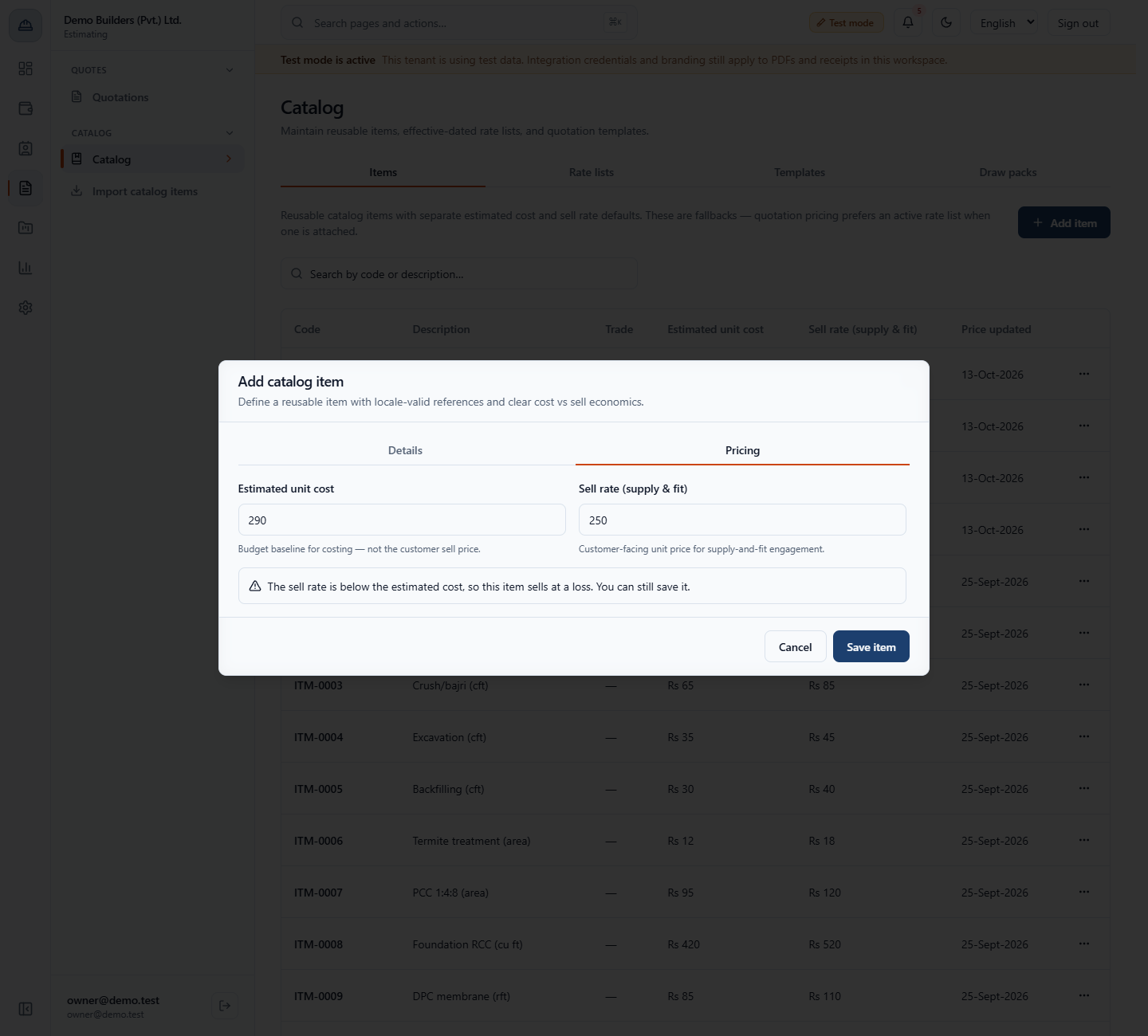
Open the Pricing tab. Estimated unit cost is your budget baseline, not the customer's price. Sell rate (supply & fit) is what the customer pays when you supply and fit. For the example enter 295 and 368.75, which is your cost plus 25 percent.
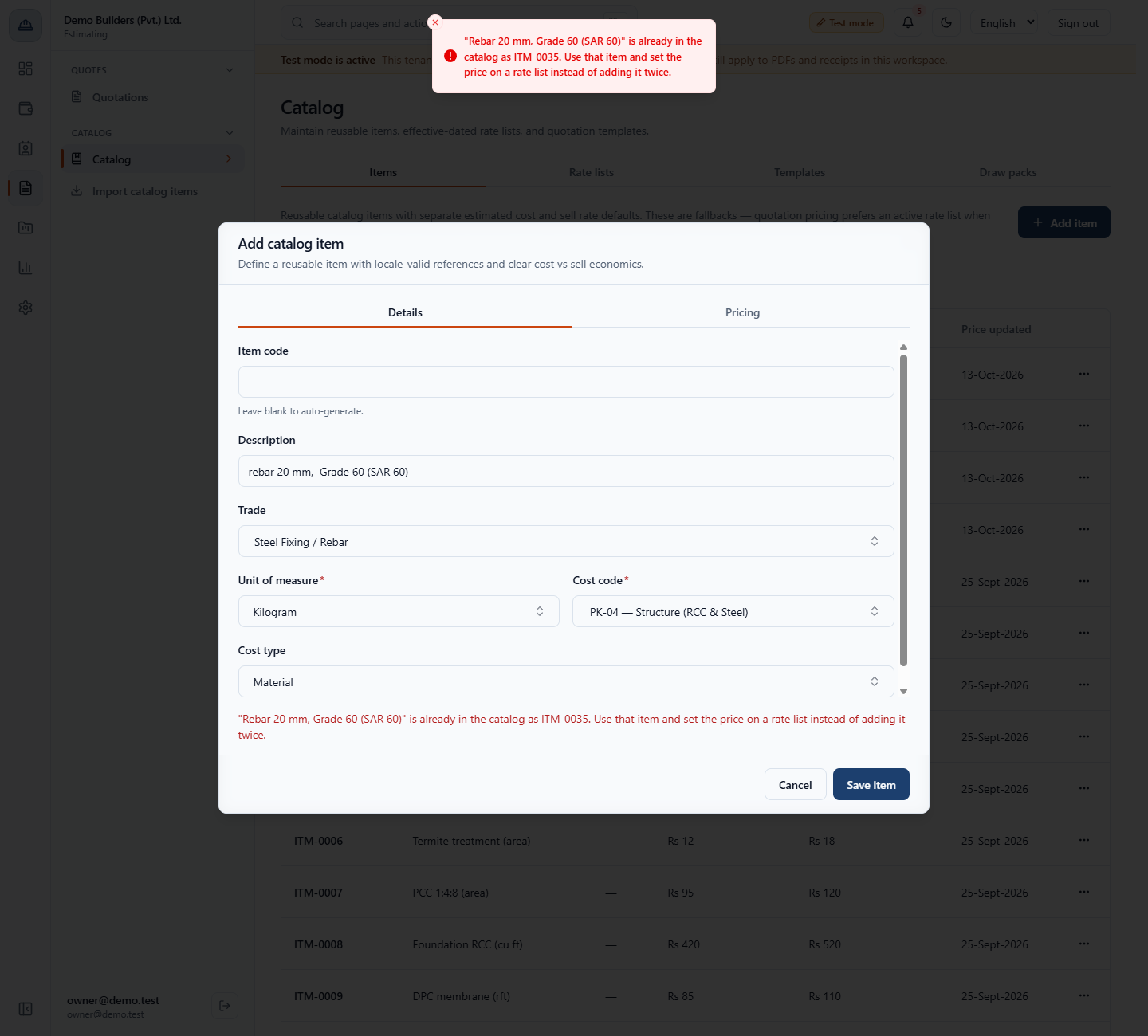
If the description already exists under another code, even with other capitals or spacing, the app refuses and names the existing item: "Rebar 20 mm, Grade 60 (SAR 60)" is already in the catalog as ITM-0035. Use that item and set its price on a rate list instead.
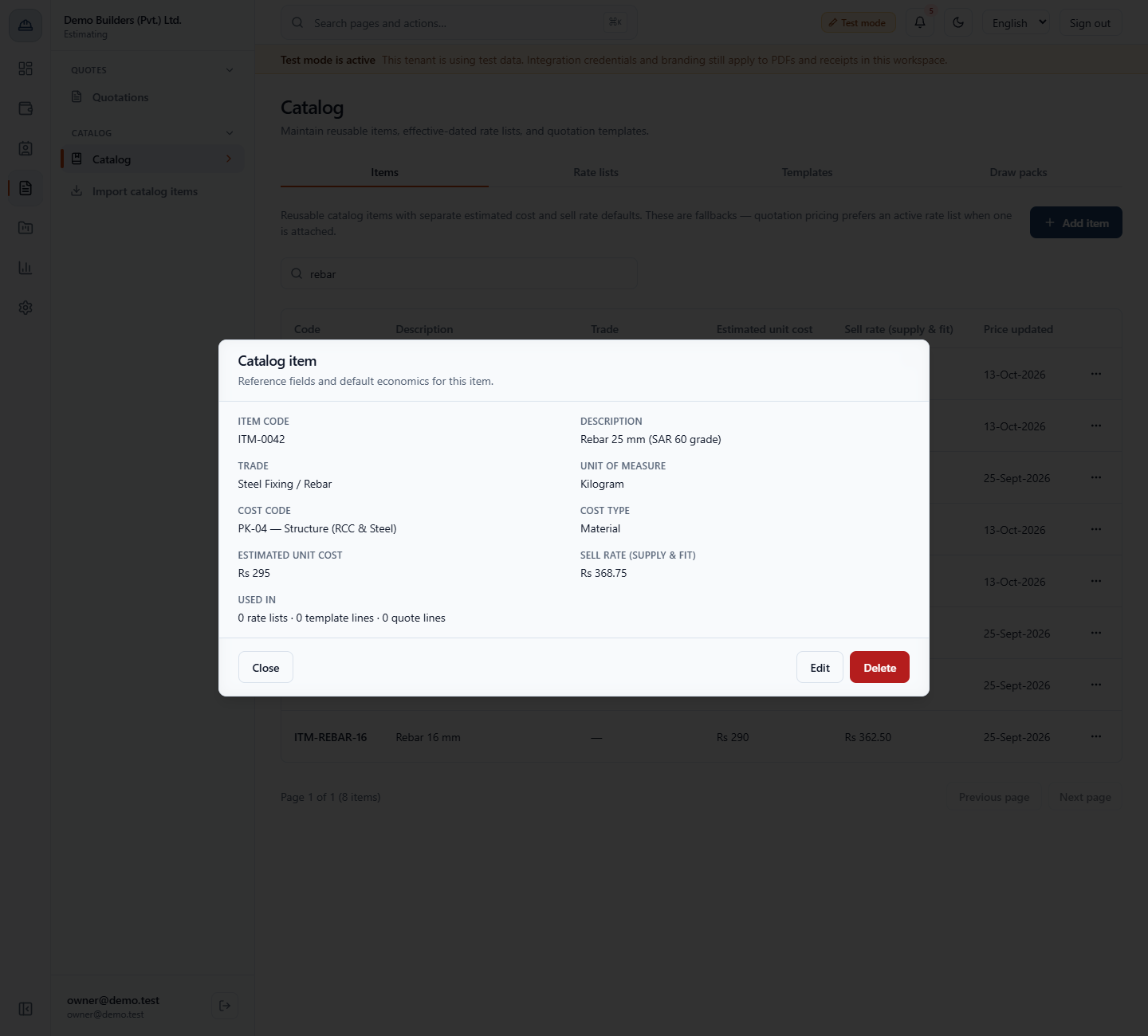
Click Save item. The toast says Catalog item created. The new item is ITM-0042, Steel Fixing / Rebar, with cost Rs 295 and sell rate Rs 368.75.
In the row menu choose View. The dialog shows the item code, description, trade, unit, cost code, cost type, both prices and Used in: rate lists, template lines and quote lines. A new item shows 0 rate lists · 0 template lines · 0 quote lines. Edit opens the same form filled in, and saving says Catalog item updated.
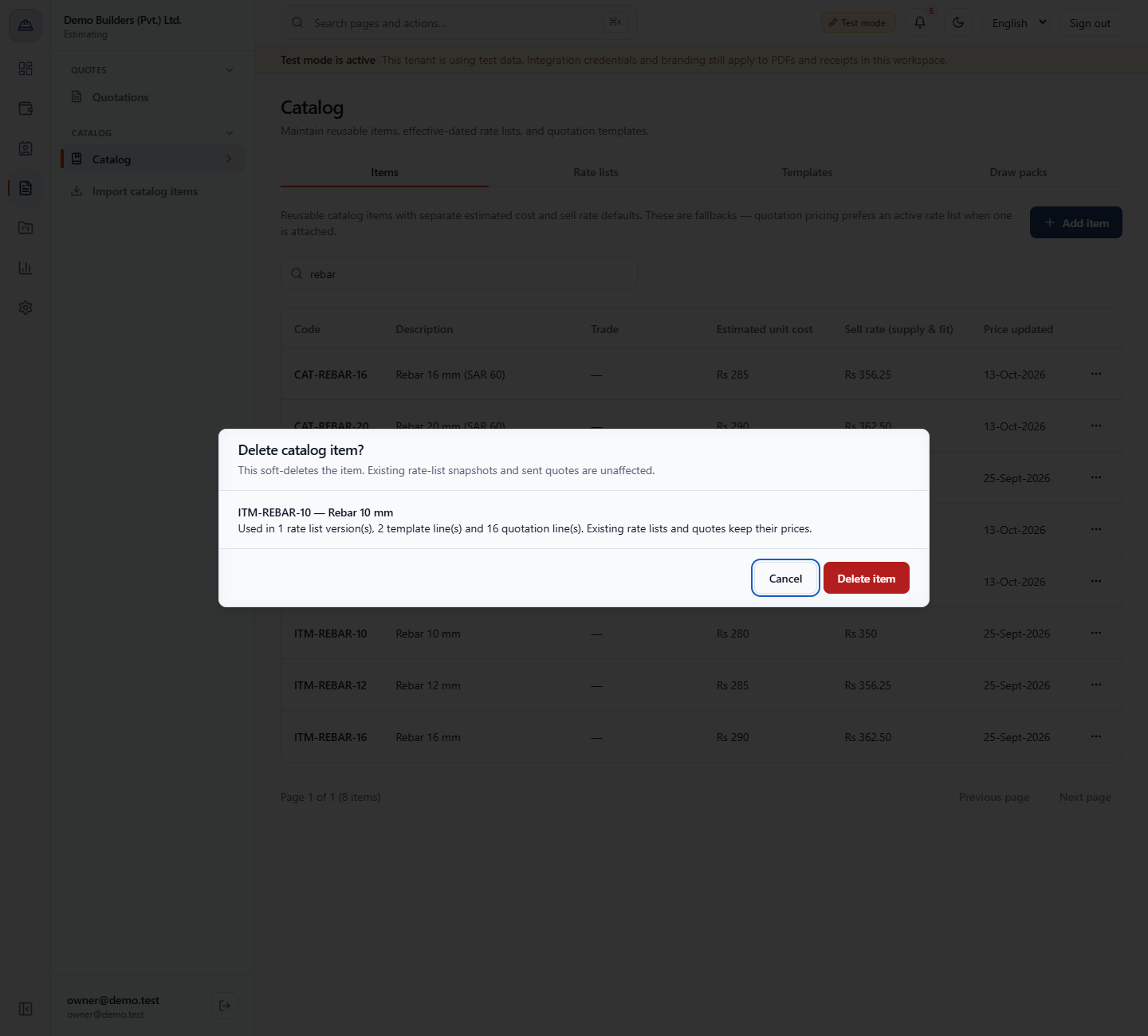
Choose Delete from the row menu. The app says exactly where an item in use sits, for example Used in 1 rate list version(s), 2 template line(s) and 16 quotation line(s). The delete is a soft delete, and existing rate lists and quotes keep their prices.
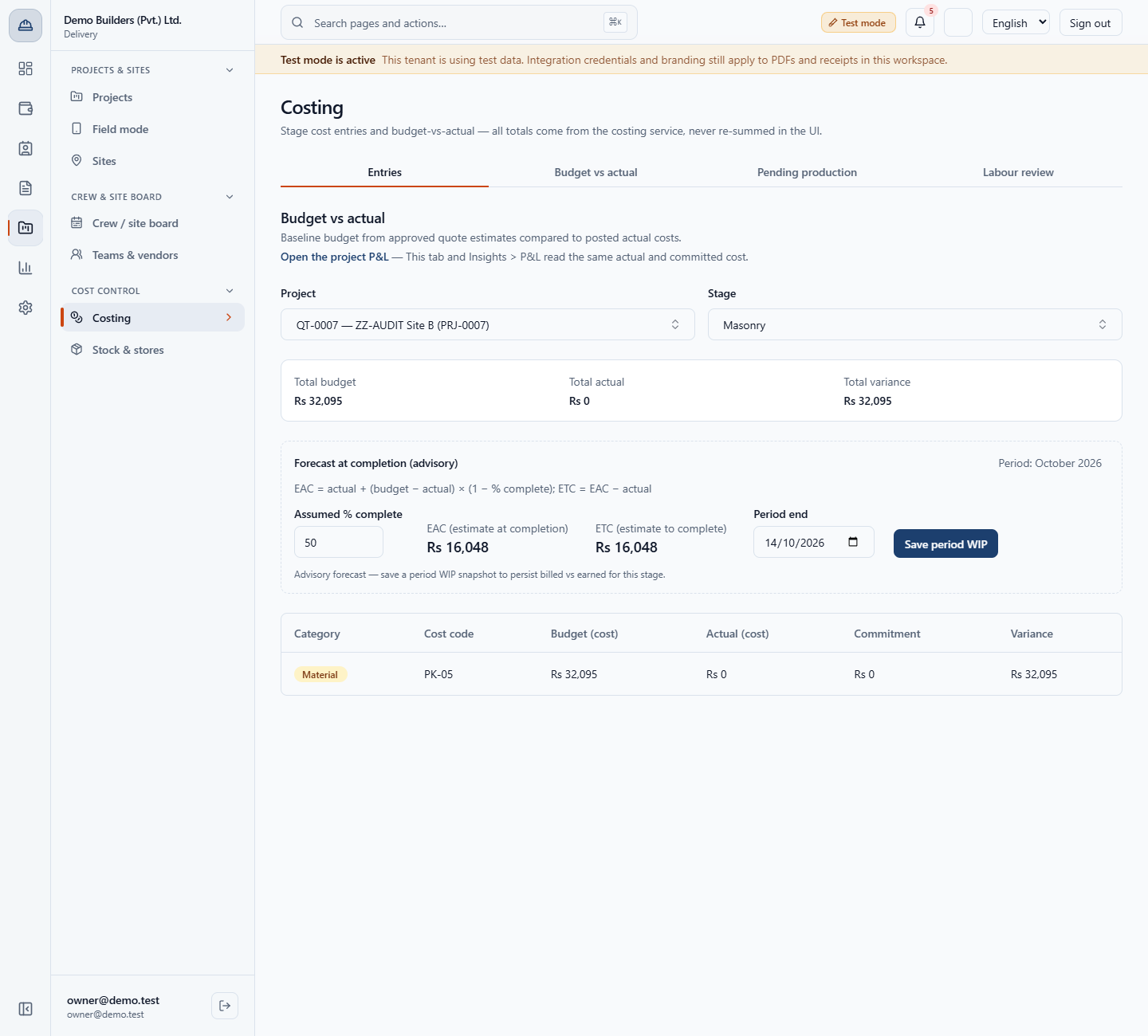
When a quote becomes a project, the budget is grouped by stage, category and cost code. The item's cost type decides the category, so bricks and blocks budget as Material under PK-05. In Delivery › Cost control › Costing › Budget vs actual, the Masonry stage of QT-0007 shows a budget of Rs 32,095.
| Mistake | What you see | Fix |
|---|---|---|
| Saving without a unit or cost code | Choose a unit of measure. and Choose a cost code. | Pick both before saving |
| Entering a sell rate below the cost | A warning that the item sells at a loss | Raise the sell rate, or save knowing it is a loss |
| Adding a material that already exists | The app names the existing item, for example ITM-0035 | Use the existing item and price it on a rate list |
| Deleting an item that is in use | The delete dialog lists the rate lists, template lines and quote lines | Check Used in first; existing prices stay |
| Item | Meaning / rule |
|---|---|
| Item code | Leave blank and the app numbers the item |
| Unit of measure | Mandatory, one of 22 platform units |
| Cost code | Mandatory, PK-01 to PK-12 in the Pakistan set |
| Cost type | Follow cost code, Material, Labor, Subcontractor, Equipment or Overhead |
| Estimated unit cost | Your budget baseline |
| Sell rate (supply & fit) | What the customer pays when you supply and fit |
| Used in | Rate lists, template lines and quote lines that use the item |
Do catalog prices or rate list prices win on a quote? A quote prefers an active rate list when one is attached. The catalog prices are fallbacks, used when an item is in no rate list.
What is the difference between the estimated cost and the sell rate? The estimated unit cost is your budget baseline. The sell rate is the customer-facing price for a supply-and-fit job. They are separate fields, and the app warns when the sell rate is below the cost.
Can I add the same material twice under different codes? No. If the description already exists, even with other capitals or spacing, the app refuses and names the existing item.
Who can change the catalog? The Owner and the Estimator can read, create, update and delete catalog items. The other seeded roles have no catalog access.
BuildFlow runs this whole workflow. See what BuildFlow does and what it costs, or browse all step-by-step guides.