A quotation template is the starting structure of every quote: its sections, lines and the standard wording of what is included and excluded. This guide shows how to clone a starter, add a section with a stage tag, add lines from the catalog, edit the scope and see a quote start from your template.
Who it is forEstimator or quantity surveyorTime15 minutesProductBuildFlowLevelBeginner
Before you start
Steps
1
Open the templates and the sheet
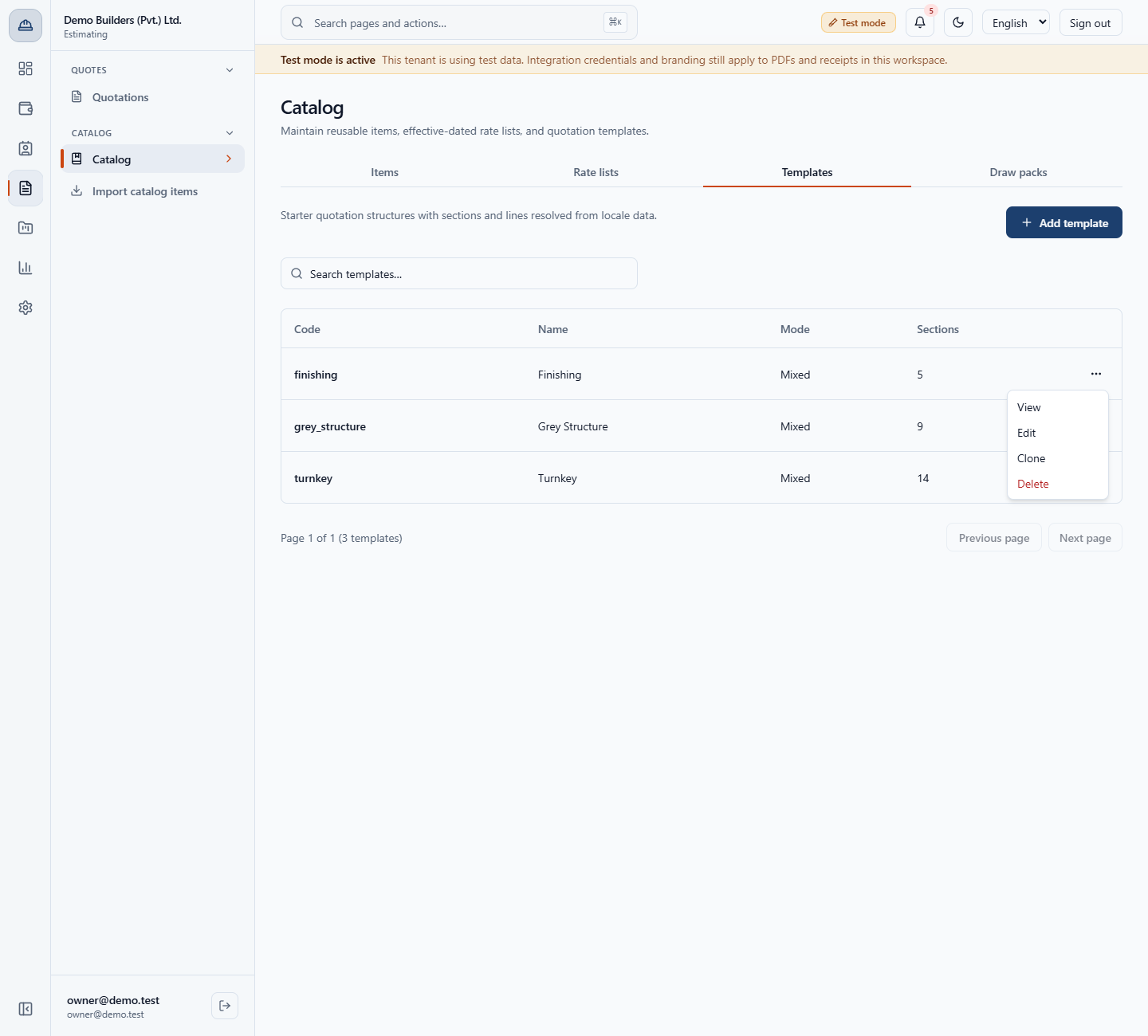
Open Estimating › Catalog › Catalog (/app/catalog) and click Templates. The list shows Code, Name, Mode and Sections. In a row menu you can choose View, Edit, Clone or Delete. View opens the Quotation template sheet: the template code, the default mode, the default engagement and the name, then the scope, then the sections.
Templates tab with the three starter templates and the row actions
2
Clone a starter
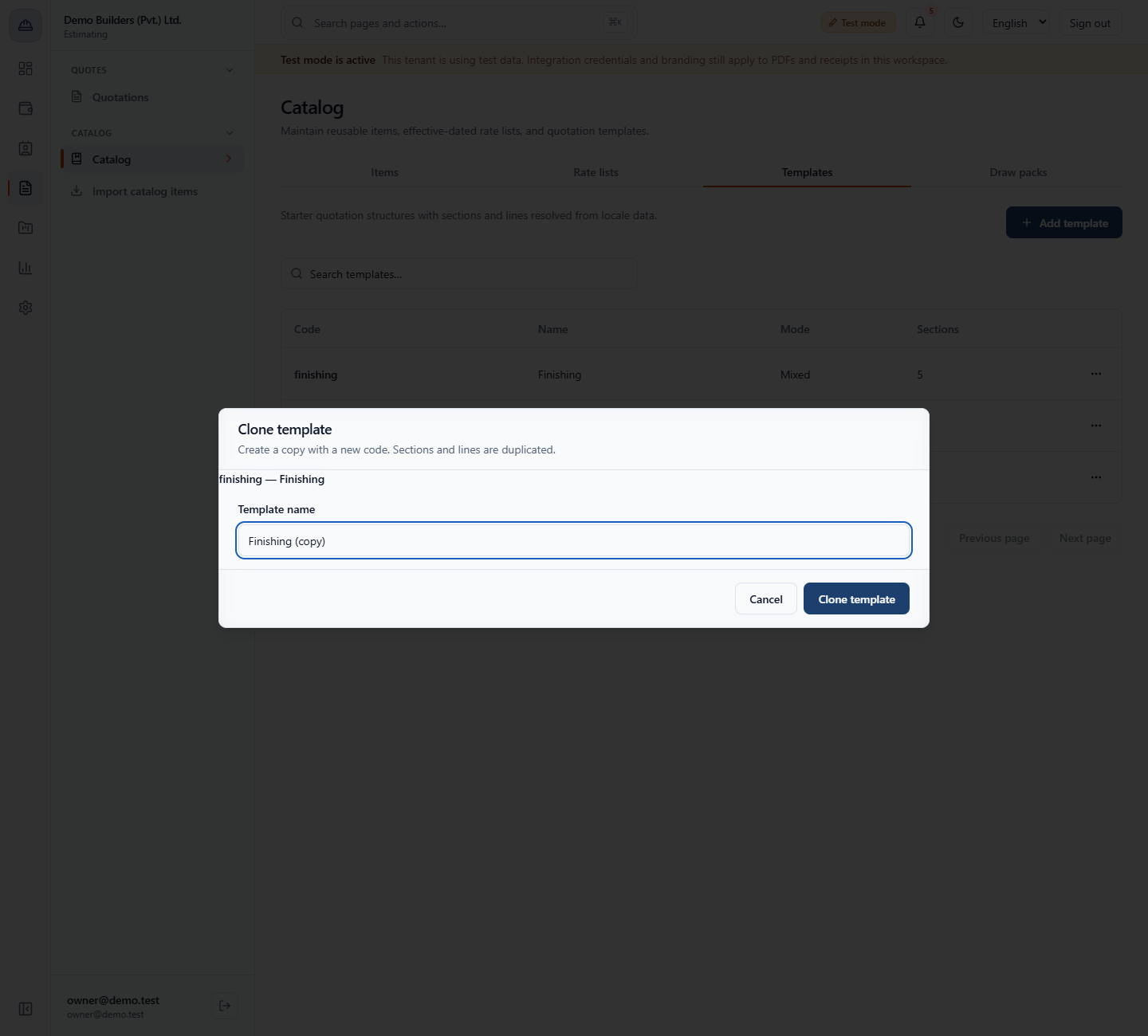
The easiest start is a clone. In the row menu of finishing choose Clone. The name is prefilled Finishing (copy); type Finishing Premium and click Clone template. The toast says Quotation template cloned. and the copy appears with the next code, TPL-0005, and the same 5 sections.
Clone template dialog with the name Finishing (copy)
3
Add a section with a stage tag
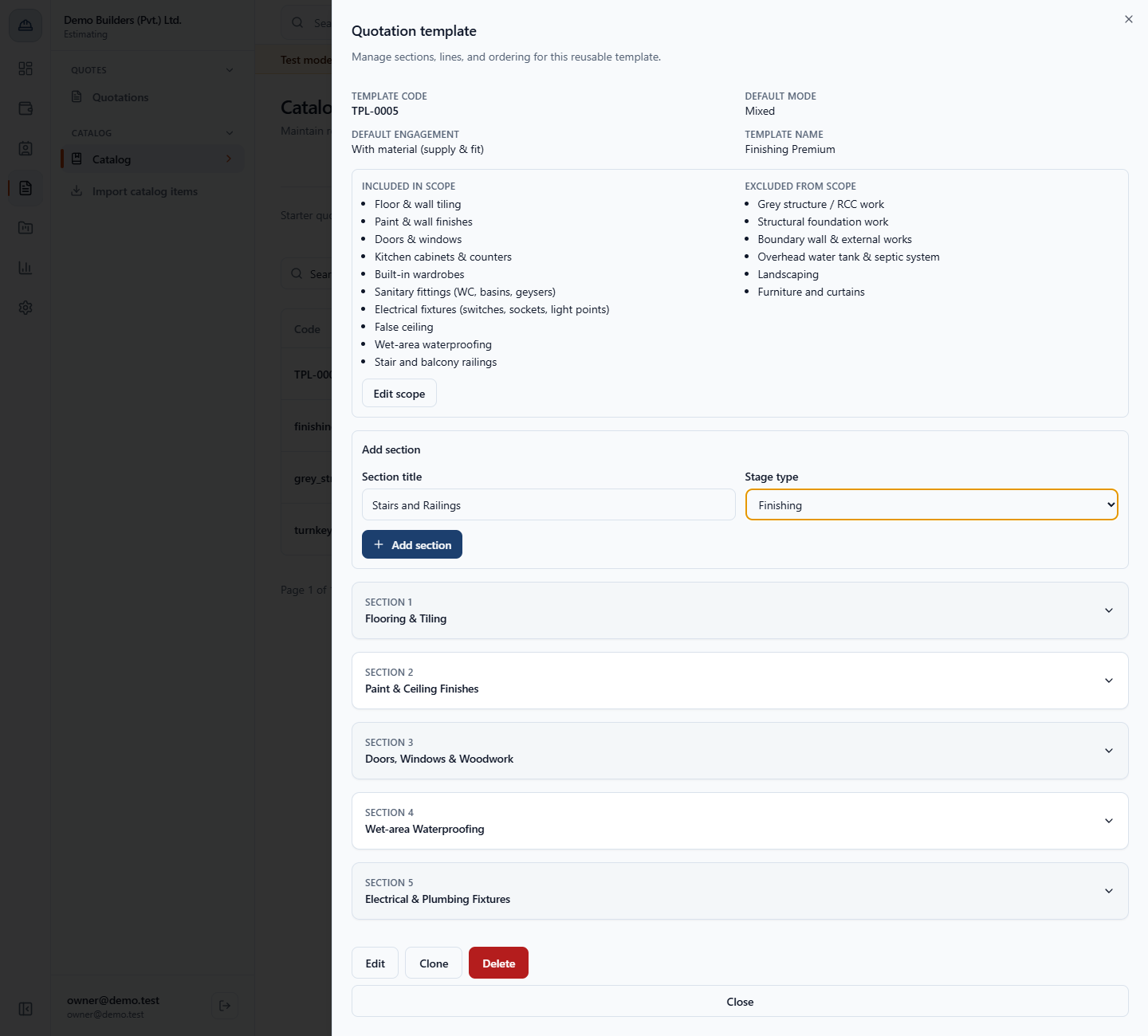
Open TPL-0005. In Add section type Stairs and Railings as the Section title and choose Finishing as the Stage type (the other choices include Site prep & excavation, Foundation, Structure (RCC), Masonry, Roof, Plaster, MEP rough-in, Waterproofing, Flooring, External works and Handover). Click Add section. The toast says Section added. and it appears as section 6.
Add section form with the title Stairs and Railings and the stage type Finishing
4
Add a line from the catalog
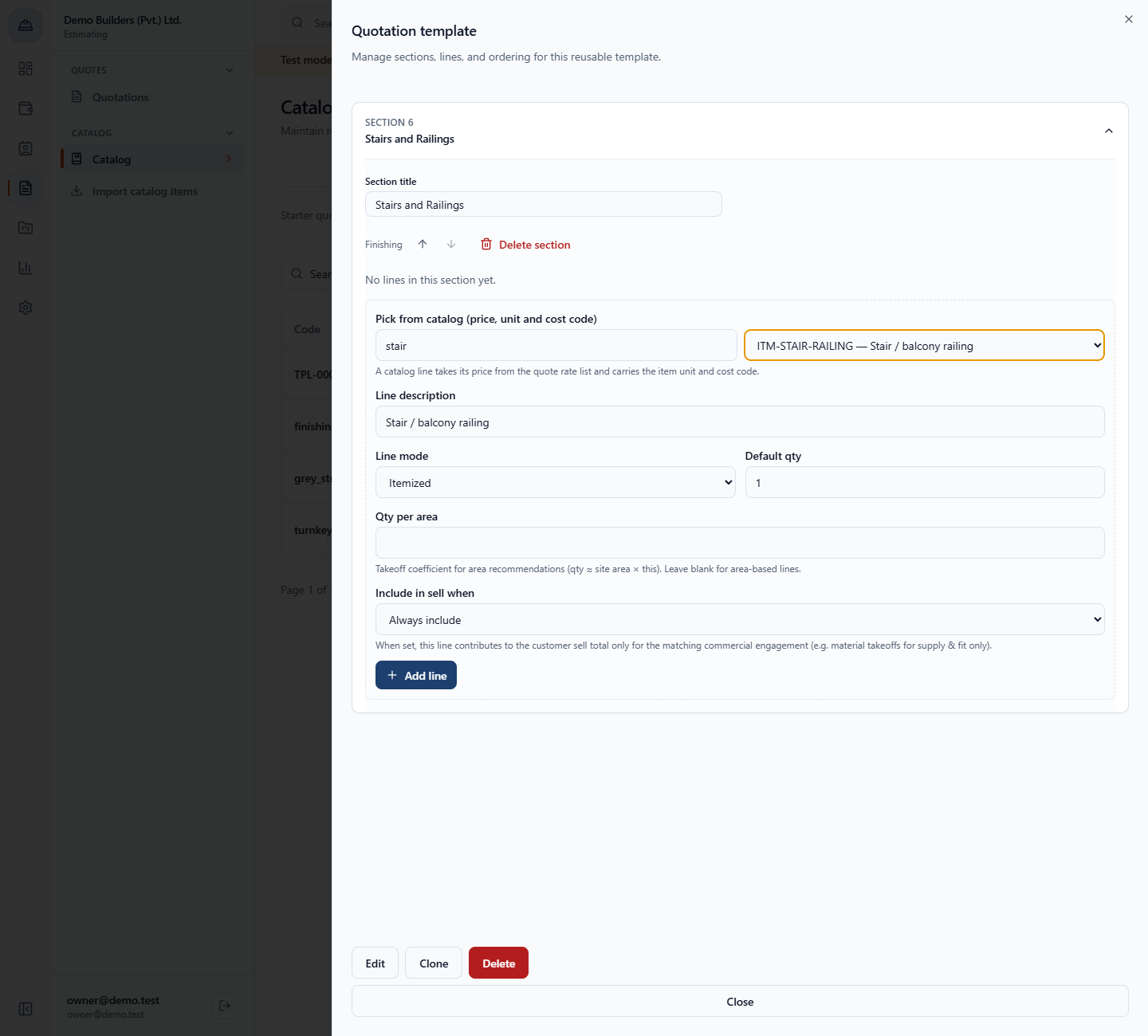
Inside the section, under Pick from catalog (price, unit and cost code), search stair and choose ITM-STAIR-RAILING — Stair / balcony railing. The description, Itemized mode and quantity 1 fill in. Click Add line. The toast says Line added.
Add a line by picking the catalog item ITM-STAIR-RAILING
5
Add a custom line
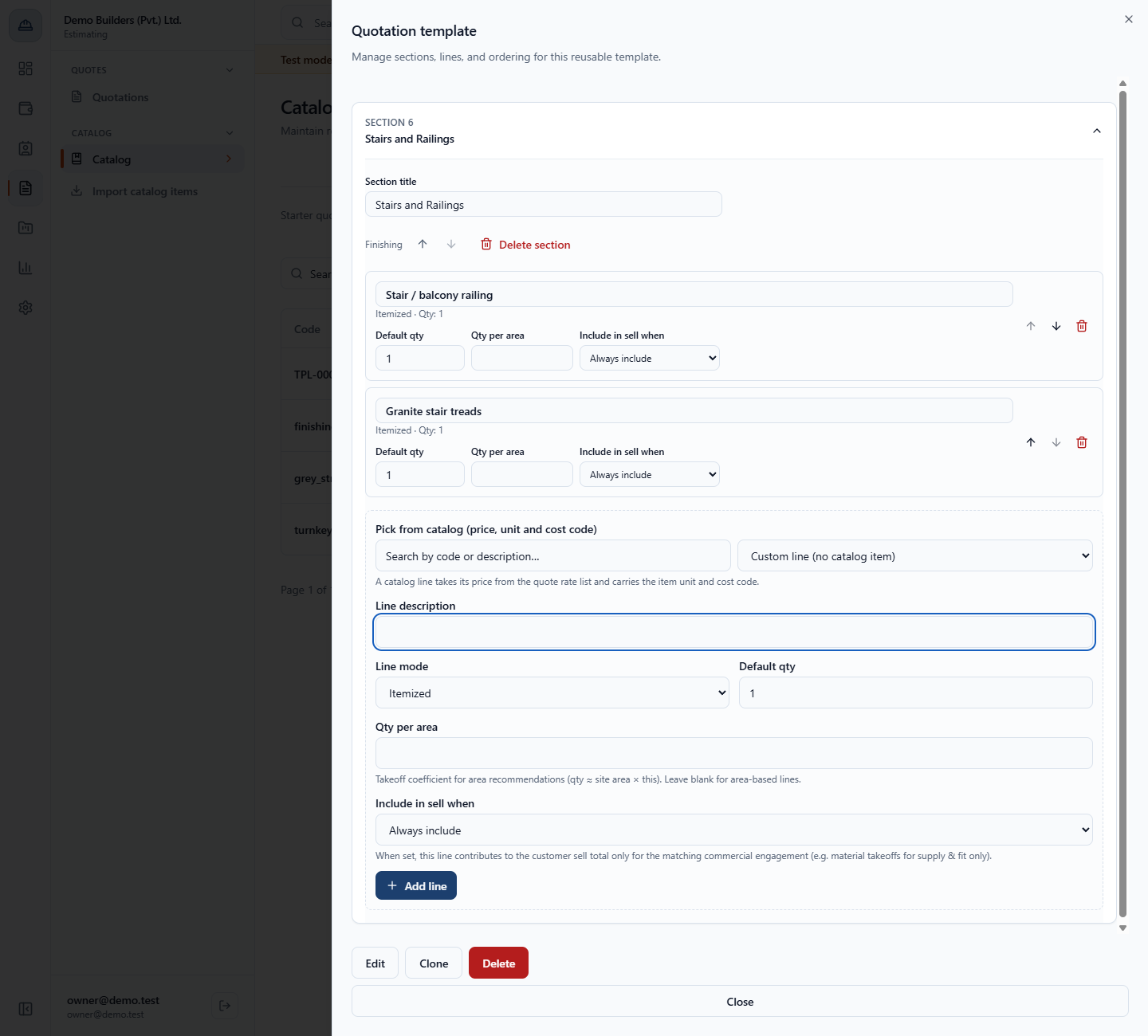
Leave Custom line (no catalog item) selected, type Granite stair treads as the Line description and click Add line. A custom line has only a description, a mode and a quantity. Each line also has Default qty, Qty per area and Include in sell when (Always include, Without material (labour only), Labour + formwork or With material (supply & fit)).
Section Stairs and Railings with two lines
6
Rename and delete
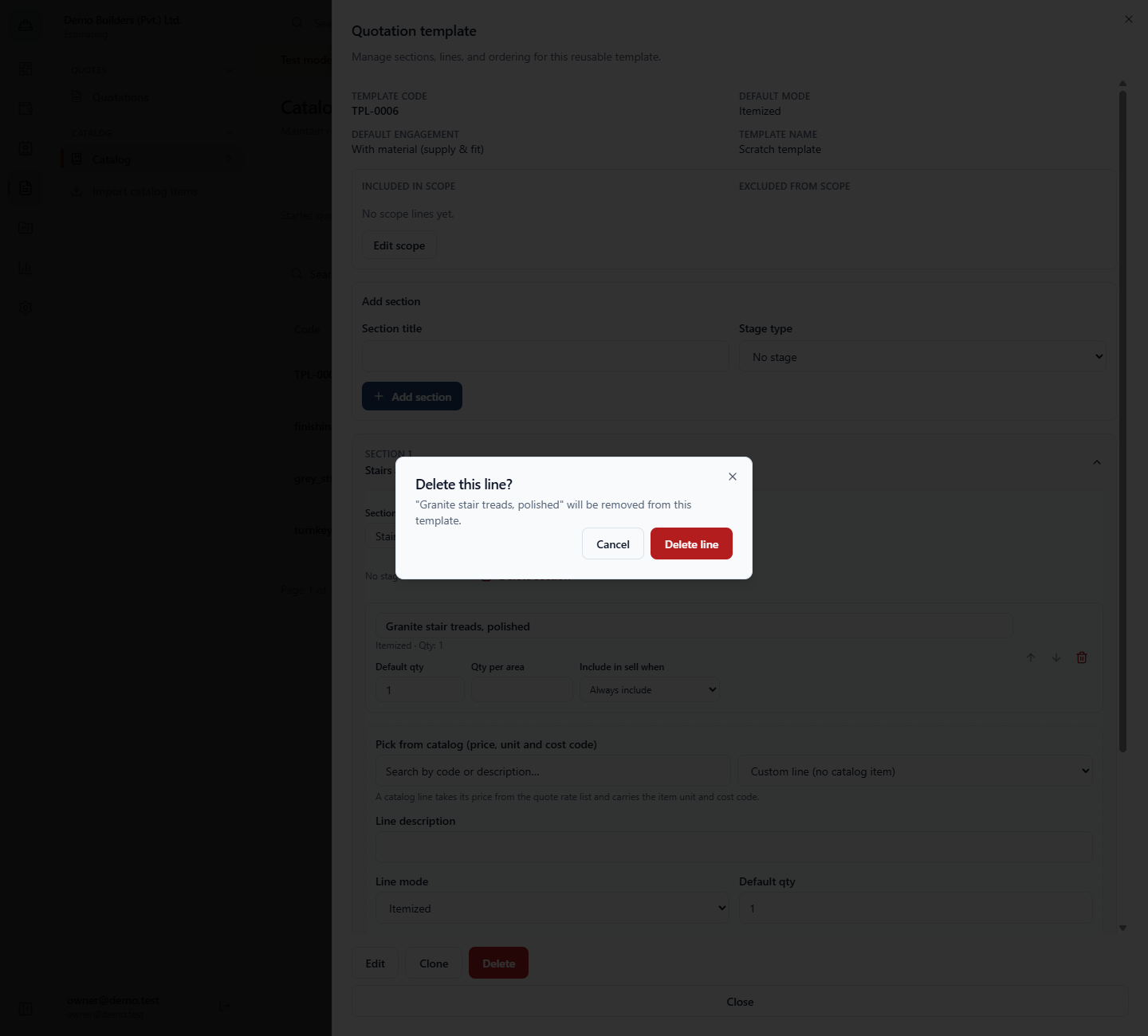
Change a description in its box and leave the box: the toast says Line updated. Do the same with a Section title: Section renamed. To delete a line click its bin: Delete this line? names the line; Delete line confirms and the toast says Line deleted.Delete section asks the same way and says how many lines go with it and that quotes already made are unaffected; the toast says Section deleted.
Delete this line confirmation for Granite stair treads, polished
7
Edit the template
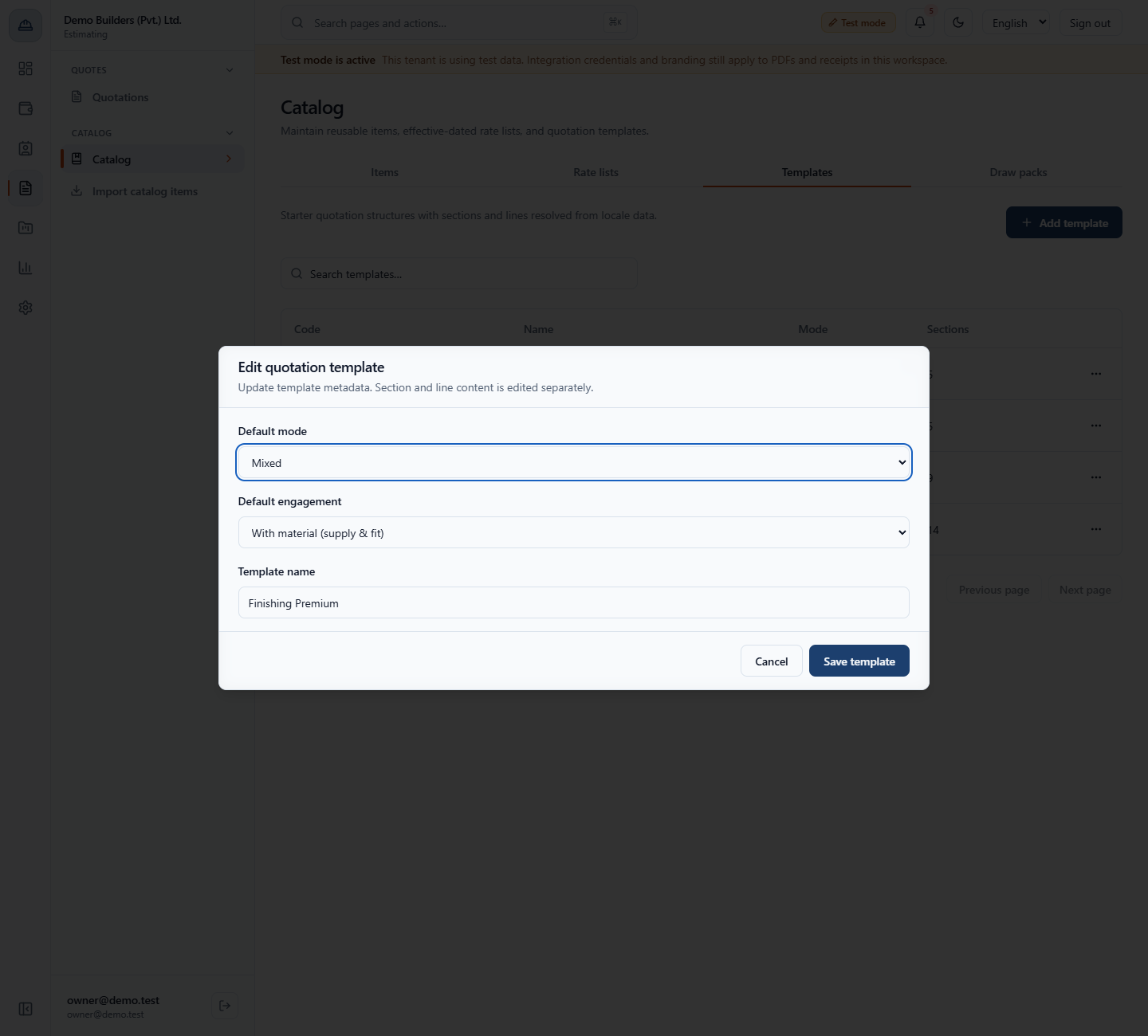
On the sheet click Edit. You can change Default mode, Default engagement (Without material (labour only), Labour + formwork or With material (supply & fit)) and Template name. The code stays. Click Save template. The toast says Quotation template updated.
Edit quotation template dialog
8
Edit the scope
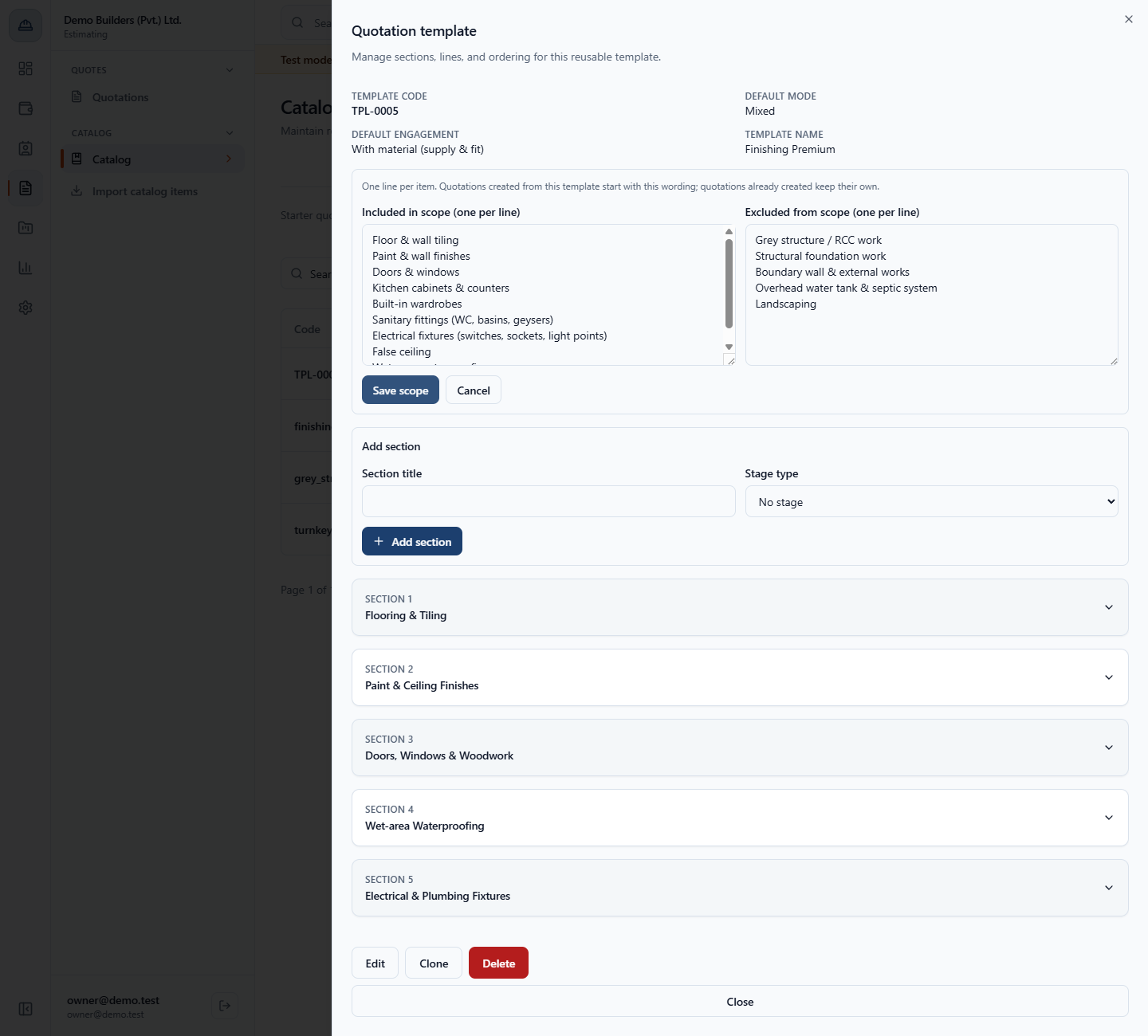
On the sheet click Edit scope. Two boxes open: Included in scope (one per line) and Excluded from scope (one per line). Add Stair and balcony railings to the included box and Furniture and curtains to the excluded box, then click Save scope. The toast says Scope updated. and the sheet lists 10 inclusions and 6 exclusions.
Scope editor with the included and excluded boxes
9
Start a quote from the template
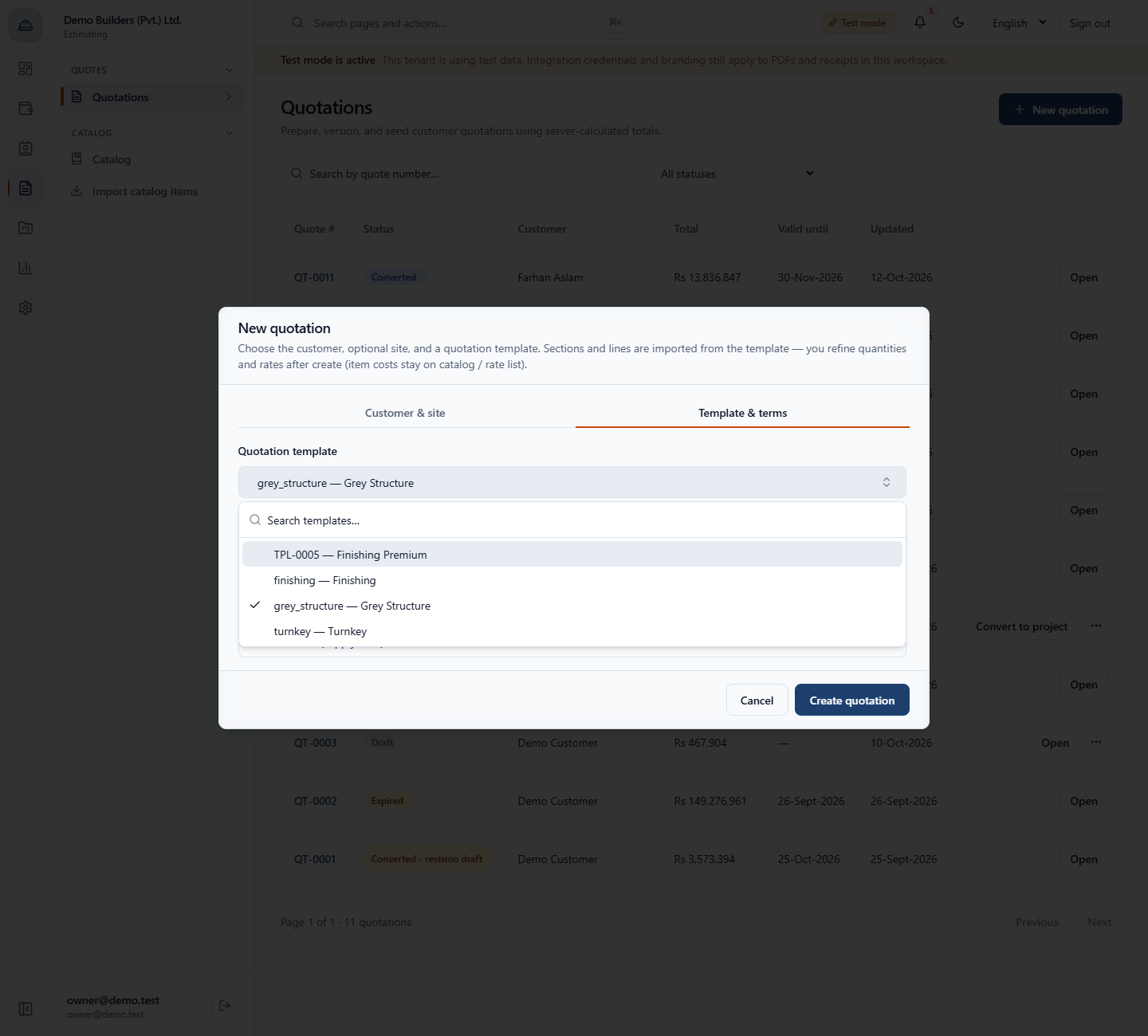
Open Estimating › Quotes › Quotations, click New quotation and go to Template & terms. The Quotation template list now offers TPL-0005 — Finishing Premium beside finishing, grey_structure and turnkey.
New quotation dialog with TPL-0005 — Finishing Premium in the template list
10
See the suggestions and the scope on the quote
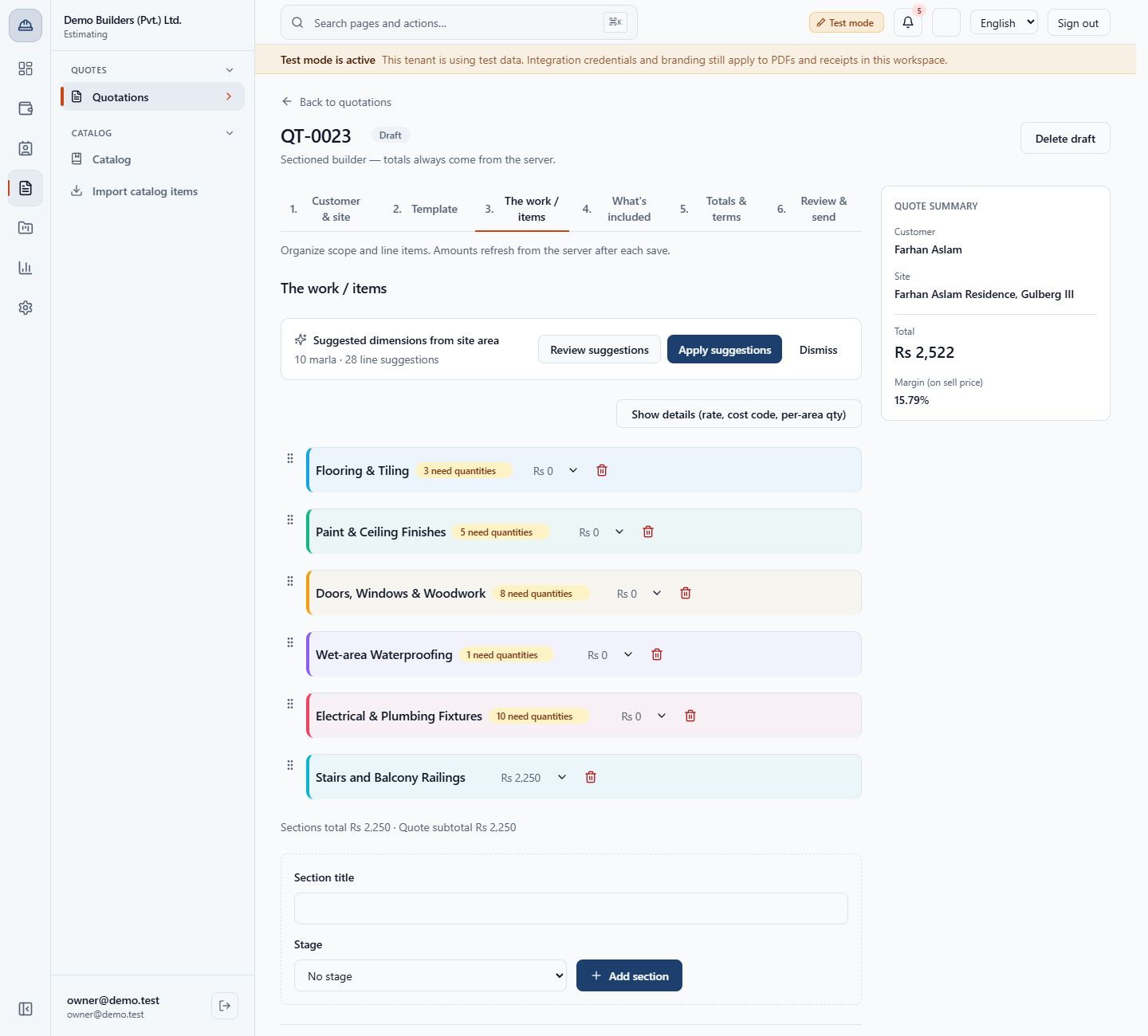
On a 10 marla site, a quote from the starter shows Suggested dimensions from site area: 10 marla · 27 line suggestions. A quote from your clone shows 10 marla · 28 line suggestions: the same quantities plus the new section Stairs and Balcony Railings. Step 4, What's included, starts with your inclusions and exclusions.
Quote step The work / items with 28 line suggestions for 10 marla
11
Delete a template
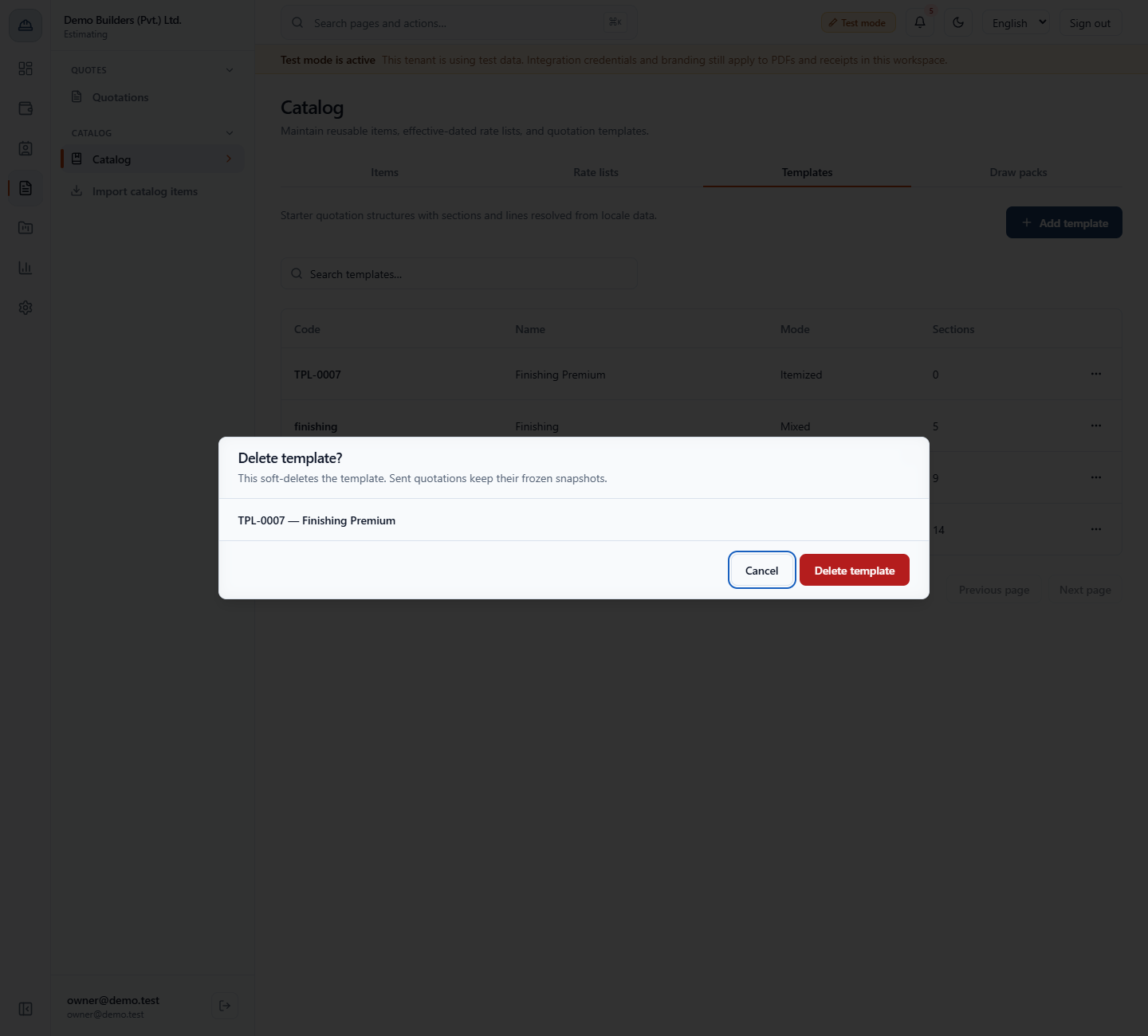
In the row menu choose Delete. The dialog says This soft-deletes the template. Sent quotations keep their frozen snapshots. Click Delete template. The toast says Quotation template deleted.
Delete template dialog for Finishing Premium
Check it worked
The Templates tab lists your template with its code and section count.
A new quotation offers it, and the quote starts with its sections, lines and scope wording.
Common mistakes
Mistake
What you see
Fix
Saving a template without a name
This field is required.
Type a Template name.
Adding a section without a stage tag
The section funds no project stage
Choose a Stage type such as Finishing.
Editing the scope and expecting old quotes to change
Quotations already created keep their own wording
Edit the scope on the quote itself.
Quick reference
Item
Meaning / rule
Stage type
The project stage a section funds
Include in sell when
Limits a line to one engagement
Qty per area
Takeoff coefficient: quantity is about site area times this
Scope
One line per item; new quotes start with it
Clone
Copies sections, lines and scope under a new code
Frequently asked questions
How do I make my own quotation template? Clone the nearest starter, name the copy, then add sections, lines and scope wording to it. Add template creates an empty shell instead.
Does changing a template change quotes I already made? No. A quote copies the template's sections, lines and scope when it is created, and quotations already created keep their own wording.
Who can edit quotation templates? The Owner and the Estimator hold the catalog permissions. The other seeded roles have none.