See the payers
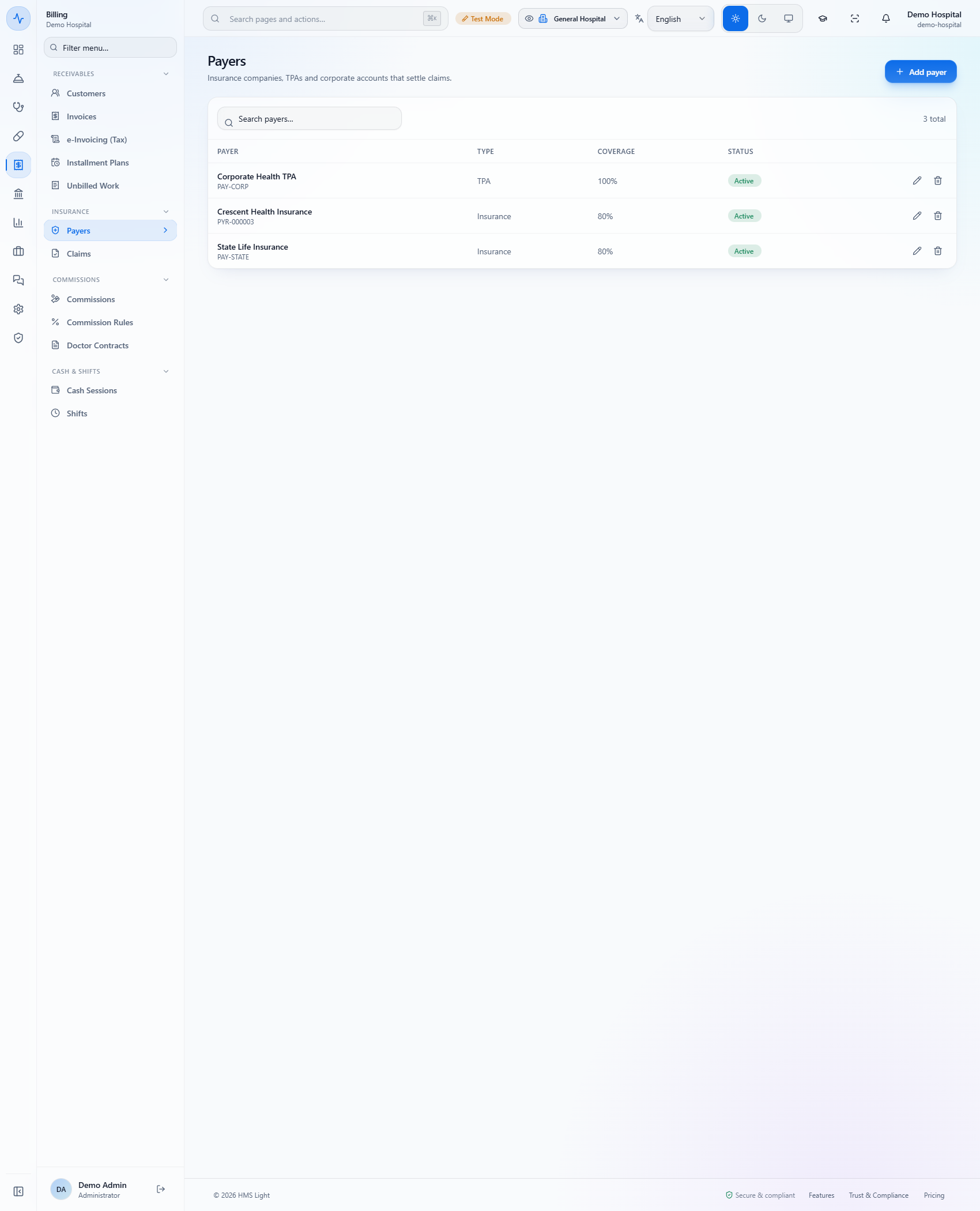
Open Billing › Insurance › Payers. Each row shows the payer, its code, Type, Coverage (for example 80%) and Status. Coverage is the share the payer pays; the rest is the patient's co-pay.
You will register an insurer with its contracted coverage, split a bill between the insurer and the patient's co-pay, bill earlier credit invoices to the insurer, and raise a claim by hand. Use it whenever a patient is covered by a panel, an insurer or a corporate account.
Open Billing › Insurance › Payers. Each row shows the payer, its code, Type, Coverage (for example 80%) and Status. Coverage is the share the payer pays; the rest is the patient's co-pay.
Click Add payer. Type the Name, choose the Type (Insurance, TPA, Corporate or Government), set Coverage % (80 for this insurer), then the Contact person, Phone, Email, Address and Contract notes such as the panel number and room limit. Code (optional) can stay empty: its placeholder says "Auto-generated if left blank". Click Create payer; a toast says "Payer created" and the new row gets its own code (here PYR-000003).
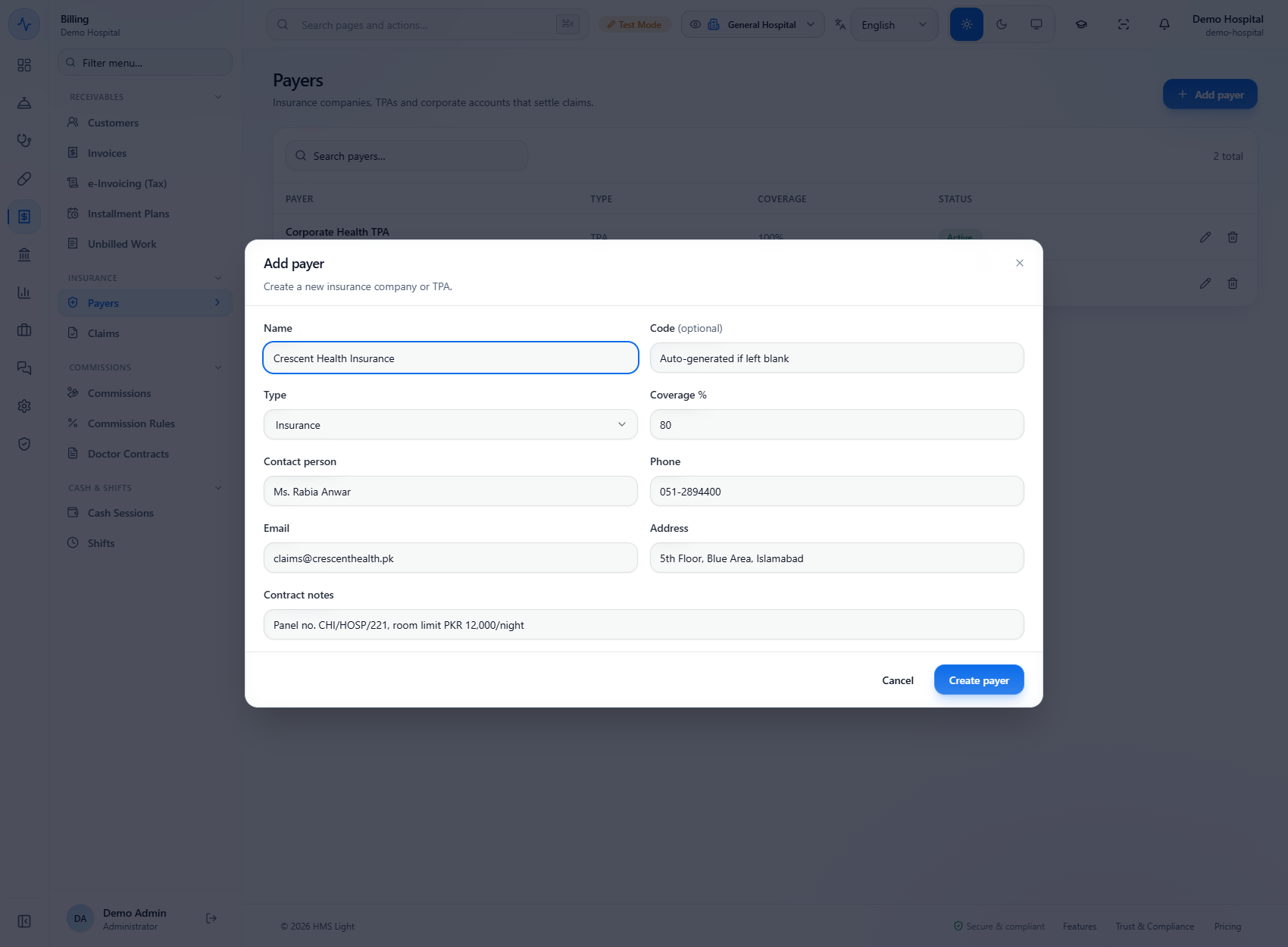
The Type only describes the payer. It does not change how the bill is posted; the Coverage % does the work.
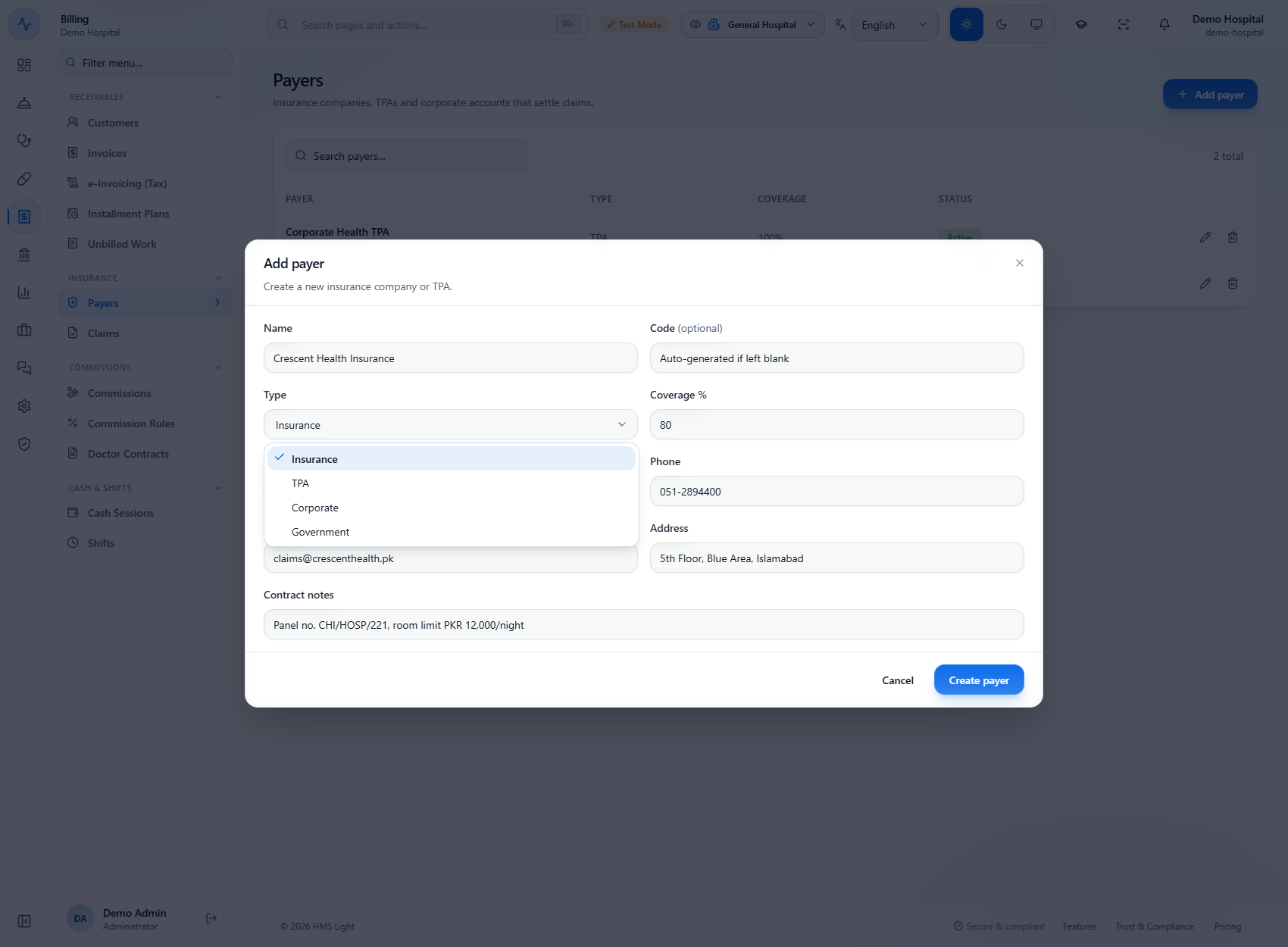
Click Delete payer on a row and the app asks "Delete payer?" with "This action can't be undone". If the payer already has claims, a toast says "Payer has linked claims and cannot be deleted" and the dialog stays open. Keep it for the history; only a payer with no claims can be removed.
In Billing › Receivables › Invoices click New invoice, choose the patient (here Usman Ghani, MR-000045), add the service "CT Head (Plain)" at PKR 18,000.00. Under the payment tender choose Insurance and pick the Payer (Corporate Health TPA 100%, Crescent Health Insurance 80%, State Life Insurance 80%). The app says "Payer covers 80% - share PKR 14,400.00; the rest is the patient co-pay" and adds a Patient co-pay line of PKR 3,600.00 paid by Cash. Check that Remaining is PKR 0.00.
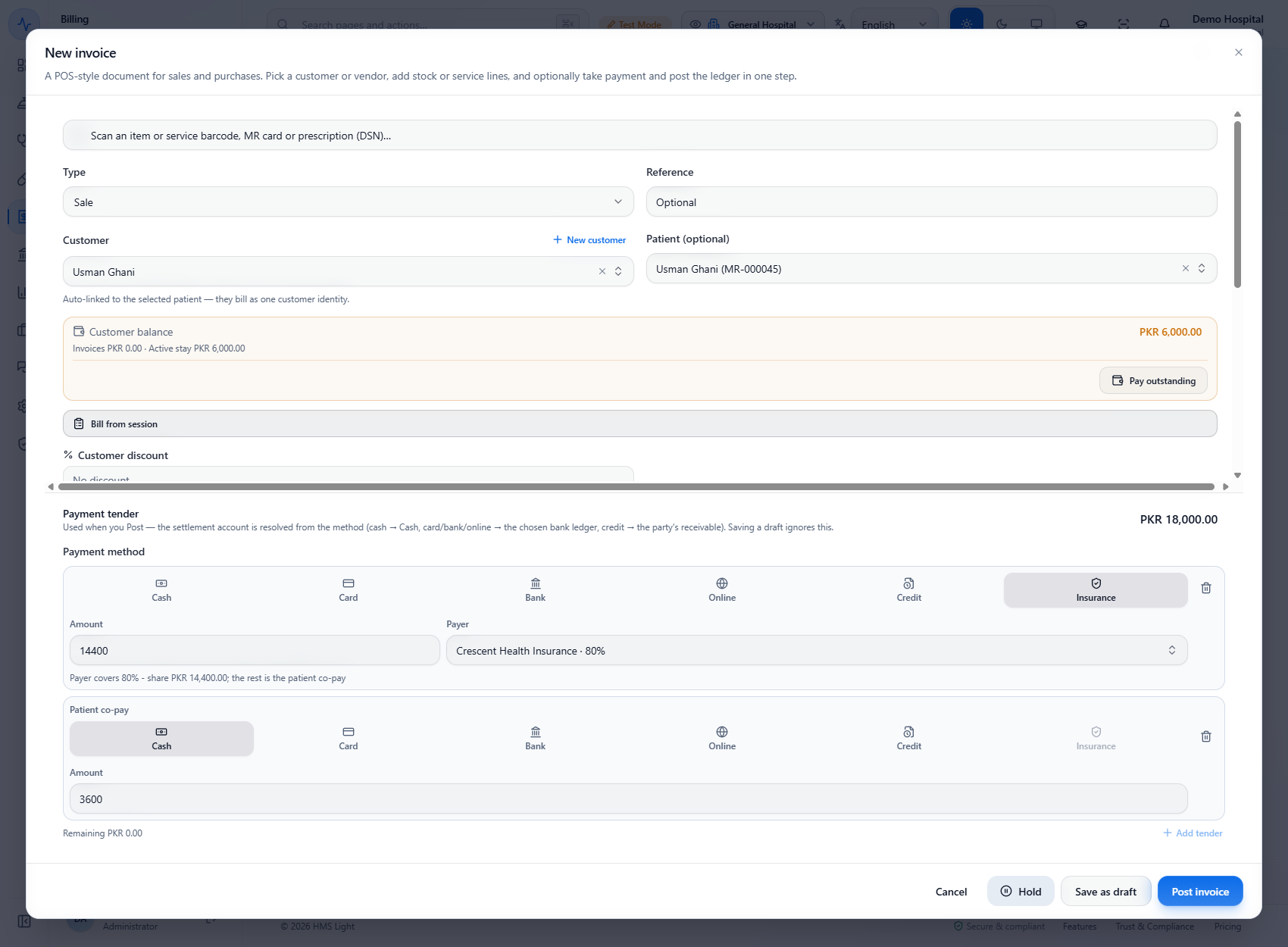
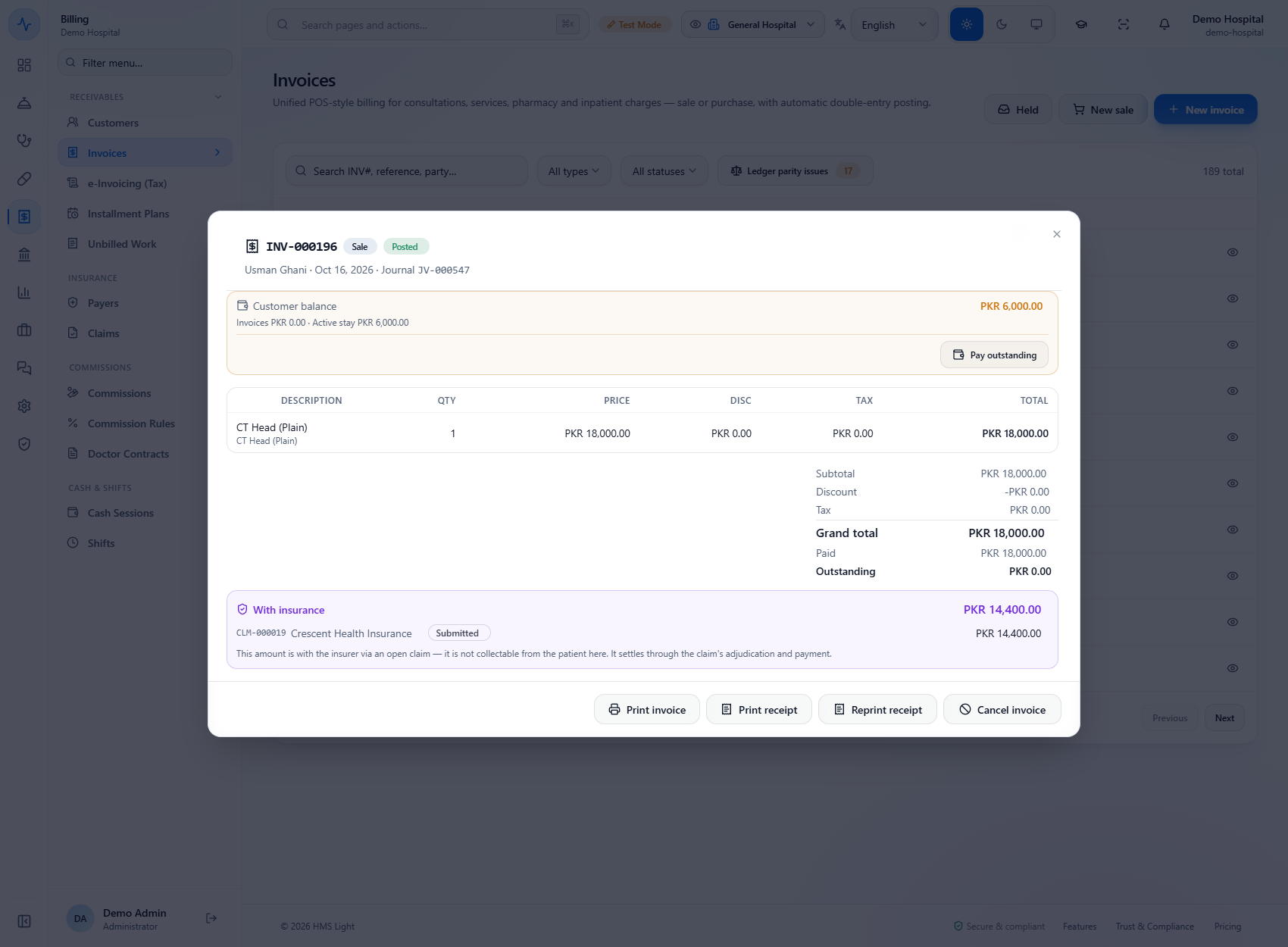
Click Post invoice. A toast says "Invoice INV-000196 posted" and the receipt shows the insurance claim line (CLM-000019, -PKR 14,400.00) and Total paid PKR 3,600.00, paid by cash. Open the invoice: it shows Paid PKR 18,000.00, Outstanding PKR 0.00 and With insurance PKR 14,400.00 with CLM-000019, Crescent Health Insurance, Submitted. That amount is not collectable from the patient here; it settles through the claim's adjudication and payment.
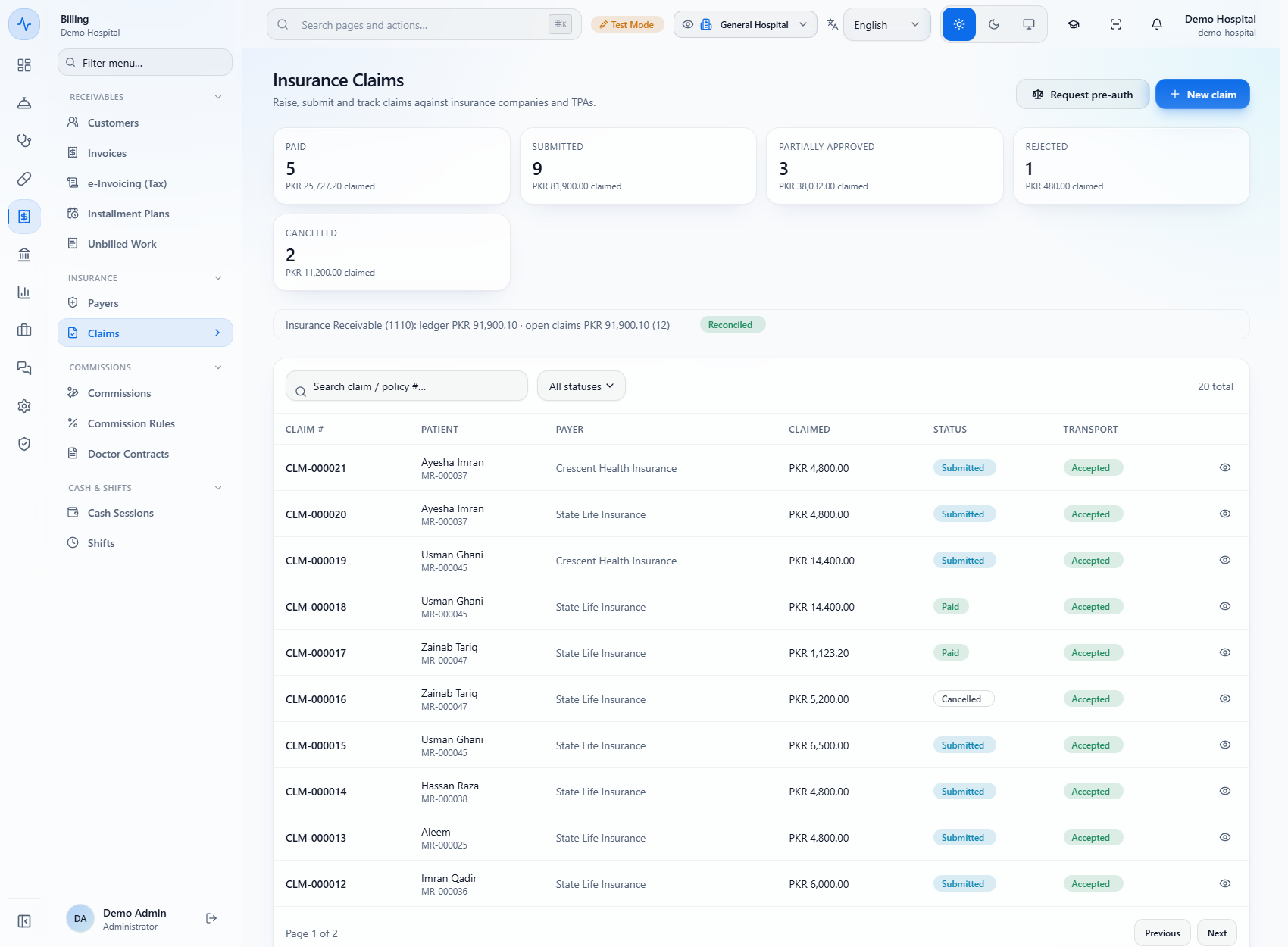
Open Billing › Insurance › Claims. The tiles count claims by status (Paid, Submitted, Partially approved, Rejected, Cancelled, and Draft when there is one). The line "Insurance Receivable (1110)" compares the ledger (PKR 91,900.10) with the open claims (PKR 91,900.10, 12 claims) and shows Reconciled when they match; if they differ it says "Difference PKR ..." with Show differences. Use the status filter or search a claim or policy number.
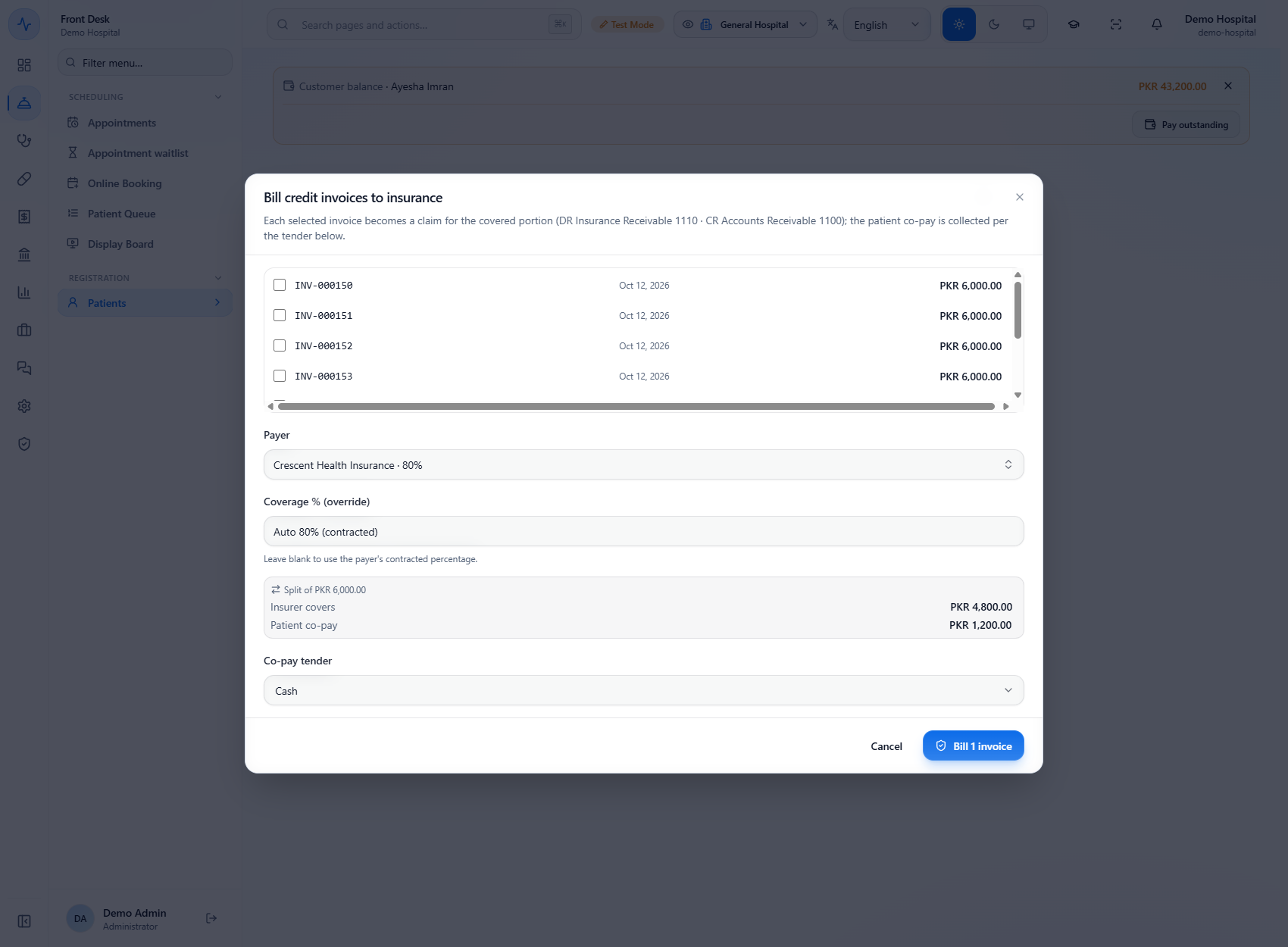
Open the patient's Patient 360 › Billing and click Bill to insurance. Tick the invoices, choose the Payer, and leave Coverage % (override) empty to use the contract. The dialog shows what the insurer covers and the co-pay. The split of PKR 6,000.00 shows the insurer covering PKR 4,800.00 (Crescent Health Insurance, 80%) and a Patient co-pay of PKR 1,200.00. Choose the Co-pay tender (Cash) and click Bill 1 invoice: "Created 1 claim(s) - PKR 4,800.00 covered" (claim CLM-000021).
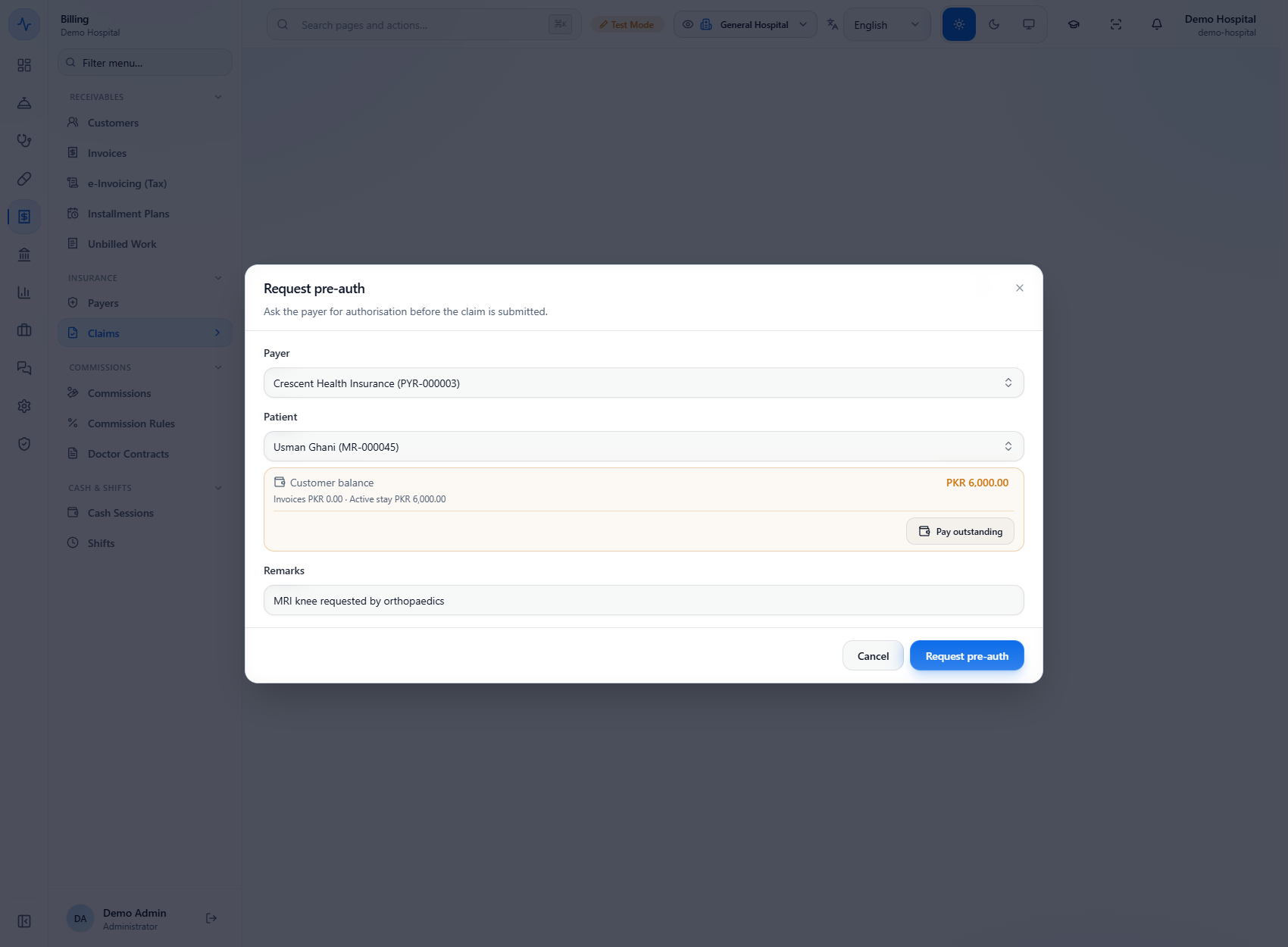
On Claims click Request pre-auth ("Ask the payer for authorisation before the claim is submitted"). Choose the Payer, the Patient and type the Remarks, then click Request pre-auth; a toast says "Pre-authorisation requested". The request joins the Pre-authorisation requests card on the same page, with its status.
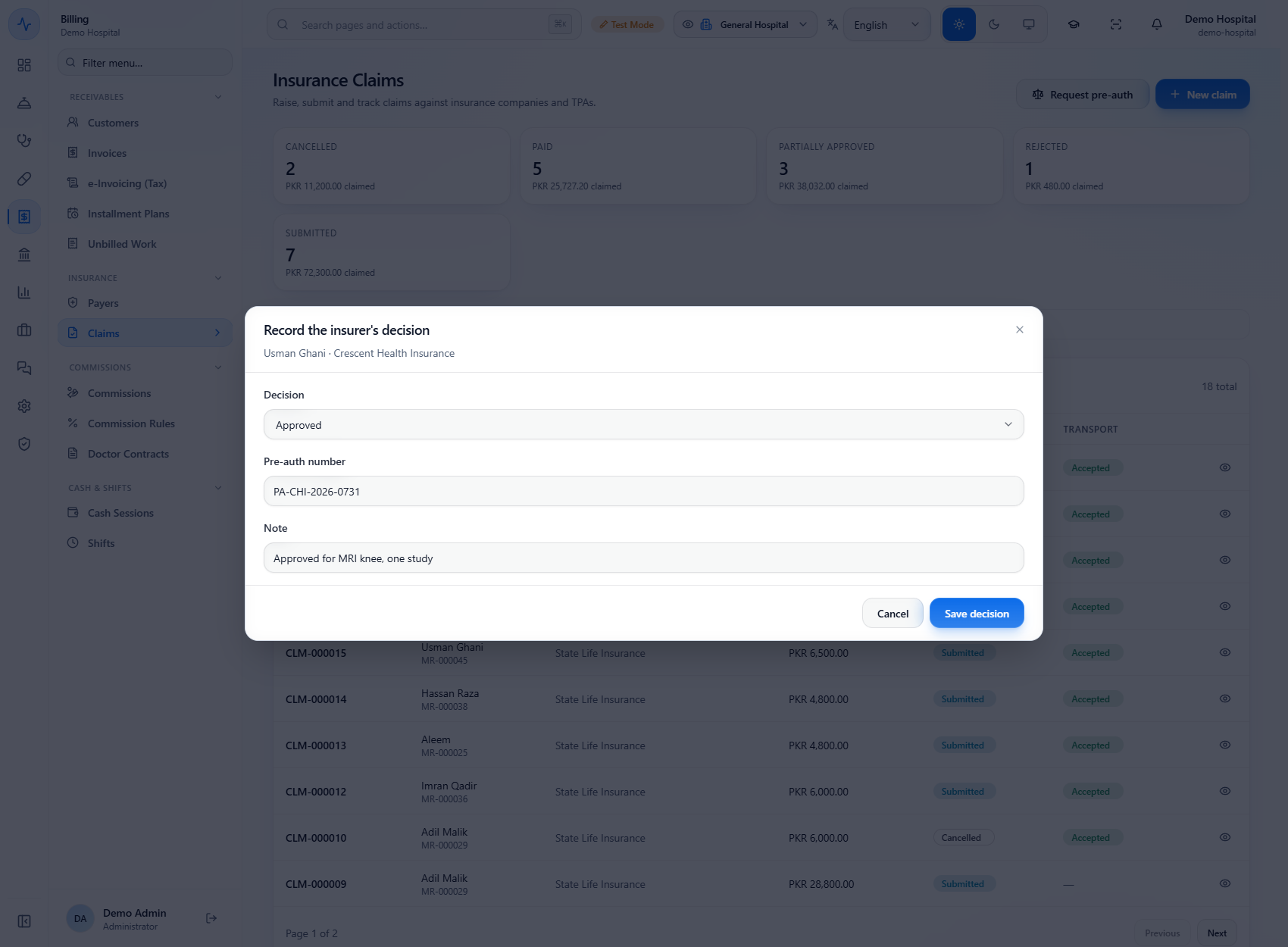
When the insurer answers, click Record decision, choose Approved or Denied, type the Pre-auth number and a Note, and click Save decision. With Approved the button stays disabled until the number is typed. A toast says "Pre-authorisation decision recorded".
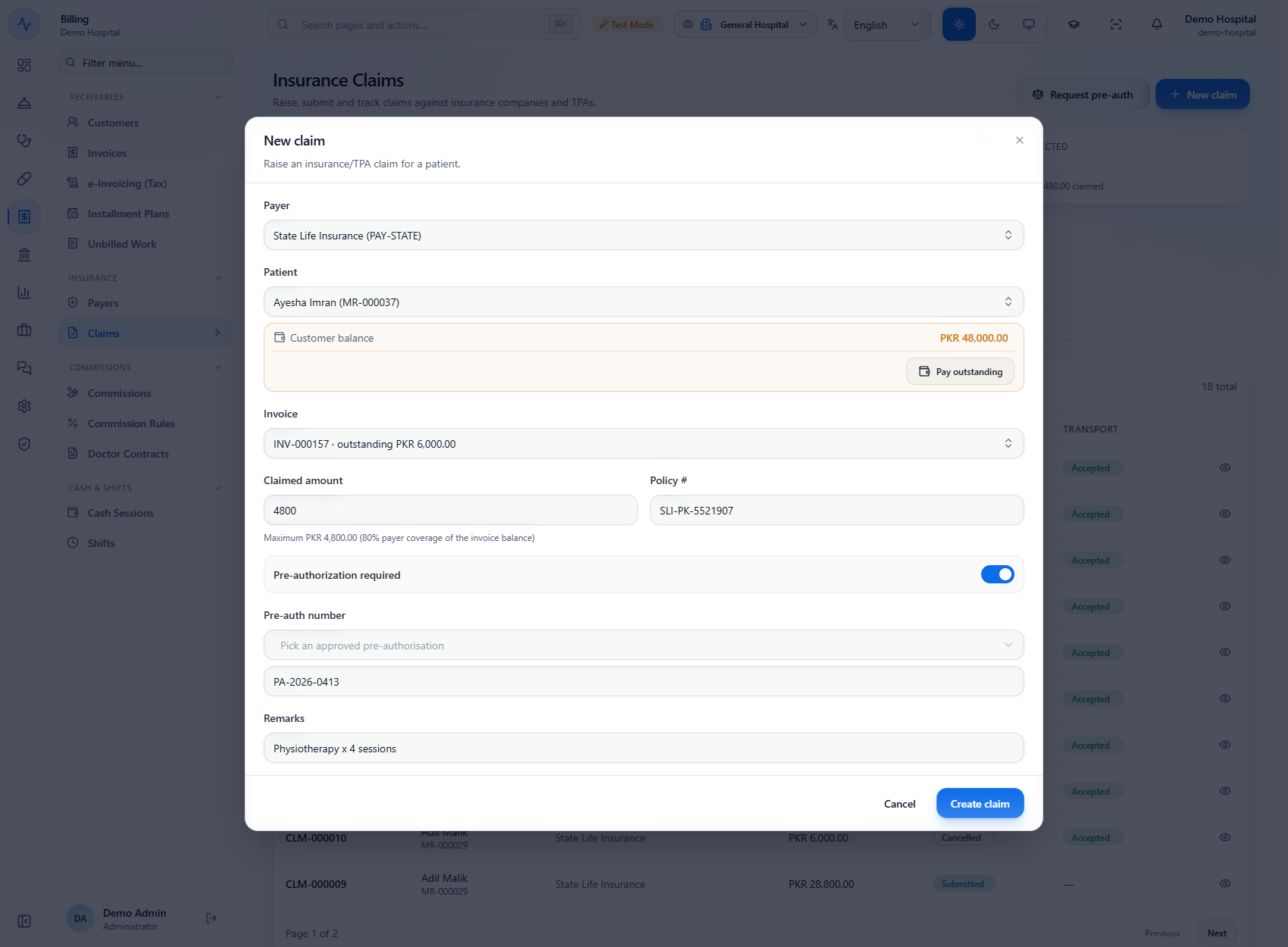
Click New claim. Choose the Payer (State Life Insurance), the Patient (Ayesha Imran) and the Invoice. The dialog shows "Maximum PKR 4,800.00 (80% payer coverage of the invoice balance)"; a larger Claimed amount is refused with "Claimed amount cannot exceed PKR 4,800.00". Add the Policy #, turn on Pre-authorization required and pick the approved pre-authorisation ("PA-2026-0413") in Pre-auth number, add Remarks, then click Create claim. The claim (CLM-000020) starts as a draft.
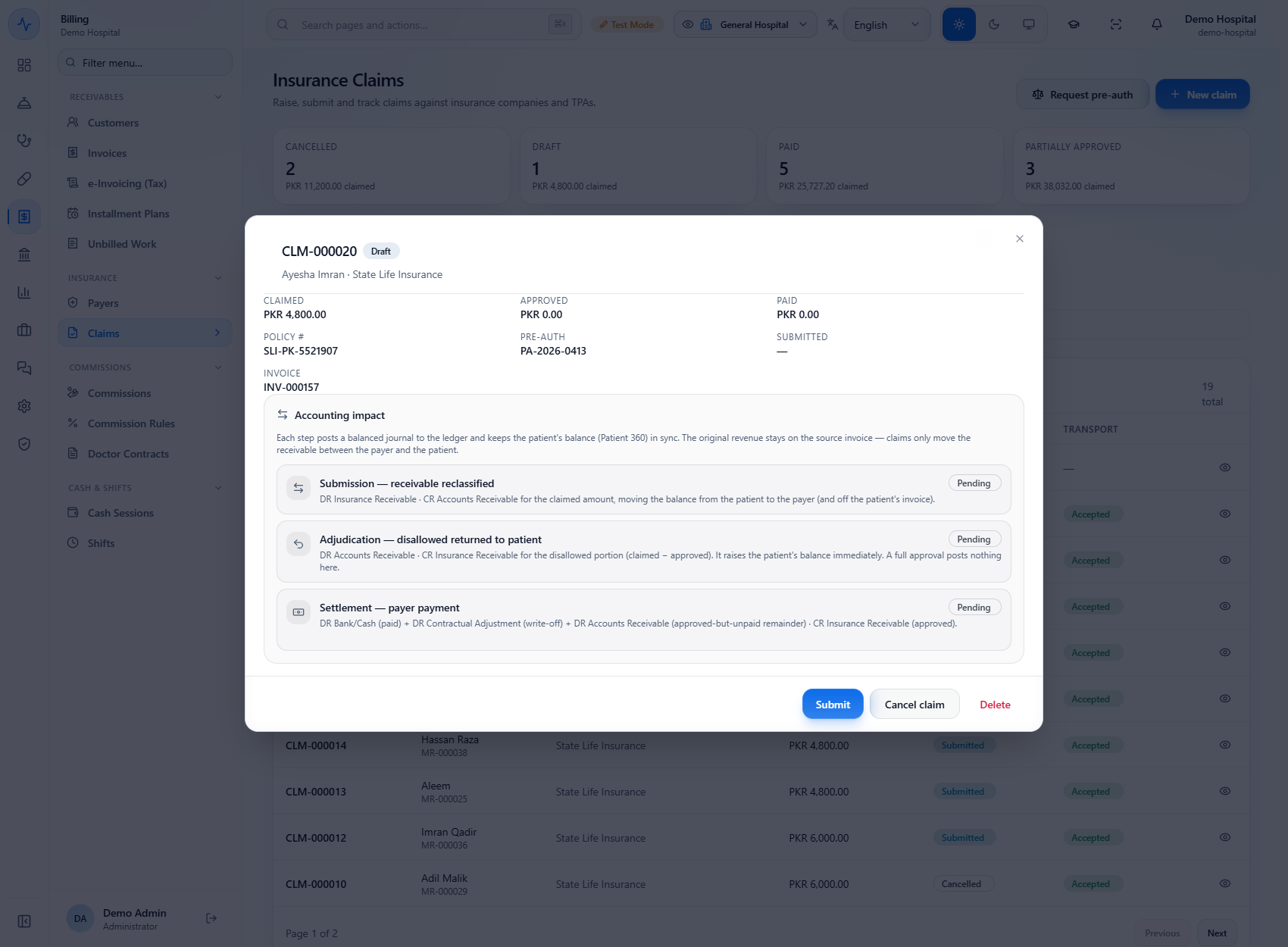
Open the draft with the eye icon on its row. The screen shows the claimed amount, the policy and pre-auth numbers, and the "Accounting impact" with three steps (Submission, Adjudication, Settlement), each Pending. Click Submit and confirm "Submit claim?". A toast says "Claim submitted" and the covered amount moves from the patient's balance to the insurer. Reopen the claim: it is Submitted, its Submission step is Posted with voucher JV-000551, and it can no longer be cancelled here.
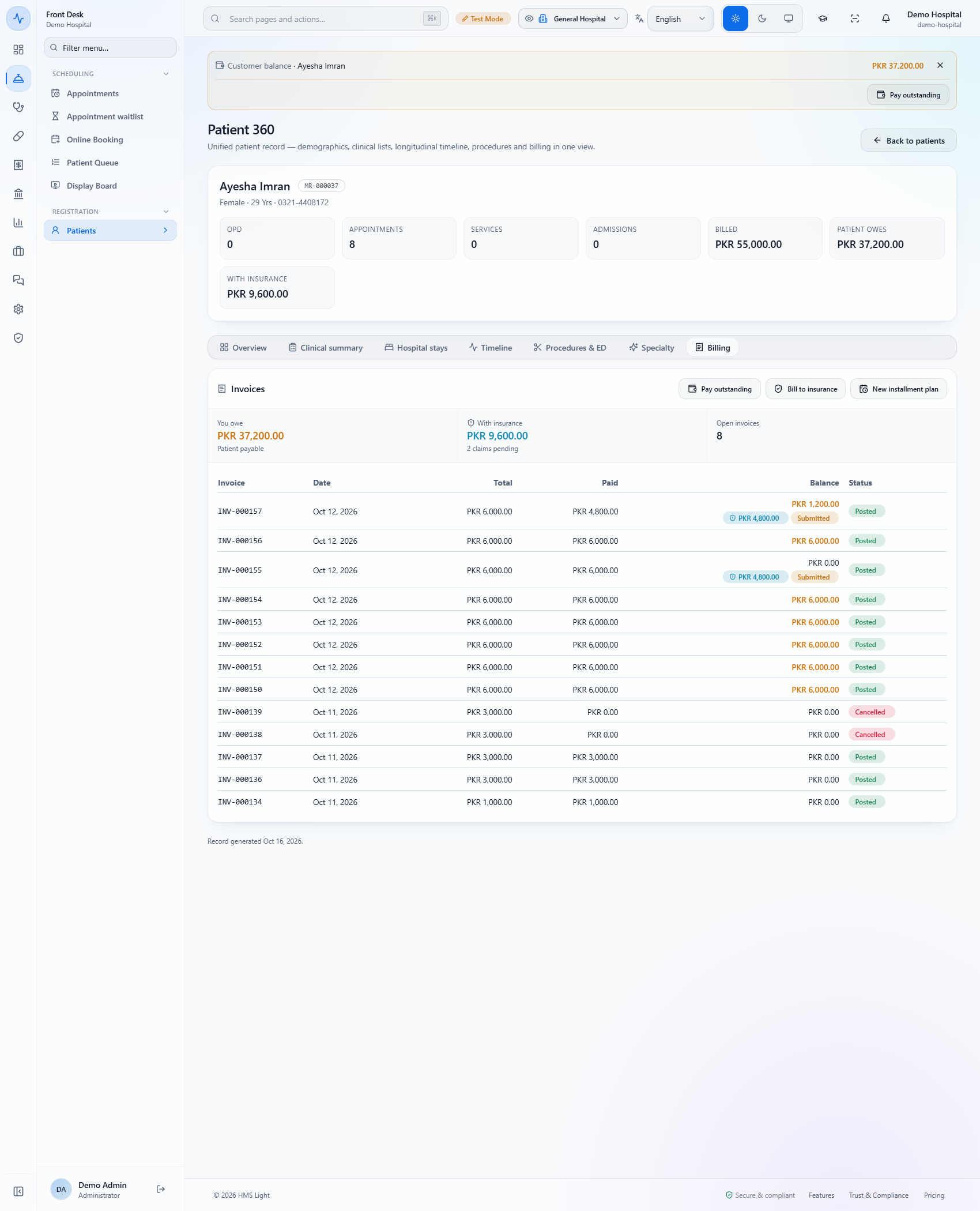
In Patient 360 › Billing the balance is split: You owe PKR 37,200.00 Patient payable and With insurance PKR 9,600.00 · 2 claims pending; the claim chips "PKR 4,800.00 Submitted" sit on INV-000157 and INV-000155.
| Mistake | What you see | Fix |
|---|---|---|
| Saving an approved pre-authorisation without its number | The Save decision button stays disabled | Type the insurer's pre-auth number |
| Claiming more than the payer's share | "Claimed amount cannot exceed PKR 4,800.00" | Type the maximum shown or less |
| Deleting a payer that has claims | "Payer has linked claims and cannot be deleted" | Keep the payer |
| Leaving the co-pay out | Remaining is not PKR 0.00 | Add the co-pay tender or leave it on credit |
| Item | Meaning / rule |
|---|---|
| Coverage % | Share the payer pays; filled in automatically on every bill to that payer |
| Insurance tender | One payer per bill; the rest is the patient co-pay |
| Maximum claim | Invoice balance times coverage |
| With insurance | Amount parked on the claim, not collectable from the patient |
| Ledger | Claim: debit Insurance Receivable 1110, credit Accounts Receivable 1100 |
Can I bill part of a bill to insurance and the rest to the patient? Yes. Choose the Insurance tender for the covered share and add a patient co-pay line with cash, card, bank or credit.
Why can I not collect the covered amount from the patient? It is parked on the claim as money owed by the insurer. It is settled through the claim, not from the patient's screen.
What if the payer's coverage is different for one bill? When billing credit invoices, type a value in Coverage % (override). Leave it empty to use the contract percentage.
Can I raise a claim for an invoice that is already paid? The claim list only offers posted invoices that still have a balance, and the claimed amount is capped by that balance.
GridX HMS runs this whole workflow. See what GridX HMS does and what it costs, or browse all step-by-step guides.