How to use the event page: overview, function sheet and customer feedback
Every event has one page that holds everything about it. This guide shows how to read the overview, prepare the printable function sheet for the kitchen, floor and decor teams, share it, and collect feedback after the event.
Who it is forEvent coordinator / venue managerTime15 minutesProductMMSLevelIntermediate
Before you start
Steps
1
Open the event
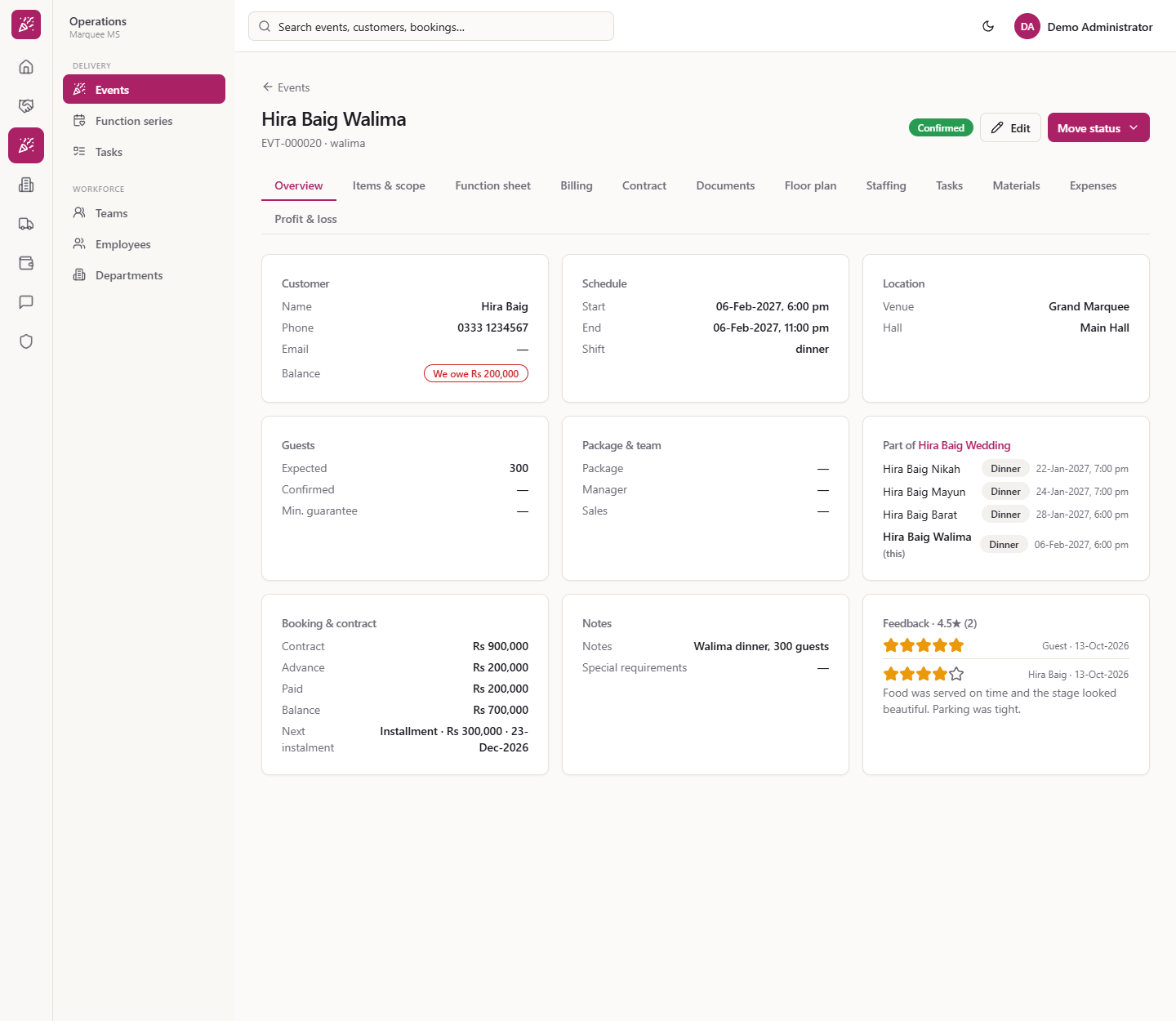
In Operations › Delivery › Events press the arrow on a row. The page shows the title, the code and type ("EVT-000020 · walima"), the status badge, Edit and Move status, and twelve tabs: Overview, Items & scope, Function sheet, Billing, Contract, Documents, Floor plan, Staffing, Tasks, Materials, Expenses, Profit & loss.
Event page header with the twelve tabs
2
Read the overview cards
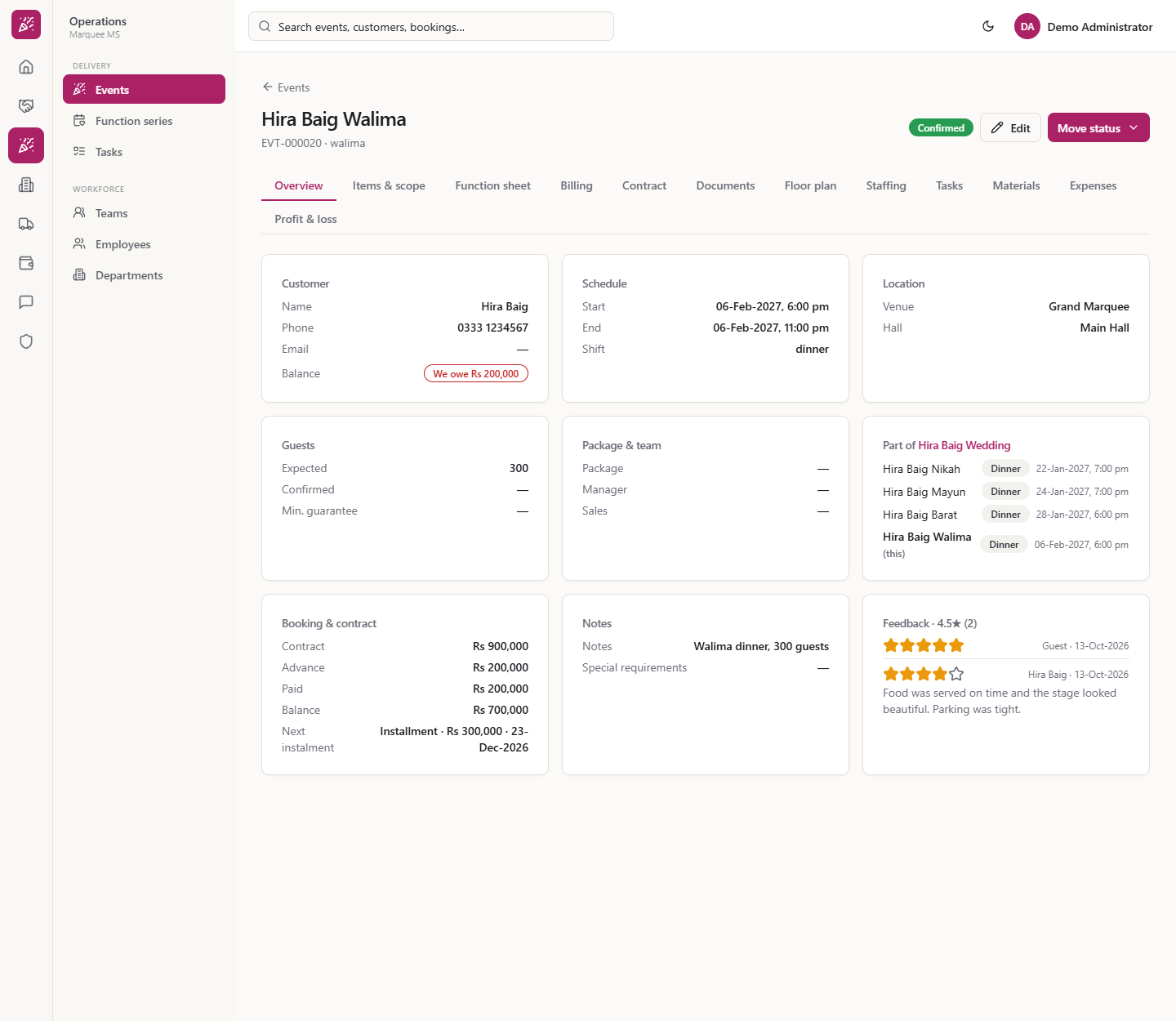
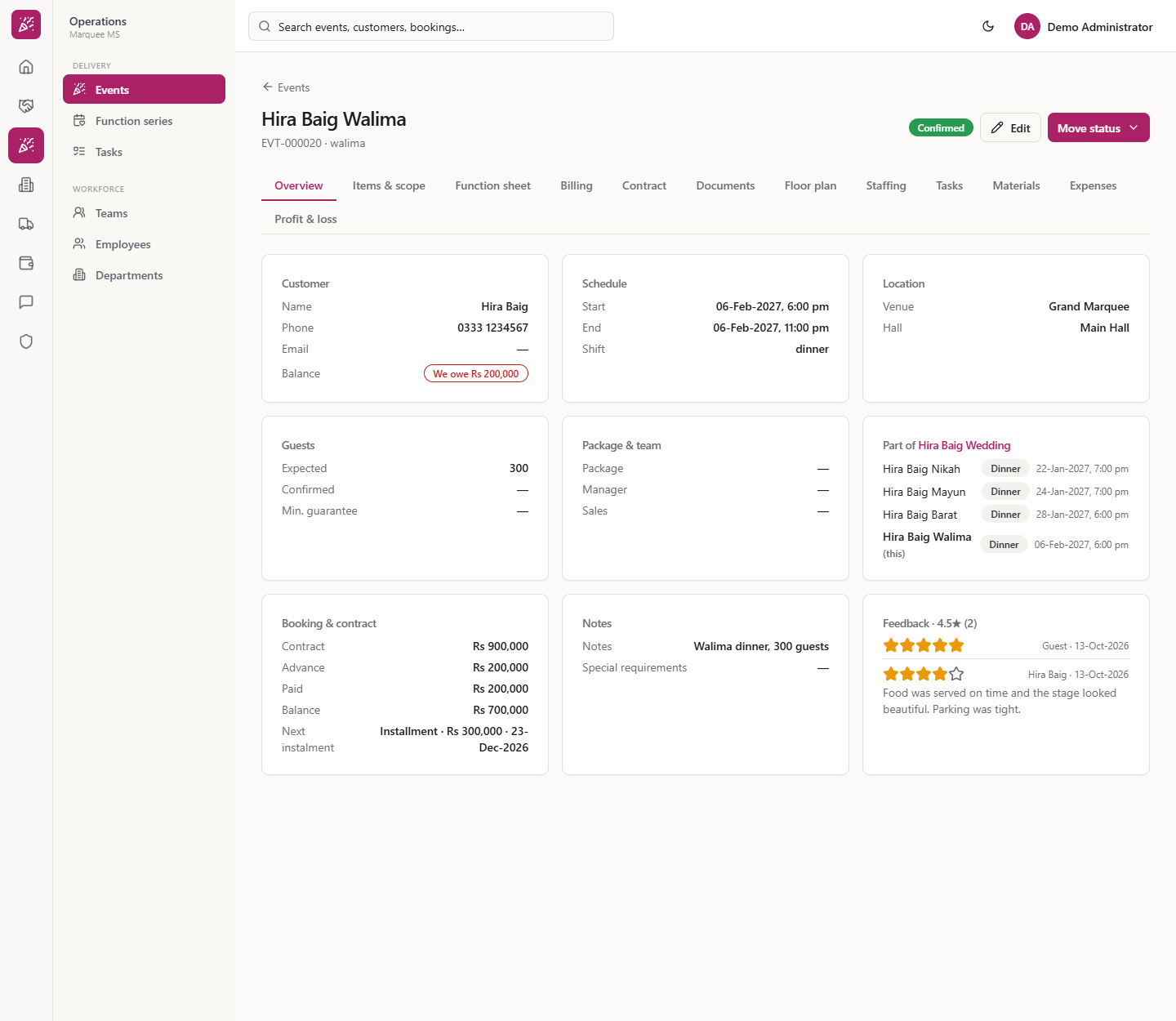
Overview is a set of cards: Customer (name, phone, email), Schedule (start, end, shift), Location (venue, hall), Guests (Expected, Confirmed, Min. guarantee), Package & team, Booking & contract, Notes and Feedback. Booking & contract reads from the booking: contract, advance, paid, balance and the Next instalment. With no booking it says "No booking yet" and offers Create.
If the event belongs to a function series, a card "Part of Hira Baig Wedding" lists each function with its shift and start: here Nikah 22-Jan-2027, Mayun 24-Jan-2027 and Barat 28-Jan-2027. The current one is marked "(this)"; the others are links.
Series card listing the other functions
4
Open the function sheet
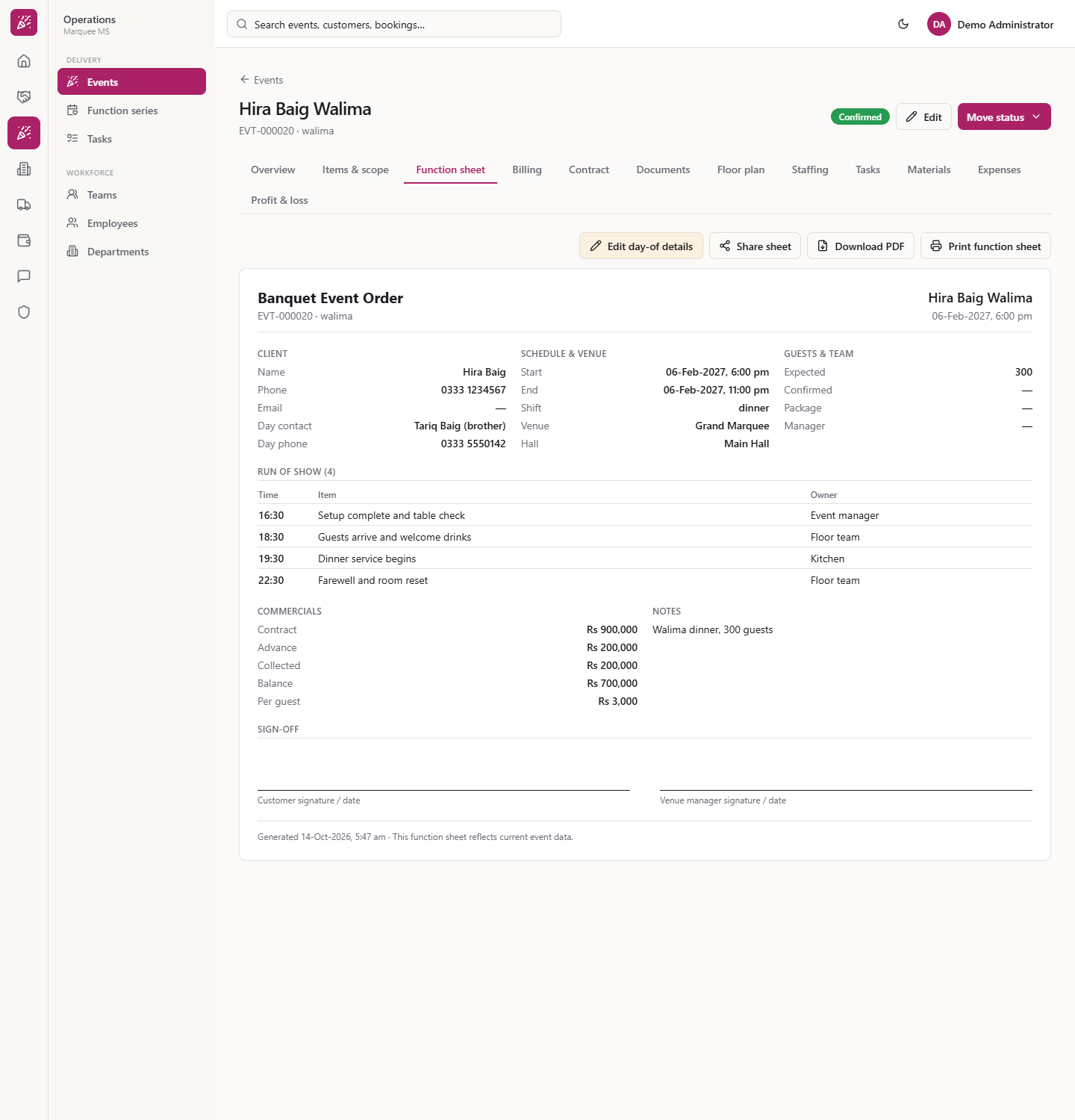
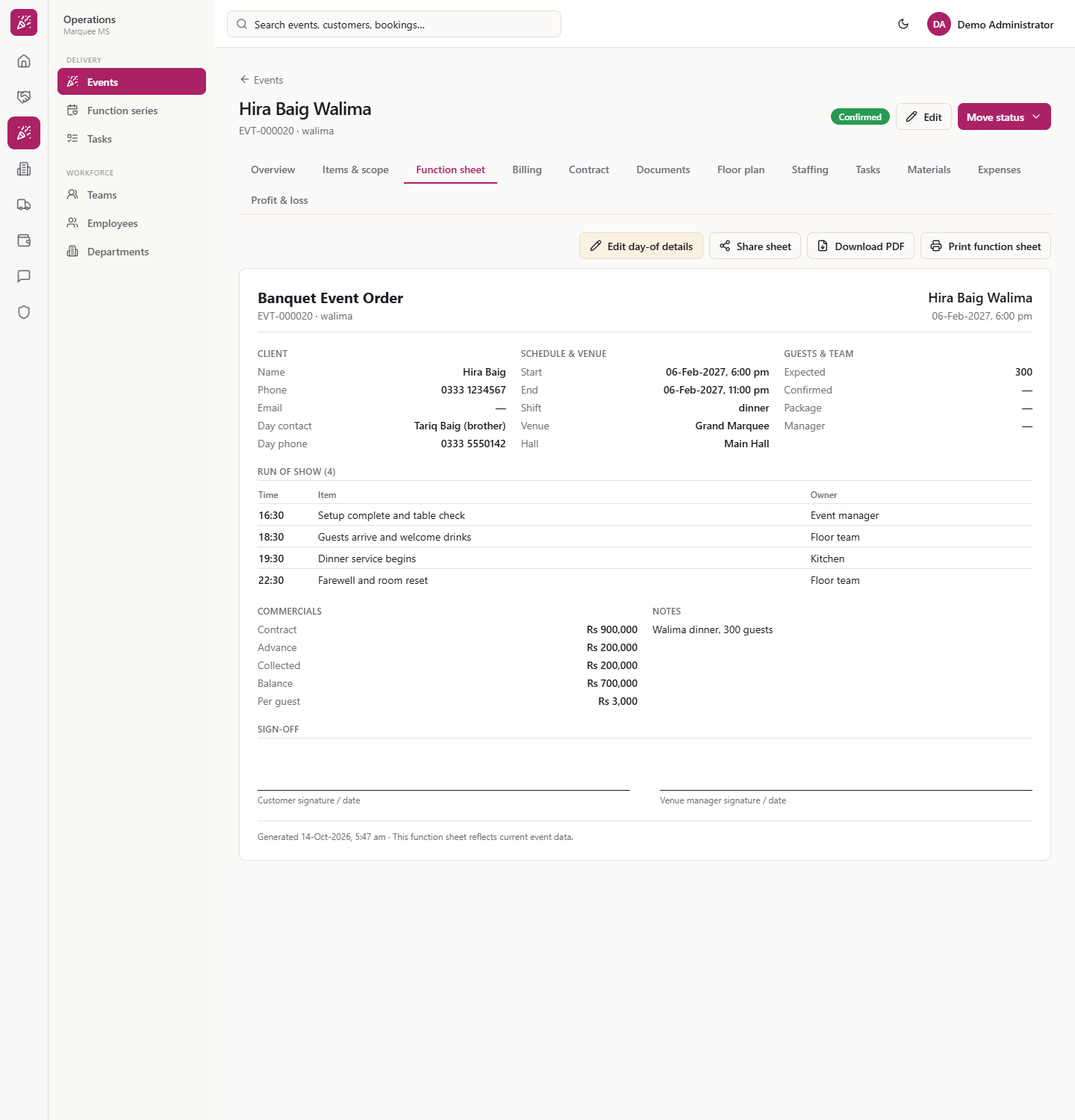
Open the Function sheet tab. Above it are Edit day-of details, Share sheet, Download PDF and Print function sheet. The sheet, a "Banquet Event Order", shows client, schedule and venue, guests and team, the run of show, menu and scope, staffing, tasks, commercials and notes, and at the bottom a SIGN-OFF block with lines for the customer and the venue manager.
Function sheet (Banquet Event Order)
5
Add the day contact and run of show
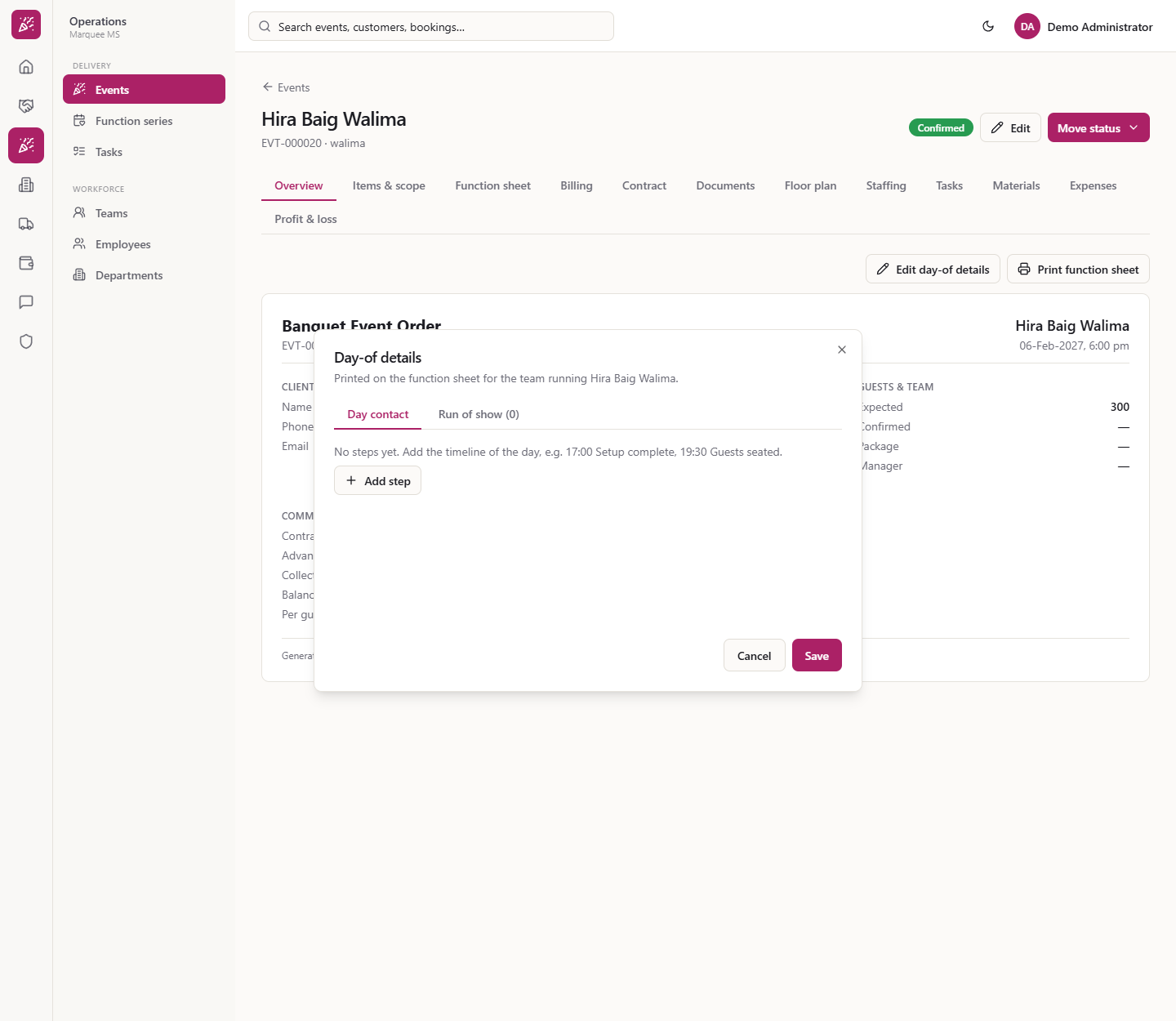
Press Edit day-of details. On Day contact enter the Contact name (Tariq Baig (brother)) and Contact phone (0333 5550142). On Run of show press Add step and fill Time, What happens and Owner: 16:30 Setup complete and table check (Event manager); 18:30 Guests arrive and welcome drinks (Floor team); 19:30 Dinner service begins (Kitchen); 22:30 Farewell and room reset (Floor team). Press Save.
Day-of details dialog with run of show steps
6
Check the sheet
The sheet now shows the Day contact and Day phone and RUN OF SHOW (4) with your four steps. Print function sheet opens the browser print dialog and prints only the sheet.
Function sheet showing the contact and run of show
7
Add the outside vendors
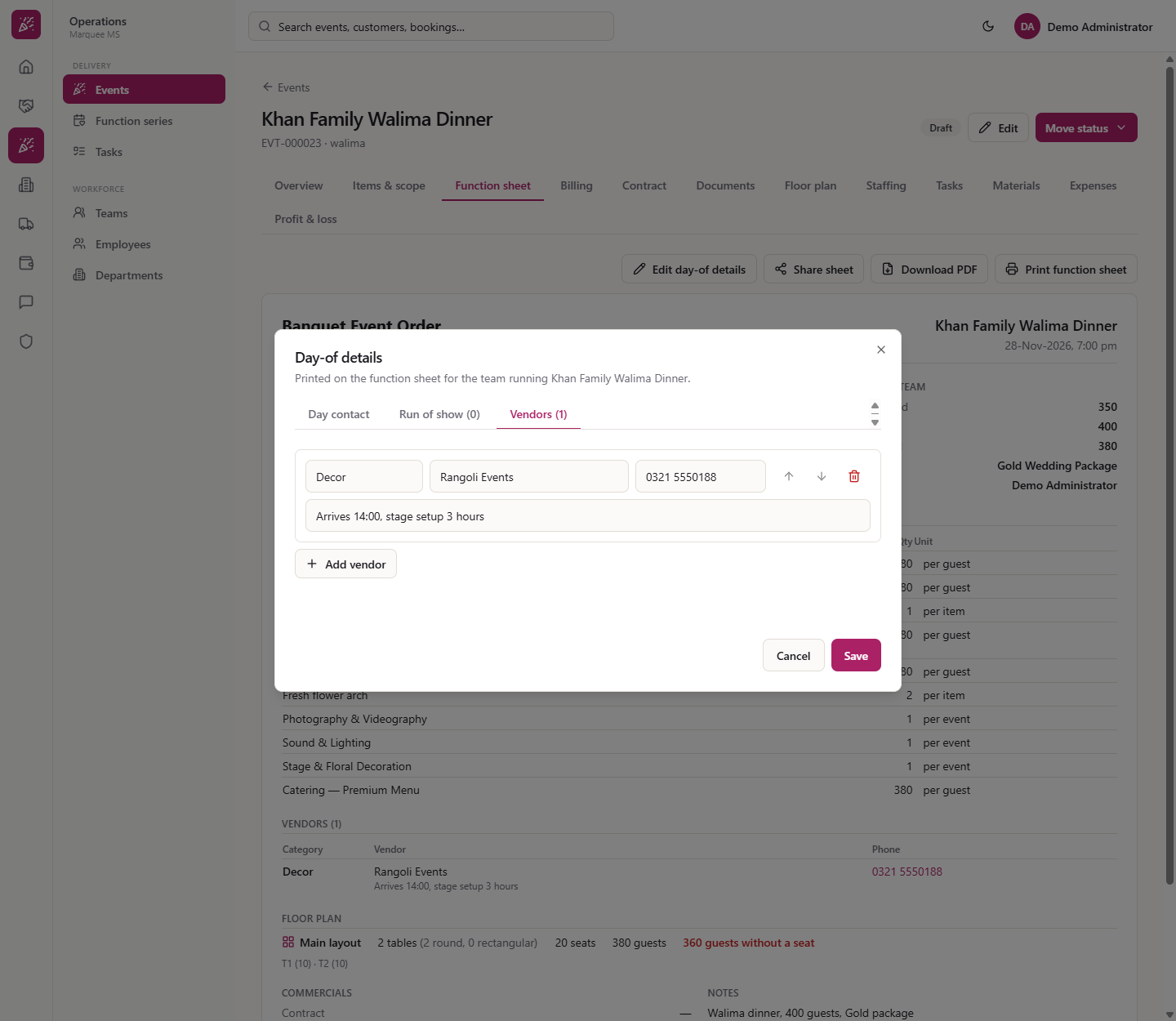
In Edit day-of details a third tab, Vendors, lists the outside teams (decor, sound, photography) with Category, Vendor name, Phone and Notes. After saving, the sheet shows a VENDORS section, for example "Decor · Rangoli Events · 0321 5550188".
Vendors tab in the day-of details
8
Share the sheet
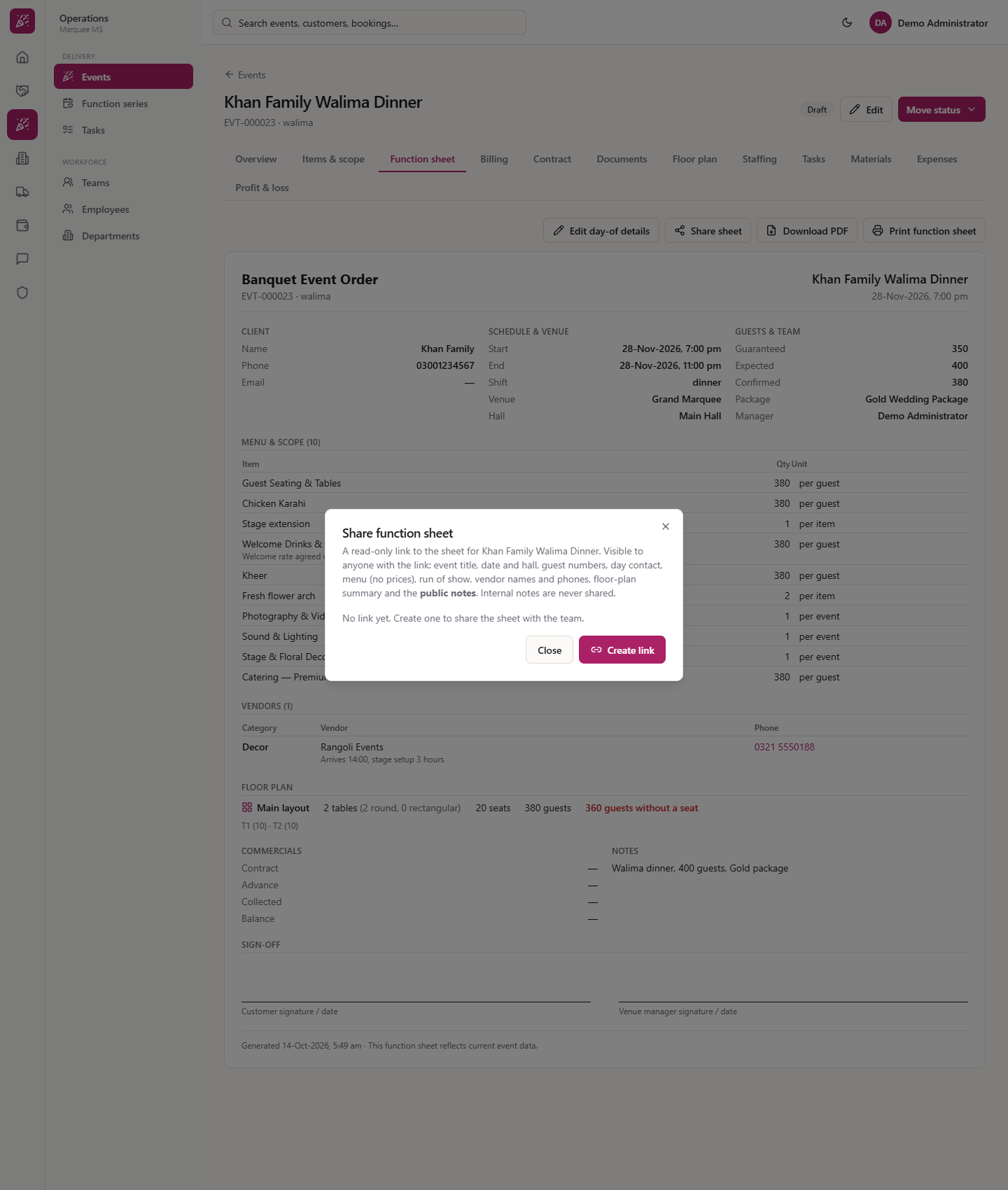
Press Share sheet, then Create link. It is a read-only link: anyone with it sees the event title, date and hall, guest numbers, day contact, the menu (no prices), run of show, vendor names and phones, floor-plan summary and public notes. Internal notes are never shared.
Share function sheet dialog
9
Add feedback after the event
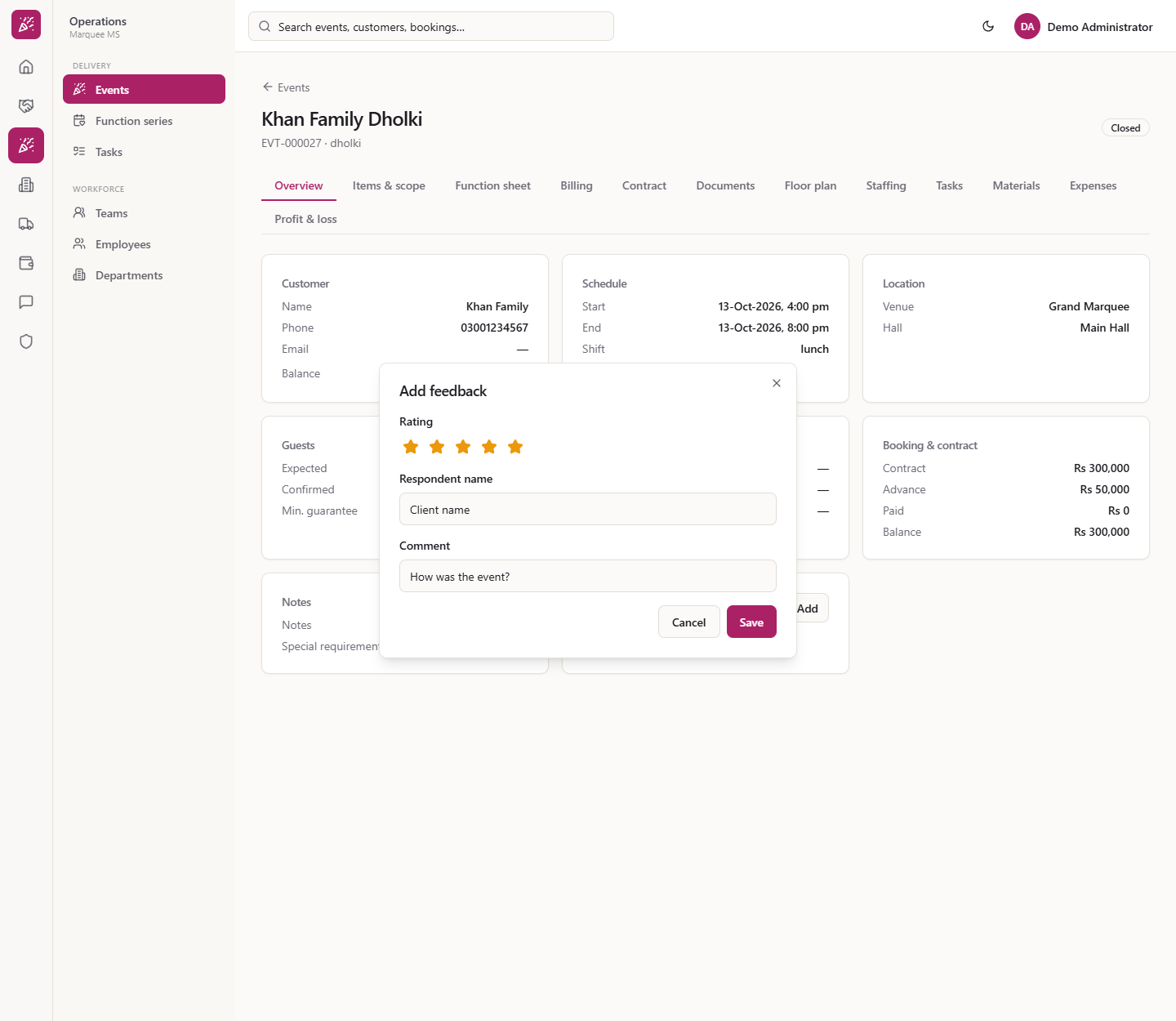
Once the event has taken place, the Feedback card on Overview offers Add. Before that it says "Feedback can be added once the event has taken place." Choose the Rating (one to five stars), Respondent name (blank is stored as Guest) and a Comment, then Save.
Add feedback dialog with rating, name and comment
10
Edit or delete a feedback entry
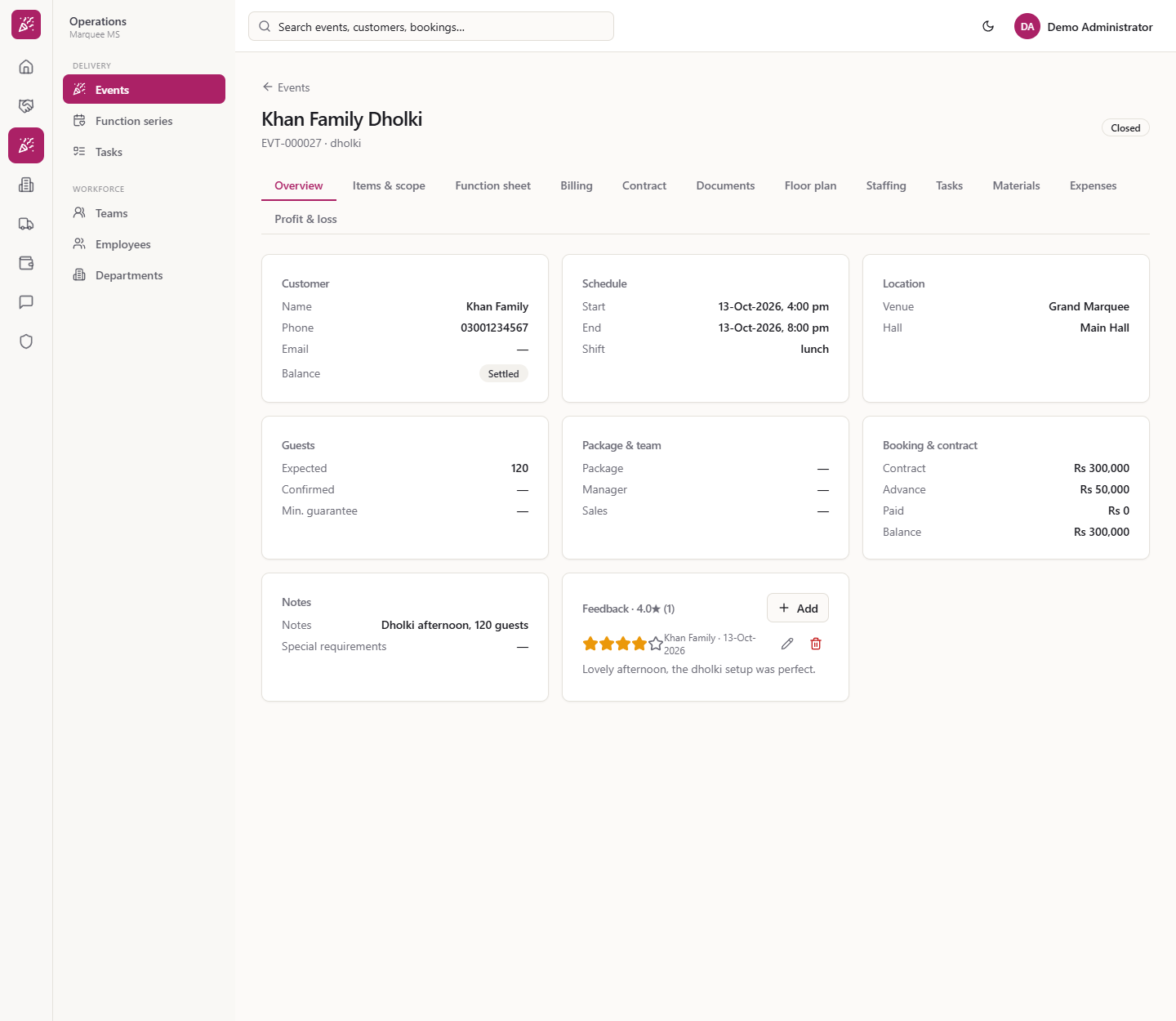
The card shows the average and each entry with stars, name, date and comment, for example 4 stars from "Khan Family". The pencil opens Edit feedback; the bin asks "Delete this feedback? The rating and comment are removed and the average rating is recalculated."
Feedback card with a saved rating and comment
11
Ask the customer to rate
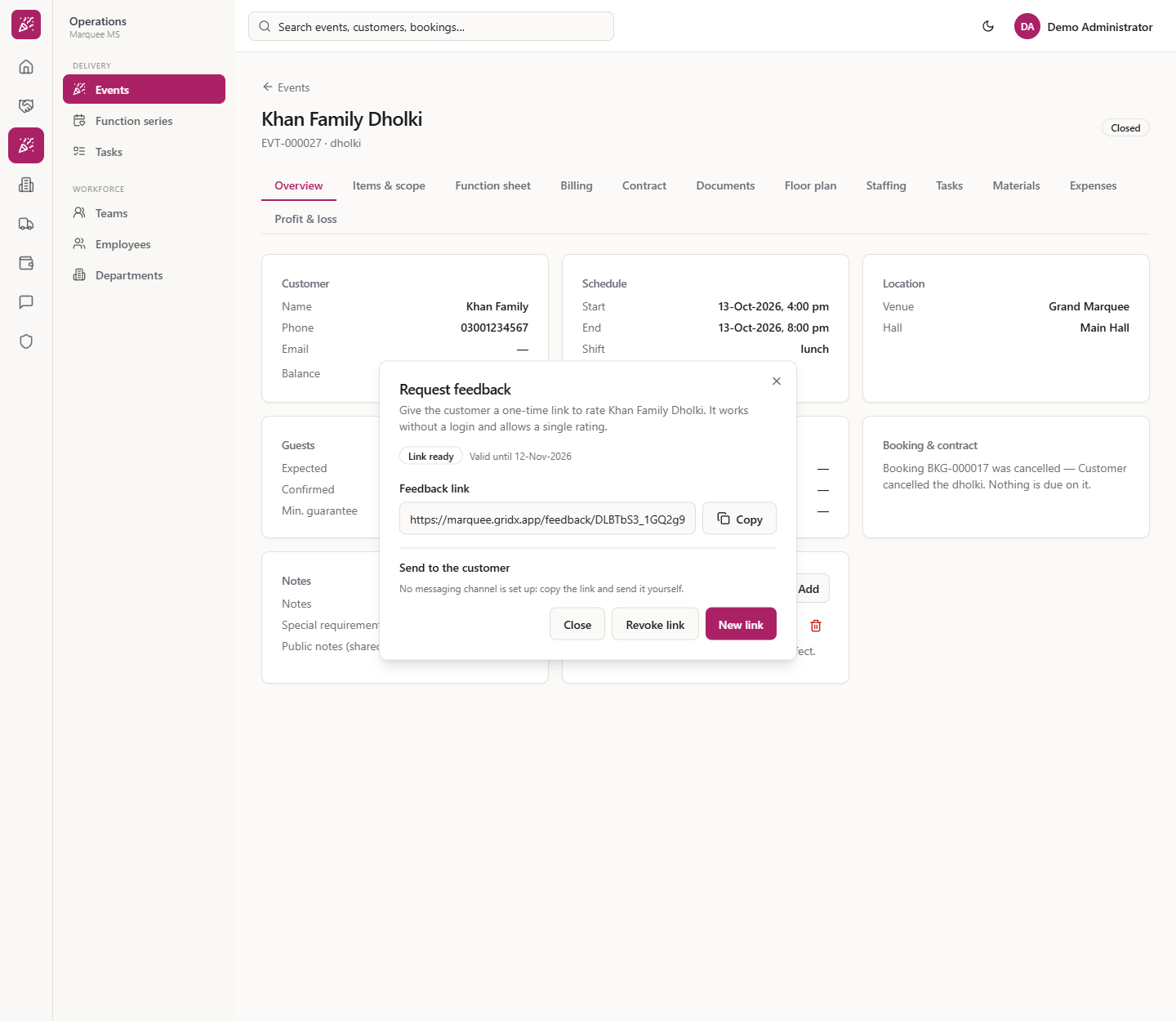
On the Feedback card press Request feedback, then Create link. You get "Link ready — Valid until 12-Nov-2026". It works without a login and allows a single rating. Copy it and send it yourself: no messaging channel is set up. Revoke link or New link if needed.
Request feedback dialog with a one-time link
12
What the customer sees
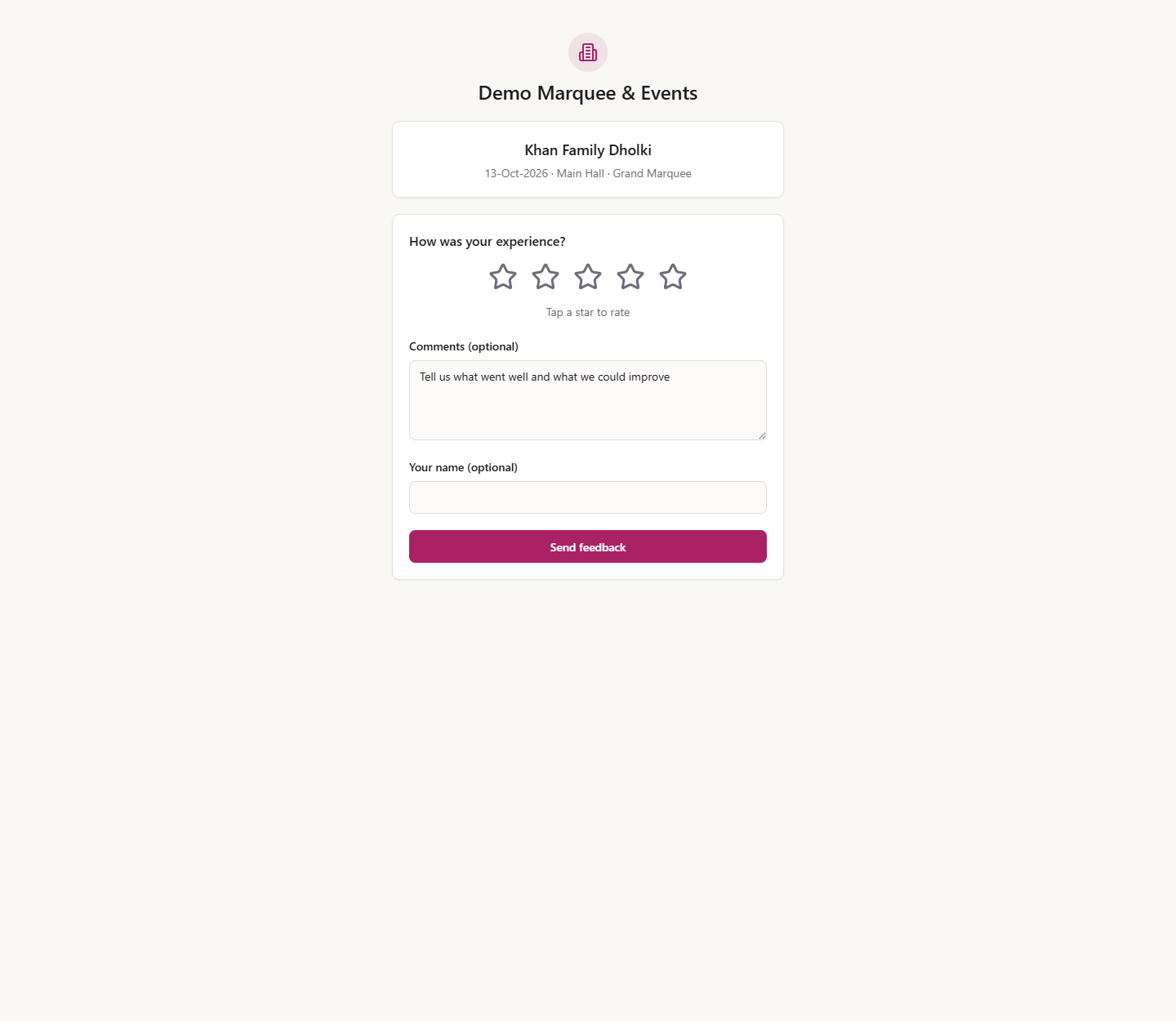
The customer opens the link and sees the event card, "How was your experience?", five stars (Poor to Excellent), optional comments and name, and Send feedback. They then read "Thank you for your feedback!". The rating appears on the event's Feedback card.
The customer's rating page
Check it worked
The function sheet shows the day contact, the four run-of-show steps and the sign-off block.
The Feedback card shows your rating and the average.
The share link opens read-only with no prices.
Common mistakes
Mistake
What you see
Fix
Looking for Add feedback before the event
The card says feedback can be added once the event has taken place
Wait until the event has taken place
Sharing a sheet and expecting prices
Menu is shown without prices; internal notes are never shared
Send prices separately through the booking or invoice
Expecting Request feedback to message the customer
"No messaging channel is set up"
Copy the link and send it yourself
Quick reference
Item
Meaning / rule
Function sheet
One printable page for the day's teams, with a sign-off block
Day-of details
Day contact, run of show, vendors
Share link
Read-only, no prices, no internal notes
Feedback link
One-time, no login, one rating
Frequently asked questions
Can I add feedback before the event has taken place? No. Until the event has taken place the Feedback card says "Feedback can be added once the event has taken place." and has no Add button.
Does Request feedback send the link to the customer? No. It creates a one-time link that works without a login and allows a single rating. No messaging channel is set up, so you copy the link and send it yourself.
Does the shared function sheet show prices? No. The share link is read-only and shows the menu without prices. Internal notes are never shared.
What goes on the function sheet from Edit day-of details? A day contact with a phone number, the run of show (time, step and owner for each moment) and the outside vendors with their phones.