How to work the till faster with shortcuts and the customer display
At a busy counter every tap counts. This guide shows the keys that search, scan, change quantities, discount, hold and check out, and how to put the customer's bill on a second screen.
Who it is forCashierTime8 minutesProductPOSLevelBeginner
Before you start
Steps
1
Quick-add a product that is not in the system
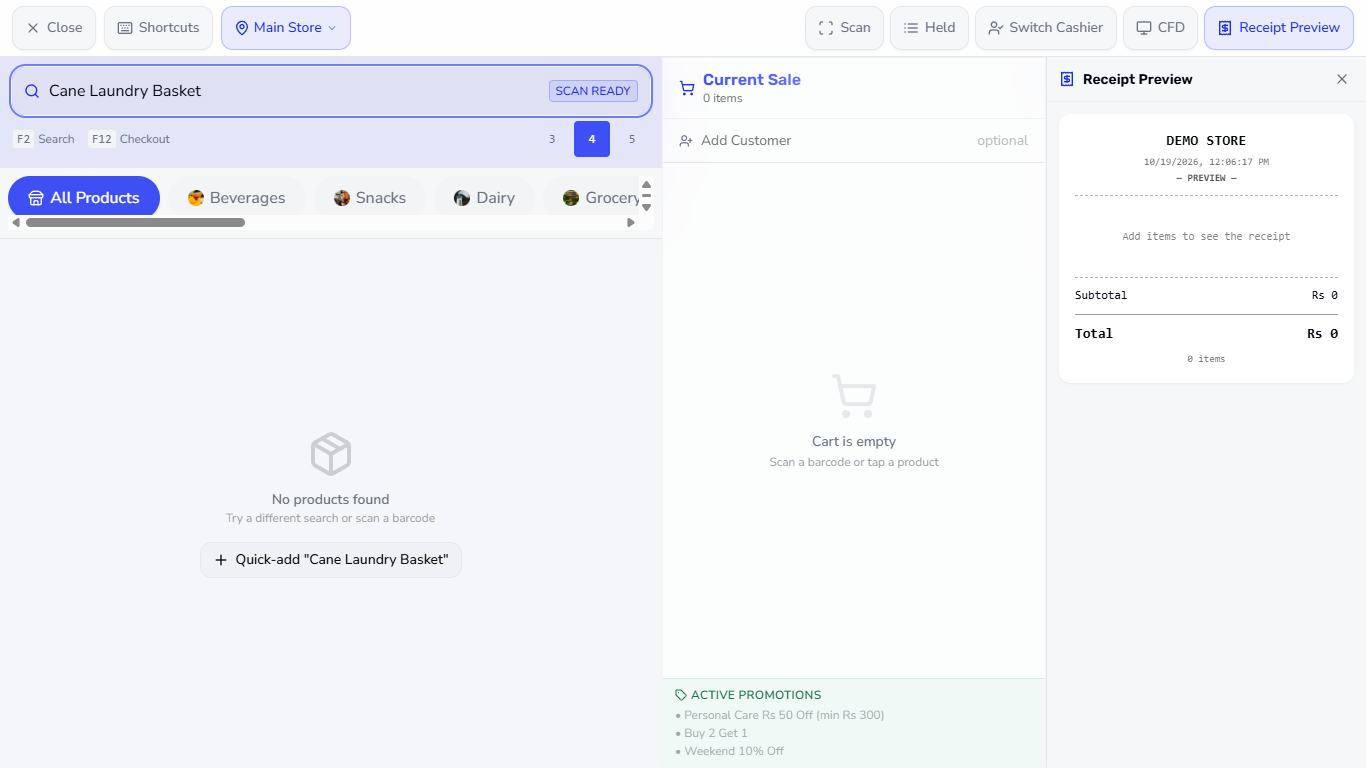
Search for the item. When nothing matches, the till shows No products found and the button Quick-add "Cane Laundry Basket". Press it.
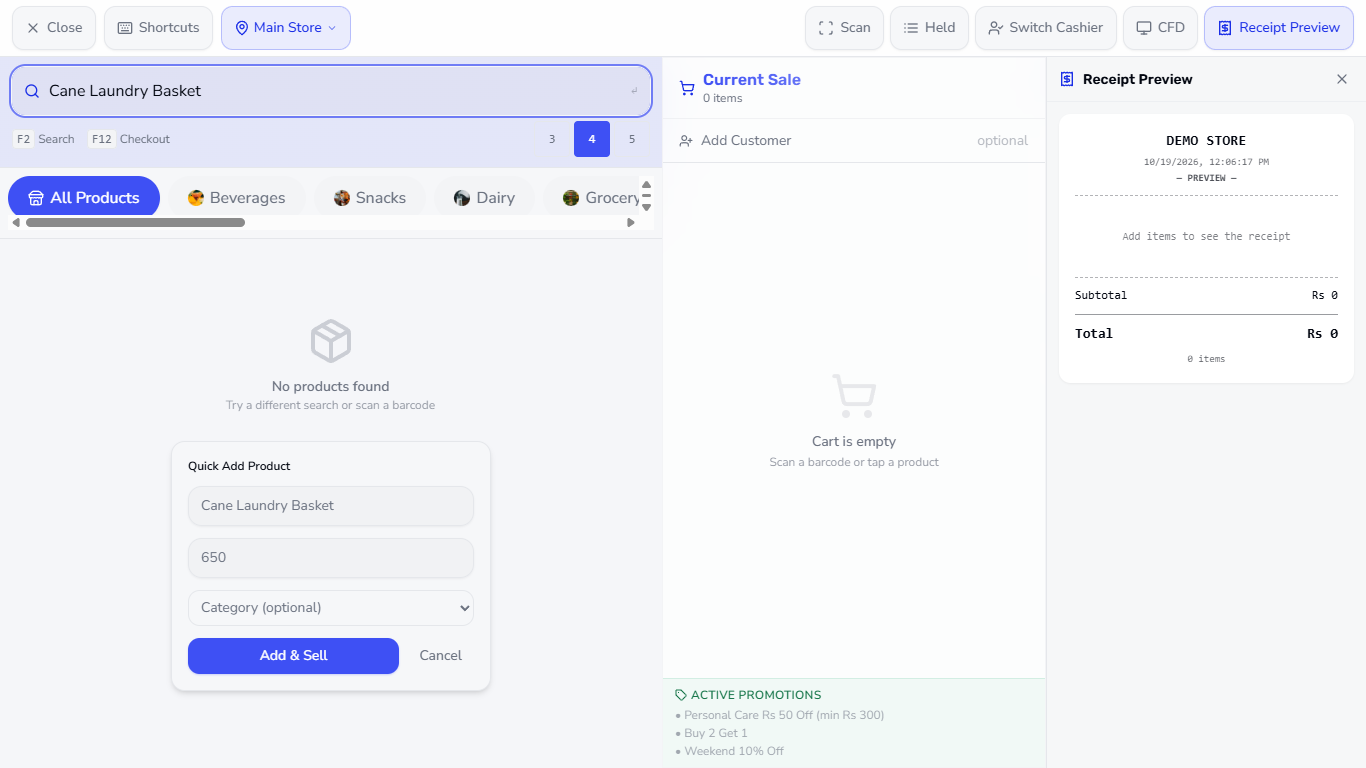
The Quick Add Product panel asks for the name (taken from your search), the Selling price (PKR) and an optional Category. Type 650 and press Add & Sell.
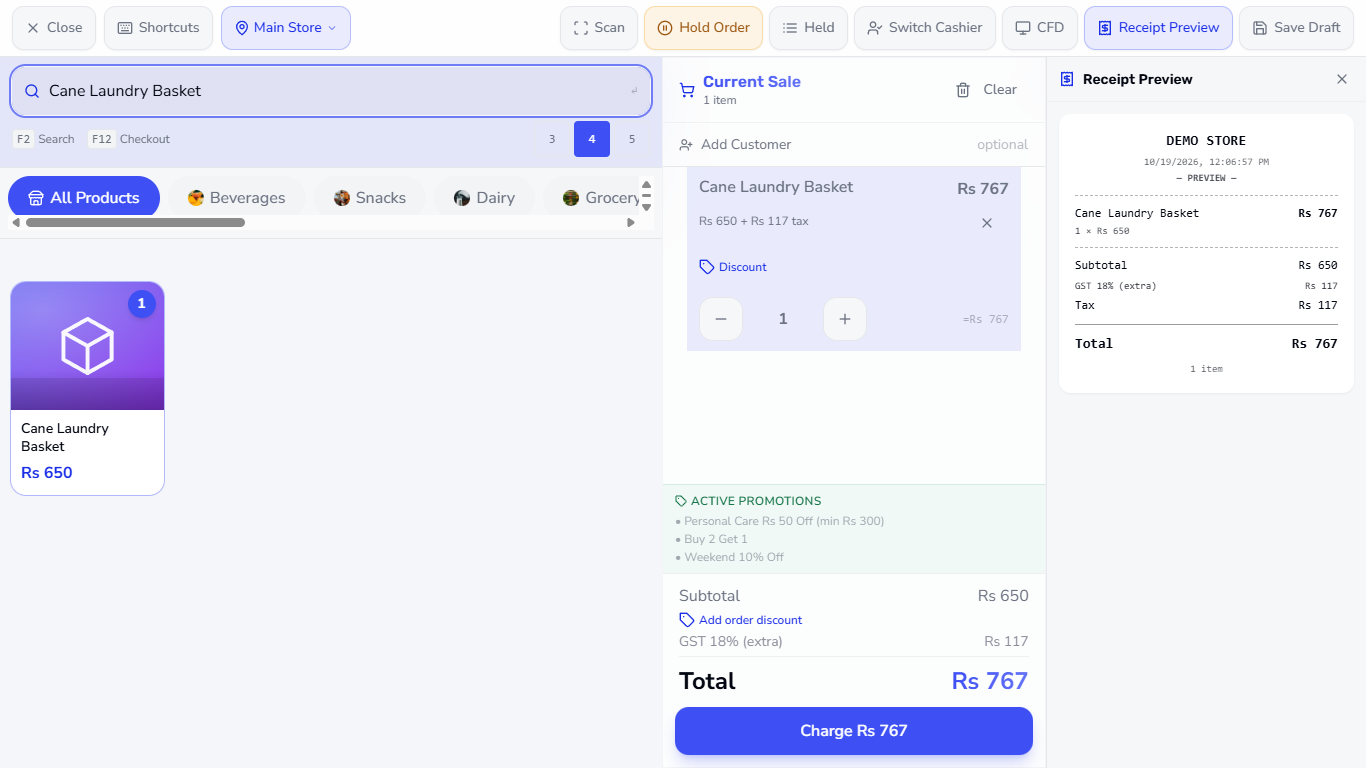
A short message says "Cane Laundry Basket" added and the item is already in the cart: Rs 650 + Rs 117 tax, Total Rs 767.
Search band saying No products found with the Quick-add Cane Laundry Basket button
Quick Add Product panel with the name, Selling price (PKR) 650 and Category (optional)
Cart with Cane Laundry Basket Rs 650 plus Rs 117 tax, Total Rs 767
2
Show the list of shortcuts
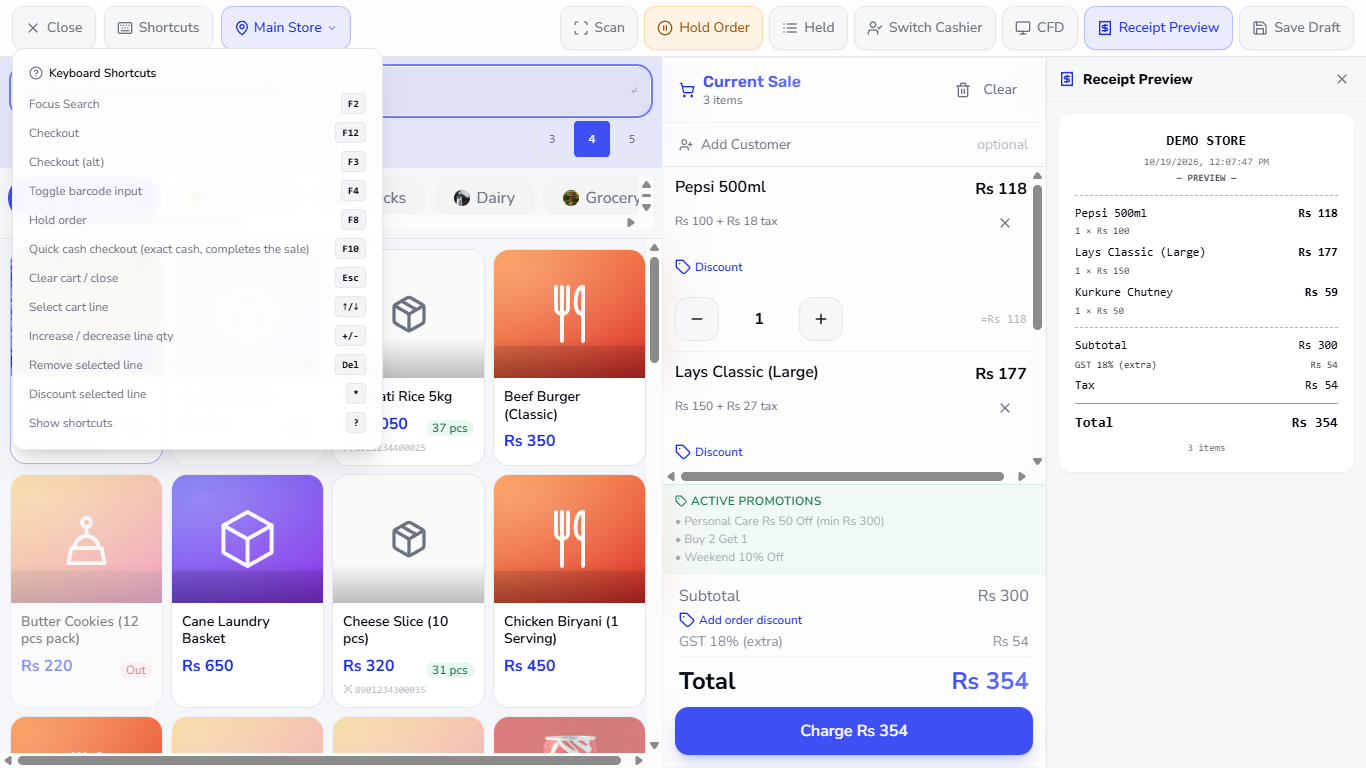
Press the Shortcuts button in the top bar, or the ? key. The popover Keyboard Shortcuts lists Focus Search (F2), Checkout (F12), Checkout (alt) (F3), Toggle barcode input (F4), Hold order (F8), Quick cash checkout (F10), Clear cart / close (Esc), Select cart line (↑/↓), Increase / decrease line qty (+/-), Remove selected line (Del), Discount selected line (*) and Show shortcuts (?).
Keyboard Shortcuts popover listing F2, F12, F3, F4, F8, F10, Esc, arrows, plus minus, Del, star and question mark
3
Select a line and change its quantity
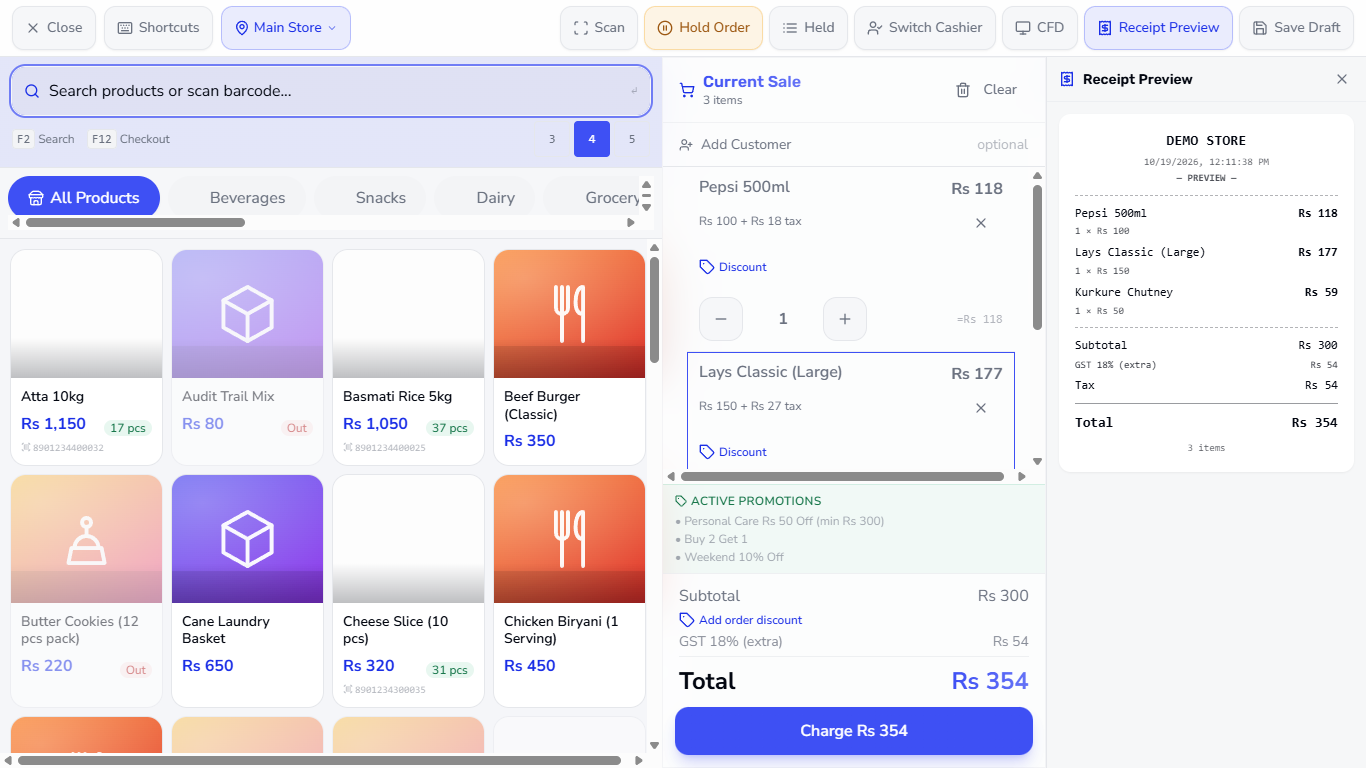
With the cart showing Pepsi 500ml, Lays Classic (Large) and Kurkure Chutney (Total Rs 354), press ↓ twice to outline the second line (the cursor must be outside the search box).
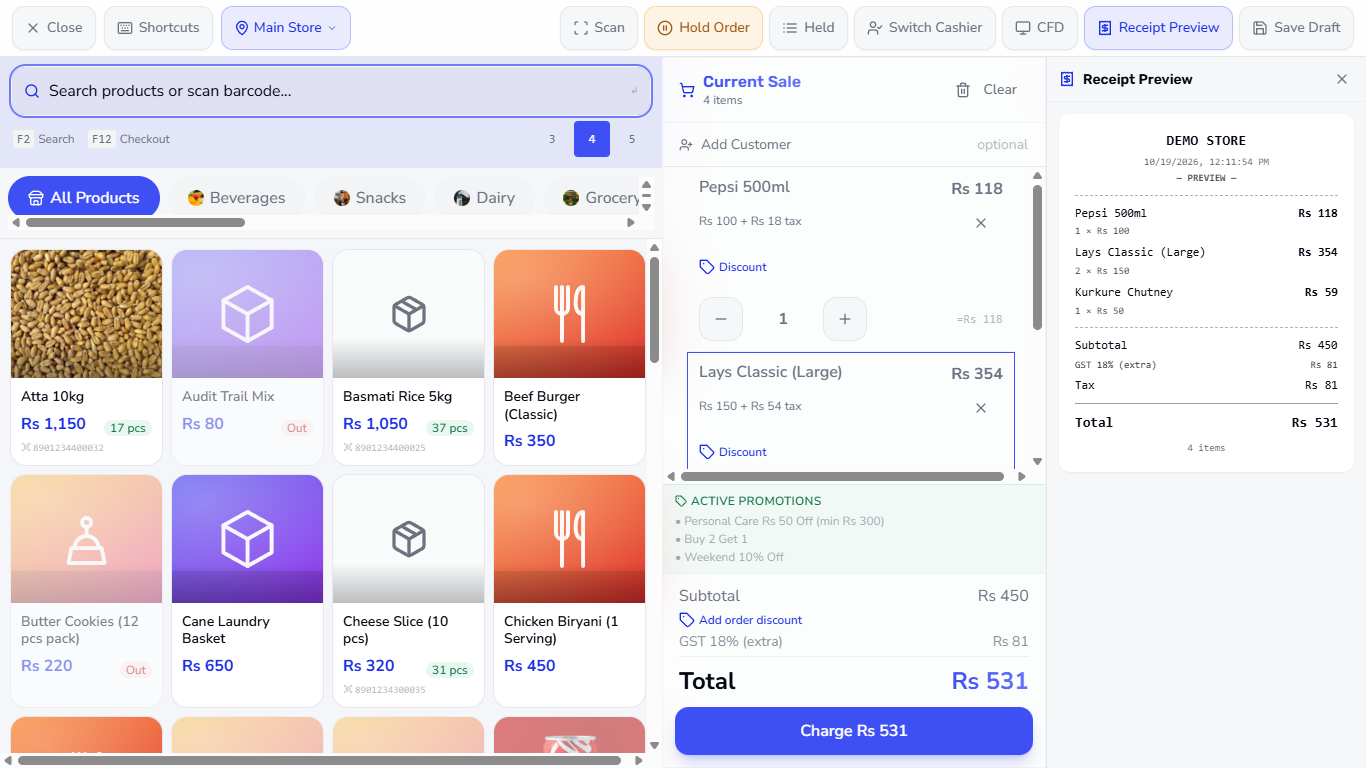
Press + to make it two units: Subtotal Rs 450, Total Rs 531. Press - to go back. The totals update at once.
Cart with the second line, Lays Classic, outlined after two presses of the down arrow
Lays Classic at two units, Subtotal Rs 450, Total Rs 531
4
Give one line a discount
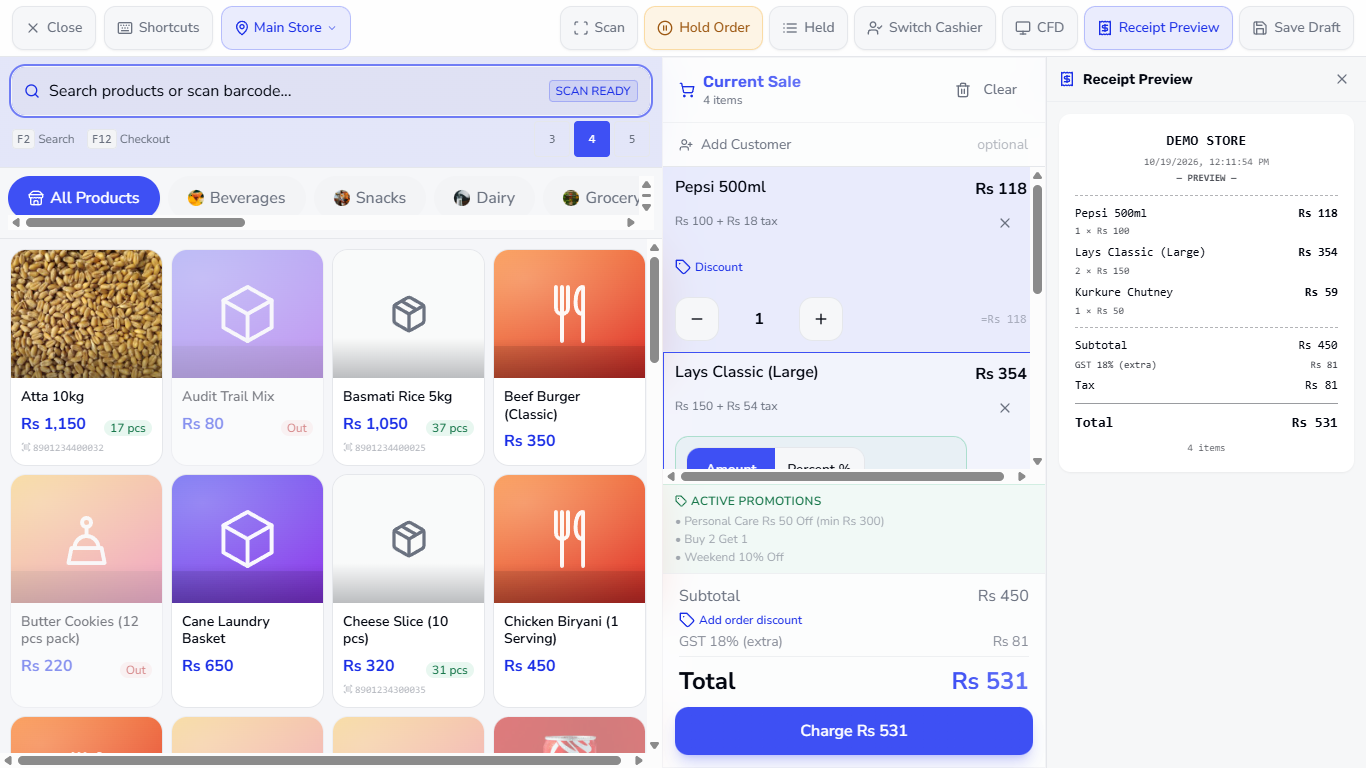
With a line outlined, press \* (star). The line discount editor opens on the line with an Amount or Percent % toggle, the field Amount off this line, Reason (optional), Apply and Cancel.
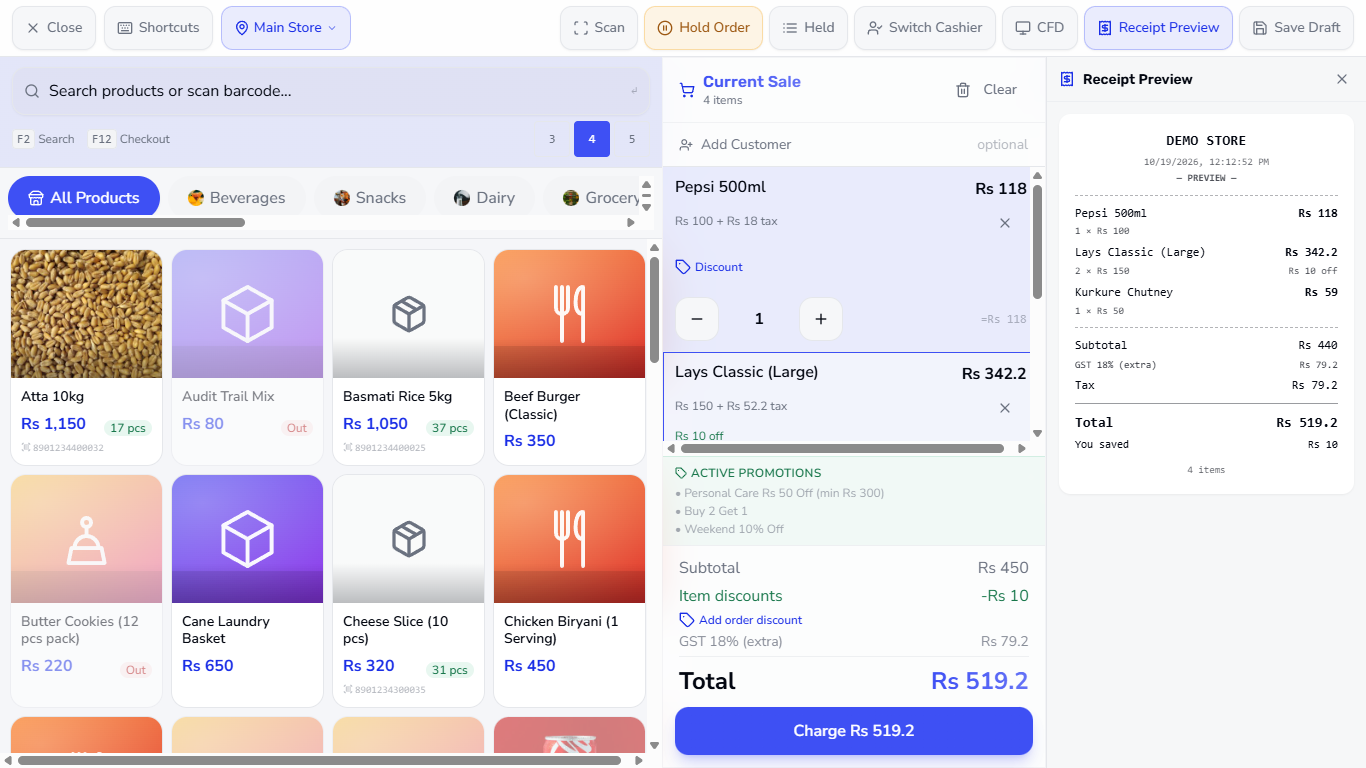
Type 10 and press Enter: the line shows Rs 10 off with an Edit discount link, a row Item discounts -Rs 10 appears and the Total follows (Rs 519.2).
Line discount editor with Amount and Percent toggle, Apply and Cancel
Lays line showing Rs 10 off and Edit discount, Item discounts -Rs 10, Total Rs 519.2
5
Remove a line
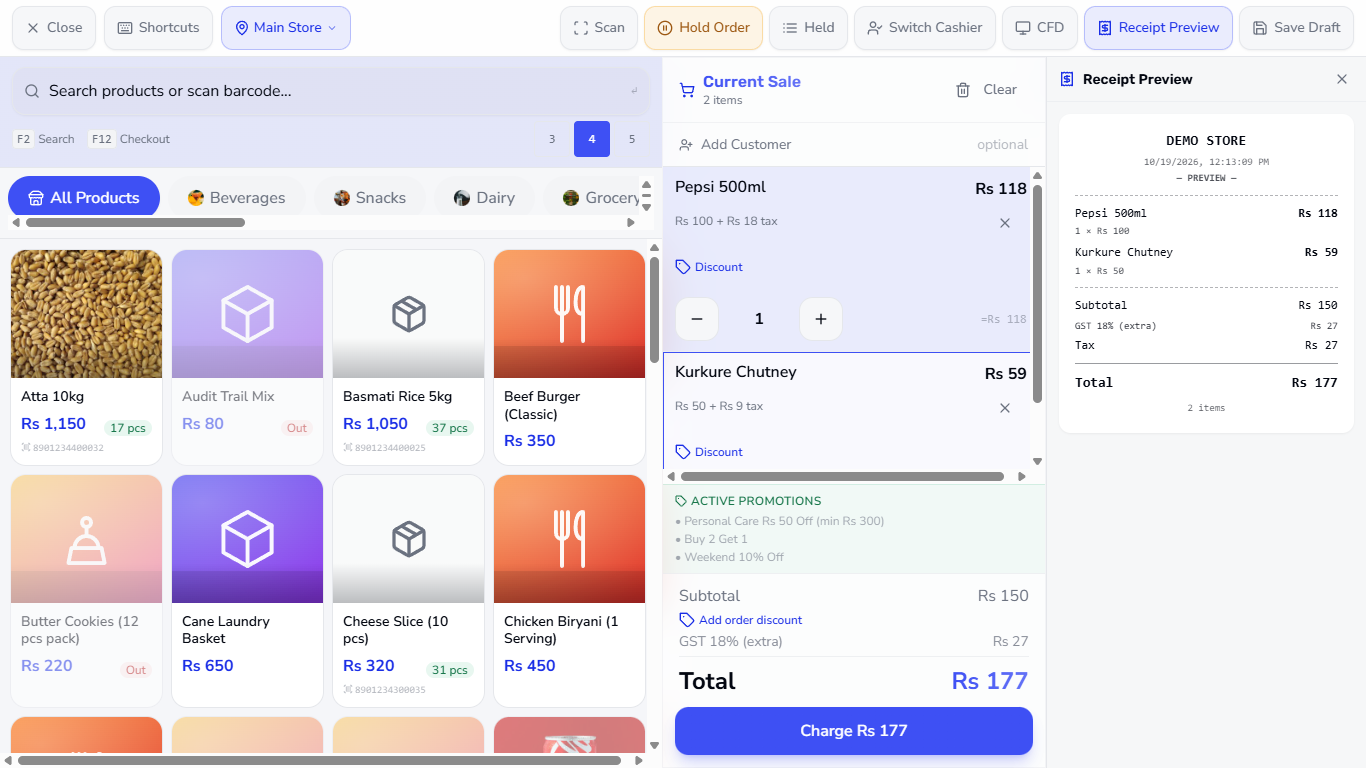
With a line outlined press Del. The line disappears and the cart reads 2 items, Subtotal Rs 150, Total Rs 177.
Cart after the outlined line was removed, two items left, Total Rs 177
6
Search or scan without the mouse
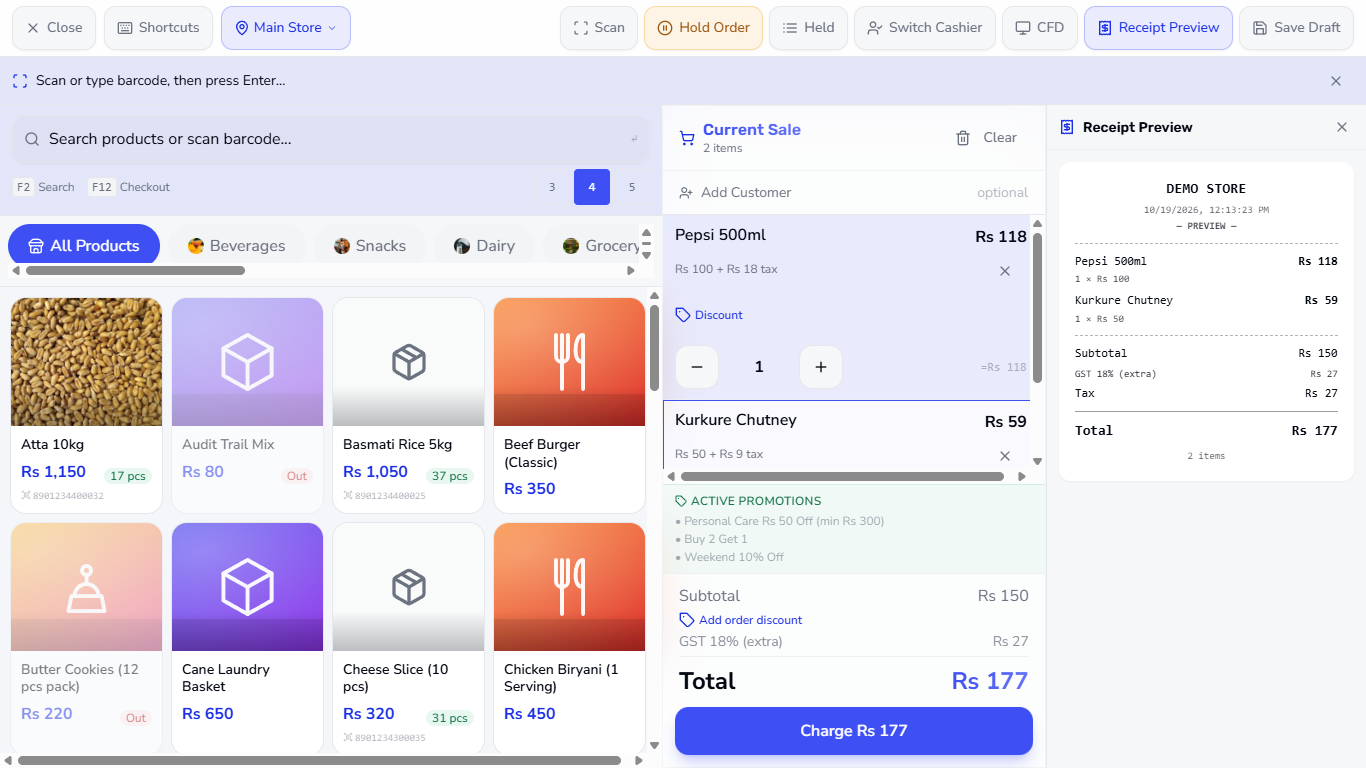
Press F2 to jump to the search box. Press F4 to turn the search into a barcode field: the band reads Scan or type barcode, then press Enter…. Scan or type a code such as 8901234100015 and press Enter.
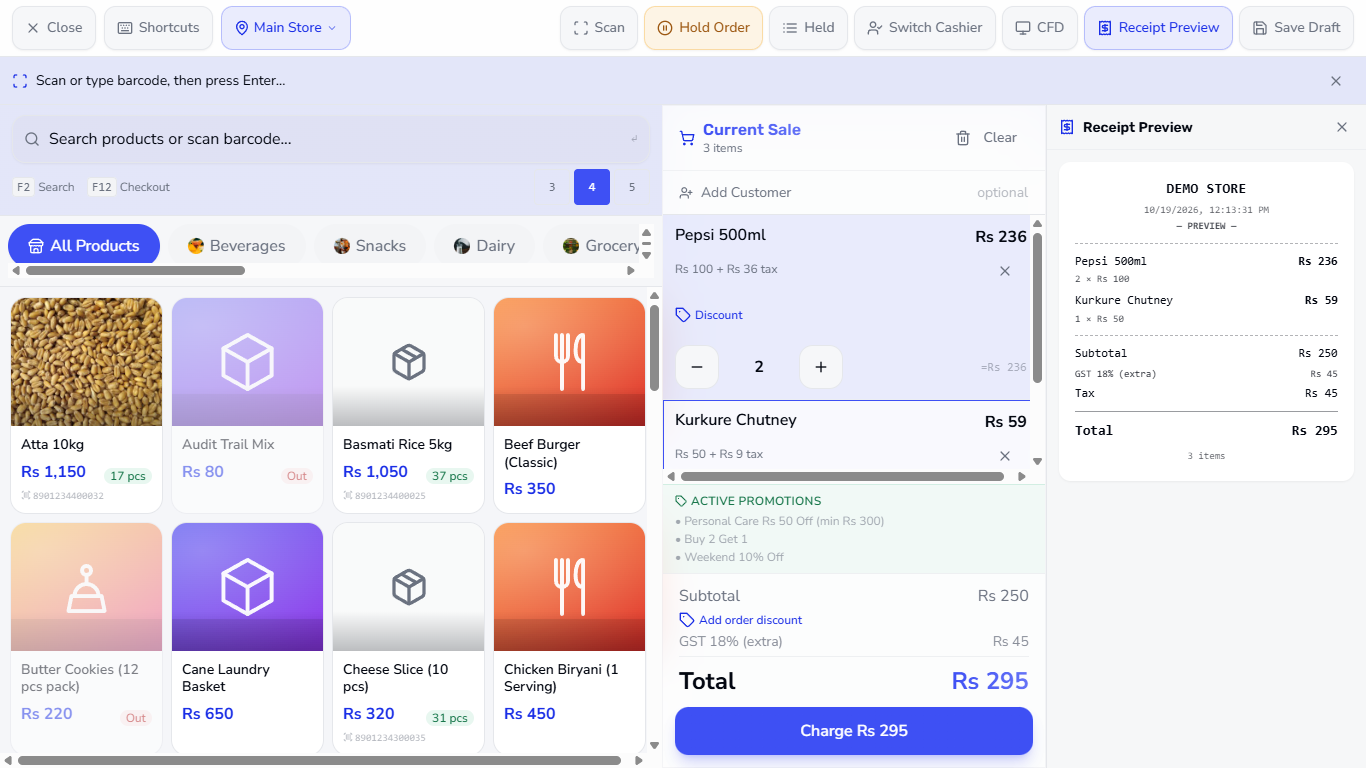
A second Pepsi 500ml joins the cart (Total Rs 295).
Barcode band reading Scan or type barcode, then press Enter above the product grid
Cart after the scan with a second Pepsi, Total Rs 295
7
Hold the order and bring it back
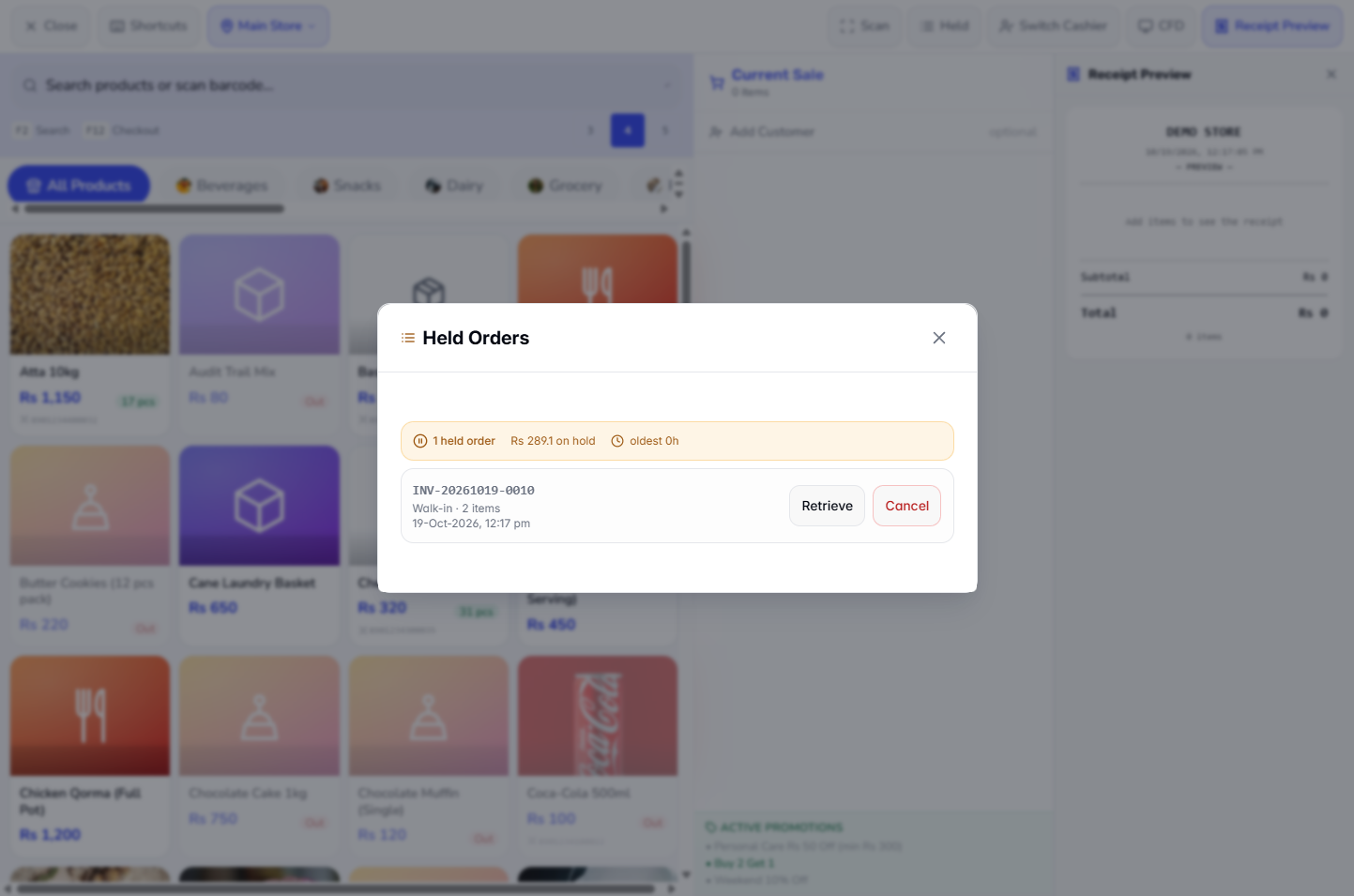
Press F8 to hold the current cart while the customer fetches something; the cart empties. Press the Held button: Held Orders shows 1 held order, Rs 289.1 on hold, the invoice number INV-20261019-0010 and the buttons Retrieve and Cancel. Press Retrieve to bring the cart back.
Held Orders panel showing one held order of Rs 289.1 with Retrieve and Cancel
8
Check out and clear with the keys
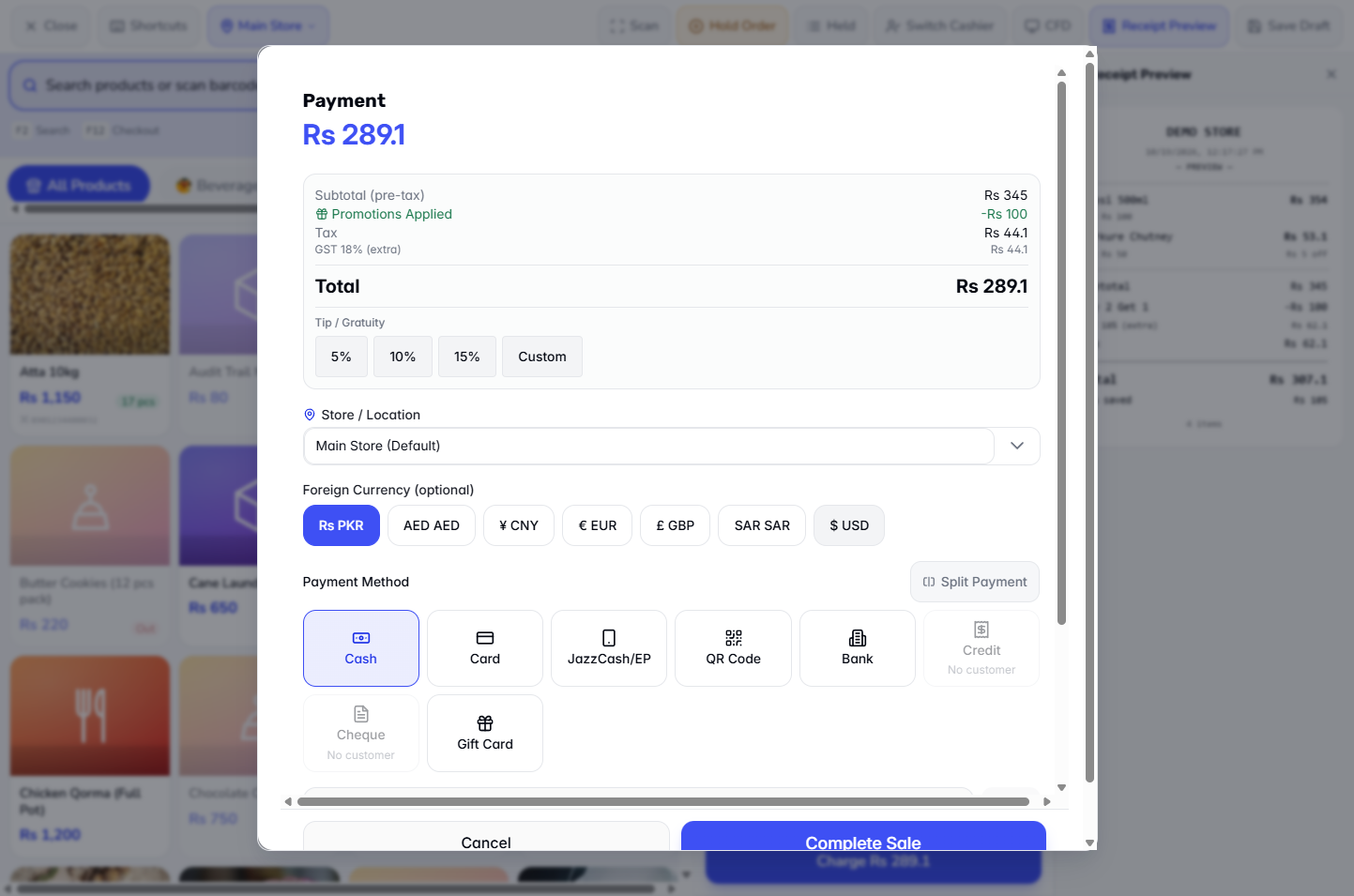
Press F12 (or F3) to open the Payment dialog with the total, Rs 289.1. Press Esc to close it.
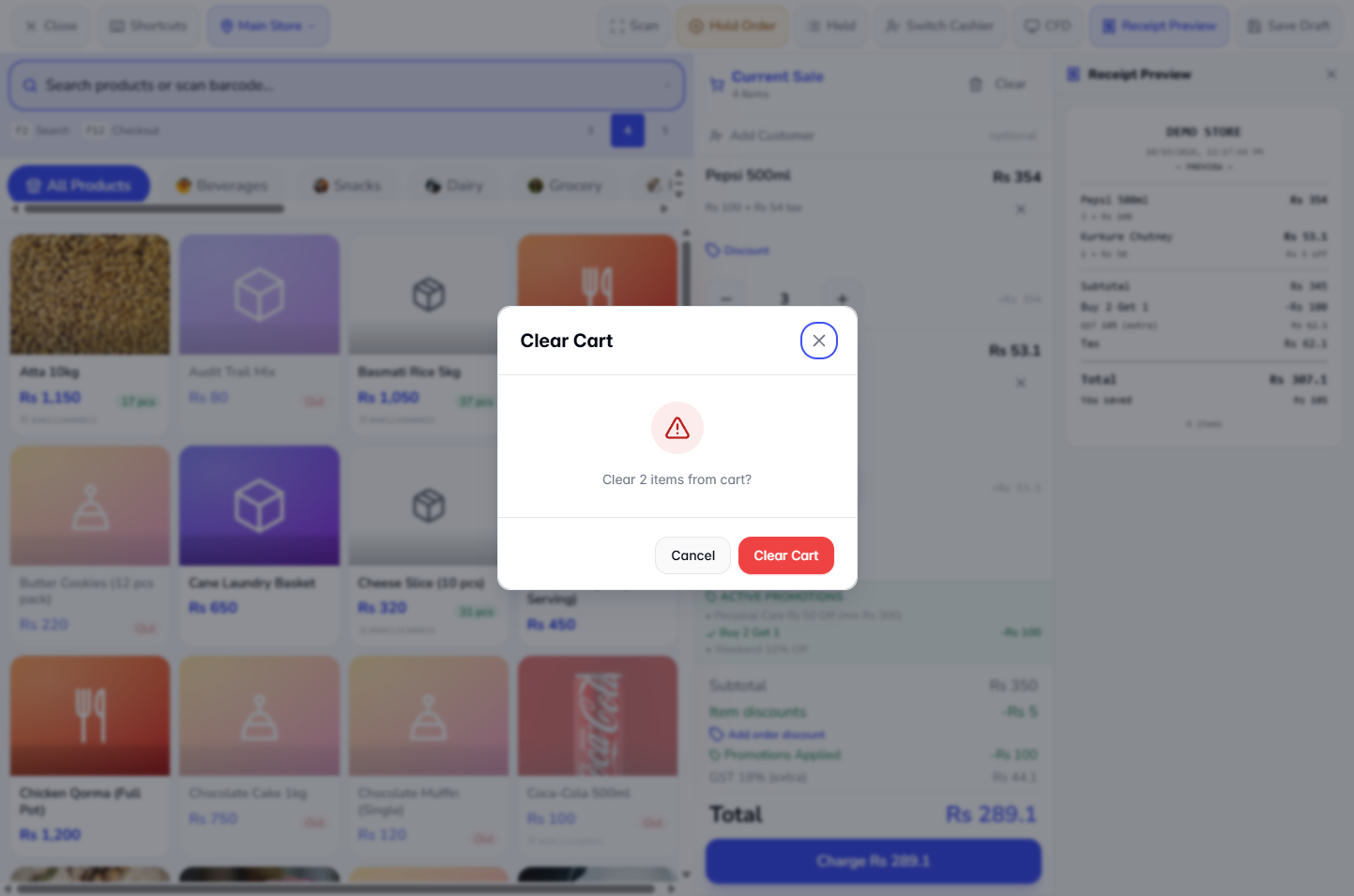
With the cursor outside any box, Esc again asks Clear 2 items from cart?: choose Cancel to keep the cart or Clear Cart to empty it.
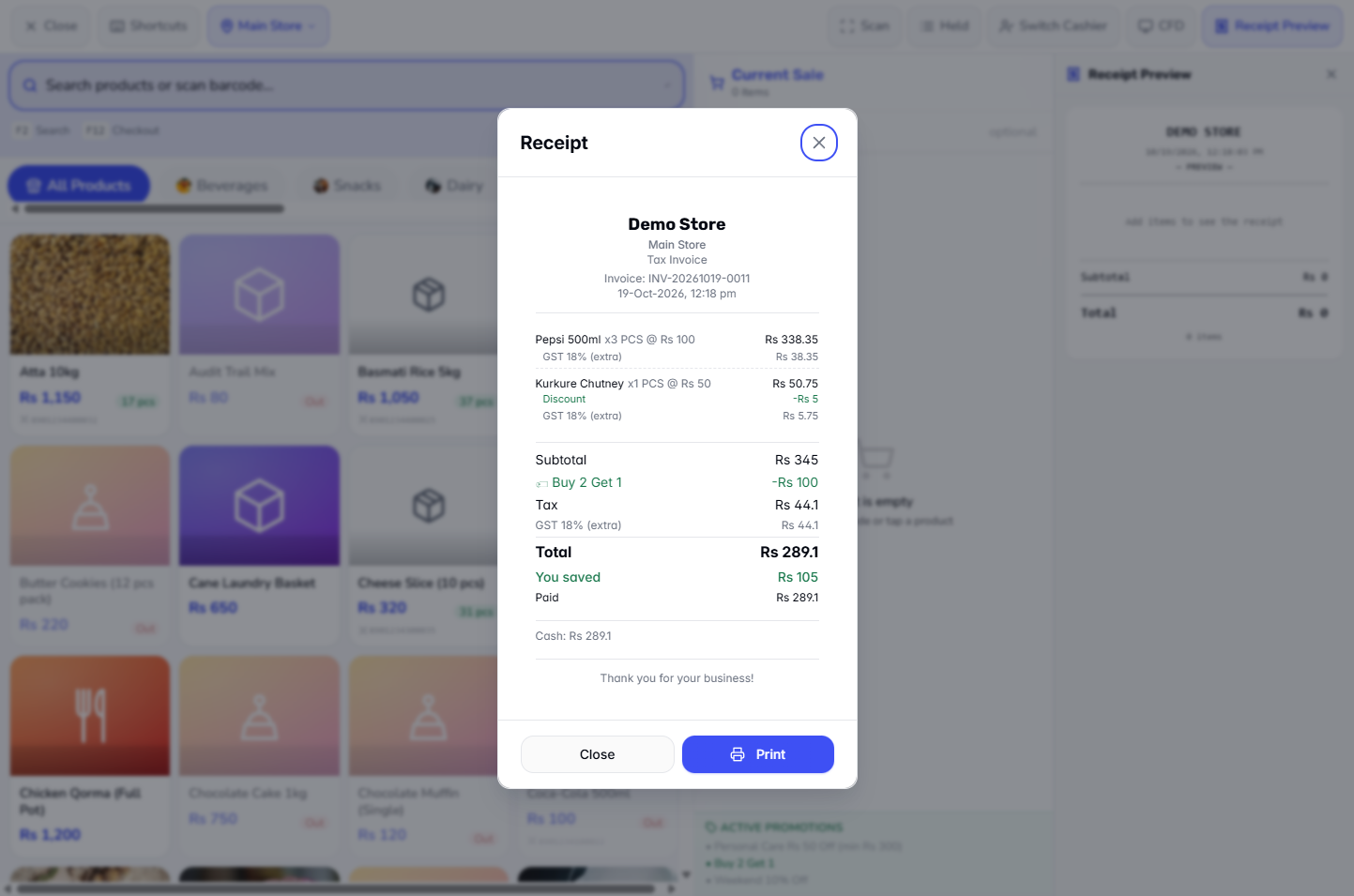
F10 skips the dialog: it takes the exact cash, completes the sale and shows the Receipt (Total Rs 289.1, You saved Rs 105, Paid Rs 289.1).
Payment dialog for Rs 289.1 with Complete Sale
Clear Cart confirmation asking Clear 2 items from cart
Receipt after F10 with Total Rs 289.1, You saved Rs 105 and Paid Rs 289.1
9
Open the customer display
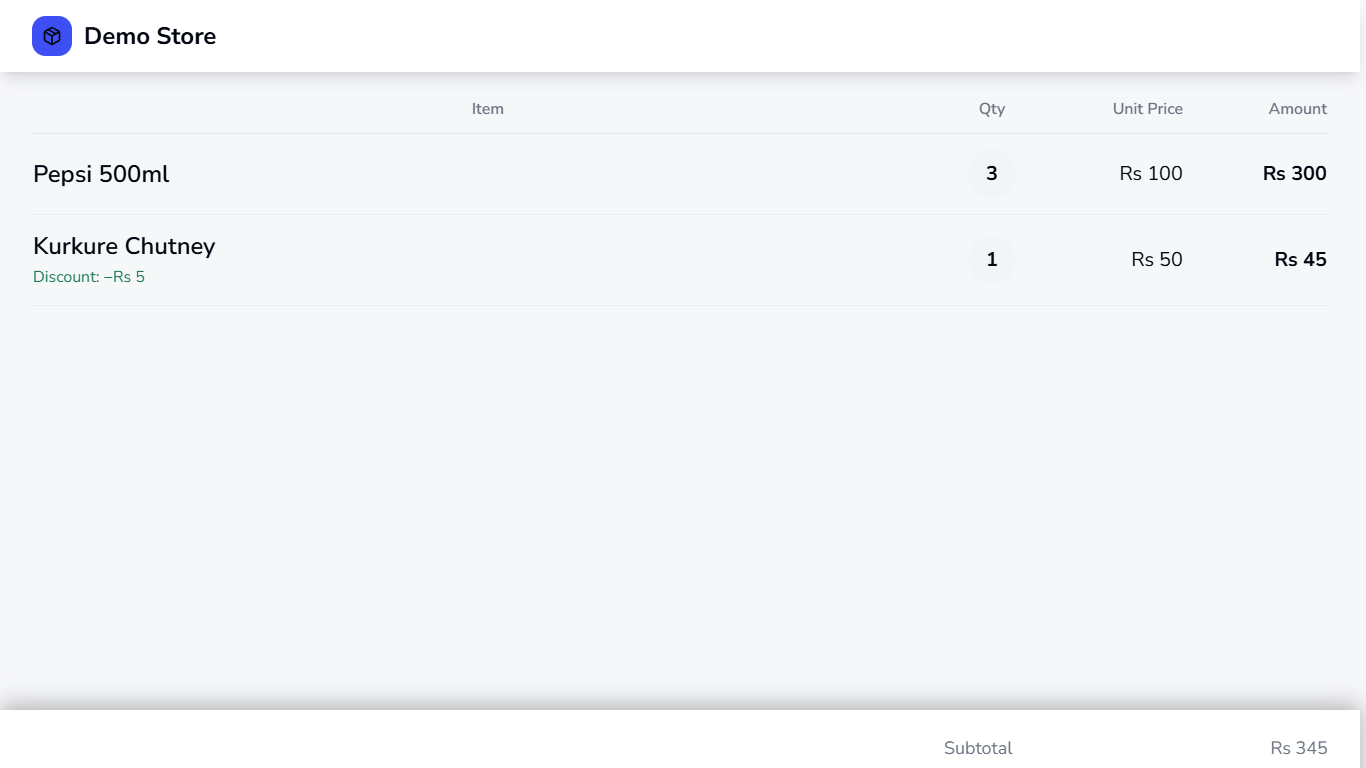
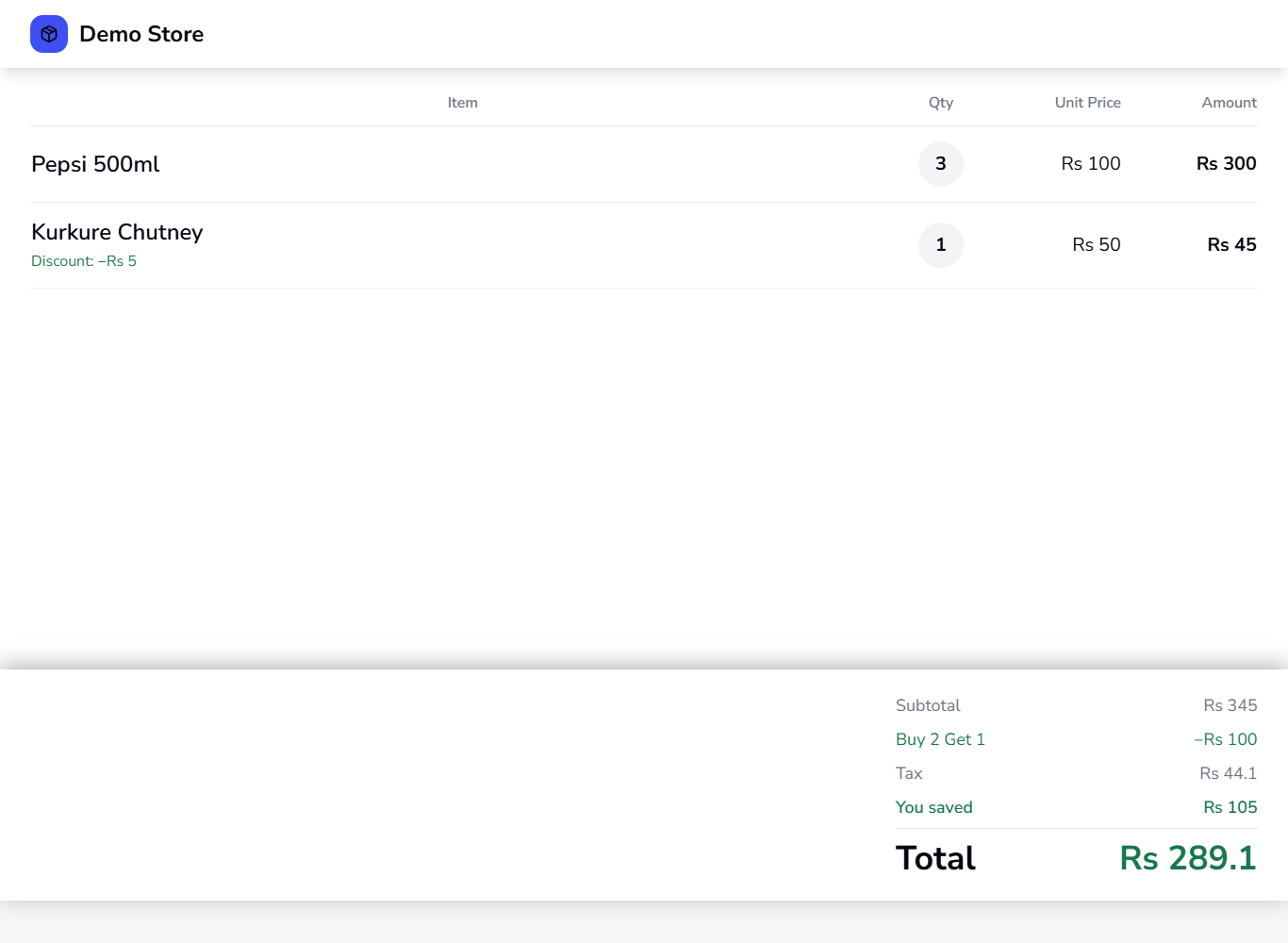
Press CFD in the top bar. A second window opens (/cfd, no sign-in) with the shop name, a table Item, Qty, Unit Price, Amount (a line discount shows under the item name), and Subtotal, the promotion, Tax, You saved and a large Total, Rs 289.1: the same as the till. Drag it to the screen that faces the customer.
Customer display with Pepsi 500ml and Kurkure Chutney, Subtotal Rs 345, Buy 2 Get 1, Total Rs 289.1
10
Watch the display follow the cart
Every change you make in the till (add, remove, quantity, discount) appears on the display straight away, so the customer can check the bill before paying.
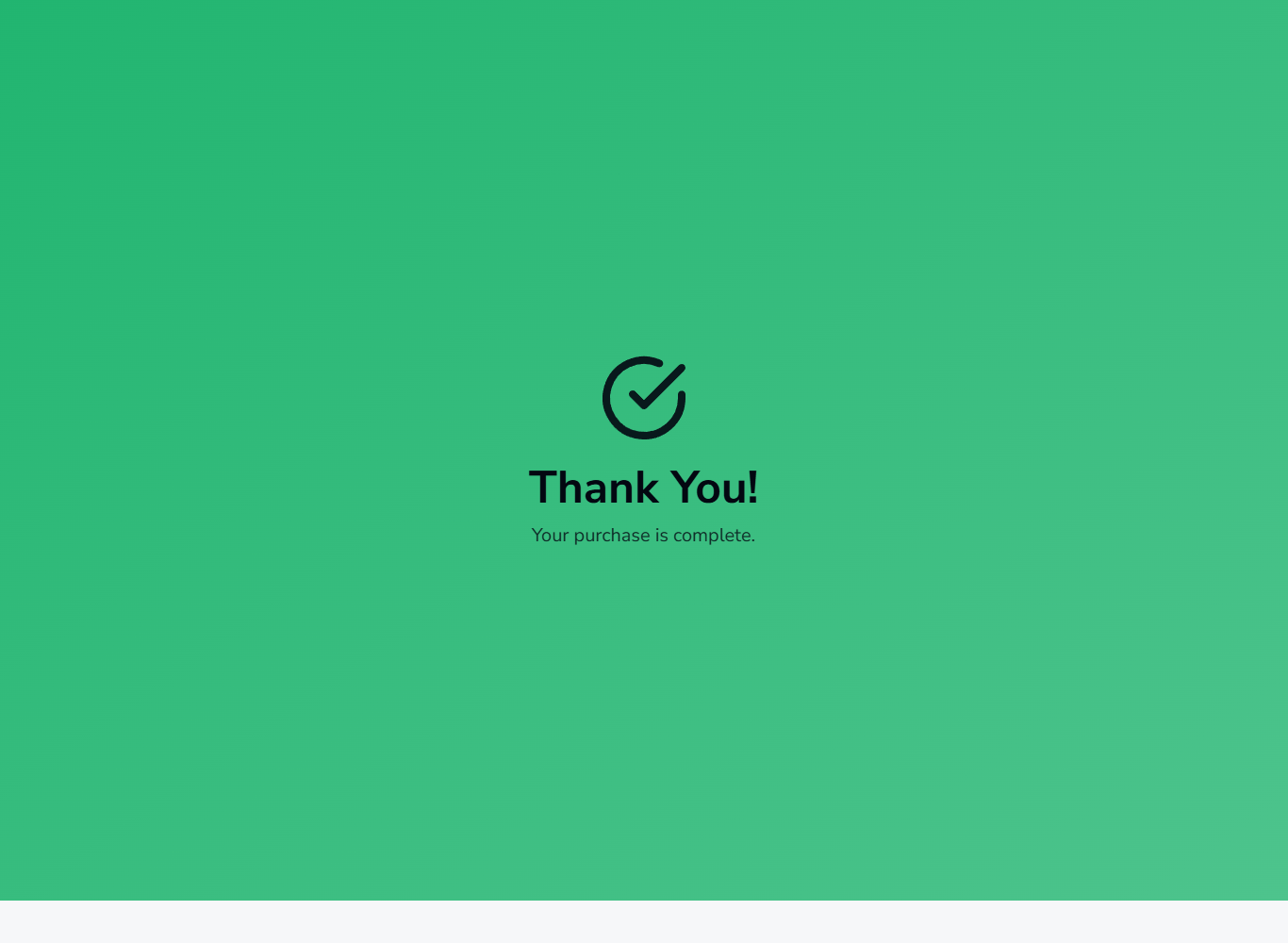
When the sale completes the display turns green with Thank You! Your purchase is complete. for about six seconds.
Customer display with the same two lines and Total Rs 289.1
Green customer display saying Thank You, Your purchase is complete
11
The waiting screen
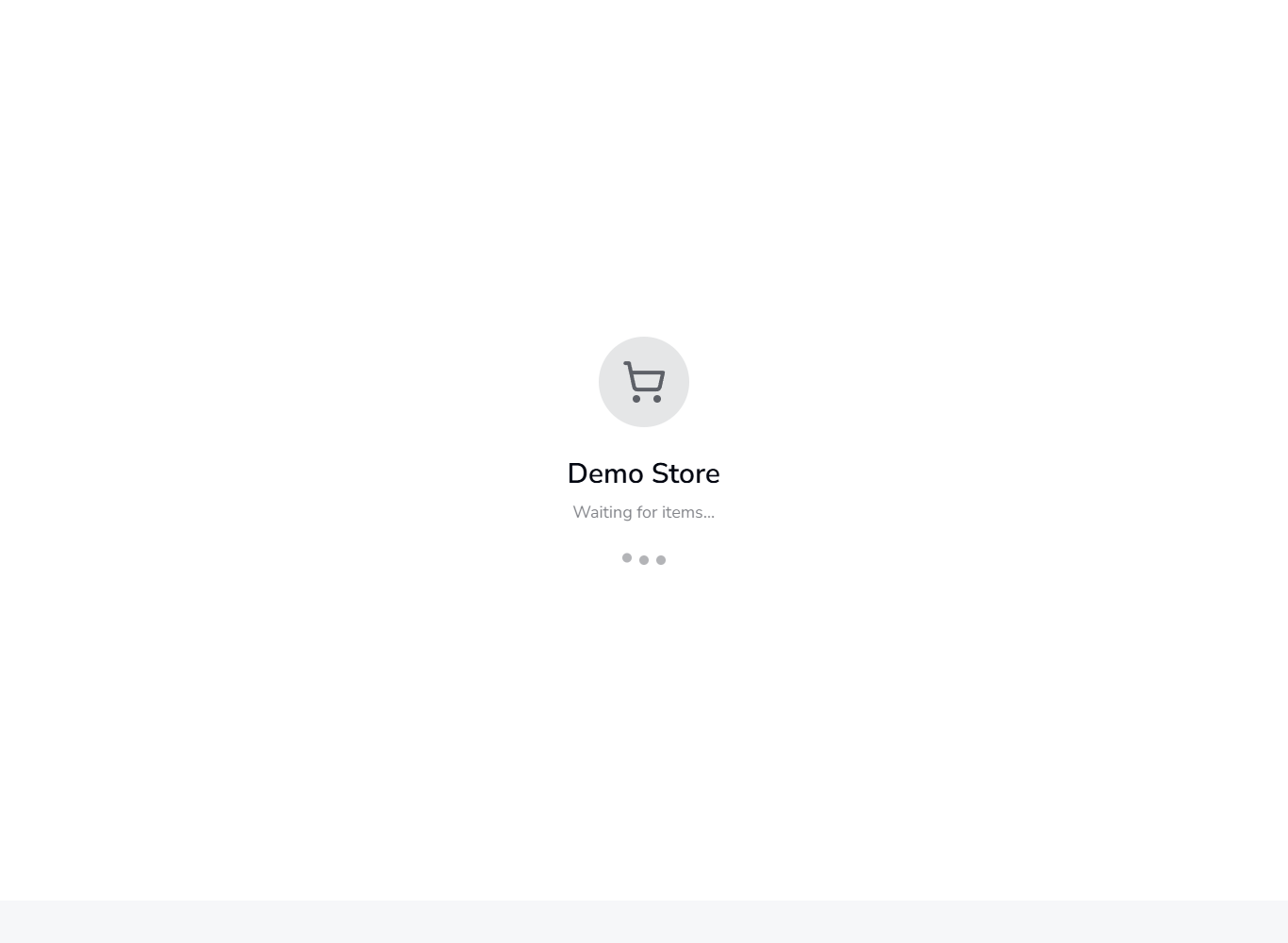
When the cart is empty the display shows the shop name and Waiting for items….
Customer display showing Demo Store and Waiting for items
Check it worked
Shortcuts lists twelve keys.
A scanned code adds the product to the cart.
A quick-added product is in the cart with its tax.
The customer display shows the same items and quantities as the cart.
Common mistakes
Mistake
What you see
Fix
Pressing Esc while typing in the barcode field
Nothing happens
Click outside the field, then press Esc
Pressing F10 when the customer pays by card
The sale completes in exact cash at once
Use F12 and choose the payment method; F10 is only for exact cash
Quick reference
Item
Meaning / rule
F2
Focus the search box
F4
Barcode input on and off
F8
Hold the order
F12, F3
Open Payment
F10
Quick cash checkout (exact cash, completes the sale)
↑/↓, +/-, Del, *
Select, change quantity, remove, discount a line
Esc
Close a dialog, then ask to clear the cart
Frequently asked questions
Which key opens the Payment dialog?F12, or F3. F10 does not open it: it completes the sale in exact cash.
How do I hold an order and get it back? Press F8 to hold it, then press Held and Retrieve next to the order.
Does the customer display need a login? No. It is opened from the CFD button on the till and shows the cart of that till.
Does the customer display show my promotion? It does show it: the promotion line (for example Buy 2 Get 1), You saved and the Total equal the till.