How to refund a sale, fully or partly, from Sales History
A customer brings goods back. This guide shows how to refund the whole sale or only some of the items, what to type, and where to check that the money, the stock and the books followed.
Who it is forCashier and supervisorTime9 minutesProductPOSLevelIntermediate
Before you start
Steps
1
Open the refund dialog
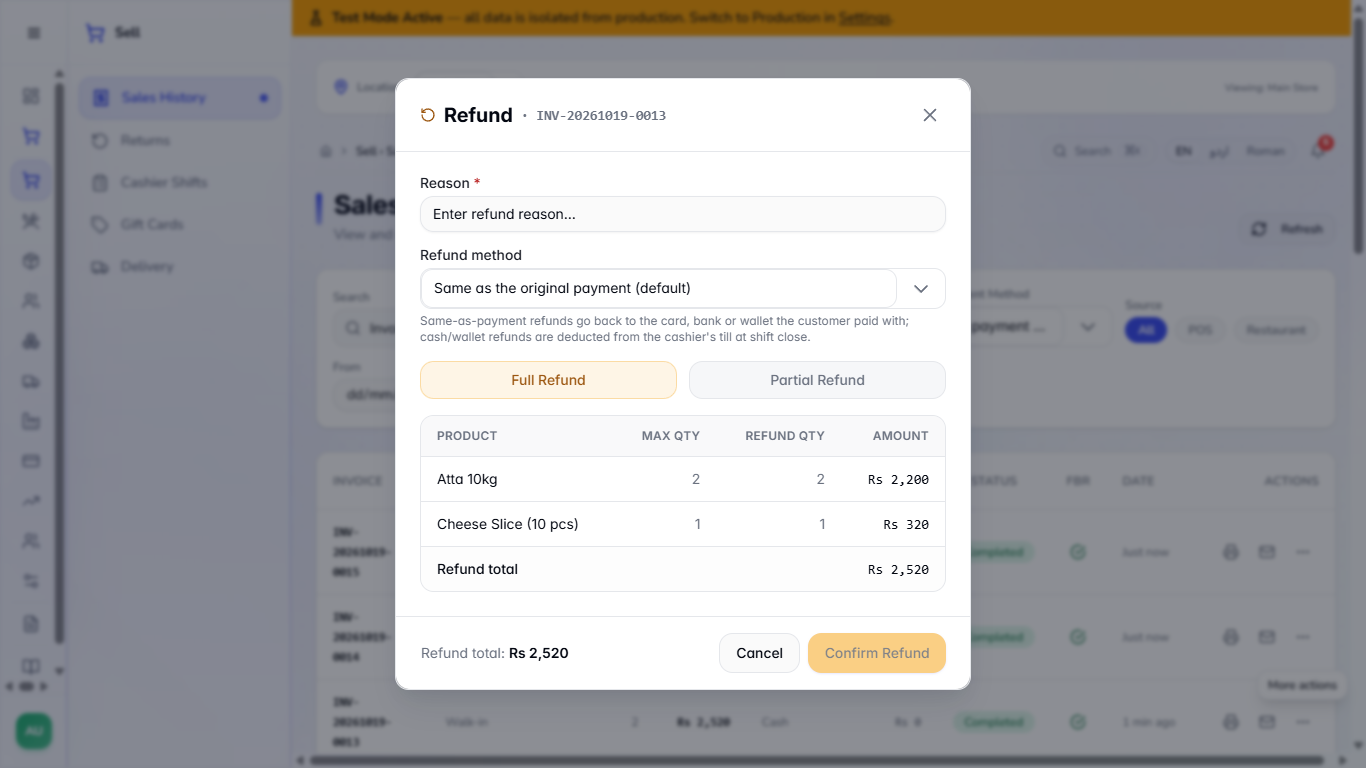
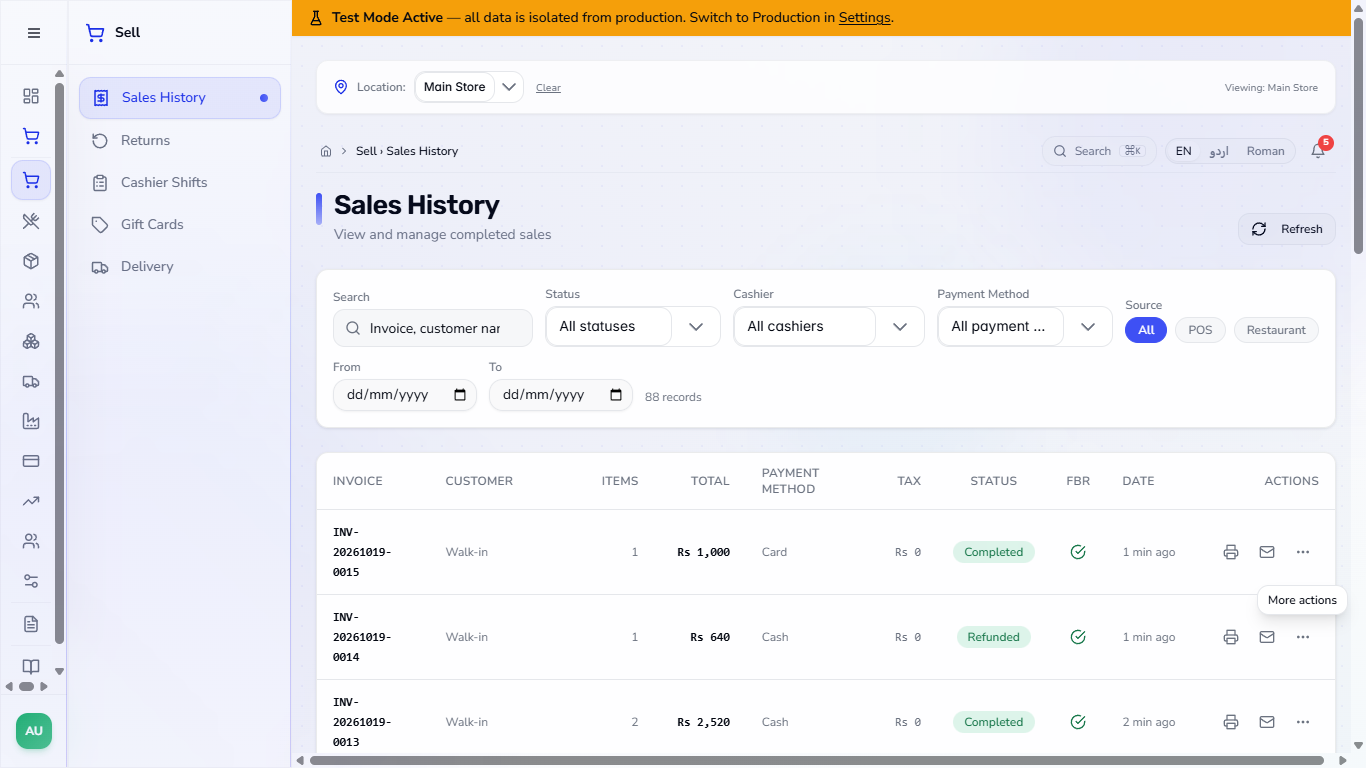
In Sell › Sales History find the sale, press the three dots and choose Refund sale. The dialog Refund · INV-20261026-0001 shows Reason, Refund method (Same as the original payment (default)), the buttons Full Refund and Partial Refund, and a table Product, Max Qty, Refund Qty, Amount with a Refund total. The amounts are what the customer paid for each line, after any line discount and with tax: here Atta 10kg shows Rs 2,200 (2 bags at Rs 1,150 less a Rs 100 discount). Confirm Refund stays pale until you type a reason.
Refund dialog for INV-20261026-0001 with the reason box, the refund method Same as the original payment and the items Atta 10kg and Cheese Slice
2
Refund only some items
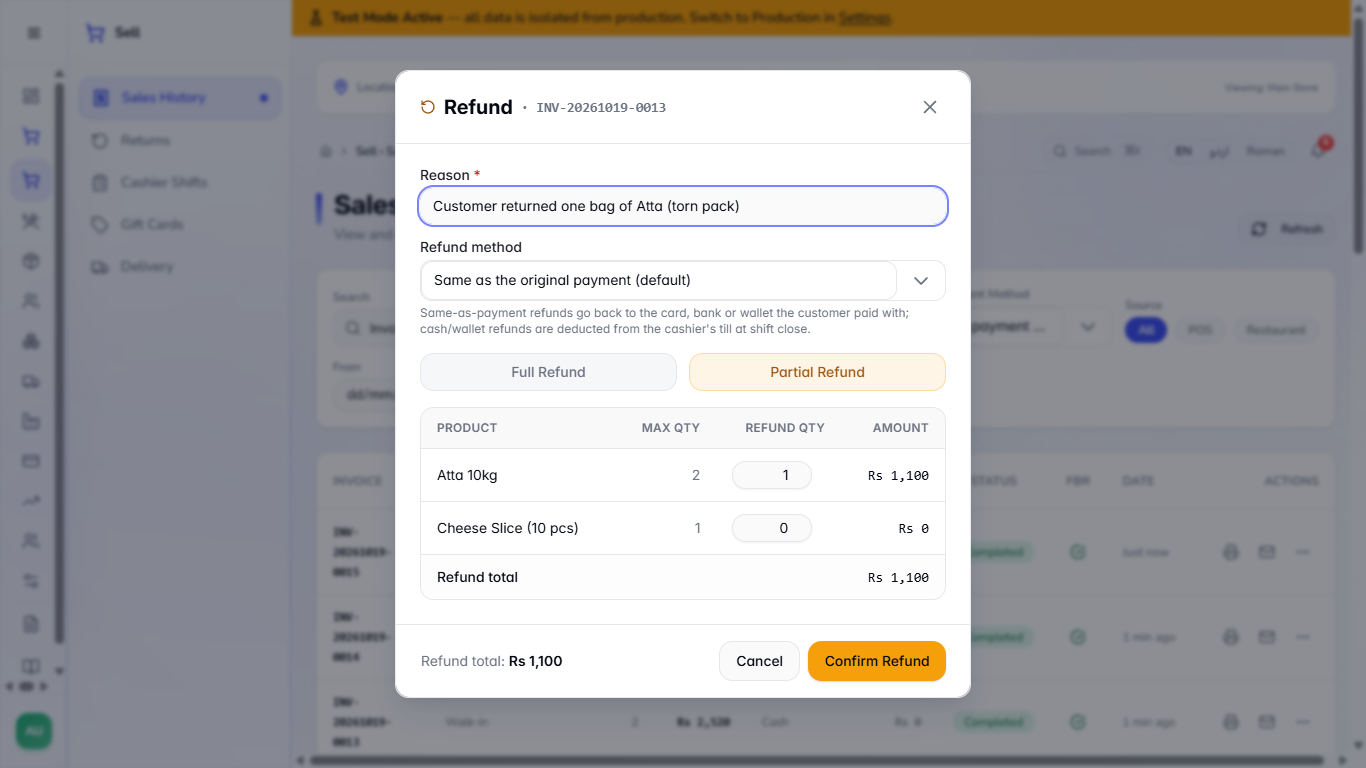
Choose Partial Refund. Each line gets a quantity box. The customer keeps the Cheese Slice and one bag of Atta, so type 1 for Atta 10kg and 0 for Cheese Slice (10 pcs). The Refund total follows: Rs 1,100. Type the Reason, for example Customer returned one bag of Atta (torn pack).
Partial Refund with Atta at 1 and Cheese Slice at 0, Refund total Rs 1,100
3
Confirm
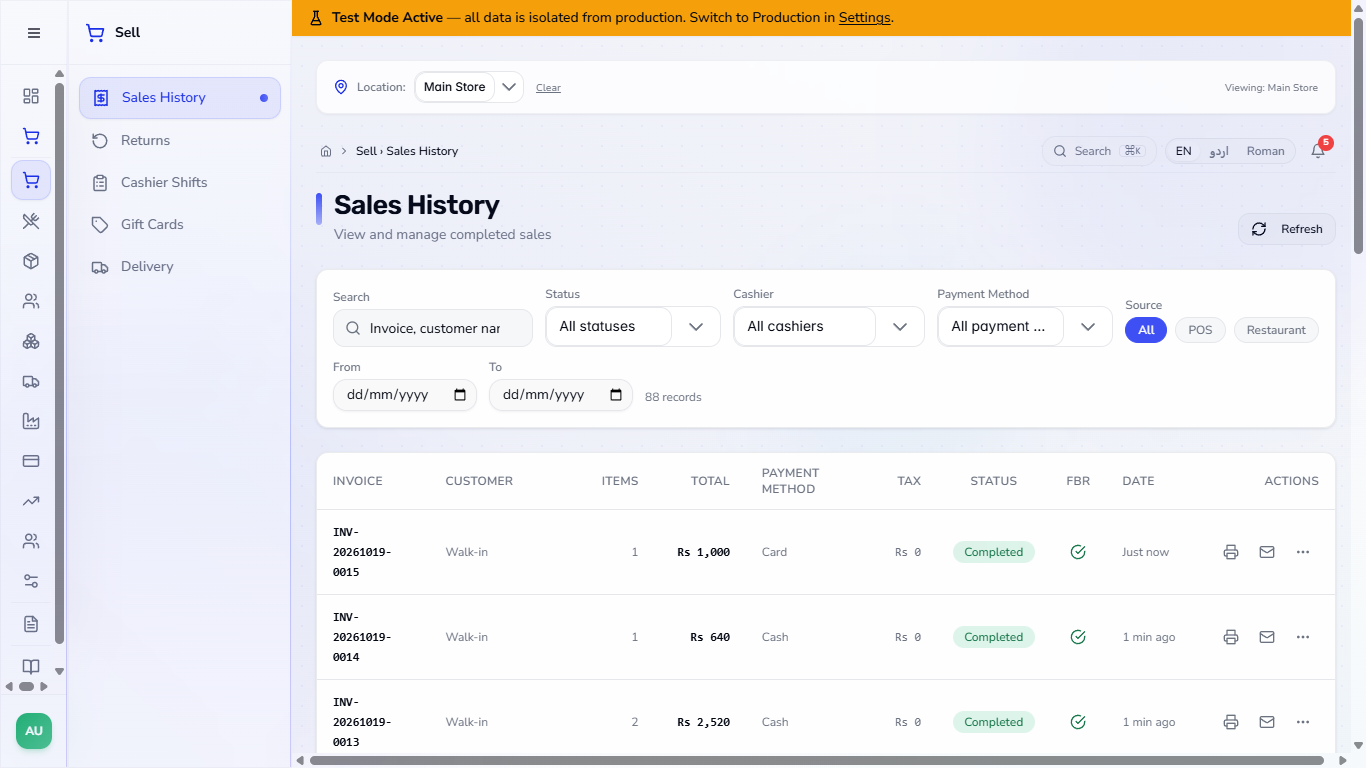
Press Confirm Refund. The app says Sale refunded. The sale stays Completed because one Atta and the Cheese Slice were not returned.
Sales History after the refund, INV-20261026-0001 still Completed
4
Refund a whole sale
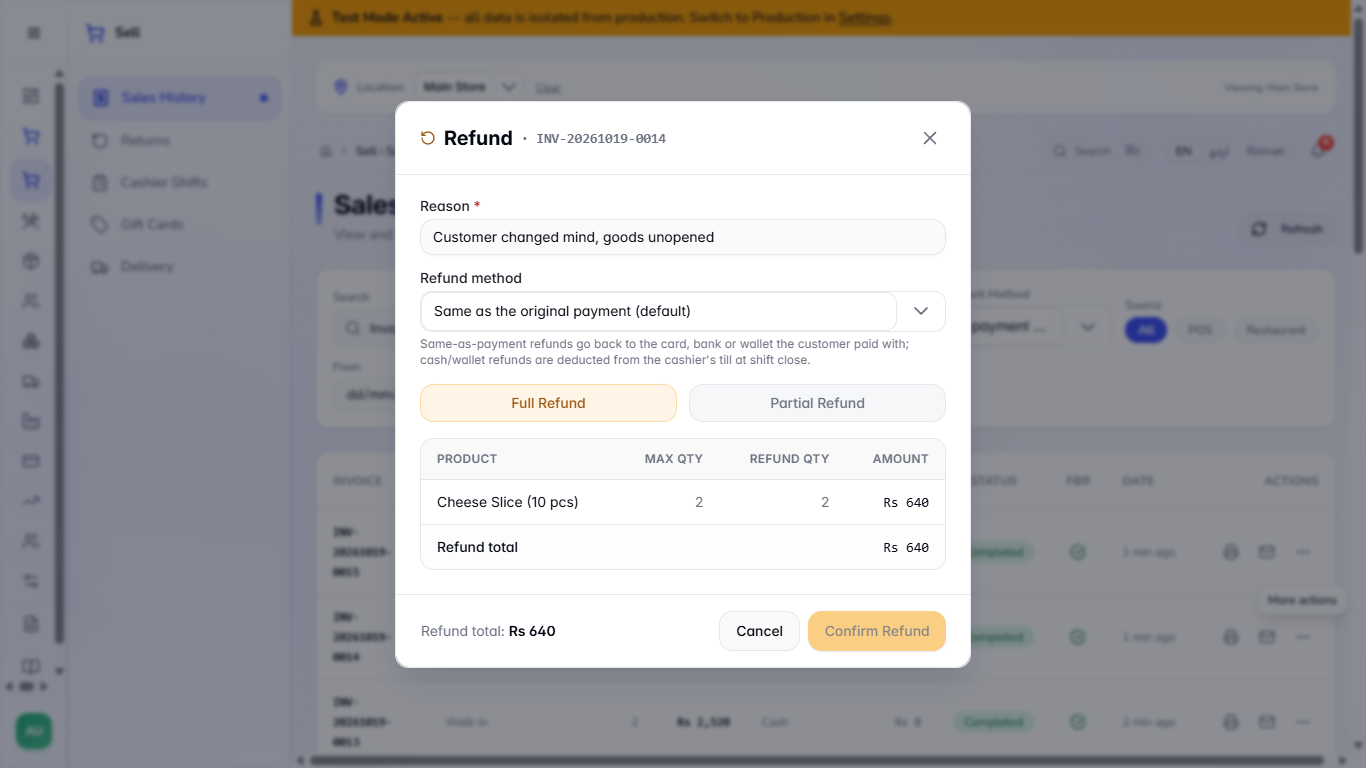
For a customer who returns everything, open Refund sale on that sale and leave Full Refund selected. Every line is listed with its amount, and the Refund total (Rs 640) equals what the customer paid. Type the Reason (Customer changed mind, goods unopened) and press Confirm Refund.
Full refund of INV-20261026-0002 listing Cheese Slice with the Refund total Rs 640
5
Check the status
After the full refund the row shows Refunded, and its menu offers only View FBR submission: Refund sale and Exchange items are gone.
Sales History row INV-20261026-0002 showing the Refunded chip
6
Refund the rest of a sale
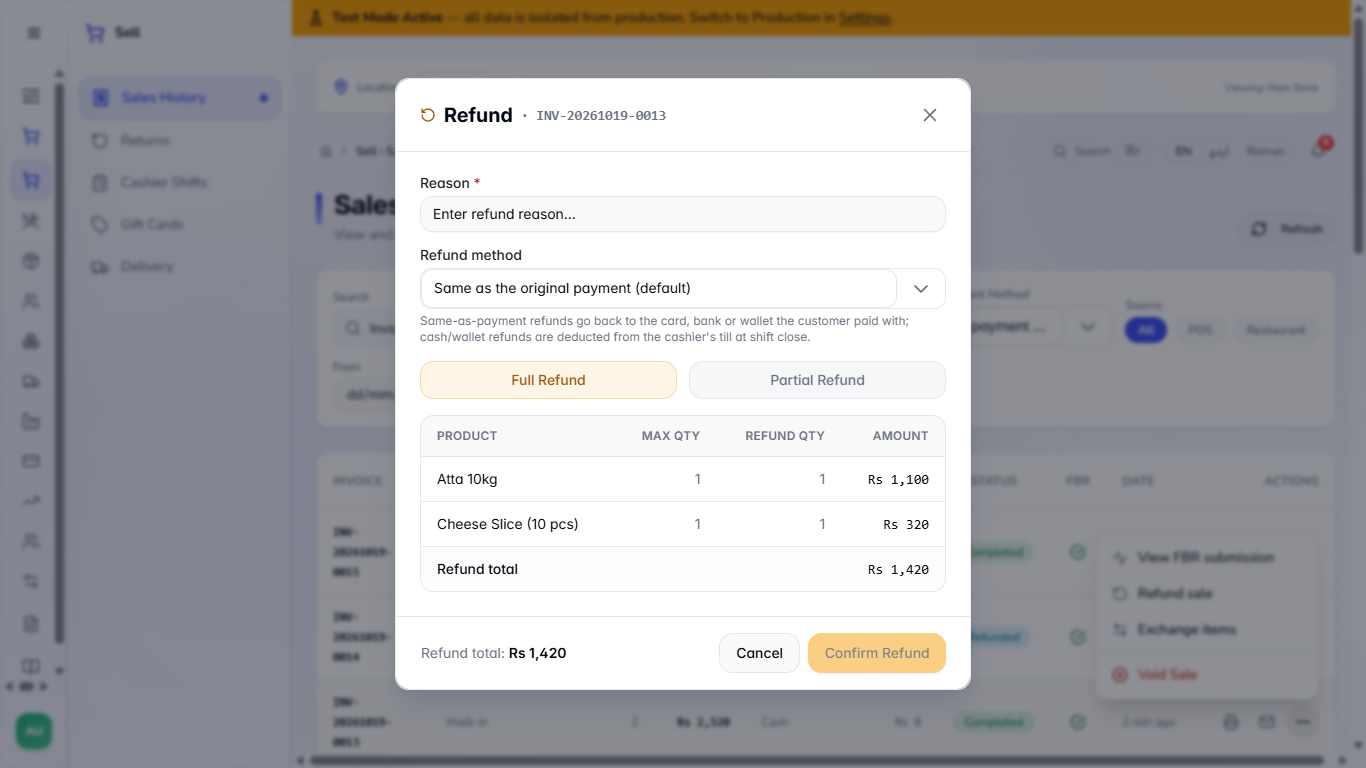
Open Refund sale again on a sale that was partly refunded. The dialog lists only what is left: Atta 10kg 1 / 1 / Rs 1,100 and Cheese Slice (10 pcs) 1 / 1 / Rs 320, a Refund total of Rs 1,420. Type the Reason (Customer also returned the second Atta and the Cheese Slice) and press Confirm Refund. Once the last line is refunded the sale reads Refunded, even though it took two steps.
Refund dialog reopened on INV-20261026-0001 listing Atta 10kg and Cheese Slice, Refund total Rs 1,420
7
Choose the refund method
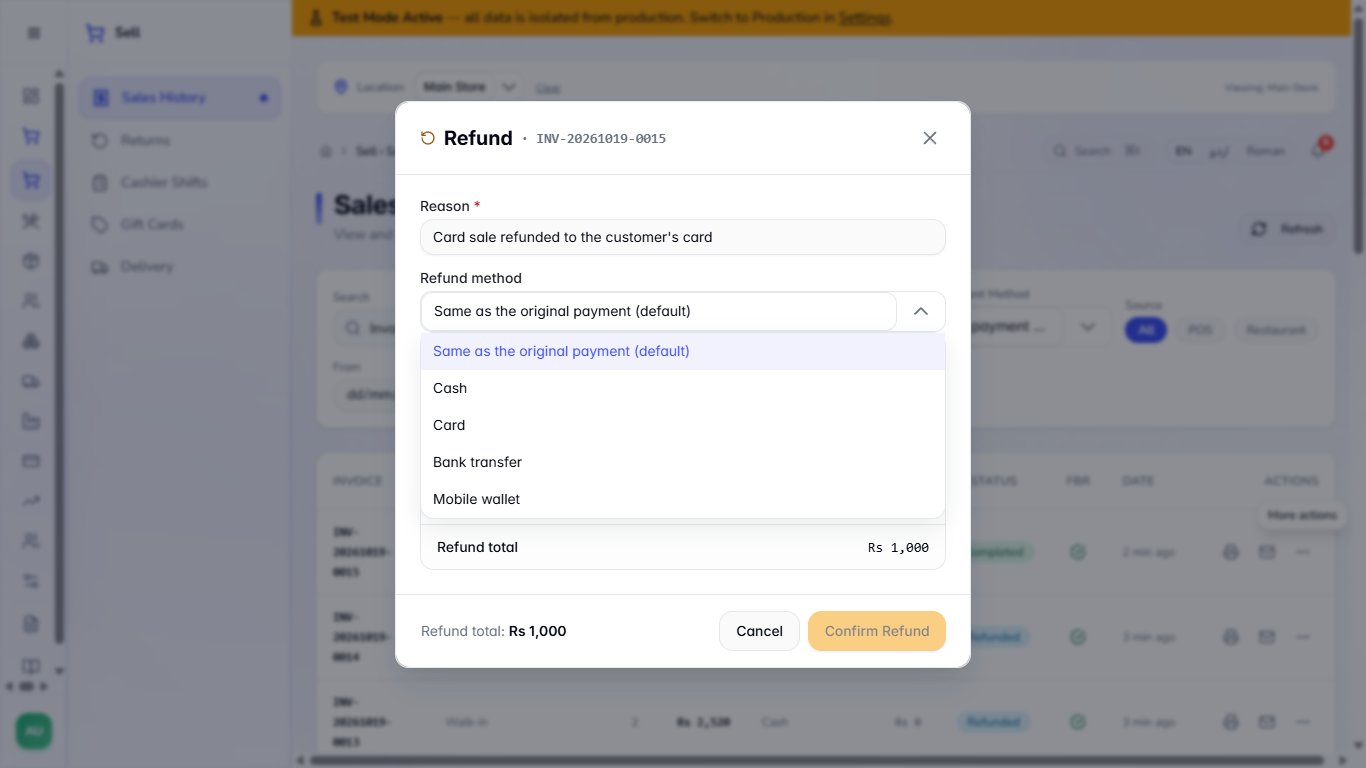
Leave Refund method on Same as the original payment (default): on a card sale the money goes back to the card (here Rs 1,000, what the customer paid after a Rs 50 line discount). The list also offers Cash, Card, Bank transfer and Mobile wallet.
Refund method list: Same as the original payment (default), Cash, Card, Bank transfer, Mobile wallet
8
See the cash in the till
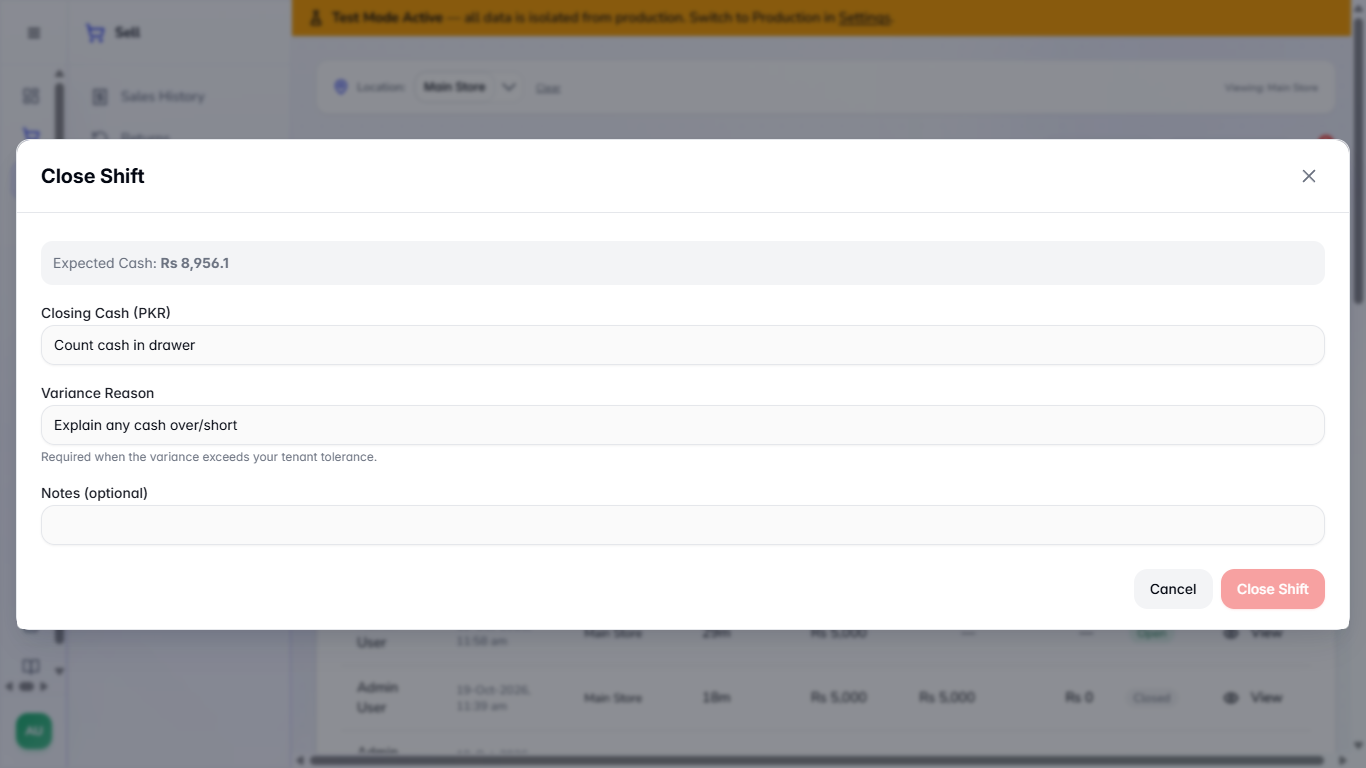
In Sell › Cashier Shifts, Close Shift shows the Expected Cash: the opening cash plus the cash sales, less the cash refunds (for example Rs 5,000 opening, Rs 3,160 of cash sales and Rs 1,740 of cash refunds give Rs 6,420). Only look at it here; do not close the shift. A card refund does not touch the till.
Close Shift dialog with the Expected Cash of the open shift
9
Check the return record and the books
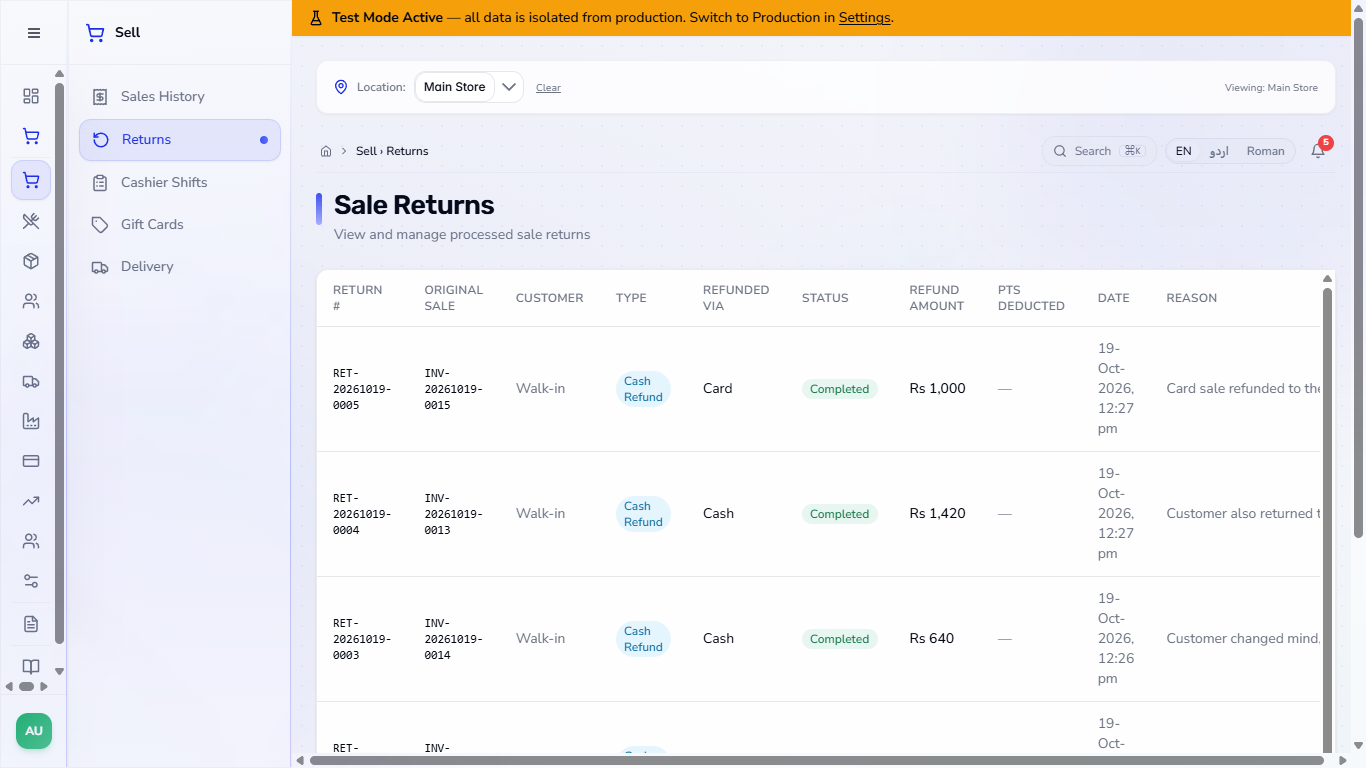
Open Sell › Returns. Each refund is a RET- record with the Original Sale, the Type, Refunded via, Status Completed, the Refund Amount, the date and your Reason. Refunded via shows how the money went back: Card for the card sale, Cash for the cash refunds. The Original Sale number opens the invoice in a drawer on the same page, with its payments and the Returns made against it.
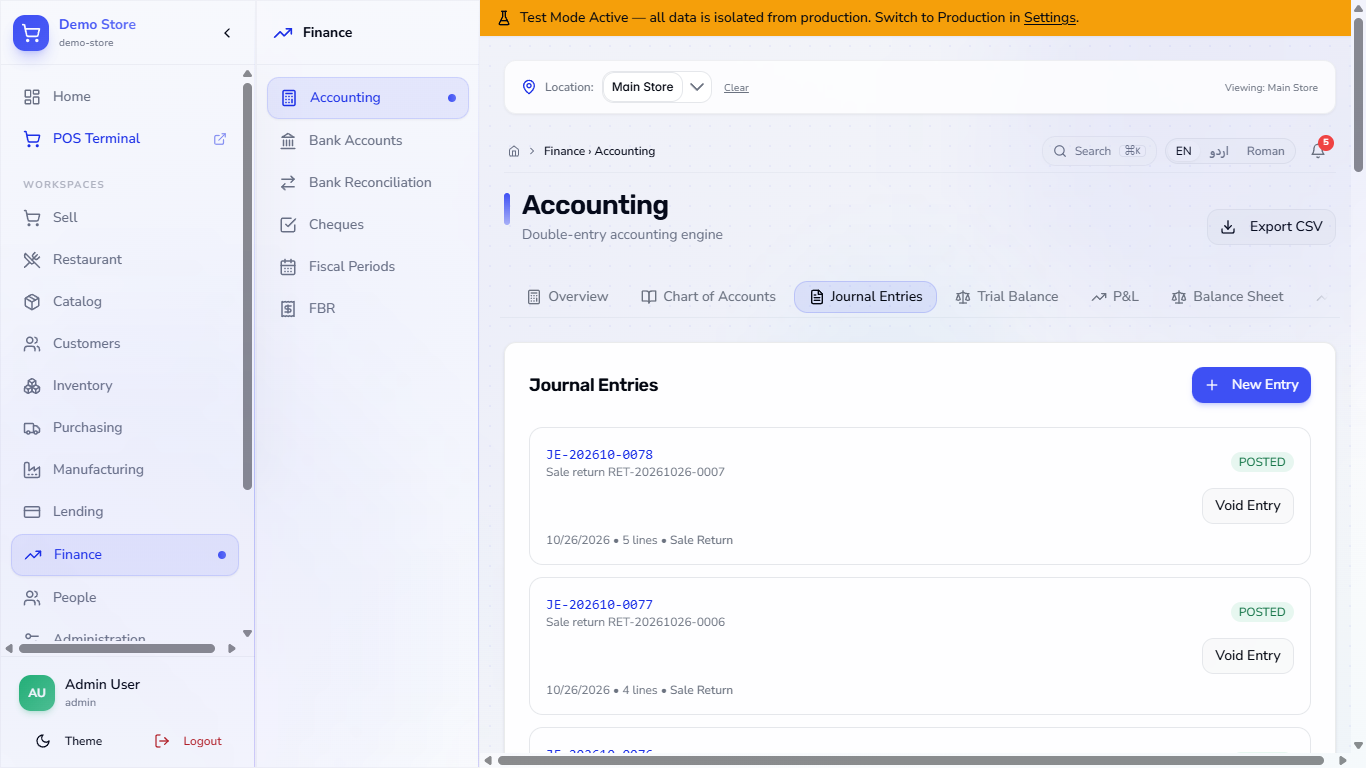
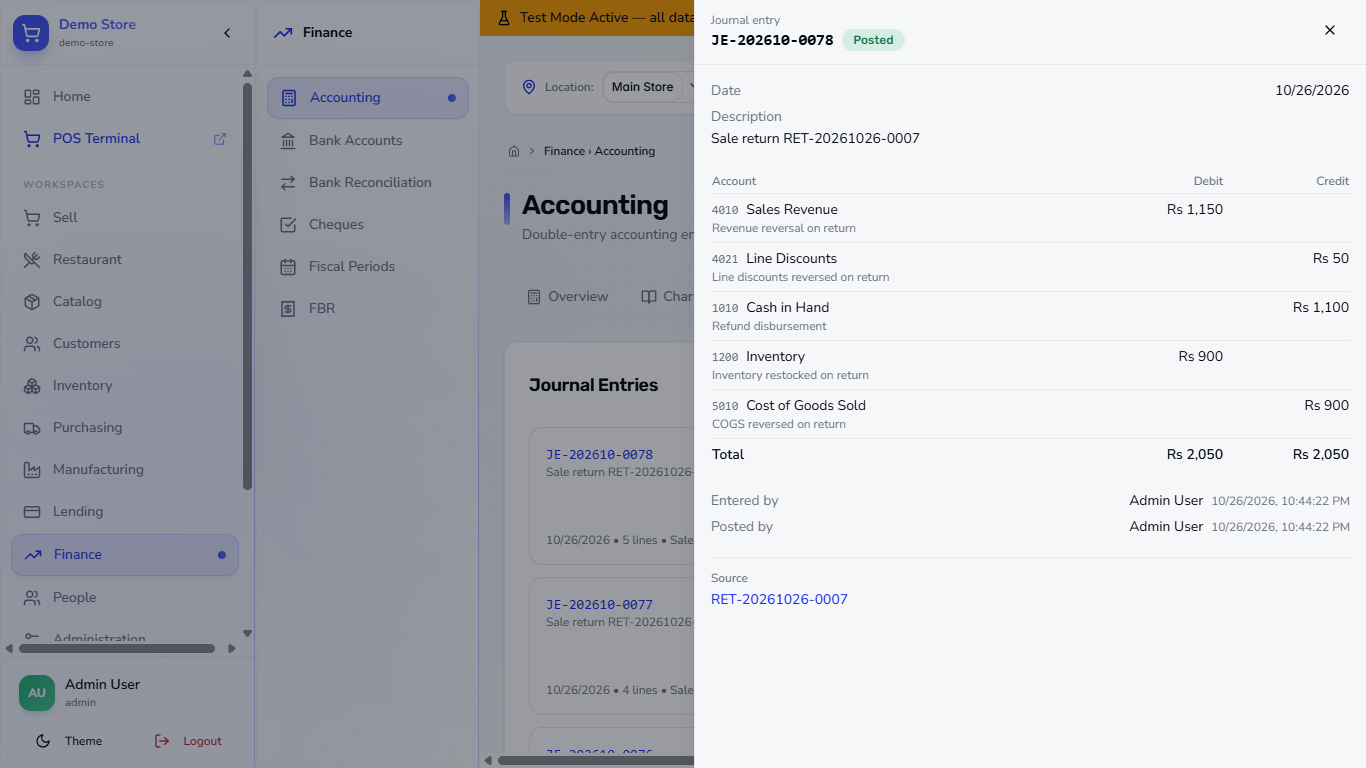
In Finance › Accounting › Journal Entries each refund is a Sale return entry: Sales Revenue is debited, Line Discounts and the account the money left (Cash in Hand, or Cash at Bank for a card refund) are credited, and the stock comes back at cost (Inventory debited, Cost of Goods Sold credited). A line discount comes back too: the Rs 100 discount on the first sale is reversed by Rs 50 in each of its two refunds, and a refund of a line with no discount has no discount line.
Click an entry to open it on the same page: its lines, who entered and posted it, and a Source link to the Sale return (RET-), which in turn links to the invoice. Use Back to return to the entry.
Sale Returns list with the RET- records, their original sale, Refunded via (Card or Cash), status, amount and reason
Journal Entries listing the Sale return journals for the refunds
A Sale return journal entry opened in a drawer with its lines and the Source link to the return
Check it worked
Sell › Returns shows a new RET- line with the right amount, reason and Refunded via.
The row in Sales History reads Refunded once every line is returned.
Journal Entries shows a Sale return entry whose Source link opens the return.
A reprinted receipt of a partly refunded sale shows the refund as a negative payment line.
Common mistakes
Mistake
What you see
Fix
Forgetting the reason
Confirm Refund stays pale
Type a reason
Choosing Cash for a card sale
The money leaves the till instead of going back to the card
Keep Same as the original payment (default)
Looking for a refunded line again
The dialog lists only the quantity that is left
Refund what is listed
Using Refund for a mistaken sale
Cash and stock move as a return
Use Void Sale for a mistake (see the Sales History tutorial)
Quick reference
Item
Meaning / rule
Full Refund
Returns every line of the sale
Partial Refund
Returns the quantities you choose
Refund method
Same as the original payment (default), Cash, Card, Bank transfer, Mobile wallet
RET- number
The return record made by the refund
Frequently asked questions
Can I refund only one item of a sale? Yes. Choose Partial Refund, set the quantity of that item and 0 for the others.
Where does the refunded cash come from? From the cashier's till: the shift's expected cash goes down by the cash refunded. A refund to a card does not touch the till.
Does a refund put the stock back? Yes. The returned quantity is added back to the product's stock.
Does a refund include the line discount I gave? The customer gets back what they actually paid: the dialog offers the price after the line discount, and the books reverse the discount in proportion to what is returned.
Can the same line be refunded twice? No. A line already refunded is not listed again; the dialog shows only the quantity that is left.