How to manage doctor hours, reschedule, the waitlist and cancellations
Booking an appointment is only half of scheduling. This guide shows how to set a doctor's weekly hours, move a booking without clashes, fill a freed slot from the waitlist, handle online requests and cancel a repeat series.
Who it is forFront-desk receptionistTime15 minutesProductHMSLevelIntermediate
Before you start
Steps
1
Set the doctor's weekly working hours
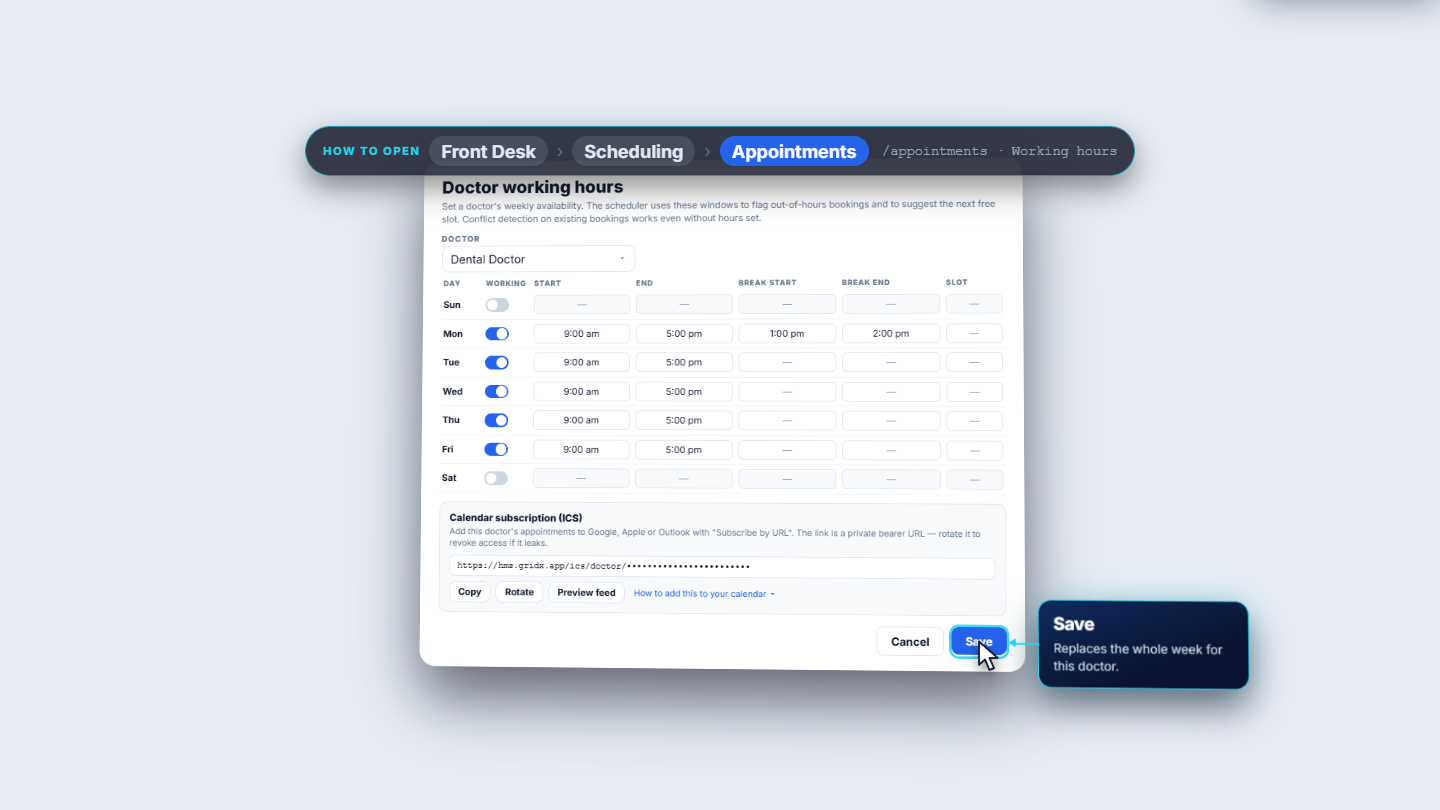
Open Front Desk › Scheduling › Appointments and press Working hours in the header. Choose the doctor in Doctor. For each weekday switch Working on or off and fill Start, End, Break start, Break end and the optional Slot length. For Dental Doctor, Monday to Friday runs 9:00 am to 5:00 pm, Monday has a break from 1:00 pm to 2:00 pm, and Saturday and Sunday are off. Press Save: Availability saved.
Doctor working hours dialog for Dental Doctor
2
Reschedule with the Scheduling check
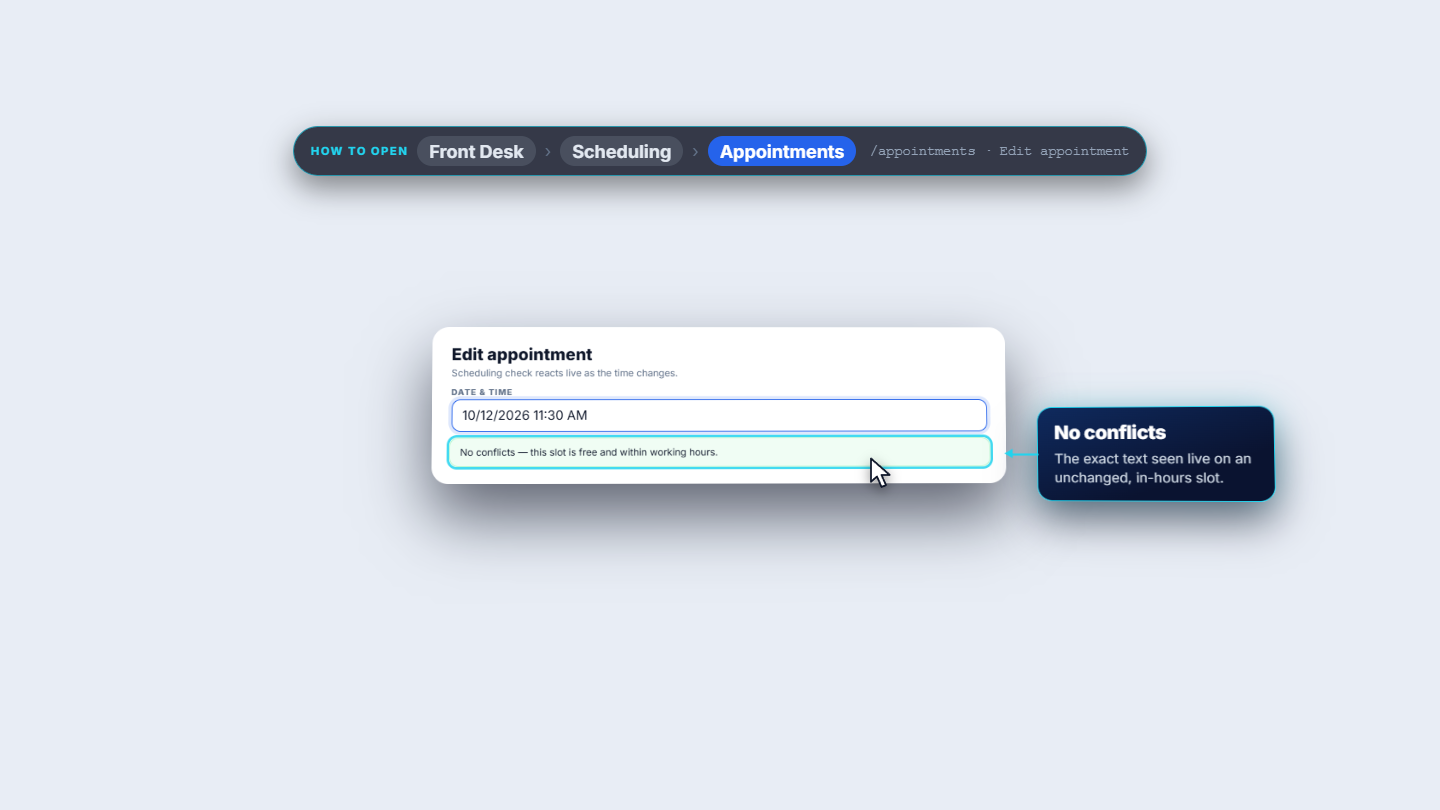
On the appointment row press Edit (for example APT-000064 for Muhammad Hamza Qureshi). The patient stays the same; the doctor is Dental Doctor and the department is locked to the doctor's own, Aesthetics. Change Date & time and watch the Scheduling check under it. A free in-hours time reads No conflicts — this slot is free and within working hours. A clash shows Doctor double-booked with the other appointment (for example APT-000063) and the message that double-booking is blocked for this clinic. If the patient already has a visit then, Patient already has an appointment appears too. Click a suggestion chip, such as Earlier free slot 9:45 or Next free slot 10:15, to fill the time. Press Save changes.
Edit appointment showing No conflicts for the chosen time
3
See the day on the Calendar tab
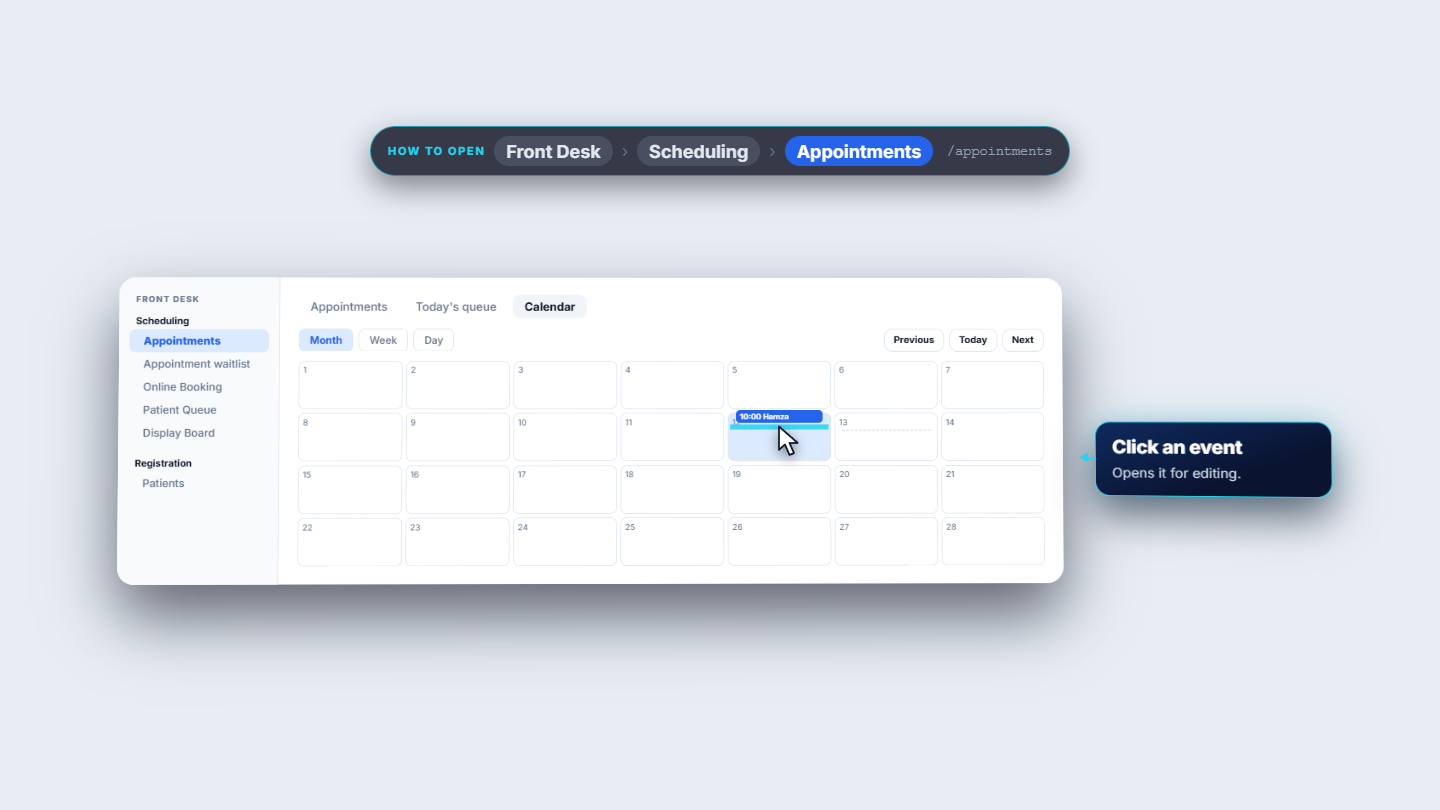
Open the Calendar tab next to Appointments and Today's queue. Switch between Month, Week and Day, and move with Previous, Today and Next. Click an empty slot to start a new booking at that time. Click an existing booking to open it for editing.
Calendar tab in Month view with a 10:00 booking
4
Add a patient to the waitlist
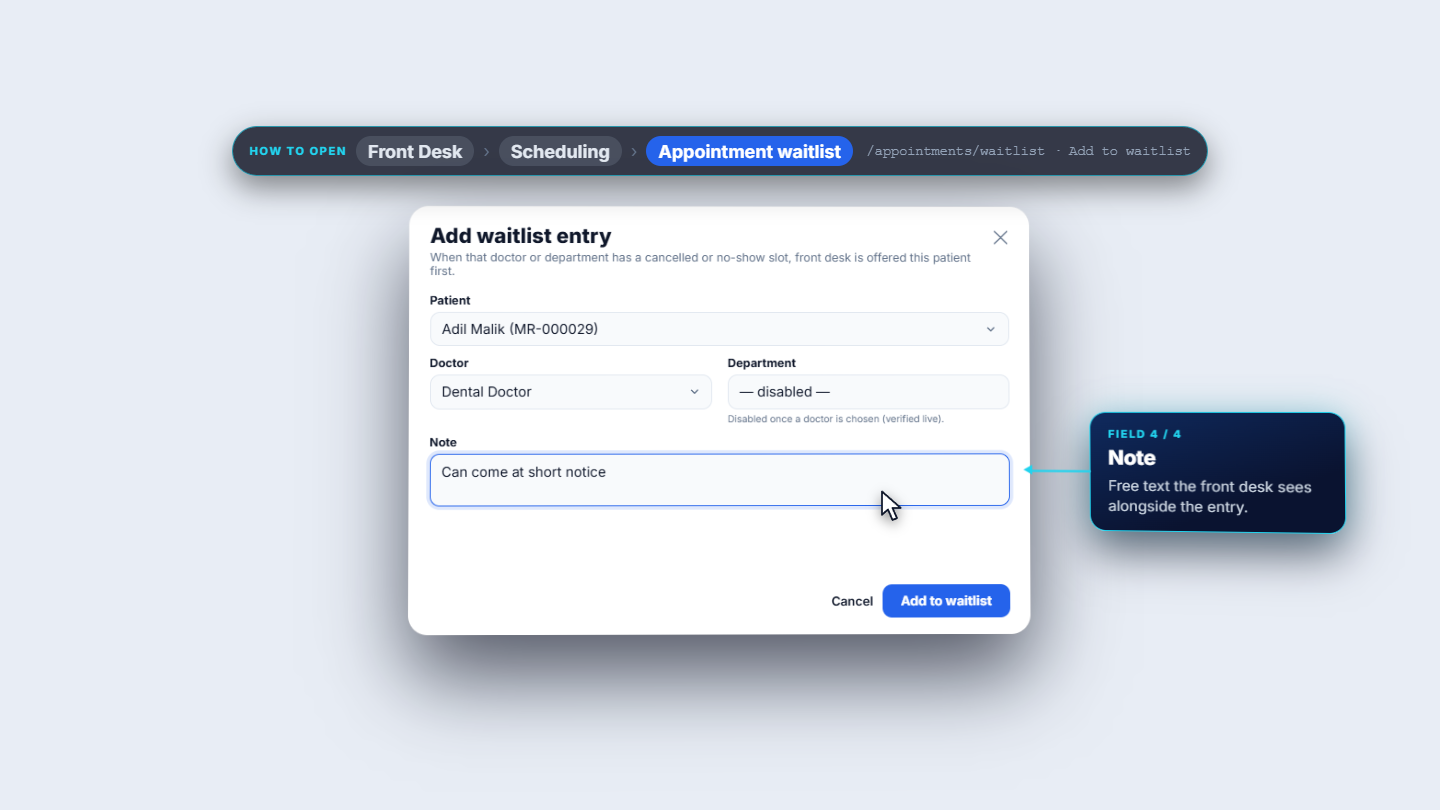
Open Front Desk › Scheduling › Appointment waitlist. The list shows Patient with MR number, Doctor, Department, Waiting since, Note and Actions; the oldest entry is offered first. Press Add to waitlist. In Add waitlist entry choose the Patient (Adil Malik, MR-000029), the Doctor (Dental Doctor) and a Note such as "Can come at short notice", then press Add to waitlist.
Add waitlist entry for Adil Malik with Dental Doctor
5
Free a slot and offer it to the waitlist
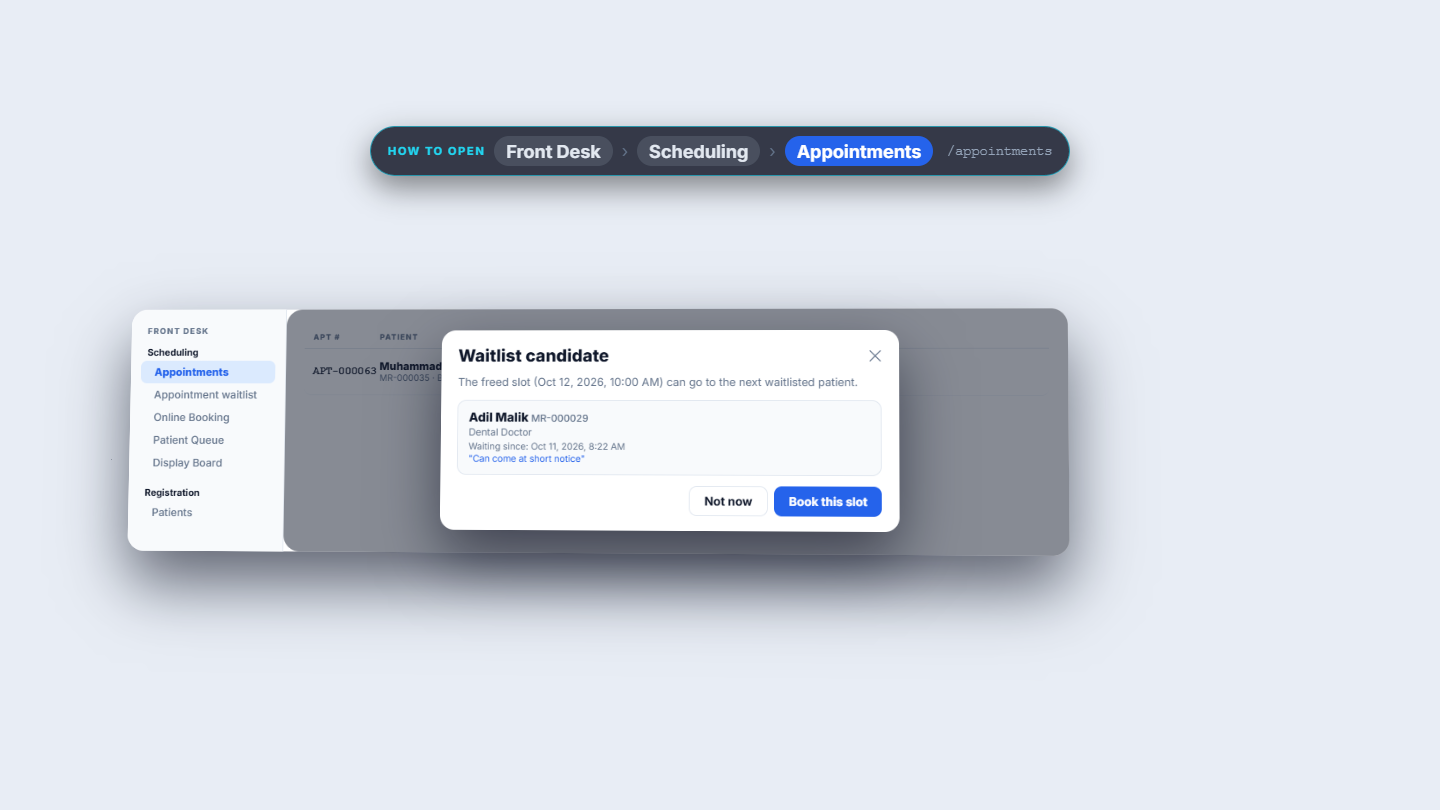
To cancel, press Cancel on the row. The dialog says Cancel appointment? with the number and patient name. Choose a Cancellation reason (Patient asked to cancel, Doctor unavailable, Duplicate booking, Rebooked for another time, or Other), add optional Details, and press Cancel appointment: Appointment cancelled. For a patient who did not come, press No show on the row: Marked as no-show. A Waitlist candidate dialog opens: the freed slot (Oct 12, 2026, 10:00 AM) can go to Adil Malik, who has waited since Oct 11, 8:22 AM. Press Book this slot. The new appointment form opens already filled with the patient, doctor, department and the exact time. Choose the Reason (General checkup) and press Book appointment. Not now leaves the slot open.
Waitlist candidate dialog offering the 10:00 AM slot to Adil Malik
6
Confirm or decline an online booking request
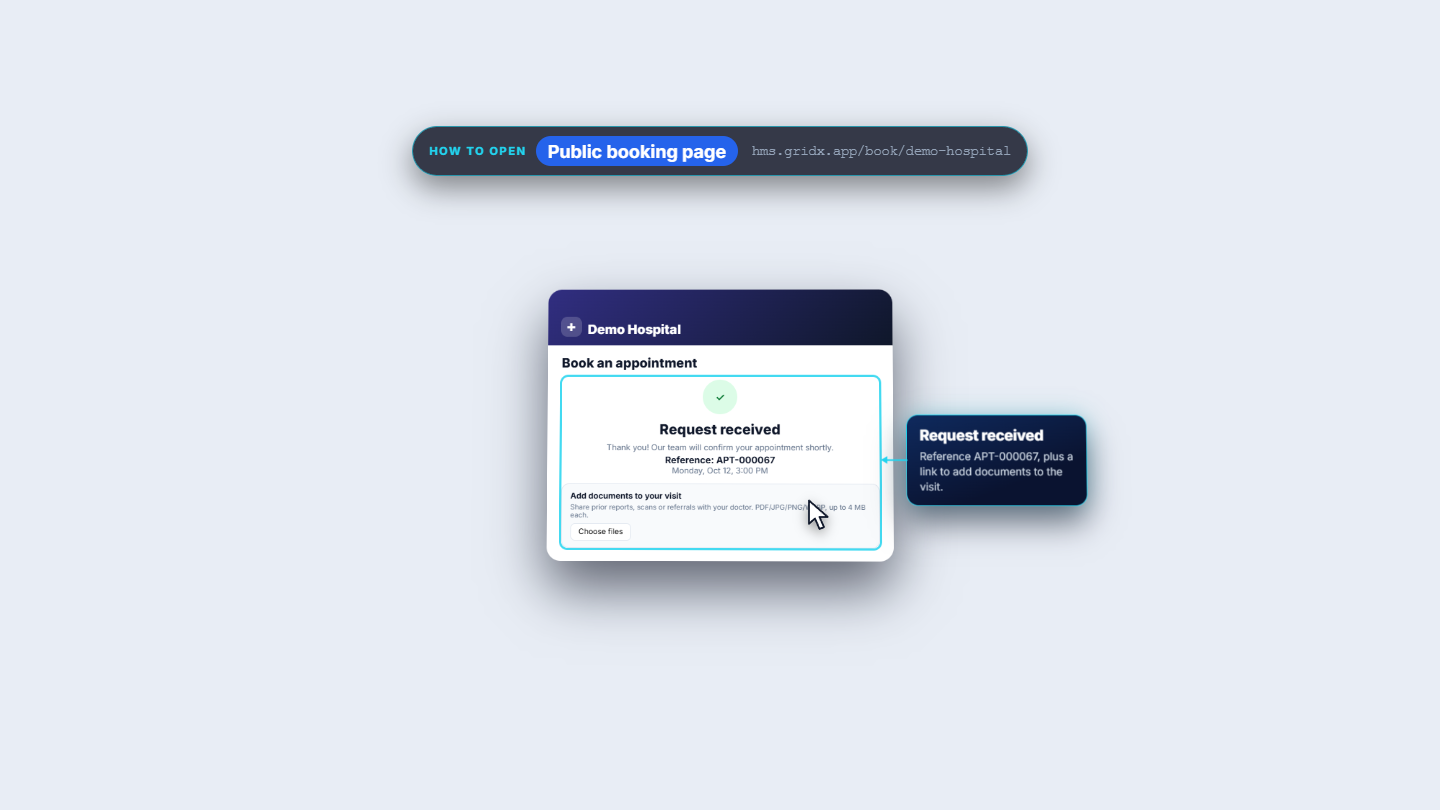
Patients book on the hospital's public page and see Request received with a reference, here APT-000067, and a link to add documents. On your Appointments list that request carries a Web · Pending confirmation badge. Press the Confirm icon directly on the row: Booking confirmed. To refuse one, such as APT-000022, open More actions › Decline, read Decline booking request?, add an optional reason and press Decline request: Booking request declined.
Request received page with reference APT-000067
7
Cancel the rest of a repeat series
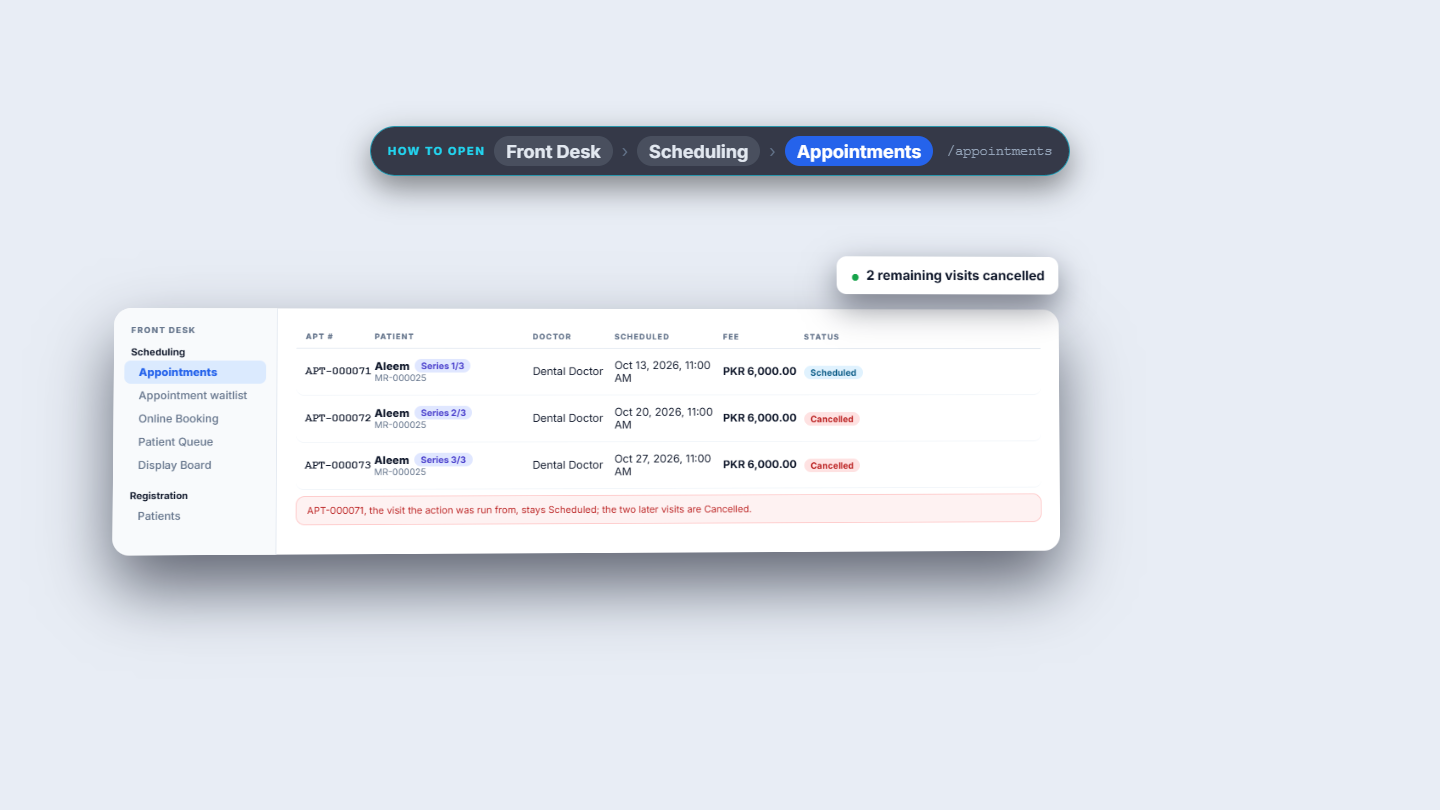
A repeat series, such as Aleem's weekly visits APT-000071, 072 and 073, shows Series 1/3, 2/3 and 3/3 next to the name. On the first visit open the row menu and choose Cancel remaining visits. It says it cancels later scheduled visits in this series, and that this visit is cancelled separately. The first visit stays Scheduled and the two later ones turn Cancelled: 2 remaining visits cancelled.
Series 1 of 3 to 3 of 3 with the later visits cancelled
Check it worked
Availability saved appears, and a time outside the hours now gets the amber warning.
After rescheduling, the list shows the new time and the Scheduling check reads No conflicts.
After No show, the Waitlist candidate dialog names the next patient; after booking, that patient leaves the waitlist.
A confirmed web request loses its Pending confirmation badge.
Common mistakes
Mistake
What you see
Fix
Booking over another visit
Doctor double-booked and the save is blocked
Click an Earlier free slot or Next free slot chip
Doctor without hours set
No out-of-hours warning
Set Working hours in Step 1
Waitlist entry has both doctor and department
Department is disabled once a doctor is chosen
Pick one: the doctor, or only the department
Waiting for a web request to appear on its own
Web · Pending confirmation stays
Press the Confirm icon on the row
Quick reference
Item
Meaning
Working hours
A doctor's weekly availability; drives warnings and suggestions
Scheduling check
Live conflict, out-of-hours and past-time check while you edit a time
Override
Lets a blocked time be saved when you give a reason of at least 5 characters
Waitlist
Patients waiting for a cancelled or unused slot; oldest first
Series badge
Shows the visit's place, such as 1/3, in a repeat booking
Frequently asked questions
Why does the Scheduling check say Doctor double-booked? The doctor already has another appointment at that time, and this clinic blocks double-booking. Click an Earlier free slot or Next free slot chip to fill a free time.
How do I save a time in the past? Switch on Override and give a Reason of at least 5 characters. Without it, Save changes does not work for a past time.
How does the waitlist decide who gets a freed slot? The oldest entry is offered first. A doctor entry matches only that doctor's freed slots, and a department-only entry matches when the freed slot had no doctor.
Does Cancel remaining visits cancel the visit I am on? No. The first visit stays Scheduled and only the later visits in the series turn Cancelled. Visits already in progress are left alone.