How to take card, JazzCash/Easypaisa, QR, bank transfer and cheque payments
Not every customer pays in cash. This guide shows how to take a sale by card, mobile wallet, QR code, bank transfer or cheque, what the cashier must type for each, and where the money shows up afterwards.
Who it is forCashier and store managerTime12 minutesProductPOSLevelBeginner
Before you start
Steps
1
Open the Payment dialog
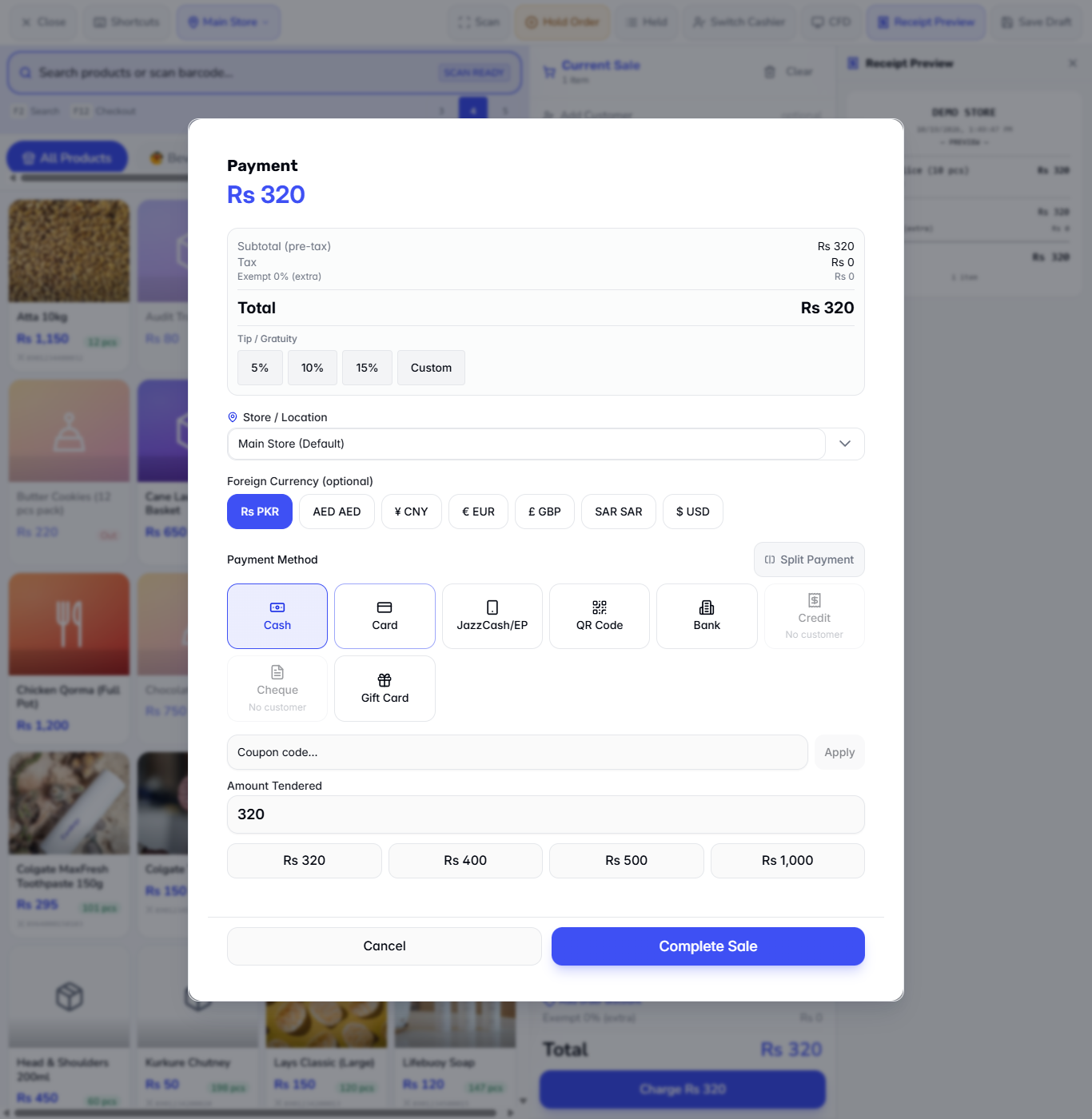
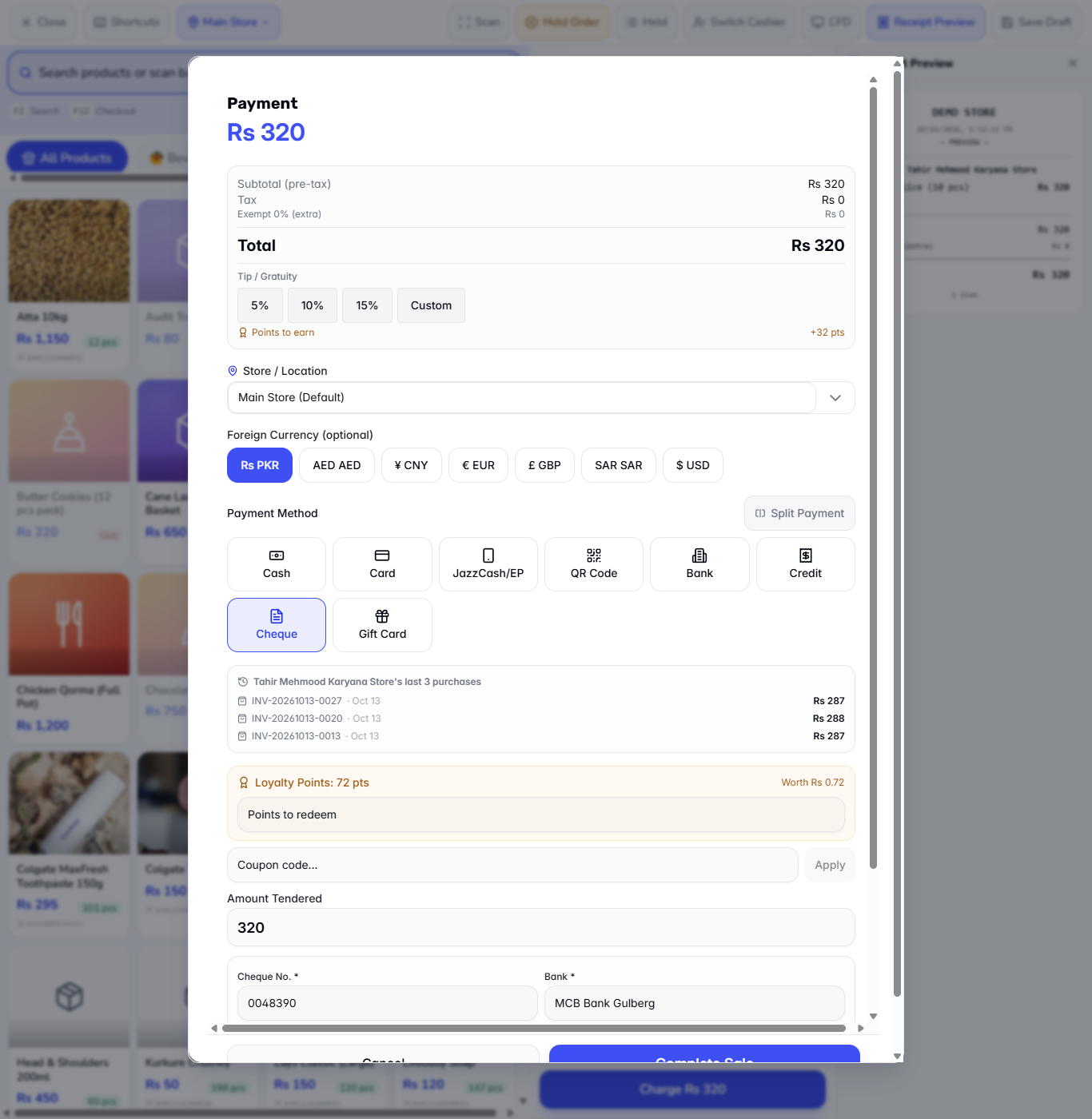
Add the product to the cart and press Charge Rs 320. The Payment dialog shows the Subtotal (pre-tax) Rs 320, Tax Rs 0 and the Total Rs 320. If a promotion applies to your cart, a Promotions Applied row appears above the tax and lowers the total; for one Cheese Slice on a weekday none does. Under Payment Method you see eight choices in this order: Cash, Card, JazzCash/EP, QR Code, Bank, Credit, Cheque and Gift Card.
Payment dialog with the eight payment methods
2
Take a card payment
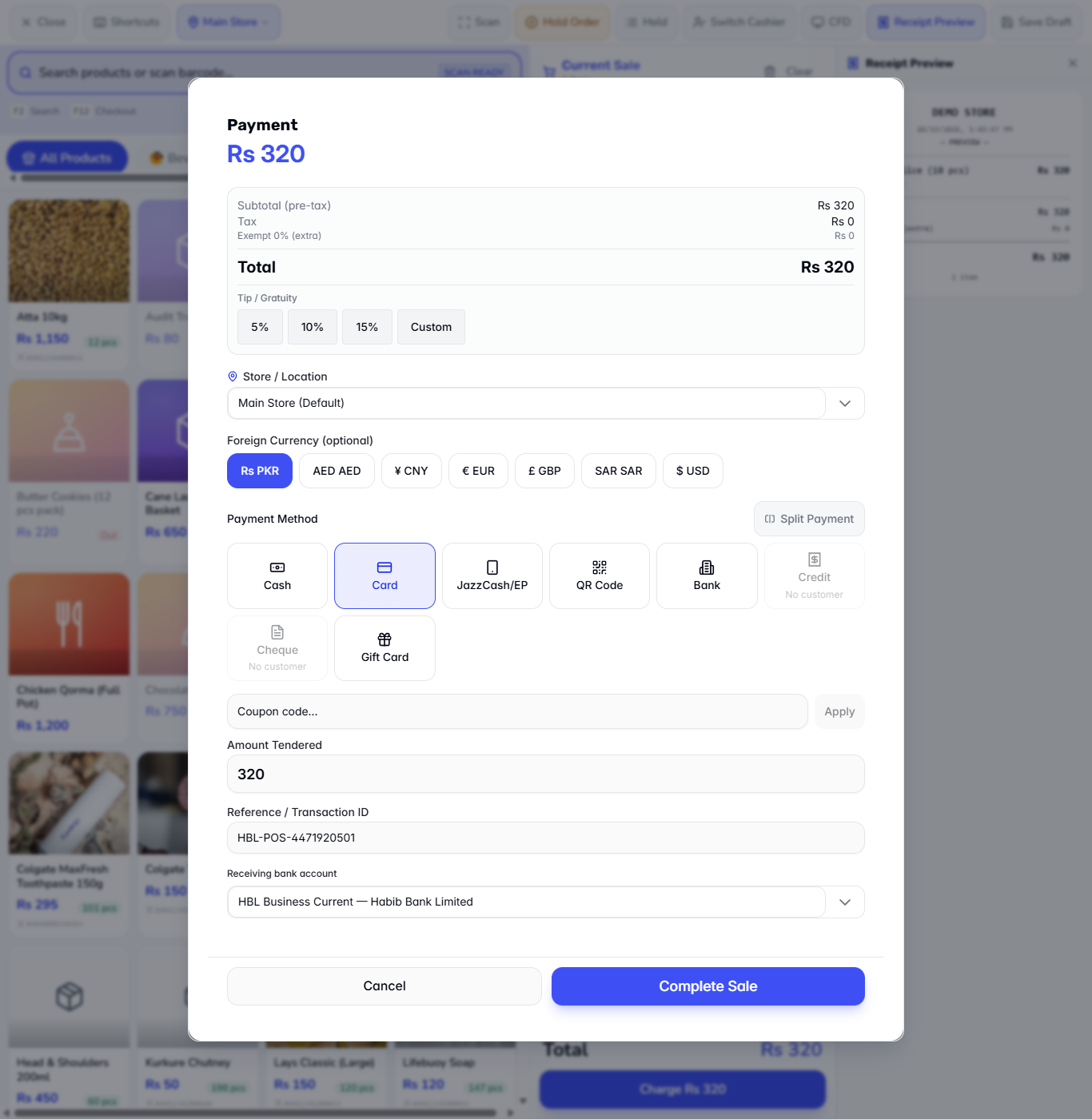
Press Card. Two boxes appear: Reference / Transaction ID and Receiving bank account. Type the reference printed on the card machine slip, for example HBL-POS-4471920501. Check that the account is HBL Business Current — Habib Bank Limited, then press Complete Sale. The app says Sale completed! Invoice: INV-20261019-0024.
Card selected with the reference and receiving bank account
3
Take a JazzCash or Easypaisa payment
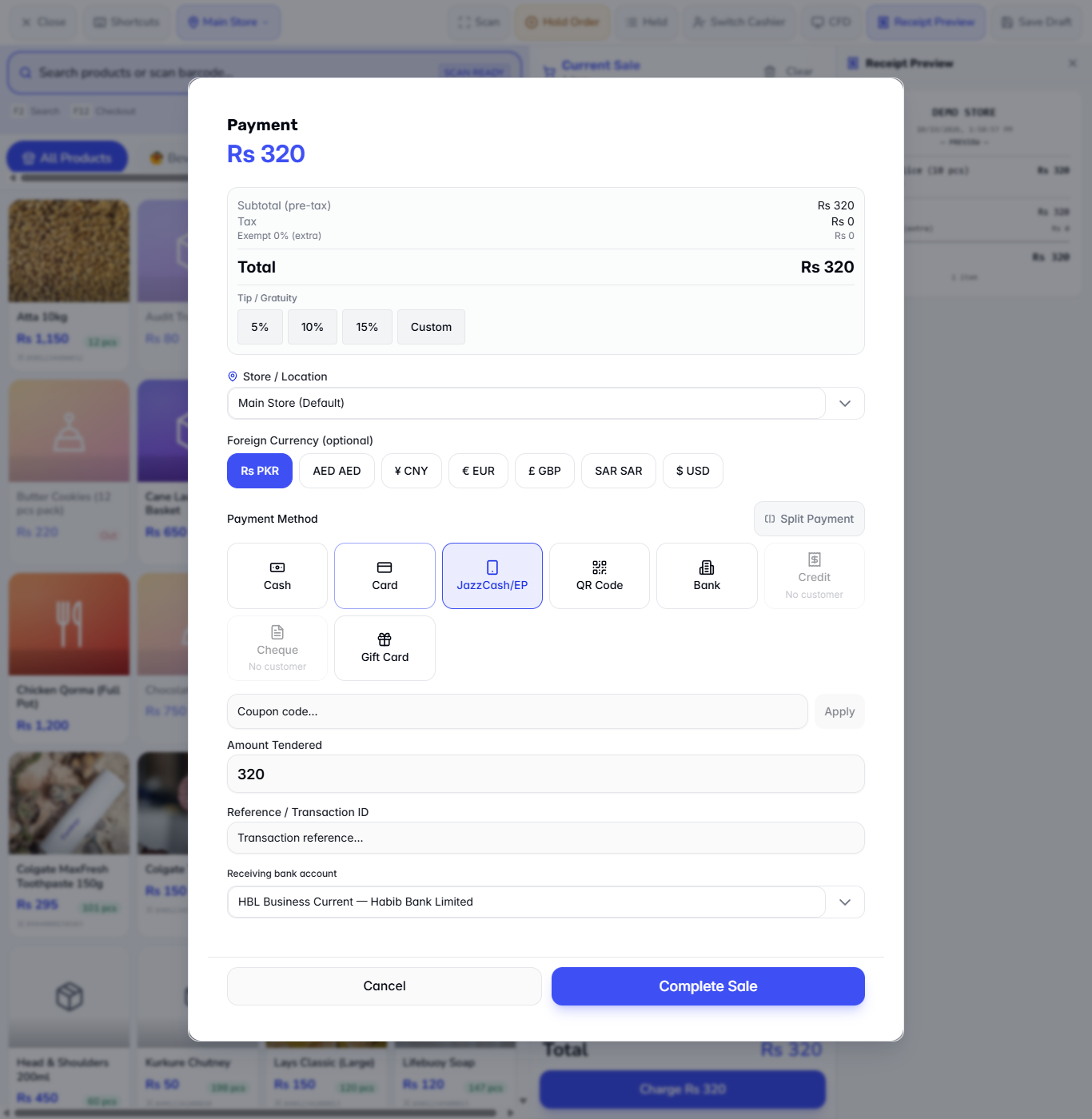
Press JazzCash/EP. The same two boxes appear. Type the transaction ID shown on the customer's phone, for example JC-T2610190742918, confirm the Receiving bank account and press Complete Sale. QR Code works the same way: type the payment confirmation number (for example RAAST-QR-77120934) and check the receiving account.
JazzCash/EP selected with the wallet transaction ID
4
Take a bank transfer
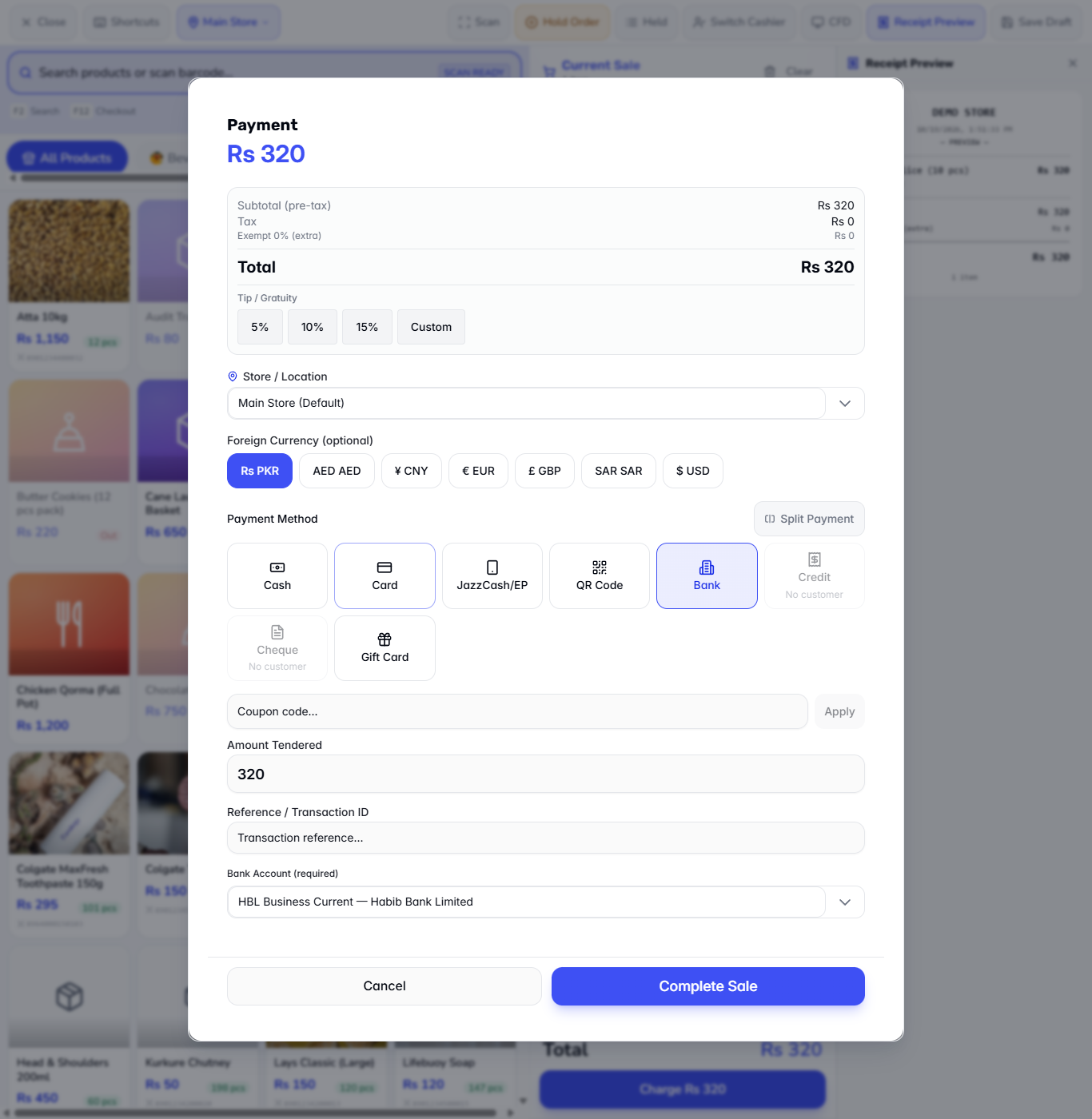
Press Bank. Here the box is called Bank Account (required). Open it and choose the account the customer paid into, for example HBL Business Current. Type the transfer reference, such as IBFT-HBL-20261019-558204, and press Complete Sale.
Bank Account dropdown listing the active accounts
5
Take a cheque
First add the customer to the cart, here Tahir Mehmood Karyana Store. Search for the customer in the cart, press Charge, then Cheque. The dialog also shows the customer's last three purchases and their loyalty points. Fill in Cheque No. (0048390), Bank (MCB Bank Gulberg) and the Cheque date. The Drawer name is filled with the customer's name. Due date (optional) is for a post-dated cheque. Press Complete Sale.
Cheque details for Tahir Mehmood Karyana Store
6
Follow the cheque in the register
Open Finance › Cheques. The new cheque 0048390 is listed as RECEIVABLE for Tahir Mehmood Karyana Store, Rs 320, status Pending, with Deposit and Clear buttons. Use them when you take the cheque to the bank and when it is honoured.
7
Read the receipt
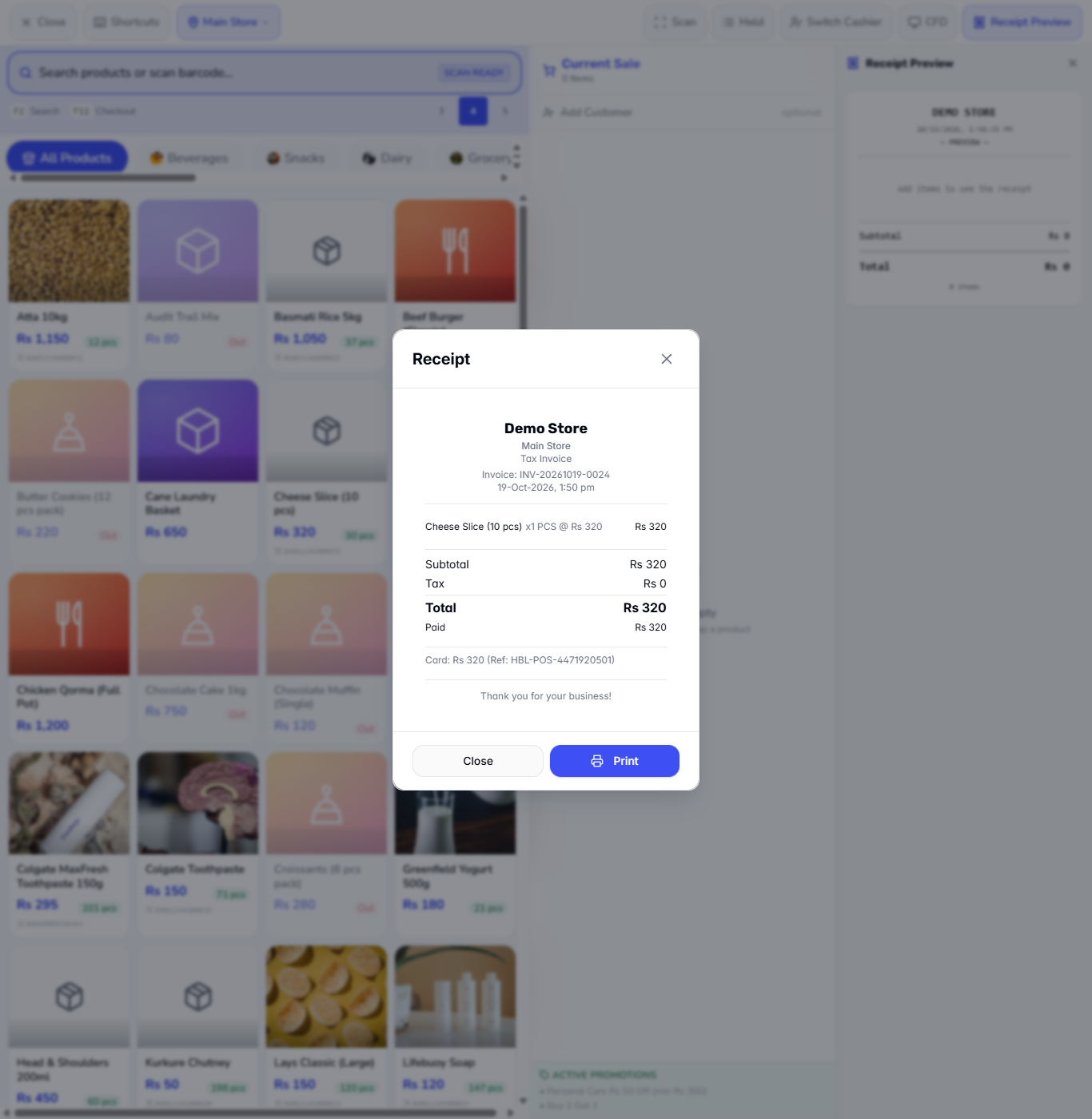
After each sale the receipt lists the tender by name with its reference, for example Card: Rs 320 (Ref: HBL-POS-4471920501) or Cheque: Rs 320 (Ref: 0048390). A cheque receipt also shows the customer and the loyalty points earned. It ends with Thank you for your business!; where the shop reports to FBR, the FBR invoice number is printed too. Press Print or Close.
Receipt showing the tender line with its reference
8
Tell the sales apart in Sales History
Open Sell › Sales History. The PAYMENT METHOD column shows Card, QR Code, Bank transfer, JazzCash/EP, Cheque or Cash for each invoice, and you can filter by Payment Method. The print button on a row reopens any receipt.
9
See where the money went
Open Finance › Accounting › Journal Entries. Each card, wallet, bank or QR sale of Rs 320 debits Cash at Bank Rs 320 and credits Sales Revenue Rs 320, and records the cost of goods against Inventory (Rs 250 in each case here), so the entry balances at Rs 570. The cheque sale debits Accounts Receivable instead of Cash at Bank. If a promotion or discount applied, a Promotional Discounts or Line Discounts line would appear as well. On Finance › Accounting › Trial Balance the totals stay equal and show Balanced, and Finance › Bank Accounts shows the receiving account (for example HBL Business Current) higher by each sale.
Check it worked
Each sale showed a toast like Sale completed! Invoice: INV-20261019-0024.
The receipt names the tender and its reference.
Sales History shows the right PAYMENT METHOD for each invoice.
Finance › Cheques lists the cheque as Pending.
Finance › Bank Accounts shows the receiving account's balance went up by each sale.
Common mistakes
Mistake
What you see
Fix
Reference left empty on Card, JazzCash/EP or Bank
Transaction reference is required for card/bank/wallet payments
Type the slip, wallet or transfer reference
No bank account chosen for Bank
Select a bank account for bank transfer payments
Choose an account, or add one in Finance › Bank Accounts
Cheque is greyed out
No customer under the button
Add a customer to the cart first
Quick reference
Item
Meaning / rule
Reference / Transaction ID
Slip, wallet or transfer number; required for Card, JazzCash/EP and Bank
Receiving bank account
The shop account that receives the money; its balance rises by the sale
Cheque tender
Creates a receivable cheque, Pending until deposited and cleared
Cash at Bank
Account debited by card, wallet, bank and QR sales
Accounts Receivable
Account debited by a cheque sale until it clears
Frequently asked questions
Why does the app refuse my card sale? Card, JazzCash/EP and Bank payments need a reference. If the Reference / Transaction ID box is empty, the app says Transaction reference is required for card/bank/wallet payments. Type the slip, wallet or transfer reference and press Complete Sale again.
Why is Cheque greyed out in the Payment dialog? A cheque sale needs a customer. Cheque (and Credit) say No customer until a customer is on the cart, so add the customer first.
Where does the money from a card or wallet sale show up? In the Receiving bank account you chose. Its balance in Finance › Bank Accounts goes up by the sale, and the journal entry debits Cash at Bank. A cheque sale is booked to Accounts Receivable until the cheque is cleared.